 |
plc.myforum.ro
PLCs users www.plc.myforum.ro!
|
| View previous topic :: View next topic |
| Author |
Message |
valz
Member 3


Joined: 26 Jul 2015
Posts: 771
|
 Posted: 14/06/2023 20:59 Post subject: WinCC Unified Runtime on the runtime device Posted: 14/06/2023 20:59 Post subject: WinCC Unified Runtime on the runtime device |
 |
|
Settings for communication with WinCC Unified Runtime on the runtime device
https://support.industry.siemens.com/cs/document/109806850/
Which settings do I have to make for the communication with WinCC Unified Runtime on the runtime device? You have installed TIA Portal with WinCC Unified PC (Engineering) and/or WinCC Unified PC Runtime and configured a WinCC Unified Comfort Panel. Communication between WinCC Unified devices is via the HTTPS protocol. The requirements are as follows.
1. Product Version
2. Required User Groups
3. Preparations: Determine Device Designation
4. Manual Creation of Device Certificate and Web Server Certificate
5. Installation of the Certificate Authority (CA)
7. WinCC Unified Configuration
8. Settings in the Project
9. Remove Certificates If Required
10. Known Behaviors When Requirements Are Missing
You need appropriate security certificates for encrypted communication with WinCC Unified.
This applies to the access of a terminal device (WinCC Unified RT in the browser client) to the WinCC Unified PC Runtime (web server) locally as well as remotely via a network. The same applies to access to the simulation of the WinCC Unified PC Runtime as well as to the simulation of a WinCC Unified Comfort Panel. Access to the runtime in a WinCC Unified Comfort Panel is already encrypted in itself.
Accordingly, check the following points before downloading a project for the first time or starting the Unified Runtime:
1. Product Version
As far as possible, make sure that
The latest update of TIA Portal and WinCC Unified is installed.
The same version including update is installed on the Engineering Station and on the Runtime Station or the Unified Panel.
Update downloads:
V17:
WinCC Panel Images
https://support.industry.siemens.com/cs/document/109746530/
WinCC Unified PC Runtime V17
https://support.industry.siemens.com/cs/document/109792166/
WinCC Unified Engineering V17 (TIA Portal)
https://support.industry.siemens.com/cs/document/109784441/
V18
WinCC Panel Images
https://support.industry.siemens.com/cs/document/109746530/
WinCC Unified PC Runtime V18
https://support.industry.siemens.com/cs/document/109807123/
WinCC Unified PC Engineering V18 (TIA Portal)
https://support.industry.siemens.com/cs/document/109817218/
2. Required User Groups
Make sure that the Windows user to be logged in is a member of the following user groups:
RTIL Tracing Users
Siemens TIA Engineer
SIMATIC HMI
SIMATIC HMI VIEWER
umcd_domain_manager
umcd_dsso
umcd_um
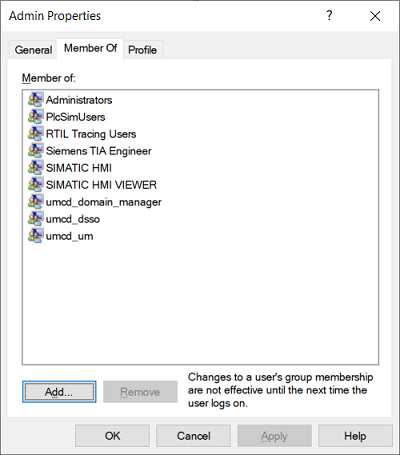
Fig. 01
The settings are located in the Windows Control Panel under "Administrative Tools > Computer Administration > Local Users and Groups > Users".
3. Preparations: Determine Device Designation
Determine the device information as required:
The relevant computer name
Windows 10 > Start > Right-click > System > Device name
And/or the IP address of the network card for the client connection:
Windows 10 > Start > Right-click > Network connections > [specific network card] > Properties > Ipv4 address
4. Manual Creation of Device Certificate and Web Server Certificate
If you access WinCC Unified Runtime exclusively locally on the same PC, you can use a self-signed certificate.
In this case, proceed with item "7. WinCC Unified Configuration".
Warning!
There is a security risk with remote access through a self-signed certificate:
Further information about this is available in the manual here:
V17 Installing a certificate in the browser when accessing via web client (Unified PC)
https://support.industry.siemens.com/cs/ww/en/view/109794204/142577146507
V18 Installing a certificate in the browser when accessing via web client (Unified PC)
https://support.industry.siemens.com/cs/ww/en/view/109813308/142577146507
Below we show how to făcute the certificates for a secured connection using a root certificate (CA).
Usually the root certificate is named "Siemens.Automation.WinCCUnified ProjectCA".
4.1 Open the Unified Certificate Manager and create a new device certificate, via the pop-up menu (right-click on the CA) > "Add device...".
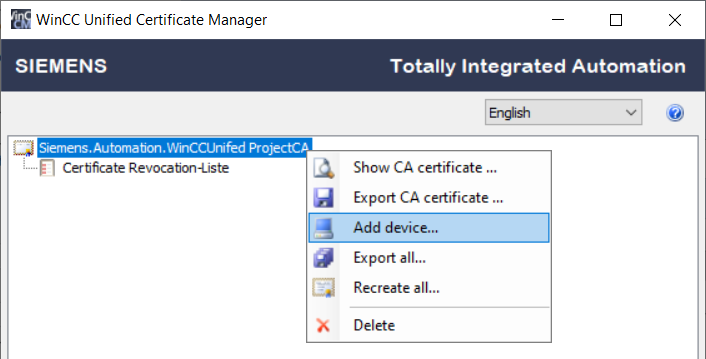
Fig. 02
For Device name, enter the computer name and/or the IP address of the computer as appropriate.
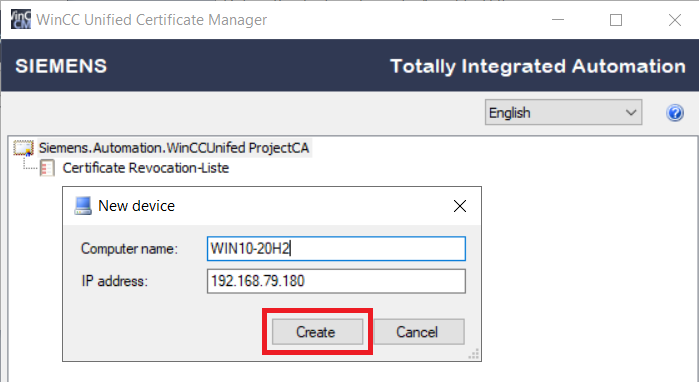
Fig. 03
Notes
Use your own computer name instead of the sample computer name in Fig. 03.
The computer name must not be longer than 15 characters.
If your computer is located in a domain environment, do not enter the computer's device name as the device name, but the full device name.
4.2 Select the device certificate and create a new web server certificate for it via the pop-up menu. In the "New web server certificate" dialog window you can set the "Service life" to a maximum value of 600 as required.
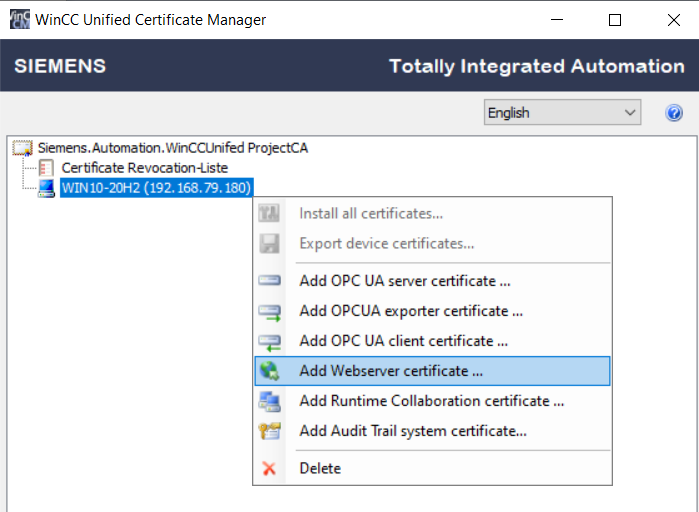
Fig. 04
4.3 Install the device certificate and the web server certificate via the pop-up menu of the device certificate. Select "Install all certificates...".
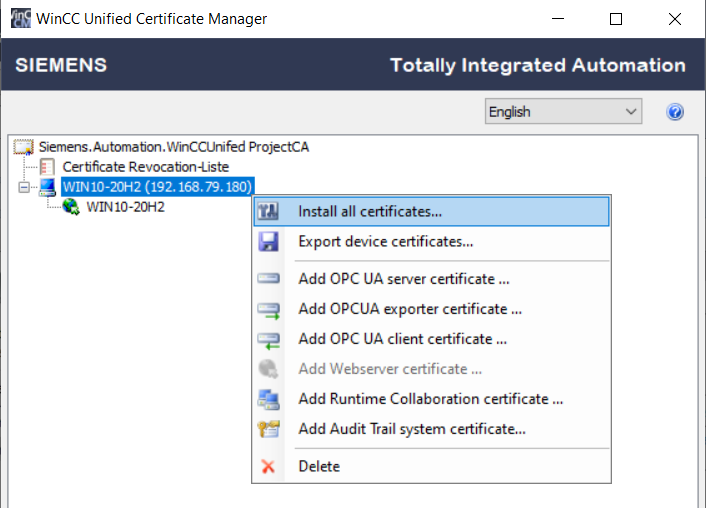
Fig. 05
5. Installation of the Certificate Authority (CA)
5.1 Select "Siemens.Automation.WinCCUnified ProjectCA" and in the pop-up menu select "Display CA certificate".
5.2 Click "Install Certificate..."
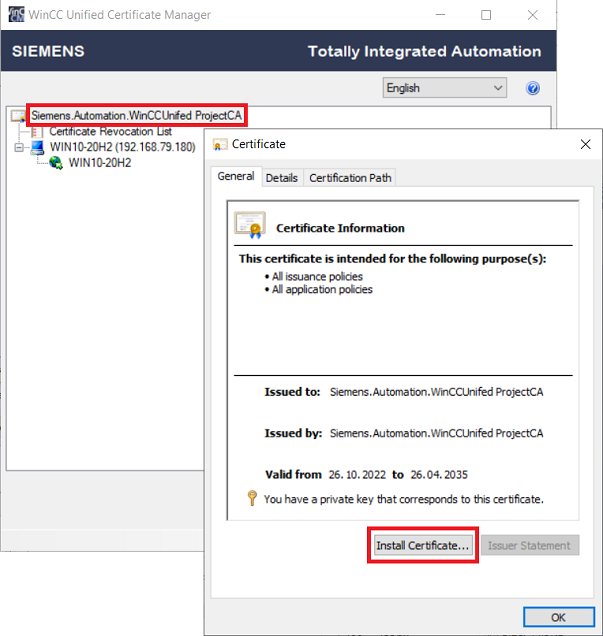
Fig. 06
5.3 In the wizard you select "Local Computer" and click "Next".
5.4 Select "Place all certificates in the following store" and click "Browse". Here you select "Trusted Root Certification Authorities", click "OK" and then "Next" and "Finish".

Fig. 07
6. Checking the Certificates
Check whether the certificates have been installed correctly in the Internet Information Services (IIS). To do this, open the Internet Information Services IIS Manager under Administrative Tools in the Control Panel. Select "Server Certificates". The CA and the device certificate must be displayed here, issued by "Siemens.Automation.WinCCUnified ProjectCA".
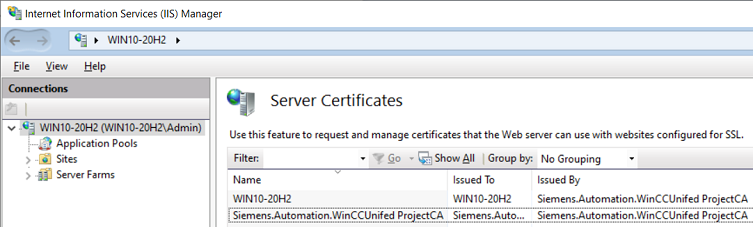
Fig. 08
7. WinCC Unified Configuration
The configuration is the requirement for starting WinCC Unified Runtime. To do this, start the "WinCC Unified Configuration" ("Program Files/Siemens/Automation/WinCCUnified/WebConfigurator/ConfigurationFrontend.exe").
Make sure that a valid certificate for the web page is set in the WinCC Unified Configuration:
7.1 Select certificate
If the certificate installed in point 4 was created for the computer name, select the certificate under "Select an existing certificate".
If the certificate installed under point 4 was created exclusively for the IP address, you must check the box "Use IP address instead of computer name". Under "Select an existing certificate", select the certificate with the IP address.
Note
If a certificate is available in the IIS Manager, but it cannot be selected in the WinCC Unified Configuration, delete the certificate in the IIS Manager and then recreate the certificate manually (see Chapter 4).
If you only access WinCC Unified Runtime locally, you can alternatively select "Create a new certificate".
With this, you create a self-signed certificate without trusted certification.
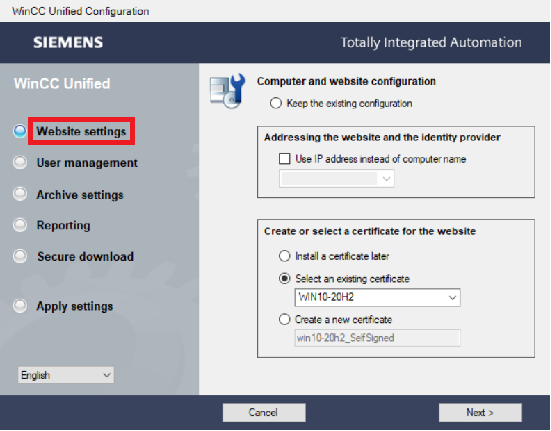
Fig. 09
7.2 Select "Use configuration downloaded via TIA Portal" under User management.
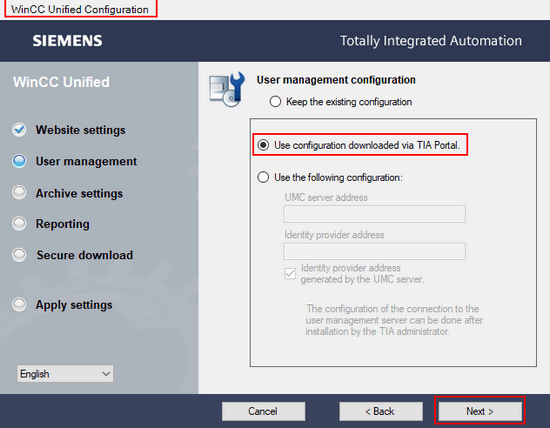
Fig. 10
7.3 Keep the settings for archives and reporting. Do not change these.
7.4 Make sure that the checkbox for "Activate secure download" in the WinCC Unified Configuration is set in the same way as in the runtime settings in the HMI project under "Encrypted transfer". Close the configuration with "Next" and "Apply".
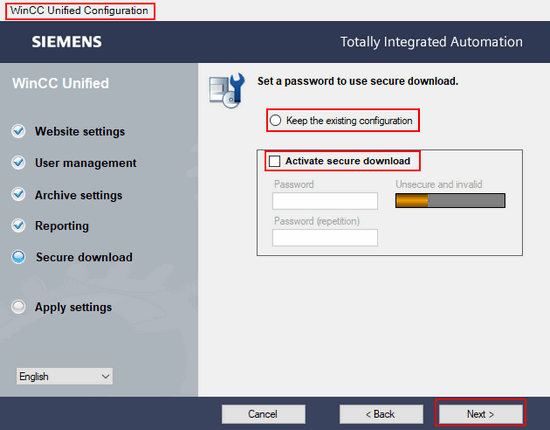
Fig. 11
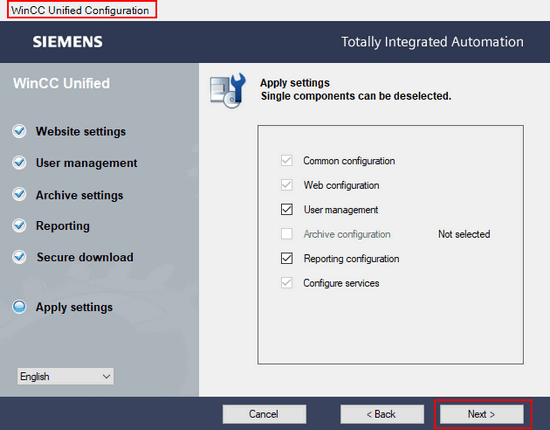
Fig. 12
8. Settings in the Project
8.1 In the TIA Portal, open the project that you want to download/simulate.
8.2 Open the "Users and roles" function under Security settings.
8.3 If necessary, fabricate a new local user and assign a password.
8.4 Assign a role to the user.
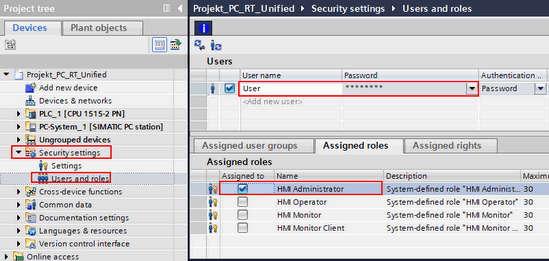
Fig. 13
Note
If you assign numeroase roles to a user, the user will always have only the rights of the role with the lowest rights.
Example: You have assigned all roles to the user. Although the user is assigned the "HMI Administrator" role, he/she will not be able to operate the runtime, but only observe it, since he/she is also assigned the "HMI Monitor Client" role.
After you have made all the settings, compile and load the project.
When loading, make sure that you select the "Reset to start values" option under "Runtime values". This transfers any changes to the user administration from the project.
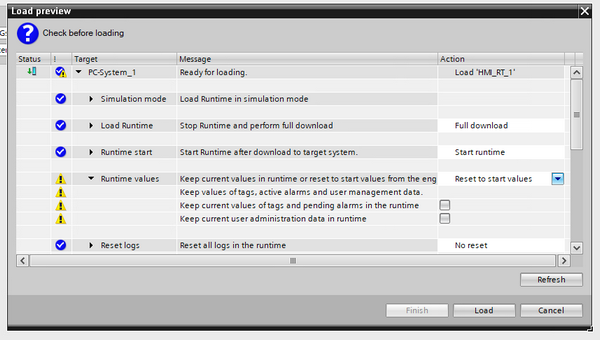
Fig. 14
After starting the Runtime, the user connects to WinCC Unified Runtime via a browser. In the browser, the user logs in with a user from the TIA Portal project.
9. Remove Certificates If Required
If the settings listed above are not sufficient to enable the encrypted connection, you might have to remove old certificates.
Procedure
Open the Internet Information Services (IIS) Manager under Control Panel > Administrative Tools.
Select "Server Certificates" (certificates with name "UMC ..." should be kept!).
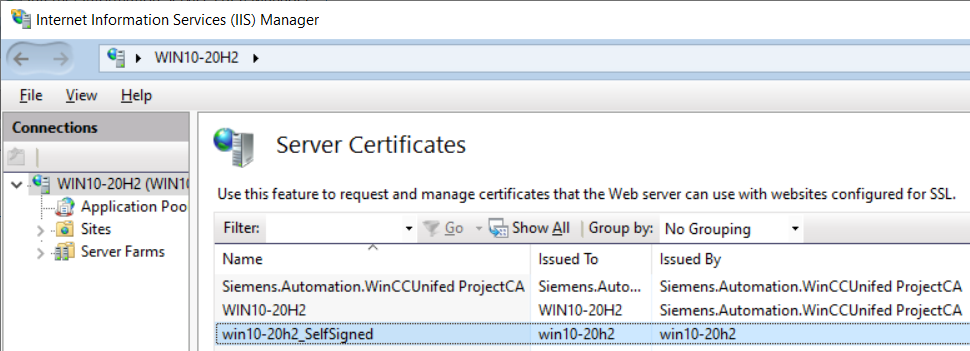
Fig. 15
Remove expired and self-created certificates (usually recognizable by the "SelfSigned" suffix).
If necessary, go back to point 4 and făurite the certificates again.
In exceptional cases, it may also be necessary to delete the root certificate:
"Issued By": "Siemens.Automation.WinCCUnified ProjectCA"
How to create a new root certificate is described here in the manual:
https://support.industry.siemens.com/cs/ww/en/view/109794204/136500843019
https://support.industry.siemens.com/cs/ww/en/view/109813308/158216635915
10. Known Behaviors When Requirements Are Missing
If the settings listed above have not been made correctly, the following behaviors or symptoms may occur when accessing WinCC Unified Runtime from a browser:
10.1 The website cannot be accessed
After entering the URL of the web server, the browser displays, for example:
The website is unavailable (Chrome)
...unfortunately this page is unavailable (Edge)
In this case, first test the connection of the browser with Runtime locally on the web server PC. If you get the same message here, check all the settings described above again. If you get the message only on a remotely connected device, check the network connection.
10.2 Instead of the WinCC Unified Runtime home page, only "Internet Information Services" (IIS) is displayed (Windows / Microsoft)
Also check the settings in this entry:
https://support.industry.siemens.com/cs/document/109773589/
Which Windows functions must be activated in order to be able to install SIMATIC WinCC Unified?
10.3 You get the message: "The url https://[host name or address]/umc-sso//swaclogin is unavailable."
You may also want to refer to this entry:
How do you prevent the error message "SwacLogin: Error during component/s creation" from appearing when starting the WinCC Unified PC Runtime?
https://support.industry.siemens.com/cs/document/109774151/
10.4 Unsecure connection
After entering the URL of the web server, the browser displays for example:
"This site is not secure" (Chrome)
"Your connection is not private" (Edge)
Such a message usually appears if the certificates are not installed or not installed correctly.
You may also want to refer to this entry:
https://support.industry.siemens.com/cs/document/109810490/
How do you avoid the message "This site is not secure" in the browser with WINCC Unified PC RT (TIA Portal)? |
|
| Back to top |
|
 |
|
|
You cannot post new topics in this forum
You cannot reply to topics in this forum
You cannot edit your posts in this forum
You cannot delete your posts in this forum
You cannot vote in polls in this forum
|
Powered by phpBB © 2001, 2005 phpBB Group
Fa-ti si tu propriul forum GRATUIT, pe www.myforum.ro |
 FAQ
FAQ Search
 Memberlist
 Usergroups
 Register
 Profile
 Log in to check your private messages
 Log in


