 |
plc.myforum.ro
PLCs users www.plc.myforum.ro!
|
| View previous topic :: View next topic |
| Author |
Message |
valz
Member 3


Joined: 26 Jul 2015
Posts: 771
|
 Posted: 19/09/2022 18:55 Post subject: WinCC Unified Runtime objects of the active screen list Posted: 19/09/2022 18:55 Post subject: WinCC Unified Runtime objects of the active screen list |
 |
|
How do you create a list of the names of all objects of the active screen in WinCC Unified Runtime?
https://support.industry.siemens.com/cs/document/109812101/
In WinCC Unified Runtime (PC RT and Comfort Panels), you use JavaScript to determine the names of the objects of an active screen and display them on the screen.
1. Application case
You want to determine certain or all used objects of the active screen and write their names in a list.
You want to display this list formatted in a text field.
2. Download of the sample project and explanation of the application
Download: Login required https://support.industry.siemens.com/cs/attachments/109812101/109812101_WinCC_Unified_V17_project_example_ListingElements.zip
The sample project is based on WinCC Unified V17 Update 4.
The HMI screen "Screen_2'" uses objects with "classified" names, such as FG_Select_Button or BG_Square, for visualization.
This allows you to filter out a specific object class by setting a parameter if required, for example, all objects of the class "FG" or "BG".
A script transfers the filter parameter to a global function. The global function determines all objects of the screen in question using this parameter, writes their names as text elements in a list and returns them to the calling script.
3. Creation of the global function
For a new project, confecționate a new global module in the project navigation under the device (in the example "HMI_RT_01 [WinCC Unified PC RT]"), named "ScreenElements" in the sample project.
Add a new function in the global module. In the sample project, the function has been named "toString".
Create the following parameters in the function:
"elementSeperator" to separate the individual text elements from each other.
"regexp" for the filter criterion.
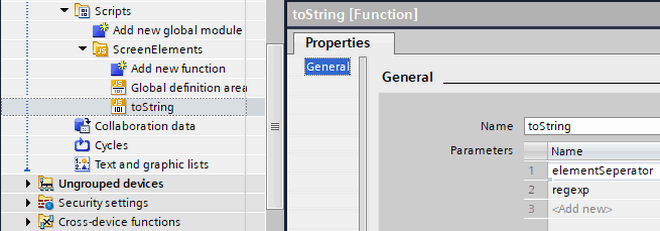
Fig. 01
4. Configuration and description of the scripts
4.1 Global function "toString"
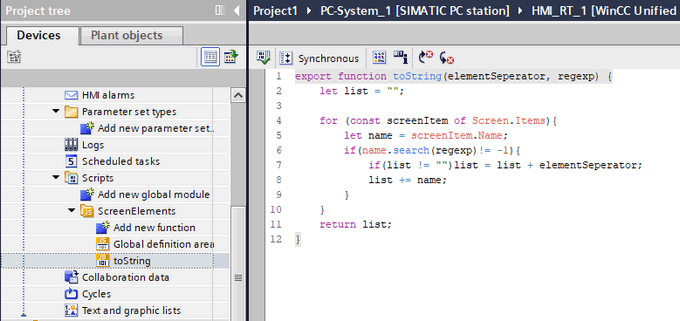
Fig. 02
Here is the function in text form:
| Code: | 01 export function toString(elementSeperator, regexp) {
02 let list = "";
03
04 for (const screenItem of Screen.Items){
05 let name = screenItem.Name;
06 if(name.search(regexp)!= -1){
07 if(list != "")list = list + elementSeperator;
08 list += name;
09 }
10 }
11 return list;
12 } |
4.2 Importing the function
In the project you have to import the function "toString". In the script editor of the local script, switch to the "Global definition" area. Use the command in Fig. 03 to import the "toString" function from the "ScreenElements" module.
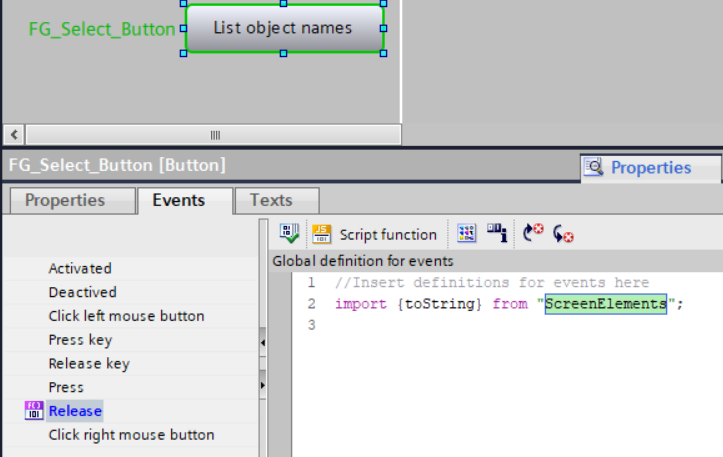
Fig. 03
Fig. 04 shows the local script at the "Release" event of the "FG_Select_Button" button:
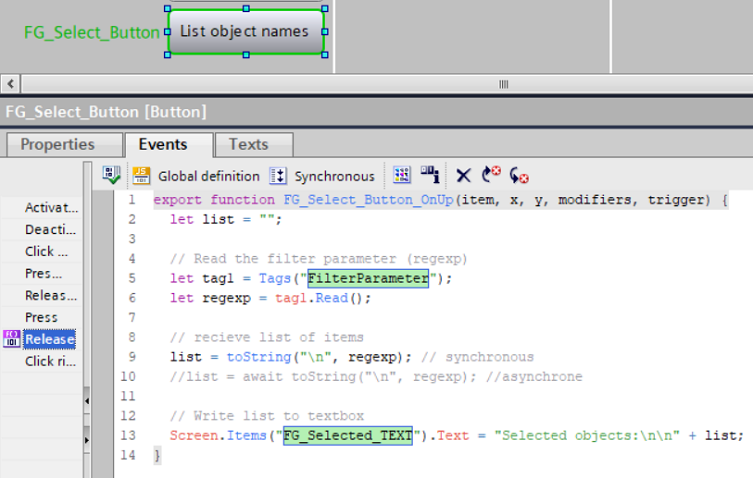
Fig. 04
4.3 Local script for the "FG_Select_Button" button
The script in text form
| Code: | 01 export function FG_Select_Button_OnUp(item, x, y, modifiers, trigger) {
02 let list = "";
03
04 // Read the filter parameter (regexp)
05 let tag1 = Tags("FilterParameter");
06 let regexp = tag1.Read();
07
08 // Receive list of items
09 list = toString("\n", regexp); // synchronous
10 //list = await toString("\n", regexp); // asynchronous
11
12 // Write list to text box
13 Screen.Items("FG_Select_TEXT").Text = "Selected objects:\n\n" + list;
14 } |
4.4 Explanation
The "Release" event of the button labeled "List screen object names" executes the script stored. there. It reads the filter parameter into the variable "regexp" and passes this value to the global function "toString", together with the separator.
The global function searches the object names contained in the screen for the transferred "regexp" parameter. Here, it distinguishes between upper and lower case. It adds the names including the corresponding filter criterion to a string and returns them to the calling script. Here the text entries in the string are separated by the "elementSeperator", in the example "\n" for line feed. This makes the string appear as a list.
Finally, the script behind the button assigns the returned "list" to the object "FG_Select_TEXT" for display on the screen.
5. Behavior in Runtime
If you want to list all object names in the screen, leave the IO field for the filter parameter empty.
Alternatively, according to your requirements, enter a specific filter criterion such as "FG" or "box" there.
After pressing the "FG_Select_Button" button you will get the names of the "filtered" objects in the text field next to it, here in the example for the filter parameter "FG". This lists all objects that have this string in their name:
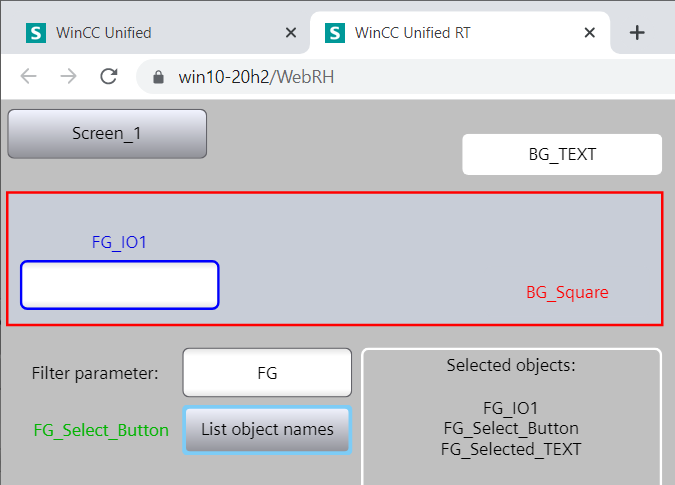
Fig. 05
https://support.industry.siemens.com/cs/attachments/109794204/WinCCVisualizingProcessesUnifiedenUS_en-US.pdf
https://support.industry.siemens.com/cs/attachments/109812101/109812101_WinCC_Unified_V17_project_example_ListingElements.zip
https://ulozto.net/tamhle/3eq7DTifaBSZ/name/
https://fastshare.cz/22960172/winccvisualizingprocessesunifiedenus-en-us.pdf
https://fastshare.cz/22960173/109812101-wincc-unified-v17-project-example-listingelements.zip |
|
| Back to top |
|
 |
|
|
You cannot post new topics in this forum
You cannot reply to topics in this forum
You cannot edit your posts in this forum
You cannot delete your posts in this forum
You cannot vote in polls in this forum
|
Powered by phpBB © 2001, 2005 phpBB Group
Fa-ti si tu propriul forum GRATUIT, pe www.myforum.ro |
 FAQ
FAQ Search
 Memberlist
 Usergroups
 Register
 Profile
 Log in to check your private messages
 Log in


