 |
plc.myforum.ro
PLCs users www.plc.myforum.ro!
|
| View previous topic :: View next topic |
| Author |
Message |
gamax
Member

Joined: 15 Jul 2016
Posts: 131
|
 Posted: 04/04/2022 18:08 Post subject: WinCC Runtime Advanced system time of the PC settings Posted: 04/04/2022 18:08 Post subject: WinCC Runtime Advanced system time of the PC settings |
 |
|
What settings do you have to make in Windows in order to change the system time of the PC from a WinCC Runtime Advanced?
https://support.industry.siemens.com/cs/document/59203176/
1. Presettings
Note
You use the Windows function "SetLocalTime" to change the system time of the PC. This function needs the "SE_SYSTEMTIME_NAME" authorization. A user with standard rights or an administrator does not have this authorization.
1.1 Enter the term "UAC" in the Windows search bar. Make the settings for the user account control.
Set the notifications about changes to the computer to "Never notify".
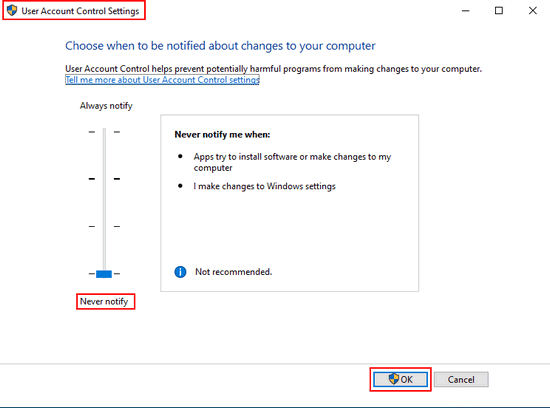
Fig. 01
1.2 In Windows 10, disable the "Set time automatically" option in the "Date & Time" settings.
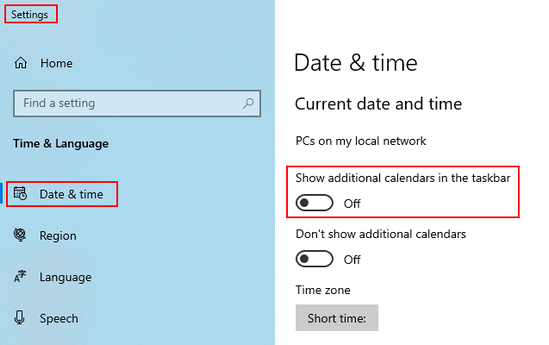
Fig. 02
2. You are logged on to your computer with a Windows user with standard rights
2.1 Log on to your computer as administrator. Open the computer management.
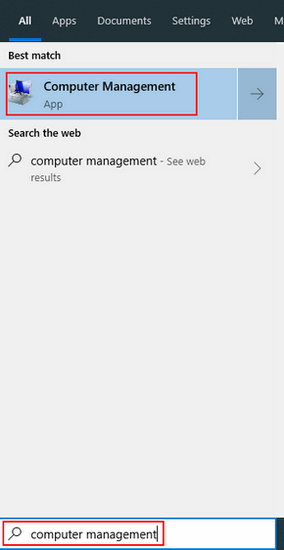
Fig. 03
Add your Windows user with standard rights to the "Siemens TIA Engineer" group by going to "Computer > Management > Local Users and Groups".
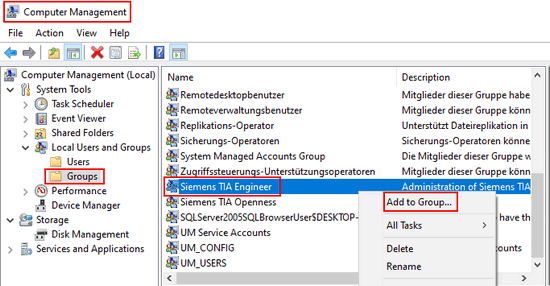
Fig. 04
2.2 Right-click the "secpol.msc" file in the C:\Windows\system32 directory and select "Run as administrator" from the menu that is displayed.
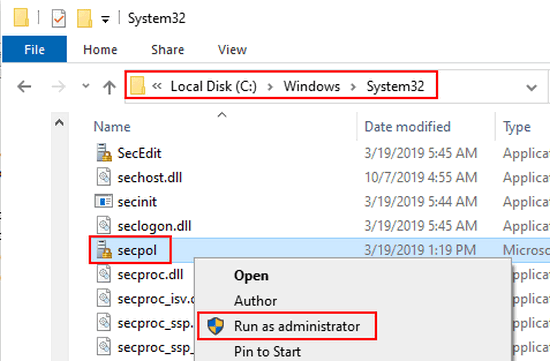
Fig. 05
2.3 If necessary, enter the administrator password in the dialog that opens.
2.4 In the "Security Settings", select "Local Policies" and then the "User Rights Assignment" item.
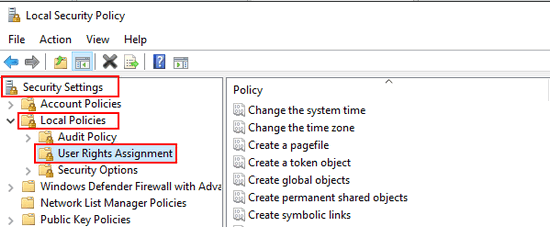
Fig. 06
2.5 Double-click the "Change the system time" policy.
2.6 Click "Add user or group...".
2.7 Click "Object Types...".
2.8 Enable the object type "Group" and confirm with "OK".
2.9 Enter the name "Siemens TIA Engineer" in the object names field and confirm all dialogs with "OK".
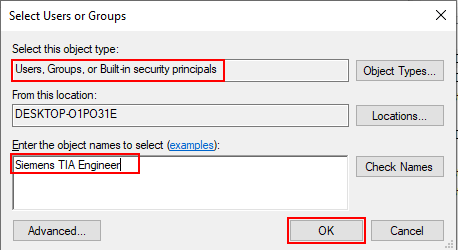
Fig. 07
2.10 Close the Security Settings dialog with "File > Close".
2.11 Restart your computer and log on again with your Windows user.
3. You are logged on to your computer with a Windows administrator
3.1 Press "Windows +R".
3.2 Enter "secpol.msc" in the dialog that opens and acknowledge with "OK".
3.3 Confirm any safety query with "Yes".
3.4 Under "Security Settings", select "Local Policies" and then "Security Options".
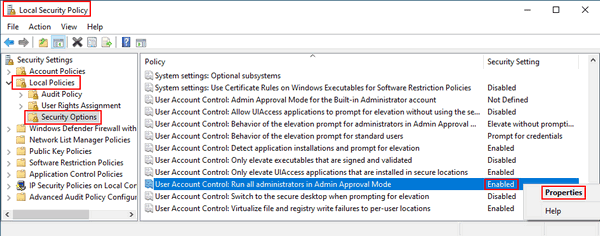
Fig. 08
3.5 Disable the policy "User Account Control: Run all administrators in administrator confirmation mode" and confirm with "OK".
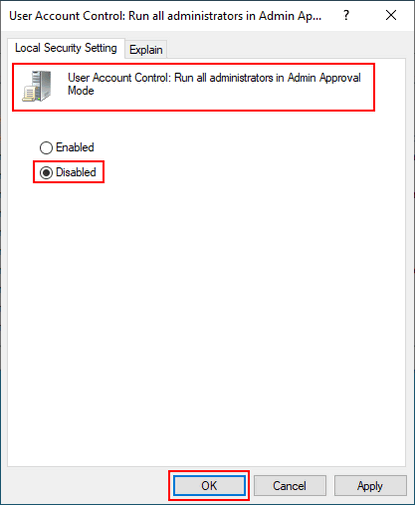
Fig. 09
3.6 Close the Security Settings dialog with "File > Close".
3.7 Restart your computer and log on again with your Windows administrator. |
|
| Back to top |
|
 |
|
|
You cannot post new topics in this forum
You cannot reply to topics in this forum
You cannot edit your posts in this forum
You cannot delete your posts in this forum
You cannot vote in polls in this forum
|
Powered by phpBB © 2001, 2005 phpBB Group
Fa-ti si tu propriul forum GRATUIT, pe www.myforum.ro |
 FAQ
FAQ Search
 Memberlist
 Usergroups
 Register
 Profile
 Log in to check your private messages
 Log in


