 |
plc.myforum.ro
PLCs users www.plc.myforum.ro!
|
| View previous topic :: View next topic |
| Author |
Message |
zalo
Member

Joined: 24 Nov 2013
Posts: 130
|
 Posted: 26/03/2016 19:31 Post subject: WinCC how to Read Write to Excel Posted: 26/03/2016 19:31 Post subject: WinCC how to Read Write to Excel |
 |
|
WinCC how to Read Write to Excel
| Code: | Sub Read_Write_Excel()
'===========================================================================================================
Dim objXLApp, objXLWb, objXLWs1, objXLWs2
Set objXLApp = CreateObject("Excel.Application")
objXLApp.Visible = True
Set objXLWb = objXLApp.Workbooks.Open("C:\Users\administrator\Documents\MIO481\SCADA_EMS InterfaceV6.xls")
'~~> Working with Sheet1
Set objXLWs1 = objXLWb.Sheets(1)
Set objXLWs2 = objXLWb.Sheets(2)
'~~>Read DHS and RF SetPoints from Sheet1
With objXLWs1
'~~>Read Day Ahead Scheduling(DHS) SetPoints
SmartTags("EMS_to_SCADA_INV_DHS_SP.INV1_ACTIVE_PWR_SP") = .Cells(5,4).value
SmartTags("EMS_to_SCADA_INV_DHS_SP.INV1_REACTIVE_PWR_SP") = .Cells(6,4).value
SmartTags("EMS_to_SCADA_INV_DHS_SP.INV2_ACTIVE_PWR_SP") = .Cells(7,4).value
SmartTags("EMS_to_SCADA_INV_DHS_SP.INV2_REACTIVE_PWR_SP") = .Cells(8,4).value
SmartTags("EMS_to_SCADA_PV_INV_DHS_SP.ActivePwr_PV1") = .Cells(9,4).value
SmartTags("EMS_to_SCADA_PV_INV_DHS_SP.ReActivePwr_PV1") = .Cells(10,4).value
SmartTags("EMS_to_SCADA_PV_INV_DHS_SP.ActivePwr_PV2") = .Cells(11,4).value
SmartTags("EMS_to_SCADA_PV_INV_DHS_SP.ReActivePwr_PV2") = .Cells(12,4).value
SmartTags("EMS_to_SCADA_PV_INV_DHS_SP.ActivePwr_PV3") = .Cells(13,4).value
SmartTags("EMS_to_SCADA_PV_INV_DHS_SP.ReActivePwr_PV3") = .Cells(14,4).value
SmartTags("EMS_to_SCADA_PV_INV_DHS_SP.ActivePwr_PV4") = .Cells(15,4).value
SmartTags("EMS_to_SCADA_PV_INV_DHS_SP.ReActivePwr_PV4") = .Cells(16,4).value
SmartTags("EMS_to_SCADA_PV_INV_DHS_SP.ActivePwr_PV5") = .Cells(17,4).value
SmartTags("EMS_to_SCADA_PV_INV_DHS_SP.ReActivePwr_PV5") = .Cells(18,4).value
SmartTags("EMS_to_SCADA_PV_INV_DHS_SP.ActivePwr_PV6") = .Cells(19,4).value
SmartTags("EMS_to_SCADA_PV_INV_DHS_SP.ReActivePwr_PV6") = .Cells(20,4).value
'~~>Read Rolling Forecast(RF) Setpoints
SmartTags("EMS_to_SCADA_INV_RF_SP.INV1_ACTIVE_PWR_SP") = .Cells(23,4).value
SmartTags("EMS_to_SCADA_INV_RF_SP.INV1_REACTIVE_PWR_SP") = .Cells(24,4).value
SmartTags("EMS_to_SCADA_INV_RF_SP.INV2_ACTIVE_PWR_SP") = .Cells(25,4).value
SmartTags("EMS_to_SCADA_INV_RF_SP.INV2_REACTIVE_PWR_SP") = .Cells(26,4).value
SmartTags("EMS_to_SCADA_PV_INV_RF_SP.ActivePwr_PV1") = .Cells(27,4).value
SmartTags("EMS_to_SCADA_PV_INV_RF_SP.ReActivePwr_PV1") = .Cells(28,4).value
SmartTags("EMS_to_SCADA_PV_INV_RF_SP.ActivePwr_PV2") = .Cells(29,4).value
SmartTags("EMS_to_SCADA_PV_INV_RF_SP.ReActivePwr_PV2") = .Cells(30,4).value
SmartTags("EMS_to_SCADA_PV_INV_RF_SP.ActivePwr_PV3") = .Cells(31,4).value
SmartTags("EMS_to_SCADA_PV_INV_RF_SP.ReActivePwr_PV3") = .Cells(32,4).value
SmartTags("EMS_to_SCADA_PV_INV_RF_SP.ActivePwr_PV4") = .Cells(33,4).value
SmartTags("EMS_to_SCADA_PV_INV_RF_SP.ReActivePwr_PV4") = .Cells(34,4).value
SmartTags("EMS_to_SCADA_PV_INV_RF_SP.ActivePwr_PV5") = .Cells(35,4).value
SmartTags("EMS_to_SCADA_PV_INV_RF_SP.ReActivePwr_PV5") = .Cells(36,4).value
SmartTags("EMS_to_SCADA_PV_INV_RF_SP.ActivePwr_PV6") = .Cells(37,4).value
SmartTags("EMS_to_SCADA_PV_INV_RF_SP.ReActivePwr_PV6") = .Cells(38,4).value
'~~>Read PV Inverters ON/OFF Status
SmartTags("EMS_to_SCADA_PV_INV_Status.PV_INV1") = .Cells(41,4).value
SmartTags("EMS_to_SCADA_PV_INV_Status.PV_INV2") = .Cells(42,4).value
SmartTags("EMS_to_SCADA_PV_INV_Status.PV_INV3") = .Cells(43,4).value
SmartTags("EMS_to_SCADA_PV_INV_Status.PV_INV4") = .Cells(44,4).value
SmartTags("EMS_to_SCADA_PV_INV_Status.PV_INV5") = .Cells(45,4).value
SmartTags("EMS_to_SCADA_PV_INV_Status.PV_INV6") = .Cells(46,4).value
End With
''~~>Write SetPoints/Initial Setup Values to Sheet2
With objXLWs2
'~~>Write
.Cells(4,4).value = SmartTags("InverterToScada_Inv1.activePwrActInv")
.Cells(5,4).value = SmartTags("InverterToScada_Inv1.reactPwrActualInv")
.Cells(6,4).value = SmartTags("InitialSetup_Inverter1.InvKWLimit")
.Cells(7,4).value = SmartTags("InverterToScada_Inv2.activePwrActInv")
.Cells(8,4).value = SmartTags("InverterToScada_Inv2.reactPwrActualInv")
.Cells(9,4).value = SmartTags("InitialSetup_Inverter2.InvKWLimit")
.Cells(10,4).value = SmartTags("InverterToScada_BMS1.batSOC")
.Cells(11,4).value = SmartTags("InverterToScada_BMS2.batSOC")
.Cells(12,4).value = SmartTags("InverterToScada_BMS1.imd")
.Cells(13,4).value = SmartTags("InverterToScada_BMS1.imr")
.Cells(14,4).value = SmartTags("12KV_CB_CLOSE")
.Cells(15,4).value = SmartTags("12KV_CB_OPEN")
.Cells(16,4).value = SmartTags("InverterToScada_Inv1.Inv_enabled")
.Cells(17,4).value = SmartTags("InverterToScada_Inv2.Inv_enabled")
.Cells(18,4).value = SmartTags("SCADA_to_EMS_PV_Inv_Status.PV_INV1")
.Cells(19,4).value = SmartTags("SCADA_to_EMS_PV_Inv_Status.PV_INV2")
.Cells(20,4).value = SmartTags("SCADA_to_EMS_PV_Inv_Status.PV_INV3")
.Cells(21,4).value = SmartTags("SCADA_to_EMS_PV_Inv_Status.PV_INV4")
.Cells(22,4).value = SmartTags("SCADA_to_EMS_PV_Inv_Status.PV_INV5")
.Cells(23,4).value = SmartTags("SCADA_to_EMS_PV_Inv_Status.PV_INV6")
.Cells(24,4).value = SmartTags("SCADA_to_EMS_PV_INV_PQ_Act.ActivePwr_PV1")
.Cells(25,4).value = SmartTags("SCADA_to_EMS_PV_INV_PQ_Act.ReActivePwr_PV1")
.Cells(26,4).value = SmartTags("SCADA_to_EMS_PV_INV_PQ_Act.ActivePwr_PV2")
.Cells(27,4).value = SmartTags("SCADA_to_EMS_PV_INV_PQ_Act.ReActivePwr_PV2")
.Cells(28,4).value = SmartTags("SCADA_to_EMS_PV_INV_PQ_Act.ActivePwr_PV3")
.Cells(29,4).value = SmartTags("SCADA_to_EMS_PV_INV_PQ_Act.ReActivePwr_PV3")
.Cells(30,4).value = SmartTags("SCADA_to_EMS_PV_INV_PQ_Act.ActivePwr_PV4")
.Cells(31,4).value = SmartTags("SCADA_to_EMS_PV_INV_PQ_Act.ReActivePwr_PV4")
.Cells(32,4).value = SmartTags("SCADA_to_EMS_PV_INV_PQ_Act.ActivePwr_PV5")
.Cells(33,4).value = SmartTags("SCADA_to_EMS_PV_INV_PQ_Act.ReActivePwr_PV5")
.Cells(34,4).value = SmartTags("SCADA_to_EMS_PV_INV_PQ_Act.ActivePwr_PV6")
.Cells(35,4).value = SmartTags("SCADA_to_EMS_PV_INV_PQ_Act.ReActivePwr_PV6")
.Cells(36,4).value = SmartTags("SCADA_to_EMS_Meter_Reading.Total_Demand_KW")
.Cells(37,4).value = SmartTags("SCADA_to_EMS_Meter_Reading.Desired_PF")
.Cells(38,4).value = SmartTags("SCADA_to_EMS_Meter_Reading.Total_Demand_KVAR")
End With
'~~> Save as Excel File (xls) to retain format
objXLWb.Save
objXLWb.Close (False)
Set objXLWs1 = Nothing
Set objXLWs2 = Nothing
Set objXLWb = Nothing
objXLApp.Quit
Set objXLApp = Nothing
Dim objExcelApp
Set objExcelApp = CreateObject("Excel.Application")
objExcelApp.Visible = True
objExcelApp.Workbooks.Open "C:\Users\ATARA\Desktop\project\s7_proj\excell\Excel_Test.xlsx"
'objExcelApp.Sheets("Sayfa1").Select
HMIRuntime.Tags("int1_1").Write (ObjExcelApp.Cells(1,1).Value)
objExcelApp.ActiveWorkbook.Save
objExcelApp.Workbooks.Close
objExcelApp.Quit
Set objExcelApp = Nothing
End Sub
|
|
|
| Back to top |
|
 |
zalo
Member
Joined: 24 Nov 2013
Posts: 130
|
| Posted: 26/03/2016 19:45 Post subject: WinCC archive to Excel via OLE DB or OPC |
|
|
WinCC archive to Excel via OLE DB or OPC
| Code: | Dim conn As Object
Dim oRs As Object
Dim oCom As Object
Dim excel As Object
Set conn = CreateObject("ADODB.Connection")
conn.Open "Provider=WinCCOLEDBProvider.1;Catalog="DB-name";Data Source="Server-Name"
Set oRs = CreateObject("ADODB.Recordset")
Set oCom = CreateObject("ADODB.Command")
oCom.CommandType = 1
Set oCom.ActiveConnection = conn
oCom.CommandText = "TAG:R,'1','2008-07-30 23:00:00:000','2008-07-30 23:01:00:000'"
Set oRs = oCom.Execute ' Here's where the debugger places the error
Dim cn,rs, stringQuery, TagConnection
Set cn = CreateObject("ADODB.Connection")
Set rs = CreateObject("ADODB.RecordSet")
TagConnection ="PROVIDER=SQLOLEDB; SERVER=MYSERVER;DATABASE=database;UID=user;PWD=pwd"
cn.ConnectionString = TagConnection
cn.Open
Dim ag_name = "Palmerita"
stringQuery = "SELECT modul FROM ModuleProperty WHERE AGName = '"&ag_name&"'"
rs.Open stringQuery, cn
If(Not rs.EOF) Then
rs.MoveFirst
While (Not rs.EOF)
ag_name = rs.Fields(0)
rs.MoveNext
Wend
End If
If rs.State>0 Then
rs.Close
End If
If rs.State>0 Then
rs.Close
End If
cn.Close
Set rs = Nothing
Set cn = Nothing
|
| Code: |
Dim a
Dim objExcelApp,objExcelApp2
Dim DT
Dim DY,MNTH,YR,MNTHNM
Dim HR,MNT,SCND
Dim i,j
Dim fso, msg,fldr,ReportFolderStatus
Dim fso1, f,fName
DY=Day(Date())
MNTH=Month(Date())
YR=Year(Date())
HR=Hour(Time())
MNT=Minute(Time())
SCND=Second(Time())
MNTHNM=Month(Now)
MNTHNM=MonthName (MNTHNM,True)
DT=DY & "_" & MNTH & "_" & YR & "_" & HR & "_" & MNT & "_" & SCND
If (HMIRuntime.Tags("SHIFT_TRIGGER").Read >0) Then
Set fso = CreateObject("Scripting.FileSystemObject")
Set objExcelApp = CreateObject("Excel.Application")
objExcelApp.Visible = False
objExcelApp.Workbooks.Open "D:\BATCH_REPORT.xls"
objExcelApp.ActiveWorkbook.Save
If (fso.FolderExists("E:\REPORTS_EVEREST")) Then
If (fso.FolderExists("E:\REPORTS_EVEREST\" & MNTHNM)) Then
objExcelApp.ActiveWorkbook.Saveas "E:\REPORTS_EVEREST\" & MNTHNM & "\BATCH_REPORT_" & DT & ".XLS"
Else
Set fso1 = CreateObject("Scripting.FileSystemObject")
Set f = fso1.CreateFolder("E:\REPORTS_EVEREST\"& MNTHNM ) ' creates new folder
objExcelApp.ActiveWorkbook.Saveas "E:\REPORTS_EVEREST\" & MNTHNM & "\BATCH_REPORT_" & DT & ".XLS"
End If
Else
Set fso1 = CreateObject("Scripting.FileSystemObject")
Set f = fso1.CreateFolder("E:\REPORTS_EVEREST") ' creates new folder
Set f = fso1.CreateFolder("E:\REPORTS_EVEREST\"& MNTHNM ) ' creates new folder
objExcelApp.ActiveWorkbook.Saveas "E:\REPORTS_EVEREST\" & MNTHNM & "\BATCH_REPORT_" & DT & ".XLS"
End If
objExcelApp.Workbooks.Close
objExcelApp.Quit
Set objExcelApp = Nothing
Set objExcelApp2 = CreateObject("Excel.Application")
objExcelApp2.Visible = False
objExcelApp2.Workbooks.Open "D:\BATCH_REPORT.xls"
objExcelApp2.Cells(110,8).Value =""
For i=7 To 107
For j=1 To 30
objExcelApp2.Cells(i,j).Value =""
Next
Next
objExcelApp2.ActiveWorkbook.Save
objExcelApp2.Workbooks.Close
objExcelApp2.Quit
Set objExcelApp2 =Nothing
HMIRuntime.Tags("SHIFT_TRIGGER").Write 0
'MsgBox "File saved successfully."
End If
|
|
|
| Back to top |
|
|
maersk
Member 3


Joined: 17 Aug 2014
Posts: 891
|
| Posted: 12/04/2018 18:09 Post subject: Exporting Archive Data WinCC/Connectivity Pack (OLE DB Provi |
|
|
Exporting Archive Data with the Aid of the SIMATIC WinCC/Connectivity Pack (OLE DB Provider)
https://support.industry.siemens.com/cs/document/38132261/
Export archived alarms and process values with the WinCC OLE DB Provider.
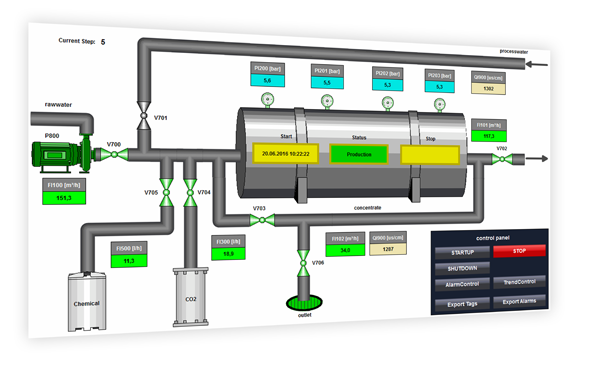
The application example shows a reverse osmosis plant. The plant has a motor and numeroase valves to control the flows within the plant. The analog measuring points, the valve and motor states and the plant status is mapped using VB script. The procedures for the simulation of states and analog measurement points are called up using triggered actions. This ensures that the reverse osmosis plant is fully simulated. The values of the analog measuring points are saved using a process value archive and the status alarms are saved using an alarm archive.

The archived alarms and processed values are to be exported to be able to use them effectively for analysis with other applications.
Different approaches are possible:
Export with VB script from WinCC Runtime
Export using MS SQL Management Studio
Export using Excel application
In this application example, the SIMATIC WinCC/Connectivity Pack option is used to export the WinCC archive data. The compressed and binary-coded WinCC archive data is accessed with the aid of the WinCC OLE DB Provider. The application example shows three approaches to exporting archive data which are also described in the documentation for this application example.
Export with VB script from WinCC Runtime
The WinCC configuration in this application example realizes the export of the WinCC archive data to a CSV file. The respective procedures have been created with VB script.
Export using MS SQL Management Studio
You can view the WinCC database archives directly using MS SQL Management Studio. Aside from visualization, this provides the option to export SQL databases to different formats. The application example describes the export of the WinCC archive data to a CSV file.
Export using Excel application
The Excel configuration in this application example realizes the export of the WinCC archive data to Excel. The respective procedures have been created with Excel macros (VBA) and have the following functions:
- Automatic retrieval of most of the information required for establishing a connection
- Establishing a connection using the OLE DB Provider
- Retrieving the data from the WinCC Runtime database of an OS server
- Customized summary of process value and alarm information
- Option of interpolating missing values (process values)
- Access to archives in different languages (alarms)
- Using filters like time span and alarm type (alarms)
Documentation and example project
https://support.industry.siemens.com/cs/attachments/38132261/38132261__Application_Reverse_Osmosis_DOC_en.pdf
https://support.industry.siemens.com/cs/attachments/38132261/38132261_Application_Reverse_Osmosis_PROJ.zip
https://support.industry.siemens.com/cs/attachments/38132261/38132261_Application_Reverse_Osmosis_XLS.zip |
|
| Back to top |
|
|
stromboli
Junior

Joined: 30 May 2015
Posts: 15
|
| Posted: 26/06/2019 11:30 Post subject: Export archive data using SIMATIC WinCC/Connectivity Pack |
|
|
Export of archive data using the SIMATIC WinCC/Connectivity Pack (OLE DB Provider)
https://support.industry.siemens.com/cs/document/38132261/export-of-archive-data-using-the-simatic-wincc-connectivity-pack- (ole-db-provider)
The application example shows a reverse osmosis plant. The plant has a motor and several valves to control the flows within the plant. The mapping of the analog measuring points, the states of valves and motors, as well as the states of the system, is carried out via VB script. The procedures for the state and analog measurement loop simulation are called via triggered actions. Thus a complete simulation of the reverse osmosis plant is guaranteed. The values of the analog measuring points are stored via a process value archive and the status messages via a alarm archive.
Various solutions are conceivable
Export via VB-Script from the WinCC Runtime
Export via MS SQL Management Studio
Export via Excel client
For the export the option SIMATIC WinCC\Connectivity Pack was used in the application example. The WinCC OLE DB provider is used to access the compressed and binary-coded WinCC archive data. The application example shows three solutions for exporting archive data, which are also described in the documentation for the application example.
Export via VB-Script from the WinCC Runtime
With the WinCC project engineering for this application example, the export of the WinCC archive data into a CSV file is realized. The corresponding procedures were created with VB script.
Export via MS SQL Management Studio
You can view the WinCC database archives directly via MS SQL Management Studio. In addition to visualization, this offers the possibility to export SQL databases in various formats. The application example describes the export of the WinCC archive data into a CSV file.
Export via Excel client
In this application example we provide you with two Excel clients for download:
• The "Osmosis" client has a similar representation as the WinCC project of the application example and is also optimized for it.
• The "Universal" client can be used independently of the respective WinCC project.
The Excel clients for this application example are used to export the WinCC archive data to Excel. The corresponding procedures were created with Excel macros (VBA) and contain the following functions depending on the client:
- Automatic readout of most of the information required to establish the connection
- Establishing a Connection using the OLE DB Provider
- Reading the data from the WinCC runtime database of an OS server
- Individual compilation of process value and alarm information
- Possibility of interpolation in case of missing values (process values)
- Access to the archives of different languages (alarms)
- Use of filters such as time span and message type (alarms)
Documentation and example project
Documentation of reverse osmosis plant:
https://support.industry.siemens.com/cs/attachments/38132261/38132261__Application_Reverse_Osmosis_DOC_en.pdf
Example project WinCC V7.4 SP1:
https://support.industry.siemens.com/cs/attachments/38132261/38132261_Application_Reverse_Osmosis_PROJ.zip
Excel clients
https://support.industry.siemens.com/cs/attachments/38132261/38132261_Application_Reverse_Osmosis_XLS.zip
Further information
Application example “Export of WinCC/CAS archive data with a separate application”
https://support.industry.siemens.com/cs/document/35840700/export-of-wincc-cas-archive-data-with-a-separate-application
Application example “WinCC/IndustrialDataBridge: Writing data from SIMATIC WinCC or from SIMATIC controllers in MS Office files”
https://support.industry.siemens.com/cs/document/109483465/wincc-industrialdatabridge%3a-writing-data-from-simatic-wincc-or-from-simatic-controllers-in-ms-office-files
Application example "OPC UA ExcelClient for WinCC V7.4 SP1"
https://support.industry.siemens.com/cs/document/109752976/opc-ua-excel-client-for-wincc-v7.4-sp1 |
|
| Back to top |
|
|
maersk
Member 3
Joined: 17 Aug 2014
Posts: 891
|
| Posted: 06/08/2020 17:50 Post subject: OPC UA Excel-Client for WinCC V7.4 SP1 |
|
|
OPC UA Excel-Client for WinCC V7.4 SP1
https://anonfiles.com/hdbcO1K8o8/109752976_OPC_UA-Excel_Client_WinCC_V7.4_en_pdf
https://anonfiles.com/j5b0O1Kdo5/109752976_OPC_UA_ClientLibrary_CODE_V10_zip
https://anonfiles.com/55bfO3K8o0/Heating_Tank_zip |
|
| Back to top |
|
|
|
|
You cannot post new topics in this forum
You cannot reply to topics in this forum
You cannot edit your posts in this forum
You cannot delete your posts in this forum
You cannot vote in polls in this forum
|
Powered by phpBB © 2001, 2005 phpBB Group
Fa-ti si tu propriul forum GRATUIT, pe www.myforum.ro |
 FAQ
FAQ Search
 Memberlist
 Usergroups
 Register
 Profile
 Log in to check your private messages
 Log in


