 |
plc.myforum.ro
PLCs users www.plc.myforum.ro!
|
| View previous topic :: View next topic |
| Author |
Message |
varella
Member junior

Joined: 25 Oct 2016
Posts: 86
|
 Posted: 01/09/2020 09:56 Post subject: Update instructions MCP-S1802 Posted: 01/09/2020 09:56 Post subject: Update instructions MCP-S1802 |
 |
|
Update instructions MCP-S1802
https://support.industry.siemens.com/cs/document/109781253/update-instructions-mcp-s1802
These instructions describe the procedure to upgrade the firmware of the integrated touchpad of the MCP-S1802 to Version 2.04 R1.
The update instructions apply to the following devices:
Devices MLFB
MCP-S1802 22h Type4 6FC5303-0AP50-0AA0
MCP-S1802-S01 6FC5303-0AP50-0GA0
Preparations
Download the update program and the firmware:
https://share.gett-group.com/index.php/s/qNqbxjb8Y3Cia8a
Unpack the data package.
Switch to the folder "STM32_Dfuse_Driver" and install the program by starting "DfuSe_Demo_V3.0.5_Setup.exe".
Install the appropriate driver from the folder "STM32_Dfuse_Driver/Win7/Win8/Win8.1 (x86/x64)"
Install the update program in the folder "GETT USB FW Updater" by running the "setup.exe" file.
Procedure
Connect the USB port of the MCP-S1802 keyboard directly to your personal computer
Make sure that only one target device is connected.
When logging on for the first time, the device is set up and the existing firmware version is displayed.
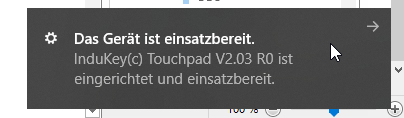
If the displayed firmware is V2.04 R1 or higher, then an update according to these instructions is not necessary.
Start the "GETT Firmware Updater" program
In the input mask that opens, select the firmware file you have already downloaded
Once the device has been recognized, click on "Start Bootloader"
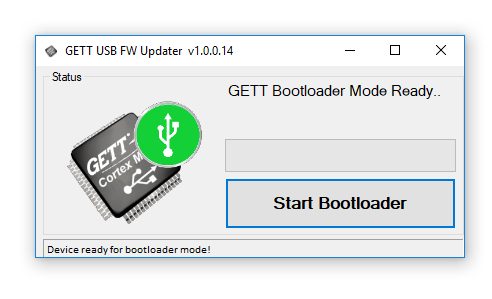
Wait until the device responds again
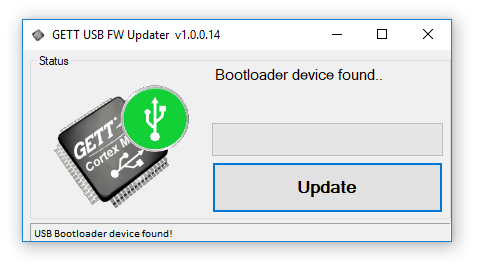
Click on "Update".
In the following successive steps, the firmware is deleted, written and verified.
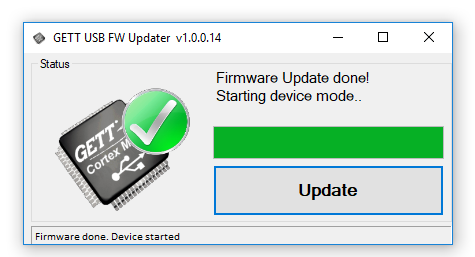
After reconnecting the USB cable to the personal computer, the device logs on with the current firmware version.
Disabling the tap-to-click function
To disable the tap-to-click function, follow these steps:
To start the service menu, keep the left and right mouse buttons pressed until the mouse pointer rotates.
If the rotation is clockwise, the tap-to-click function is active. If this is the case, tap on the touchpad.
Then the direction of rotation is counterclockwise and the tap-to-click function is disabled.
The service menu is automatically terminated after approx. 5 s. Make sure that the touchpad is clean and not touched at this moment, otherwise the calibration may be incorrect.
All of this information can also be found in the attached PDF.
https://support.industry.siemens.com/cs/attachments/109781253/Anleitung_Hochrstung_Firmware_MCP-S1802.pdf
https://anonfiles.com/n0Ye48Q5o5/Anleitung_Hochrstung_Firmware_MCP-S1802_pdf
https://anonfiles.com/t9Zb47Qeoe/C7418_MCP_Siemens_Touchpad_zip |
|
| Back to top |
|
 |
|
|
You cannot post new topics in this forum
You cannot reply to topics in this forum
You cannot edit your posts in this forum
You cannot delete your posts in this forum
You cannot vote in polls in this forum
|
Powered by phpBB © 2001, 2005 phpBB Group
Fa-ti si tu propriul forum GRATUIT, pe www.myforum.ro |
 FAQ
FAQ Search
 Memberlist
 Usergroups
 Register
 Profile
 Log in to check your private messages
 Log in


