 |
plc.myforum.ro
PLCs users www.plc.myforum.ro!
|
| View previous topic :: View next topic |
| Author |
Message |
mamiko
Member 2


Joined: 25 Dec 2017
Posts: 420
|
 Posted: 26/03/2023 12:58 Post subject: Uninstall SIMATIC WinCC Runtime Prof. SQL Server Instance Posted: 26/03/2023 12:58 Post subject: Uninstall SIMATIC WinCC Runtime Prof. SQL Server Instance |
 |
|
How do uninstall a SIMATIC WinCC Professional or a SIMATIC WinCC Runtime Professional SQL Server Instance?
https://support.industry.siemens.com/cs/document/109745000/
You have uninstalled SIMATIC WinCC Professional (V13, V14, V15 or V16). The WinCC SQL instance is retained. You have to uninstall the WinCC SQL instance manually.
. Instructions for uninstalling the WinCC SQL server instance R2008 R2
2. Instructions for uninstalling the WinCC SQL server instance 2014
3. Instructions for uninstalling the WinCC SQL server instance 2016
4. Overview of the connection between the WinCC versions and the Microsoft SQL Server versions
After uninstalling SIMATIC WinCC Professional or SIMATIC WinCC Runtime Professional the WinCC SQL instance is retained. This ensures that no user data is lost during the uninstallation.
Scenario: Updating the SQL version with a new version of SIMATIC WinCC
You want to install a new version of SIMATIC WinCC.
The new version of SIMATIC WinCC includes a new SQL version (for example, when upgrading from WinCC V13 to SIMATIC WinCC V14).
Before you can install the new version of SIMATIC WinCC you have to manually uninstall the WinCC SQL instance after uninstalling SIMATIC WinCC.
If you have not uninstalled the WinCC SQL instance, you get the following error message when you install the new version of SIMATIC WinCC: "Locked by: The installed SQL Server Instance WinCC is not compatible with SIMATIC WinCC Professional Vxx. You can remove the SQL Server Instance WinCC via the Control Panel.".
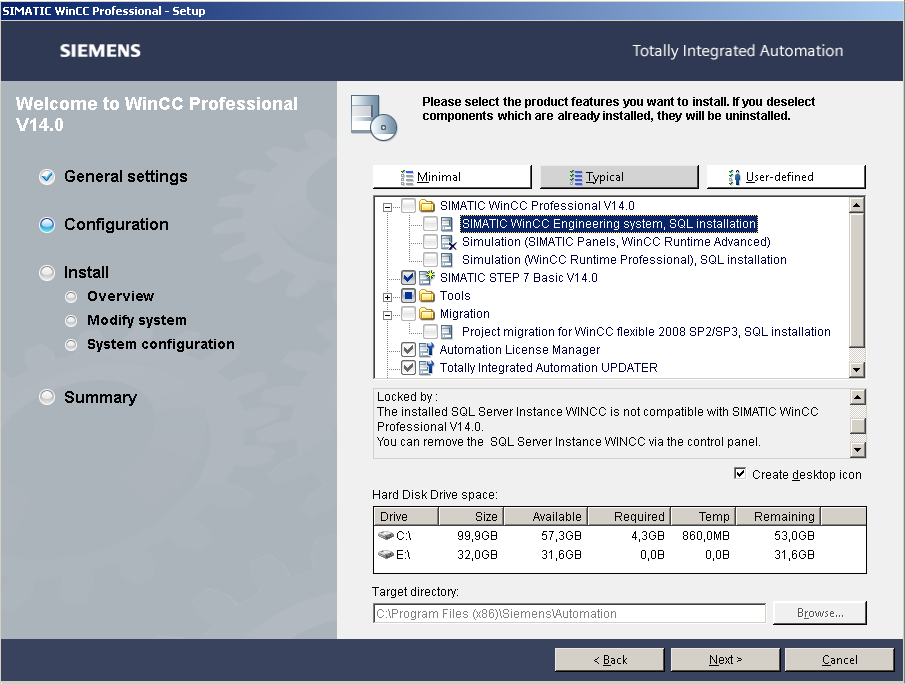
Fig. 1
Note
These instructions are valid for upgrading
SIMATIC WinCC V13 SP1 to SIMATIC WinCC V13 SP2
SIMATIC WinCC V13 SP2 to SIMATIC WinCC V16 or higher
SIMATIC WinCC V13 SP1 to SIMATIC WinCC V14 or higher
SIMATIC WinCC V14 to SIMATIC V14 SP1 or higher
SIMATIC V15 to SIMATIC V16 or higher
SIMATIC WinCC V16 to SIMATIC WinCC V17,
because a more recent version of SQL Server is used in each case.
1. Instructions for uninstalling the WinCC SQL server instance R2008 R2
Open the Control Panel of your operating system via "Start > Control Panel".
Select "Small Icons" for the display.
Open the "Programs and Features" option.
Select the item "Microsoft SQL Server 2008 R2".
Click "Uninstall/Change".
In the pop-up menu you click "Remove".
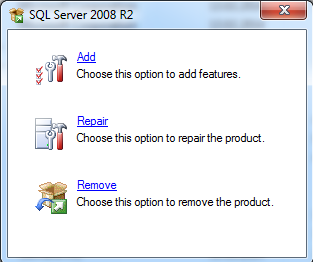
Fig. 2
In the "SQL Server 2008 R2 Setup" window you click the "OK" button.
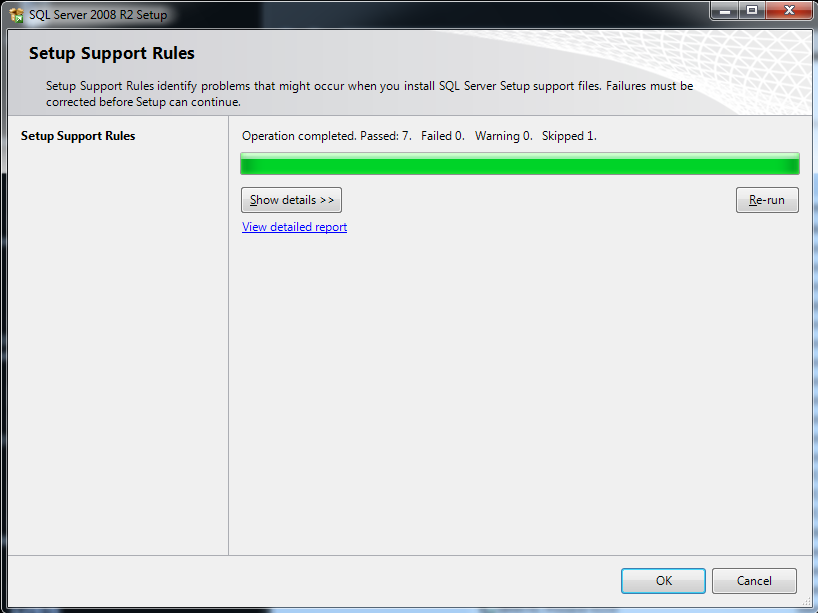
Fig. 3
In the "Remove SQL Server 2008 R2" window, in the "Instance to remove features from:" you select the entry "WINCC" and click the "Next >" button.
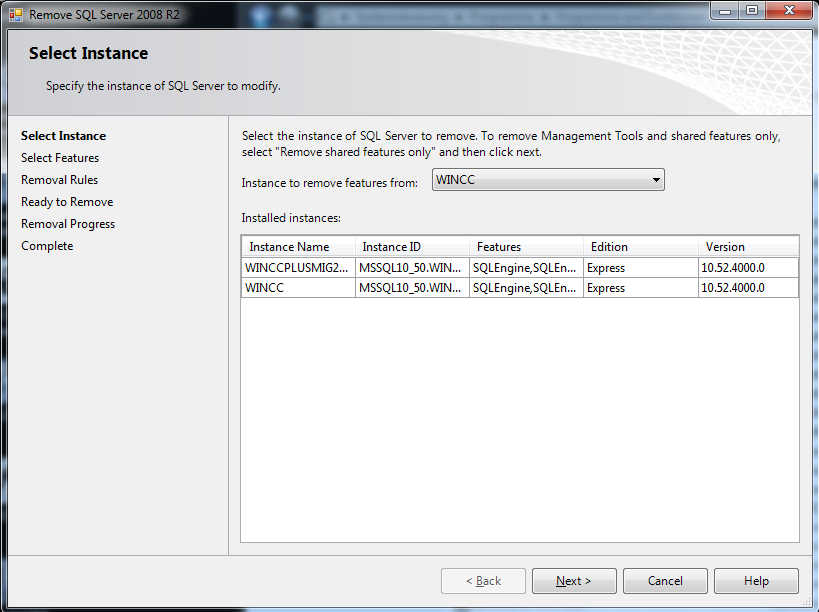
Fig. 4
In the "Remove SQL Server 2008 R2" window you click the "Select all" button and then the "Next >" button.
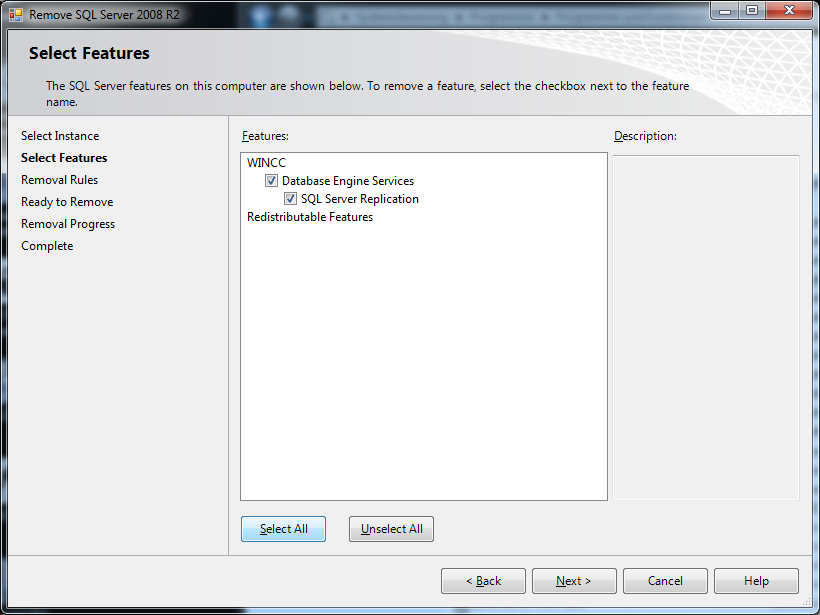
Fig. 5
You confirm the ensuing dialogs until the uninstallation has been completed by clicking the
"Next >" or "Remove" button.
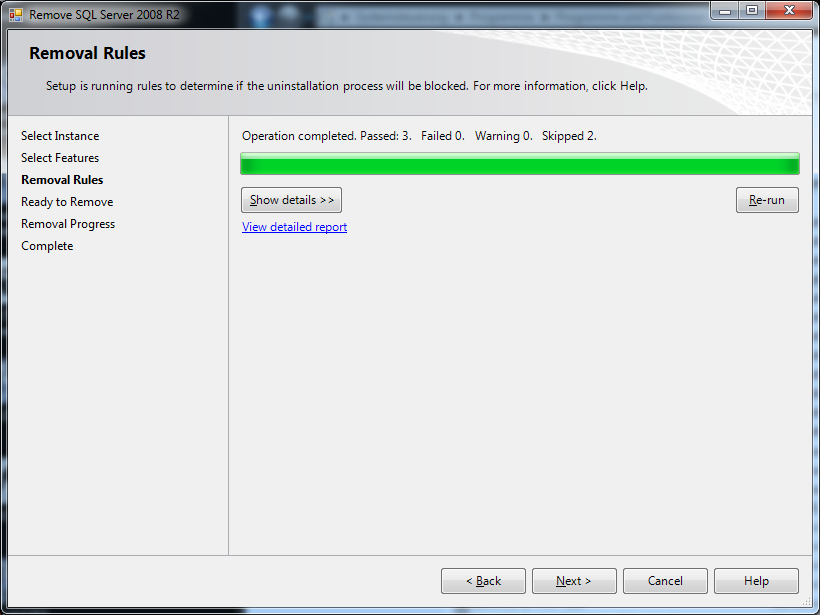
Fig. 6
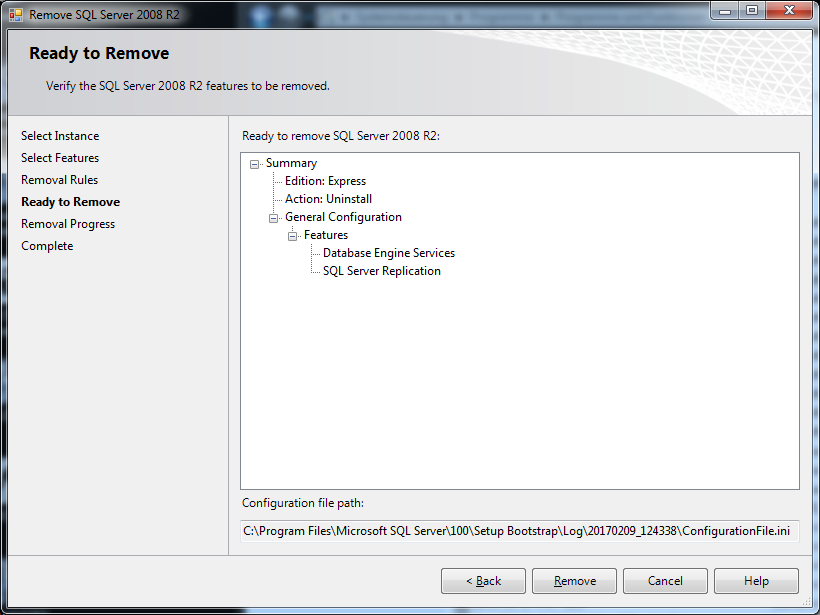
Fig. 7
Terminate uninstallation of the WinCC SQL server instance with the "Close" button.
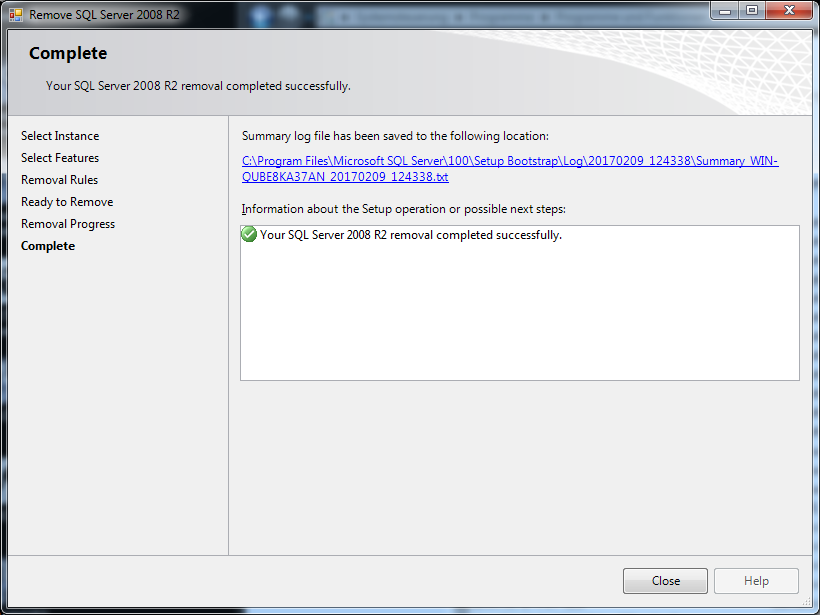
Fig. 8
2. Instructions for uninstalling the WinCC SQL server instance 2014
Open the Control Panel of your operating system via "Start > Control Panel".
Select "Small Icons" for the display.
Open the "Programs and Features" option.
Select the item "Microsoft SQL Server 2014".
Click "Uninstall/Change".
In the pop-up menu you click "Remove".
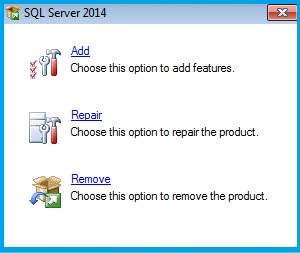
Fig. 9
In the "Remove SQL Server 2014" window you click the "Next" button.
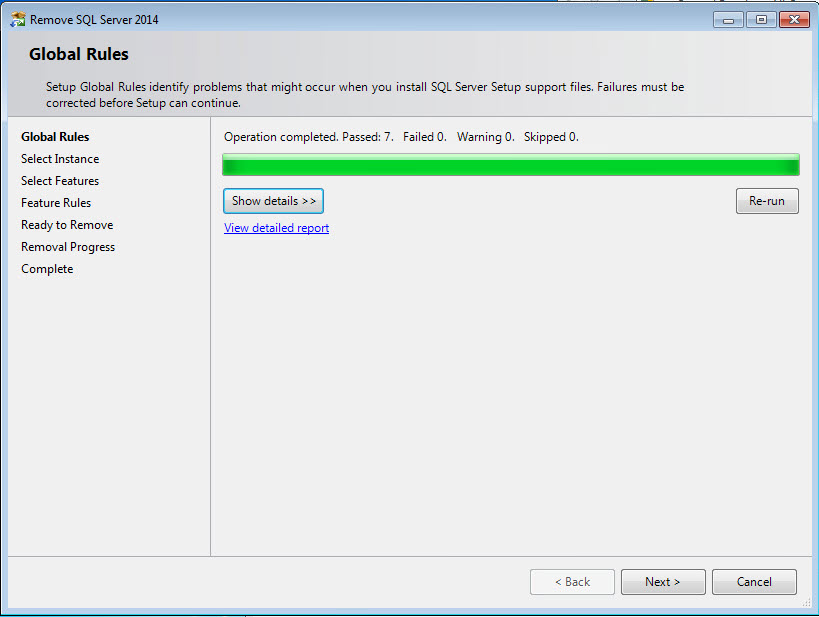
Fig. 10
In the "Remove SQL Server 2014" window, in the "Instance to remove features from:" you select the entry "WINCC" and click the "Next >" button.
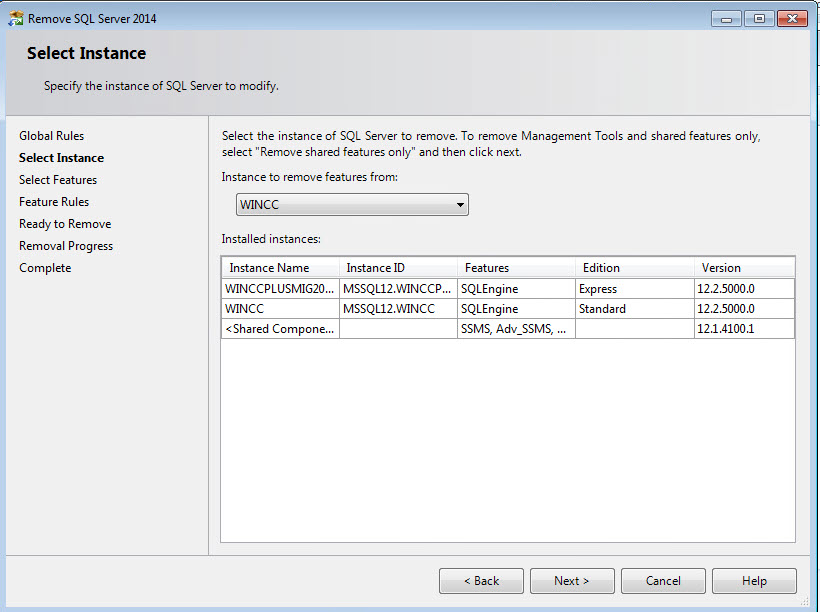
Fig. 11
In the "Remove SQL Server 2014" window you click the "Select All" button and then the "Next >" button.
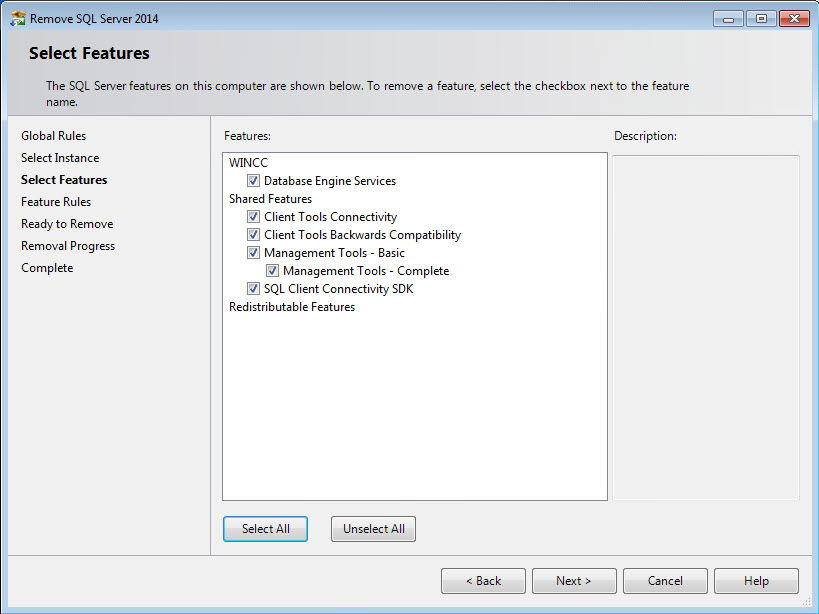
Fig. 12
In the "Remove SQL Server 2014" window you click the "Remove" button.
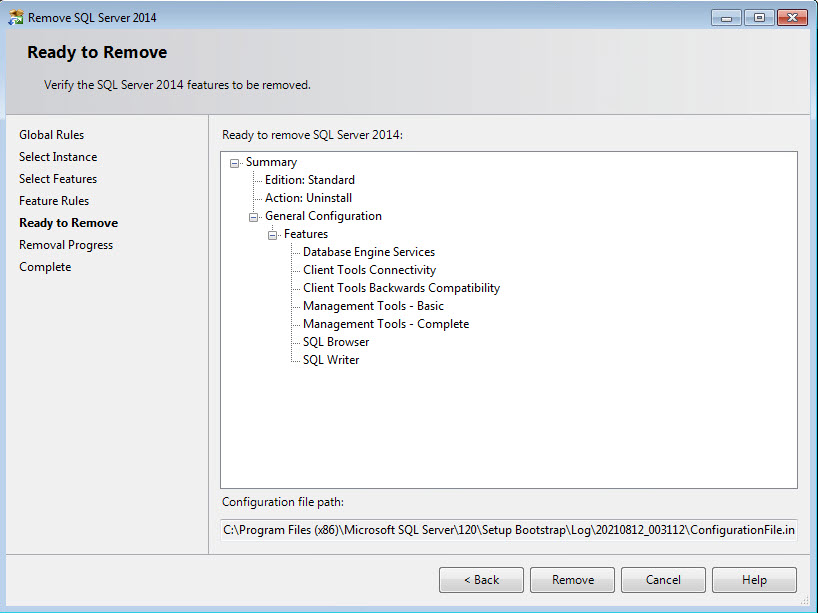
Fig. 13
Terminate uninstallation of the WinCC SQL 2014 server instance with the "Close" button.
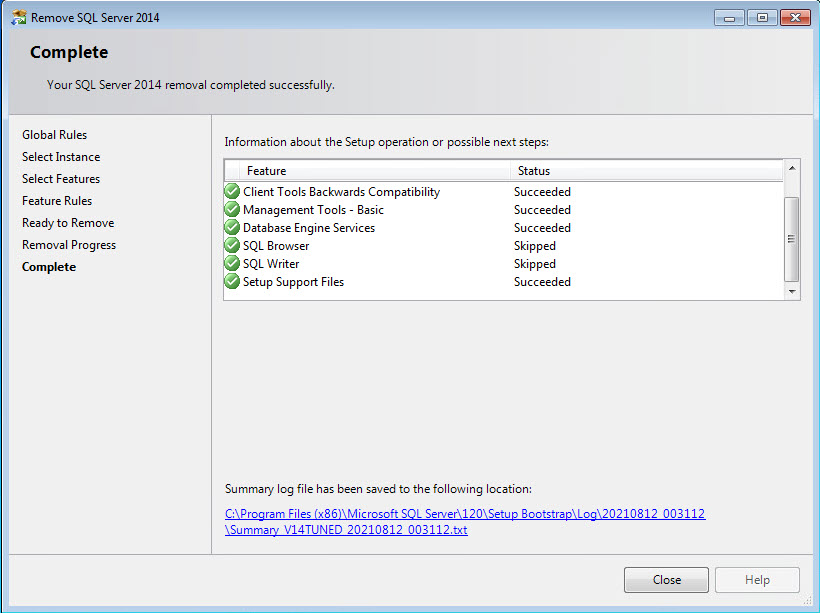
Fig. 14
In the "Remove SQL Server 2014" window, in the "Instance to remove features from:" you select the entry "WINCCPLUSMIG2014" and click the "Next >" button.
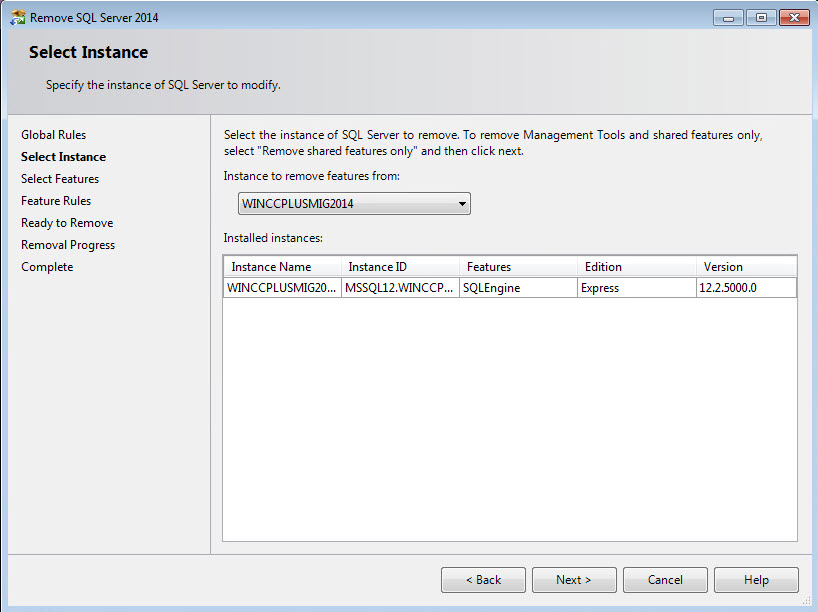
Fig. 15
In the "Remove SQL Server 2014" window you click the "Select All" button and then the "Next >" button.
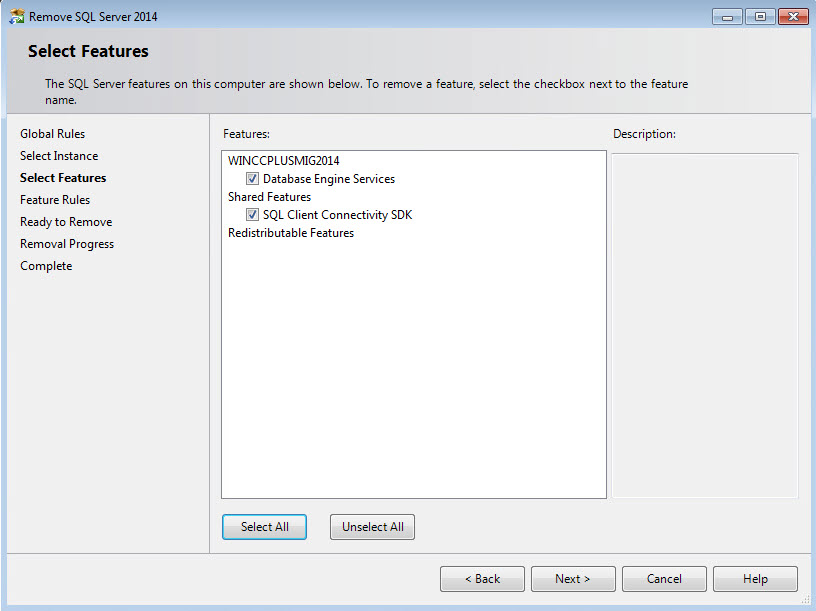
Fig. 16
In the "Remove SQL Server 2014" window you click the "Remove" button and in the next screen you click the "Next" button.
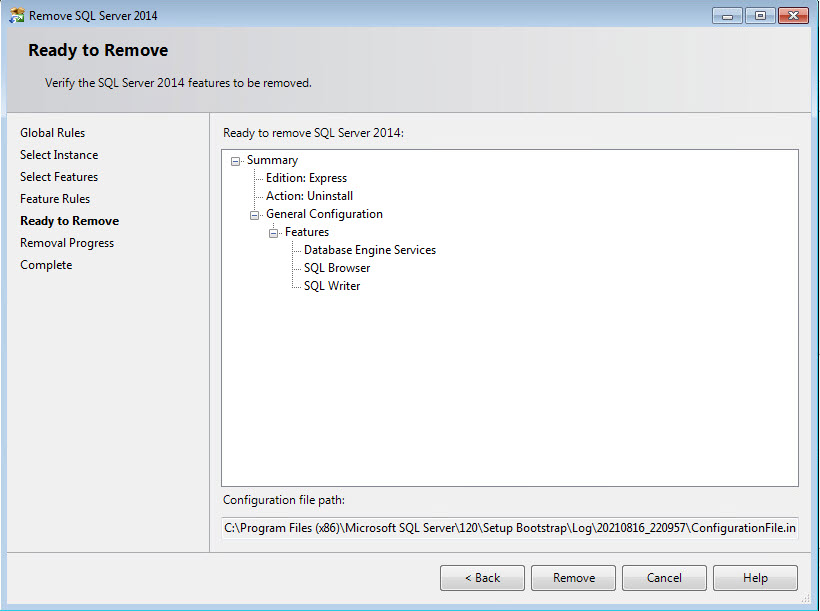
Fig. 17
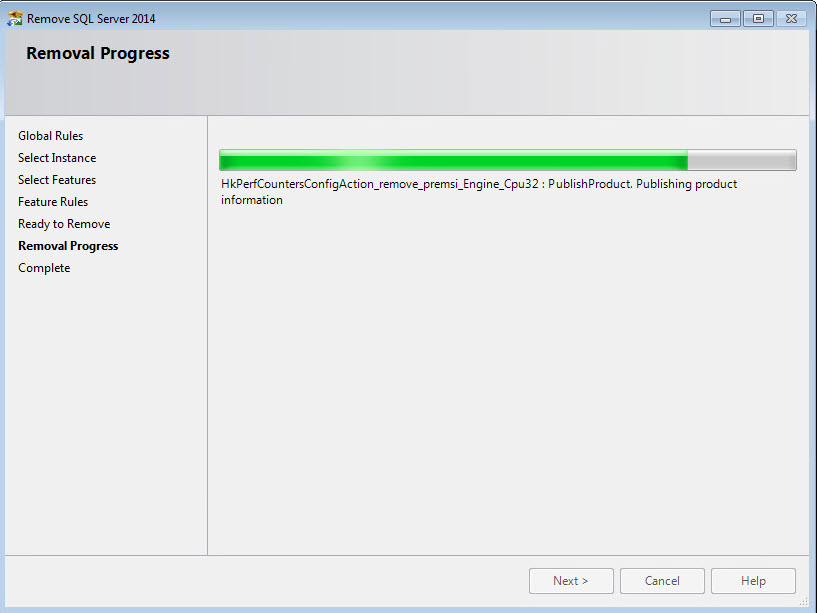
Fig. 18
Terminate uninstallation of the WinCC SQL 2014 server instance with the "Close" button.
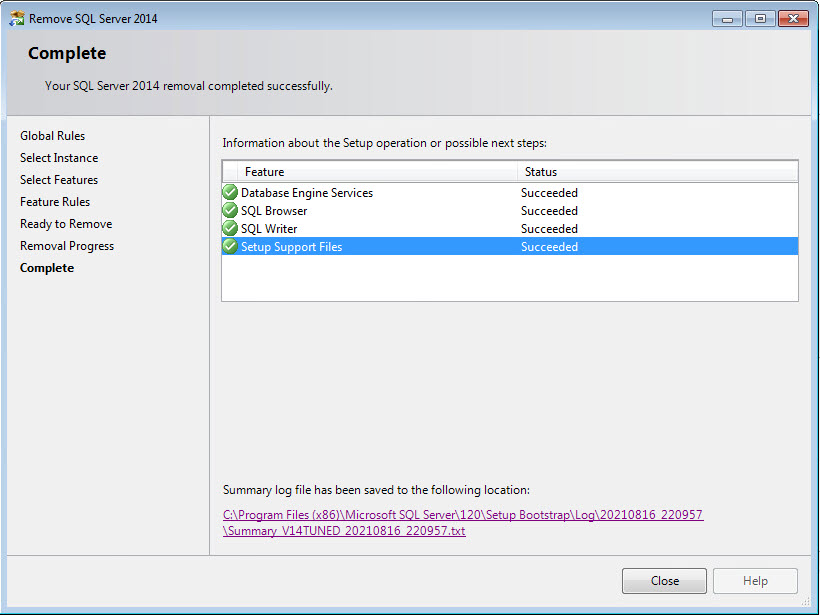
Fig. 19
3. Instructions for uninstalling the WinCC SQL server instance 2016
Open the Control Panel of your operating system via "Start > Control Panel".
Select "Small Icons" for the display.
Open the "Programs and Features" option.
Select the item "Microsoft SQL Server 2016".
Click "Uninstall/Change".
In the pop-up menu you click "Remove".
Fig. 20
In the "Remove SQL Server 2016" window you click the "Next" button
Fig. 21
In the "Remove SQL Server 2016" window you click the "Select All" button and then the "Next >" button.
Fig. 22
In the "Remove SQL Server 2016" window you click the "Remove" button.
Fig. 23
Terminate uninstallation of the WinCC SQL 2016 server instance with the "Close" button.
Fig. 24
In the Control Panel you select the item "Microsoft SQL Server 2012 Native Client"
Right-click and select "Uninstall"
In the Control Panel you select the item "Microsoft SQL Server 2016 T-SQL Language Service"
Right-click and select "Uninstall"
In the Control Panel you select the item "Microsoft SQL Server Data-Tier Application Framework"
Right-click and select "Uninstall"
4. Overview of the connection between the WinCC versions and the Microsoft SQL Server versions
The following table gives you an overview of which version of WinCC includes which version of Microsoft SQL Server.
WinCC version Microsoft SQL Server 64-bit version
V17 Professional Microsoft SQL Server 2017 Express
V17 Professional RT Microsoft SQL Server 2017 Standard
V16 Professional Microsoft SQL Server 2016 SP2 Express
V16 Professional RT Microsoft SQL Server 2016 SP2 Standard
WinCC version Microsoft SQL Server 32-bit version
V15 SP1 Professional Microsoft SQL Server 2014 SP2 Express
V15 SP1 Professional RT Microsoft SQL Server 2014 SP2 Standard
V15 Professional Microsoft SQL Server 2014 SP2 Express
V15 Professional RT Microsoft SQL Server 2014 SP2 Standard
V14 SP1 Professional Microsoft SQL Server 2014 SP2 Express
V14 SP1 Professional RT Microsoft SQL Server 2014 SP2 Standard
V14 Professional Microsoft SQL Server 2014 SP1 Express
V14 Professional RT Microsoft SQL Server 2014 SP1 Standard
V13 SP2 Professional Microsoft SQL Server 2014 SP2 Express
V13 SP2 Professional RT Microsoft SQL Server 2014 SP2 Standard
V13 SP1 Professional Microsoft SQL Server 2008 R2 Express
V13 SP1 Professional RT Microsoft SQL Server 2008 R2 Standard
V13 Professional Microsoft SQL Server 2008 R2 Express
V13 Professional RT Microsoft SQL Server 2008 R2 Standard
V12 SP1 Professional Microsoft SQL Server 2008 R2 Express
V12 SP1 Professional RT Microsoft SQL Server 2008 R2 Standard
V12 Professional Microsoft SQL Server 2008 R2 Express
V12 Professional RT Microsoft SQL Server 2008 R2 Standard
V11 SP2 Professional Microsoft SQL Server 2005 SP4 Express
V11 SP2 Professional RT Microsoft SQL Server 2005 SP4 Standard |
|
| Back to top |
|
 |
|
|
You cannot post new topics in this forum
You cannot reply to topics in this forum
You cannot edit your posts in this forum
You cannot delete your posts in this forum
You cannot vote in polls in this forum
|
Powered by phpBB © 2001, 2005 phpBB Group
Fa-ti si tu propriul forum GRATUIT, pe www.myforum.ro |
 FAQ
FAQ Search
 Memberlist
 Usergroups
 Register
 Profile
 Log in to check your private messages
 Log in


