 |
plc.myforum.ro
PLCs users www.plc.myforum.ro!
|
| View previous topic :: View next topic |
| Author |
Message |
valz
Member 3


Joined: 26 Jul 2015
Posts: 771
|
 Posted: 21/03/2023 21:14 Post subject: Trace Viewer in conjunction with a Unified Comfort Panel Posted: 21/03/2023 21:14 Post subject: Trace Viewer in conjunction with a Unified Comfort Panel |
 |
|
How do you use Trace Viewer in conjunction with a Unified Comfort Panel or a Unified PC Runtime?
https://support.industry.siemens.com/cs/document/109777593/
The configuration of the WinCC Unified Trace Viewer depends on the HMI hardware used, with a distinction being made between the following use cases: 1. You are using a Unified Comfort Panel. 2.You are using a Unified PC Runtime or simulating the runtime of a Unified Comfort Panel on the Engineering Station
1. Trace Viewer in conjunction with the Unified Comfort Panel
Note
Make sure that the Unified Panel is on a trusted network for the following settings.
1.1 Setting on the Unified Comfort Panel
In the navigation pane or in the window pane, select the "Service and Commissioning" tile.
Open the menu "Trace forwarder".
Enable the option "Enable Trace forwarder".
Note
As of HMI version 17.0.0.2, it is possible to store the traces locally on a storage medium (which is connected to the Unified Comfort Panel). To do this, activate the "Enable Trace Logger" option:
SIMATIC HMI Unified Comfort Panels Control Panel V18 - Trace forwarder
1.2 Settings for receiving the traces on the Engineering Station
To do this, call the Windows command prompt (CMD):
In the first step, copy the directory name with "Ctrl + C" and paste it into the command prompt with "Ctrl + V":
"cd C:\Program Files\Siemens\Automation\WinCCUnified\bin"
In the second step, copy the application name with the parameters and paste them into the command prompt:
"RTILtraceTool.exe -mode receiver -host 172.16.34.213 –tcp"
Replace the IP address "172.16.34.213" with the address set on the Unified Comfort Panel.
Complete the entry with "Enter".
The configuration is now complete.
The following figure shows the view of the command prompt after parameterization.
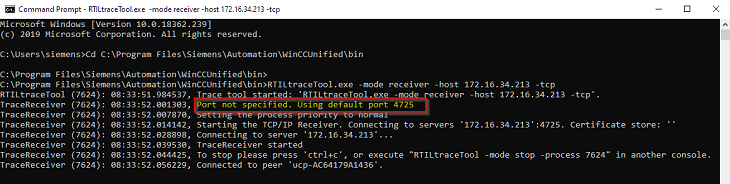
Fig. 01
Note
If no port is specified, the default port 4565 is automatically used.
To connect Trace Viewer to the panel automatically, you can alternatively realizate a batch file like "activate_Trace_Tool.bat" with the following code:
cd C:\Program Files\Siemens\Automation\WinCCUnified\bin
set /p IP=IP Address of the Panel:
RTILtraceTool.exe -mode receiver -host %ip% -tcp
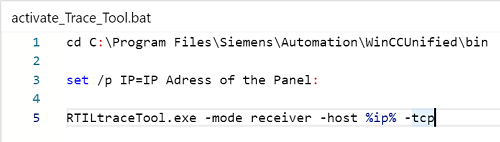
Fig. 02
This code opens the Windows console. The IP address of the panel is entered and confirmed with the Enter key. The tool will establish a connection to the panel.
1.3 Call of the Trace Viewer
Open the Windows Explorer.
Call the following directory "C:\Program Files\Siemens\Automation\WinCCUnified\bin".
This directory includes the Trace Viewer.
Start the application by double-clicking "RTILtraceViewer.exe".
The following figure shows the view of Trace Viewer with different messages.
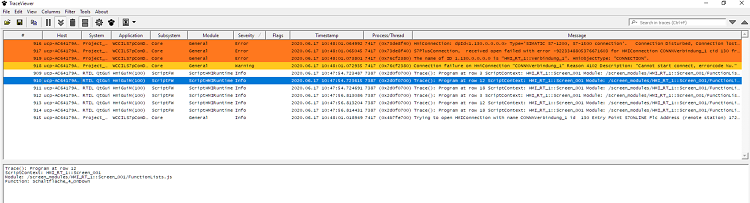
Fig. 03
2. Trace Viewer in conjunction with the Unified PC Runtime or the Unified Comfort Panel Simulation
No singular settings are required to display the traces on a runtime PC or for the simulation of a Unified Comfort Panel on the Engineering Station. To start the Trace Viewer, the following options are available:
Open the installation path of the Trace Viewer and start it manually.
Store the Trace Viewer as an external application and call it up directly from the TIA Portal (provided that the Runtime is installed on the same computer as the TIA Portal).
2.1 Call via the installation path
Open the Windows Explorer.
Call the following directory "C:\Program Files\Siemens\Automation\WinCCUnified\bin".
This directory includes the Trace Viewer.
Start the application by double-clicking "RTILtraceViewer.exe".
2.2 Store the Trace Viewer as an external application
To call the Trace Viewer directly from the TIA Portal, you must store it as an external application as follows.
In WinCC (TIA Portal) select via the menu bar "Tools > External applications > Configure..."
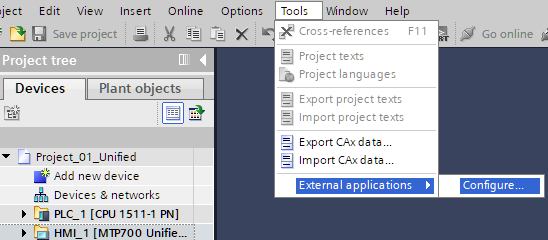
Fig. 04
In the window you select "Add...". Another window opens.
Assign a name (Trace Viewer, for example).
Under "Command" you specify the installation path of the "RTILtraceViewer.exe" file, in this case:
"C:\Program Files\Siemens\Automation\WinCCUnified\bin\RTILtraceViewer.exe".
Complete the input via the "Add" button.
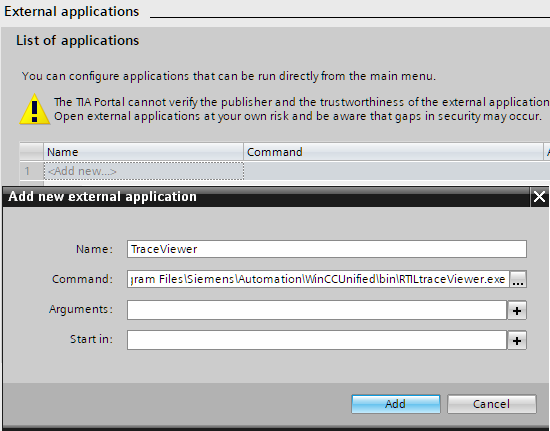
Fig. 05
The following figure shows the newly added application. Clicking the name (Trace Viewer) starts the application.
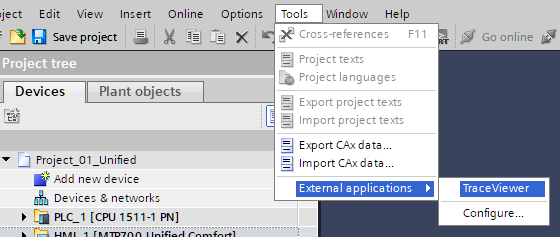
Fig. 06
Details about the Trace Viewer can be found in the manual
https://support.industry.siemens.com/cs/attachments/109813308/WinCC_VisualizingProcessesUnified_enUS_en-US.pdf |
|
| Back to top |
|
 |
|
|
You cannot post new topics in this forum
You cannot reply to topics in this forum
You cannot edit your posts in this forum
You cannot delete your posts in this forum
You cannot vote in polls in this forum
|
Powered by phpBB © 2001, 2005 phpBB Group
Fa-ti si tu propriul forum GRATUIT, pe www.myforum.ro |
 FAQ
FAQ Search
 Memberlist
 Usergroups
 Register
 Profile
 Log in to check your private messages
 Log in


