| View previous topic :: View next topic |
| Author |
Message |
valz
Member 3


Joined: 26 Jul 2015
Posts: 771
|
 Posted: 20/10/2021 18:32 Post subject: TIA Portal Add-Ins Posted: 20/10/2021 18:32 Post subject: TIA Portal Add-Ins |
 |
|
TIA Portal Add-Ins
https://support.industry.siemens.com/cs/document/109773999/
Add-ins give you the opportunity to expand the functionality of the TIA Portal. With the installation of "TIA Portal Openness" you have the possibility to use add-ins.
Summary
Add-ins offer a convenient way to expand the functionality of the TIA Portal via the Openness API.
Add-ins are written as .NET programs.
Add-ins can be conveniently passed on in a company and even distributed to third-party providers.
Installation
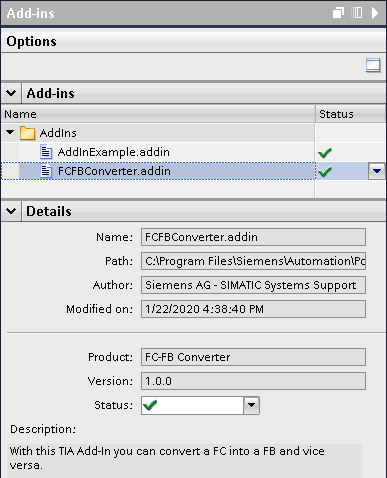
Install add-ins by copying the ".addin" file into the "AddIns" folder in the installation directory of the TIA Portal.
Activate or deactivate add-ins in the "Add-ins" task card (add-ins are deactivated by default).
Further information on the add-in such as the author, description or the required authorizations are also displayed in the "Add-ins" task card.
Advantages
Add-ins integrate seamlessly into the TIA Portal environment.
Add-ins can be run without knowledge of higher programming languages.
Add-ins are context sensitive. This means that they only appear for the selected objects in a TIA Portal project.
Add-ins can also perform Windows system functions, file or network operations, and interact with other applications.
Usage
Add-ins can be used in the following areas in the TIA Portal:
Project navigation
Library view
Version control interface
Device and network view
https://support.industry.siemens.com/cs/document/109779415/tia-add-ins-getting-started
https://support.industry.siemens.com/cs/document/109783096/tia-add-in-tester
https://support.industry.siemens.com/cs/document/109790393/how-do-you-debug-a-tia-add-in
https://support.industry.siemens.com/cs/document/109769093/s7-1500r-h-addin
https://support.industry.siemens.com/cs/document/109770510/data2unified-add-in
https://support.industry.siemens.com/cs/document/109780391/simulation-model-generator
https://support.industry.siemens.com/cs/ww/en/view/109773506/128474251915 |
|
| Back to top |
|
 |
valz
Member 3
Joined: 26 Jul 2015
Posts: 771
|
| Posted: 20/10/2021 18:34 Post subject: Simulation Tip Generator |
|
|
Simulation Tip Generator
https://support.industry.siemens.com/cs/document/109780391/
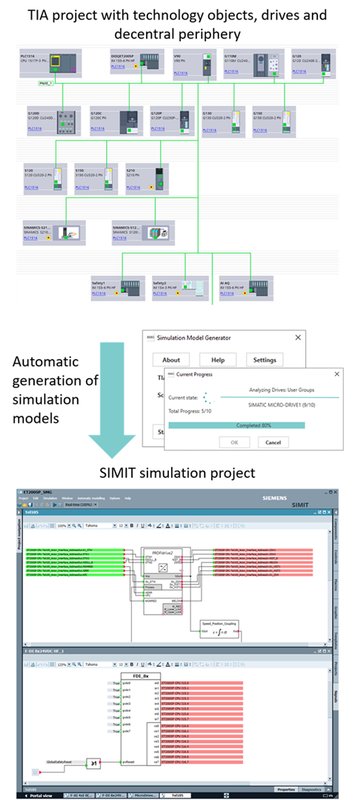
The application example contains a TIA Portal Add-in, which enables the user to automatically create simulation models for SIMIT, based on the TIA Portal product configuration.
In today's world, engineering companies are faced with an ever increasing number of requirements. These range from faster development processes to the reduction of risks in development and commissioning.
To meet these requirements, using simulation during development is becoming increasingly important.
An example is the combination of SIMATIC S7-PLCSIM Advanced and SIMIT. Here, PLCSIM Advanced simulates the behavior of an SIMATIC S7-1500 CPU, while SIMIT simulates the behavior and communication model of field devices, such as drives or decentral devices. By coupling these two tools, it is possible to simulate different behaviors, e.g. the communication between a PLC and a drive.
However, specific expertise is required to use these simulation tools. In addition, there is always a certain amount of time required to create the simulation models.
The goal of this application example is hereby:
Lower the entry barrier for the simulation of motion control as well as central and decentral peripherie (V2)
Reduce the time needed to setup the simulation model as well as
Omit errors which might occur when the simulation model is created manually
The following modules are being supported in Version 2:
DI, DQ
AI, AQ,
F-DI, F-DQ, F-AI
The simulation models are automatically created from the existing TIA Portal project information and can be imported into SIMIT via an automated import.
Besides the simulation of drives and technology objects (TO), the focus is also on the integration of the decentral periphery based on the SIMATIC ET 200 product family.
Documentation, Reference project and Add-in
https://support.industry.siemens.com/cs/attachments/109780391/109780391_SimulationModelGenerator_DOC_v2_0_en.pdf
https://support.industry.siemens.com/cs/attachments/109780391/109780391_SimulationModelgenerator_PROJ_v2_2.zip
https://support.industry.siemens.com/cs/attachments/109780391/109780391_SimulationModelgenerator_DEMO_v2_0.zip |
|
| Back to top |
|
|
valz
Member 3
Joined: 26 Jul 2015
Posts: 771
|
| Posted: 20/10/2021 18:36 Post subject: S7-1500R/H AddIn |
|
|
S7-1500R/H AddIn
https://support.industry.siemens.com/cs/document/109769093/
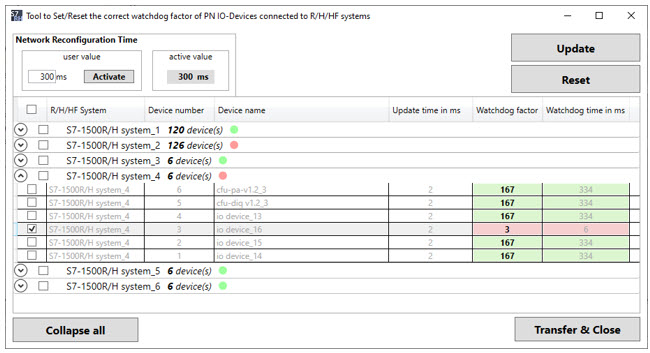
To connect a PROFINET device to a redundant system S7-1500R/H/HF, it is necessary to set the correct watchdog time for each device. The S7-1500R/H Add-In, as a context menu function for each PN IO device connected to an R/H/HF system, calculates the correct factor and updates it in the settings.
The S7-1500R/H Add-In expands the shortcut menu of the project tree in the TIA Portal and facilitates the automatic configuration of the watchdog factor on PN IO devices of the selected R/H/HF systems, either as a simple progress dialog or as a list display.
https://support.industry.siemens.com/cs/attachments/109769093/109769093_S7_1500RH_AddIn_DOC_V1_2_en.pdf
https://support.industry.siemens.com/cs/attachments/109769093/109769093_S7_1500RH_AddIn_CODE_V1_2_TIAP_V17.zip
https://support.industry.siemens.com/cs/attachments/109769093/109769093_S7_1500RH_AddIn_CODE_V1_2_TIAP_V16.zip |
|
| Back to top |
|
|
valz
Member 3
Joined: 26 Jul 2015
Posts: 771
|
| Posted: 20/10/2021 18:37 Post subject: TIA Add-In Tester |
|
|
TIA Add-In Tester
https://support.industry.siemens.com/cs/document/109783096/
During the development of a TIA Add-In, the TIA Add-In Tester can be used to test and debug the Add-In without installation & activation in the TIA Portal.
The TIA Add-In Tester allows you to test a TIA Add-In during development without having to install & activate it in the TIA Portal. The TIA Add-In to be tested is loaded in the TIA Add-In Tester as an Openness Application, connected to the TIA Portal, and executed.
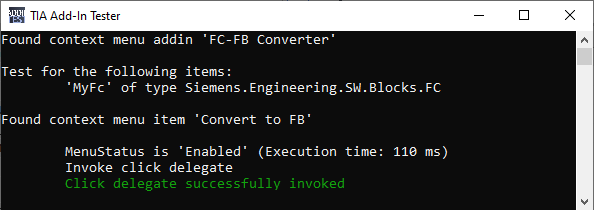
Fig. 1: TIA Add-In Tester
Using the TIA Add-In Tester, it is possible to set breakpoints in the TIA Add-In. The code of the TIA Add-In can, therefore, be run through line by line, and errors can be identified before it is installed and activated in the TIA Portal.
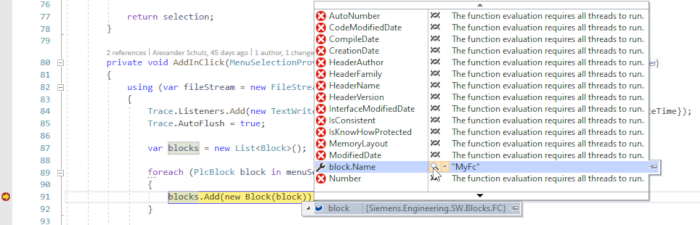
Fig. 2: Debugging of a TIA Add-In
Download
https://support.industry.siemens.com/cs/attachments/109783096/109783096_TiaAddInTester_DOC_V10_en.pdf
https://support.industry.siemens.com/cs/attachments/109783096/109783096_TiaAddInTester_APP_V1.0.61176.4406.zip |
|
| Back to top |
|
|
valz
Member 3
Joined: 26 Jul 2015
Posts: 771
|
| Posted: 20/10/2021 18:38 Post subject: TIA Add-Ins Getting Started |
|
|
TIA Add-Ins Getting Started
https://support.industry.siemens.com/cs/document/109779415/
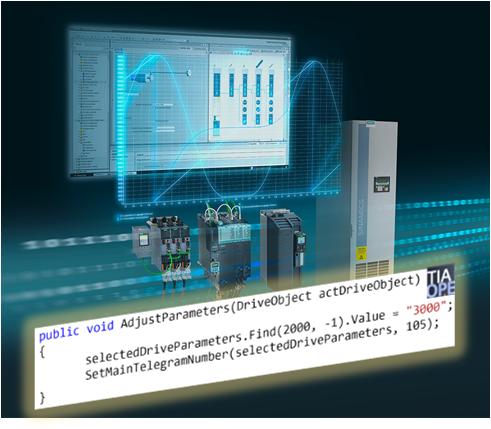
This description is intended to help you get started with programming TIA Add-Ins. A step-by-step guide will lead the user comfortably through the creation of a TIA Add-In. The necessary settings are explained using program examples. A template for changing SINAMICS drive parameters is also included in the description.
In this application example, a template is provided to access the SINAMICS drive parameters via TIA Openness, e.g. to change parameter values or create BICO connections. In addition, some basics for the connection of SINAMICS parameters via TIA Openness are given.
Requirements
Microsoft Visual Studio
TIA Portal from V16
SINAMICS Startdrive from V16
Downloads
https://support.industry.siemens.com/cs/attachments/109779415/109779415_TIA_Add-In_Getting_Started_DOC_V1_1_EN.pdf
https://support.industry.siemens.com/cs/attachments/109779415/109779415_TIA_Add-In_Getting_Started_Software_V1_1.zip |
|
| Back to top |
|
|
valz
Member 3
Joined: 26 Jul 2015
Posts: 771
|
| Posted: 20/10/2021 18:39 Post subject: Data2Unified Add-in |
|
|
Data2Unified Add-in
https://support.industry.siemens.com/cs/document/109770510/
Continue to use the project contents you have created when switching over to SIMATIC WinCC Unified and save time during engineering with the “Data2Unified” add-in.
SIMATIC WinCC Unified is the all-new visualization system from Siemens for automation applications. The SIMATIC WinCC Unified System consists of the SIMATIC WinCC visualization software and the new SIMATIC HMI Unified Comfort Panels.
The “Data2Unified” add-in offers you the possibility to convert your configuration contents into a WinCC Unified configuration so that you do not have to recreate the contents of your previous configurations from scratch.
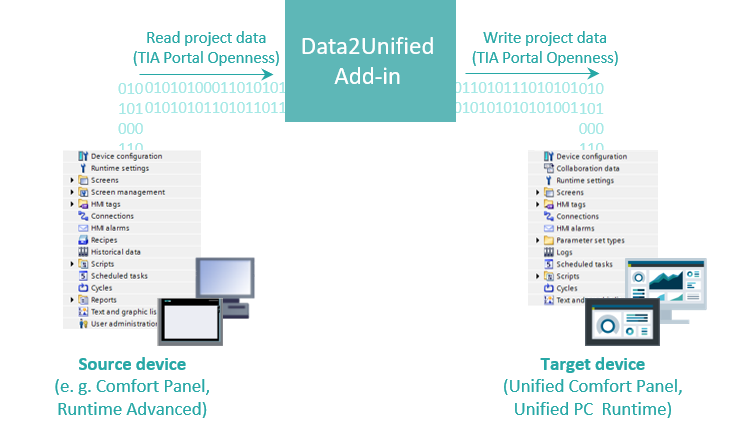
Fig. 1
In the current version of the “Data2Unified” add-in, the following contents are supported for conversion to SIMATIC WinCC Unified:
Screen objects of type "Basic objects" (e.g. Text box, Rectangle) and "Elements" (e.g. Button, I/O field)
Animations on the supported screen objects
Screens
Screen management (e.g. Templates, Pop-up screens, Slide-in Screens)
HMI tags, except UDT structures
HMI alarms
Note
The “Data2Unified” add-in is under continuous development (see last changes), which will gradually support additional TIA Portal project elements.
The link to download the latest version of the add-in is available within this article.
Download Data2Unified Add-in V1.3.0.0
https://support.industry.siemens.com/cs/attachments/109770510/109770510_Data2Unified_Add-in_V1_3_0_0.zip
https://support.industry.siemens.com/cs/attachments/109770510/109770510_Data2Unified_Manual_DOC_V13_en.pdf
How to use the Data2Unified Add-in (Video)
https://support.industry.siemens.com/cs/streamingvideo/109770510/2/3455# |
|
| Back to top |
|
|
valz
Member 3
Joined: 26 Jul 2015
Posts: 771
|
| Posted: 20/10/2021 18:42 Post subject: |
|
|
All above links download
https://ulozto.net/tamhle/66Uu9clzrk8a/ |
|
| Back to top |
|
|
valz
Member 3
Joined: 26 Jul 2015
Posts: 771
|
| Posted: 20/10/2021 18:52 Post subject: How do you debug a TIA Add-In? |
|
|
How do you debug a TIA Add-In?
https://support.industry.siemens.com/cs/document/109790393/
Attach to the TIA Add-In Process
Repeat the following steps each time you want to debug a TIA Add-In:
Preparation
Create the TIA Add-In (*.addin).
Copy the TIA Add-In into the "AddIns" folder of the TIA Portal installation (for example: C:\Program Files\Siemens\Automation\Portal V16\AddIns).
Enable the TIA Add-In in the "Add-ins” task card.
Start the TIA Add-In
In the TIA Portal:
Open the context menu for the element for which the TIA Add-In was created (1).
Move the mouse over the context menu item you created (2). In this way the TIA Add-In is loaded in a separate process.
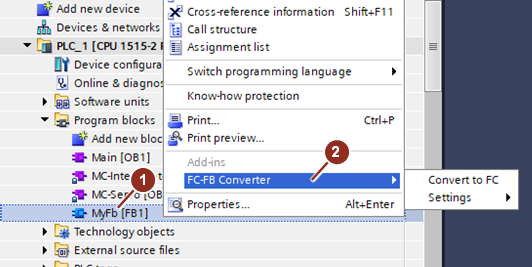
Fig. 1: Loading the TIA Add-In
Attach to the TIA Add-In process
In Microsoft Visual Studio:
Set a breakpoint in the code of the TIA Add-In (1).
In the menu select "Debug" → "Attach to Process" (2).
Find the "Siemens.Engineering.AddIn.Loader.x64.exe" process (3) and click "Attach" (4).
In TIA Portal:
Run the context menu entry to be tested.
The program sequence is paused at the defined breakpoint in Microsoft Visual Studio.
Note
Multiple TIA Add-In processes might be active. Disable all the other TIA Add-Ins, because there is no way to find out which process belongs to your TIA Add-In.
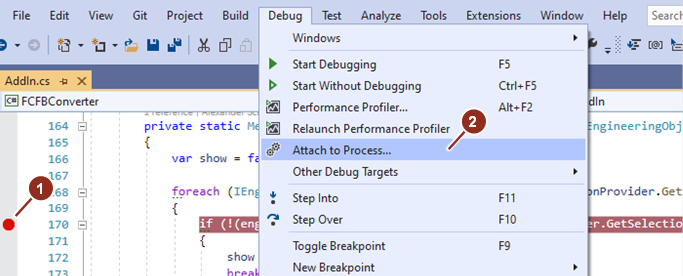
Fig. 2: Start debugging
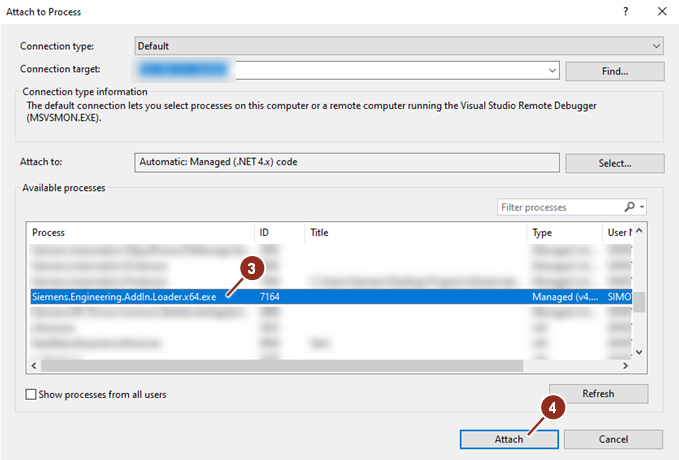
Fig. 3: Attach to process
Automatic Attaching
Using the "Debugger.Launch()” method the debugger can be attached automatically. For this method the TIA Add-In requires the security permission "System.Security.Permissions.UIPermission" in addition. This method and permission must be removed before publishing the TIA Add-In, otherwise the debugger will be attached to Visual Studio on every execution. For example, the launch method can be removed with the compiler statement "#define DEBUG" in release versions.
Proceed as follows to debug:
Insert the line "Debugger.Launch();" at the point where you want the debugger to be attached.
Insert the following permissions in the configuration file of the TIA Add-In:
System.Security.Permissions.UIPermission
System.Security.Permissions.SecurityPermission.UnmanagedCode
Create the TIA Add-In and enable it in the TIA Portal.
Execute the TIA Add-In to be tested.
During execution of the TIA Add-In the launch method opens a window for selecting the project.
Select the TIA Add-In project.
Continue debugging in the project.

Fig. 4: Example |
|
| Back to top |
|
|
|

 FAQ
FAQ Search
 Memberlist
 Usergroups
 Register
 Profile
 Log in to check your private messages
 Log in


