 |
plc.myforum.ro
PLCs users www.plc.myforum.ro!
|
| View previous topic :: View next topic |
| Author |
Message |
gamax
Member

Joined: 15 Jul 2016
Posts: 131
|
 Posted: 07/12/2021 14:21 Post subject: Startdrive Posted: 07/12/2021 14:21 Post subject: Startdrive |
 |
|
Startdrive: What can I do if it a SINAMICS drive is not displayed after inserting in a TIA Portal project or incorrect article numbers are displayed for SINAMICS components?
https://support.industry.siemens.com/cs/document/109804838/
If nothing happens when inserting a SINAMICS drive or incorrect article numbers are displayed for SINAMICS components, you should delete the cache of TIA Portal.
You will experience one of the following scenarios:
You add a SINAMICS drive to your project, but it is not displayed.
Incorrect article numbers are displayed for at least one SINAMICS component (please compare the article number on the SINAMICS components with the one configured in TIA Portal) and an upload or download from/to the SINAMICS is not possible.
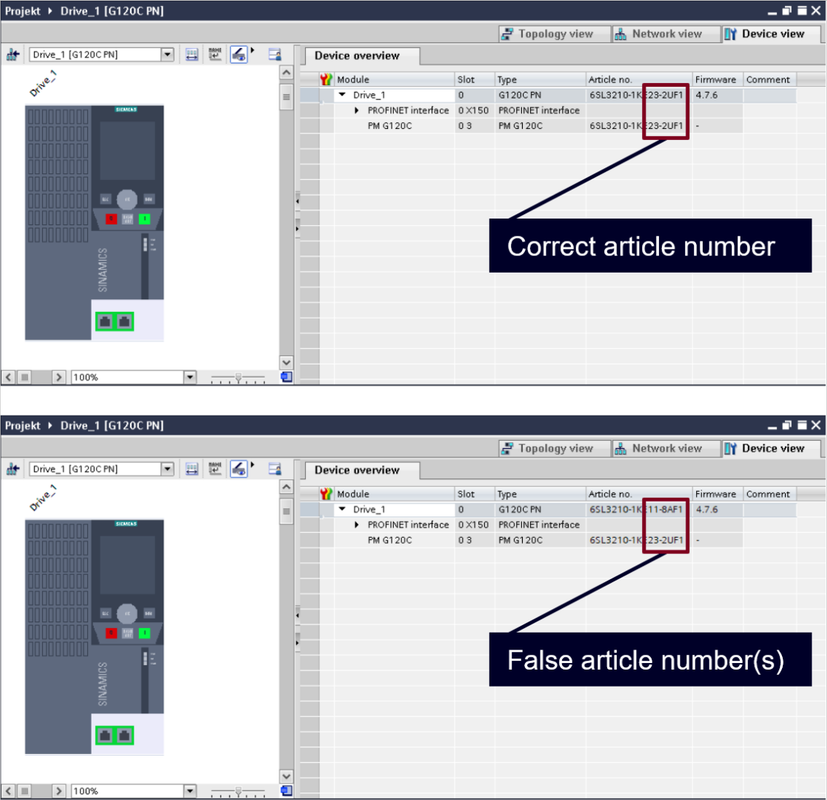
Example with incorrect article numbers for the SINAMICS G120C
Solution
Delete the cache of the TIA Portal, proceed as follows:
Close the TIA Portal.
Open the Windows Explorer and navigate to the folder "C:\ProgramData\Siemens\Automation\EDD_Component":
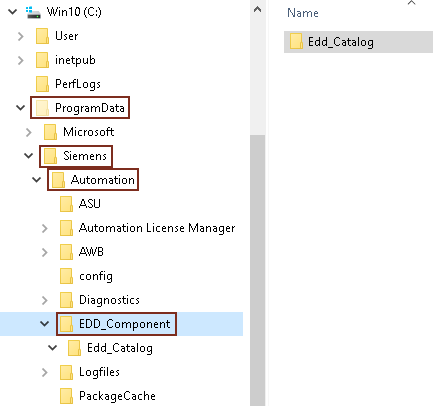
Delete the entire contents of the "EDD_Component" folder
Start the TIA Portal again.
Result
You can now insert SINAMICS drives again.
Possibly you have to reinsert the SINAMICS in order to have correct article numbers again and to be able to carry out uploads and downloads.
Note
If the above-mentioned directory is not displayed in the Windows Explorer, then you have to change the settings in the Windows Explorer.
Proceed as follows for this:
In the Windows Explorer you click "View" and select "Options".
In the "Folder Options" dialog you select the "View" tab.
Under "Advanced settings:" enable the setting: "Show hidden files, folders and drives" and confirm with "OK".
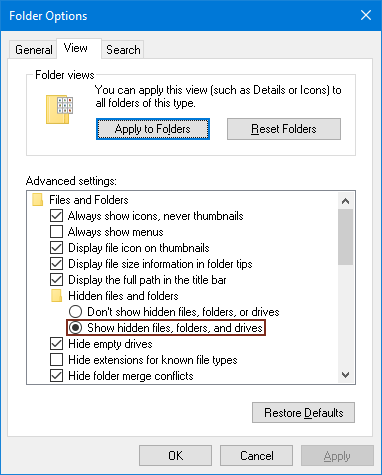
You can now navigate to the above-mentioned directory in Windows Explorer. |
|
| Back to top |
|
 |
|
|
You cannot post new topics in this forum
You cannot reply to topics in this forum
You cannot edit your posts in this forum
You cannot delete your posts in this forum
You cannot vote in polls in this forum
|
Powered by phpBB © 2001, 2005 phpBB Group
Fa-ti si tu propriul forum GRATUIT, pe www.myforum.ro |
 FAQ
FAQ Search
 Memberlist
 Usergroups
 Register
 Profile
 Log in to check your private messages
 Log in


