 |
plc.myforum.ro
PLCs users www.plc.myforum.ro!
|
| View previous topic :: View next topic |
| Author |
Message |
valz
Member 3


Joined: 26 Jul 2015
Posts: 771
|
 Posted: 06/01/2022 14:43 Post subject: SIMATIC Logon WinCC RT Advanced Posted: 06/01/2022 14:43 Post subject: SIMATIC Logon WinCC RT Advanced |
 |
|
How do you configure the Central User Administration with SIMATIC Logon to log on local Windows users or users of an Active Directory (domain) to an HMI Panel / WinCC RT Advanced PC?
https://support.industry.siemens.com/cs/document/109802523/
Logon via SIMATIC Logon for Windows users or domain users to an HMI panel or WinCC Runtime Advanced is performed via a logon server centrally installed in the network.
Notes on installing the logon server
When logging on, a SIMATIC HMI panel or a WinCC Advanced Runtime communicates with SIMATIC Logon exclusively via the
"SIMATIC Logon Remote Access Service".
The logon server must be installed centrally on a computer in the network.
You can install the logon server in parallel to an installed WinCC Runtime Advanced.
When installing the SIMATIC logon server, please note that if it is a domain,
the PC must first be added to the domain before the SIMATIC logon server is installed.
Note
If the PC is added to the domain only after the logon server has been installed, you have to uninstall and reinstall the logon server.
Configuration of SIMATIC Logon in the HMI project
1. In the TIA Portal, open the project in which you want to configure SIMATIC Logon.
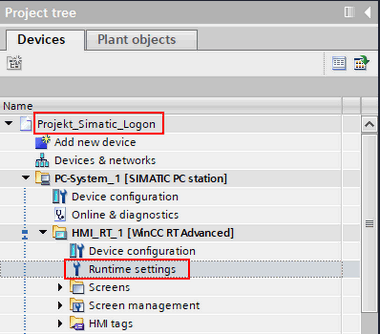
Fig. 01
2. Open the Runtime Settings.
Under User Administration, enable the use of SIMATIC Logon and select whether logon is via a local Windows user or via a Windows domain. If the logon takes place via a local Windows user, you enter the IP address of the computer or the computer name on which SIMATIC Logon is installed in the "Server name" field.
Warning
If a central name resolution such as DNS/WINS is not set up on the SIMATIC logon server, you have to enter the IP address in the "Server name" field.
Note
If you have installed SIMATIC Logon in parallel to WinCC Runtime Advanced, you can also enter "localhost" instead of the computer name.
The port number 16389 is already preassigned. The "SIMATIC Logon Remote Access Service" communicates with the HMI panels or WinCC Runtime Advanced via this port.
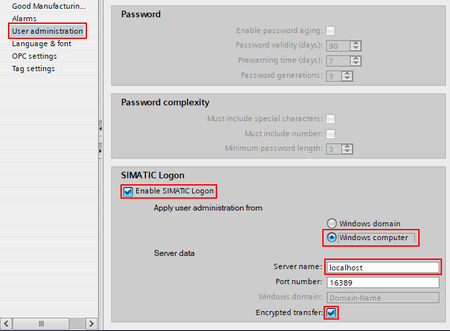
Fig. 02
If the logon takes place via a Windows domain, you must also enter the name of the domain in the "Windows domain" field.
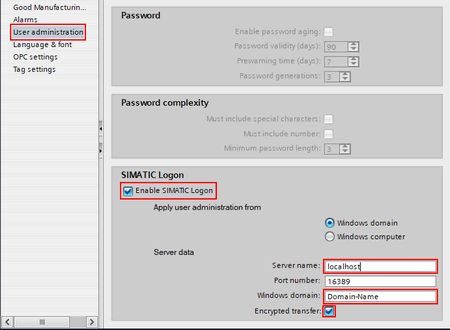
Fig. 03
Encrypted transfer
If encrypted transmission is used between SIMATIC Logon and HMI Panel / WinCC Runtime Advanced,
"Encrypted transmission" must also be enabled in the configuration console of the SIMATIC logon server.
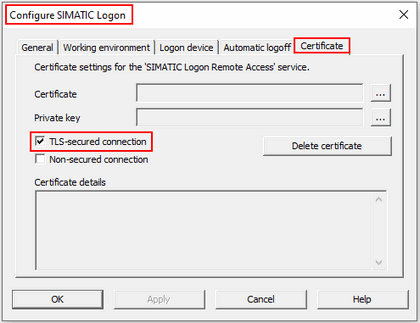
Fig. 04
Note
In the configuration console of the logon server, only one of the two options for secured connection may be selected at a time.
If both options are selected, the SIMATIC logon server always uses an encrypted connection.
For an encrypted connection, you must lucrate and conține a certificate.
Detailed instructions are available in the following entry.
https://support.industry.siemens.com/cs/document/109480490/how-do-you-encrypt-the-connection-between-simatic-logon-and-a-comfort-panel-or-a-wincc-runtime-advanced
Logon in Runtime
The following requirements must be met for the logon of Windows / domain users in the Runtime and for the use of Runtime permissions.
1. Create the necessary user groups in the HMI project and assign the desired permissions to these groups.
2. Confecționate the same user groups on the PC with the SIMATIC logon server if no domain is configured. If logon is configured via a domain, create the user groups on the domain controller.
3. Add the necessary Windows / domain users to the user groups. Each Windows / domain user may be assigned to only one user group.
The configuration of the Central User Administration with SIMATIC Logon is now complete.
Licenses
To use the Central User Administration with SIMATIC Logon, the following licenses must be installed on the logon server.
1. SIMATIC Logon Server license V1.6 or higher
2. SIMATIC Remote Access license
Note
The SIMATIC Logon Remote Access license is available in versions for 3 or 10 clients.
License for 3 clients - you can always log on 3 panels / WinCC RT Advanced to the SIMATIC logon server at the same time.
For additional clients you can use an additional "3 Client License" or a "10 Client License".
The licenses accumulate.
Firewall settings
Port number 16389 is used exclusively for communication of the " SIMATIC Logon Remote Access Service" with the HMI panels or WinCC Runtime Advanced. The port number must be enabled in the inbound and outbound rules in the firewall.
1. Go to Control Panel - All Control Panel Items - Windows Defender Firewall and open "Advanced settings".
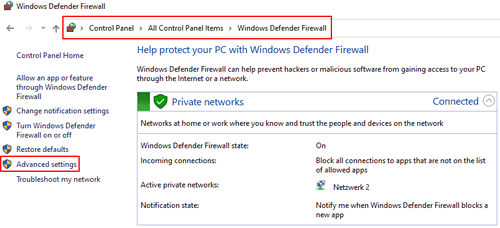
Fig. 05
2. Open the "Inbound Rules" tab run the "New Rule..." wizard.
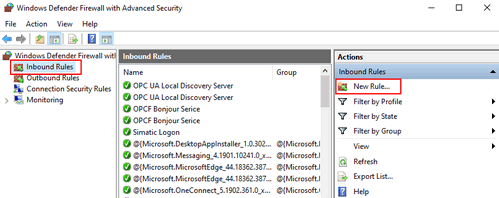
Fig. 06
3. Select "Port" as the Rule Type and then press "Next".
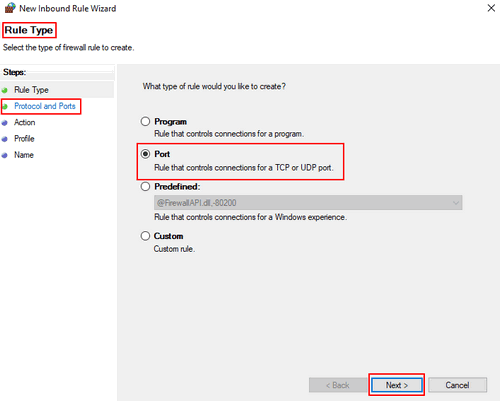
Fig. 07
4. Select "TCP" as protocol and enter the port number 16389 for the local port. Then press "Next".
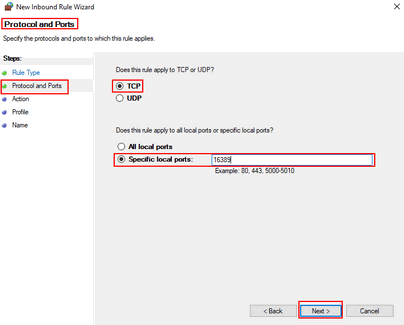
Fig. 08
5. Select "Allow the connection" and press "Next".
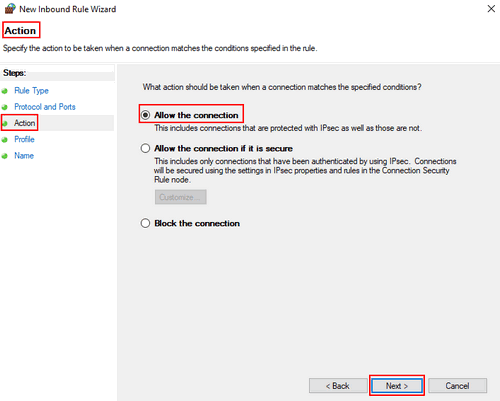
Fig. 09
6. Select the profile for which the rule is to apply. As an example, all profiles are selected in Fig. 10. Confirm the selection with "Next".
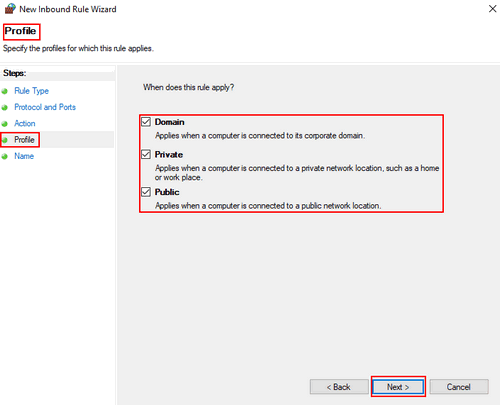
Fig. 10
7. Enter a descriptive name for the inbound rule under "Name" and close the wizard by pressing the "Finish" button. This enables the port number in the inbound rule in the firewall.
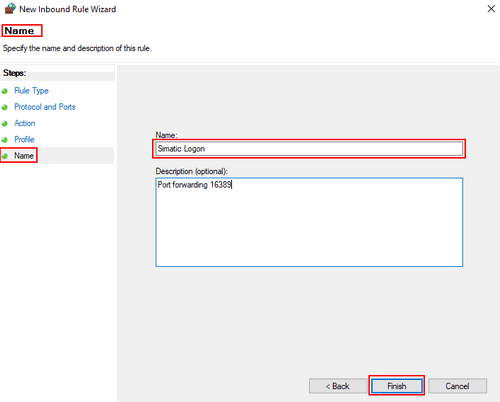
Fig. 11
8. Switch to the "Outbound Rules" tab and run the "New Rule..." wizard.
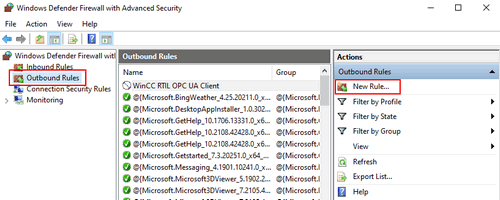
Fig. 12
9. Select "Port" as the Rule Type and then press "Next".
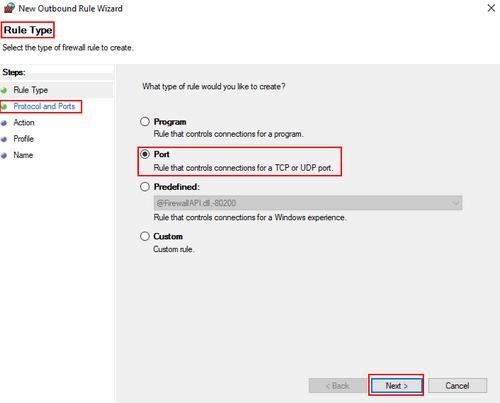
Fig. 13
10. Select "TCP" as protocol and enter the port number 16389 for the local remote port. Then press "Next".
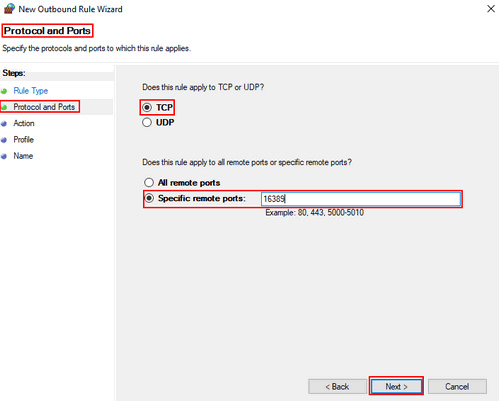
Fig. 14
11. Select "Allow the connection" and press "Next".
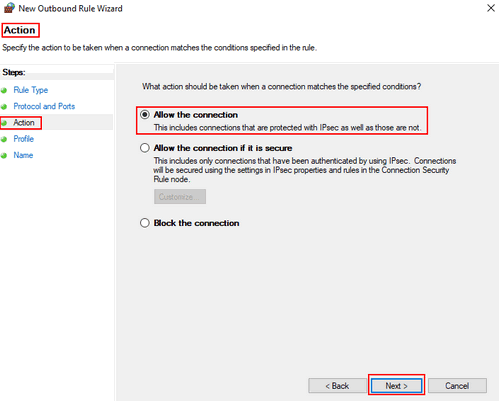
Fig. 15
12. Select the profile for which the rule is to apply. As an example, all profiles are selected in Fig. 16. Confirm the selection with "Next".
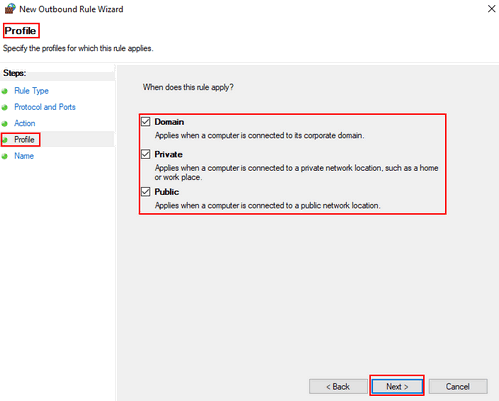
Fig. 16
13. Enter a descriptive name for the outbound rule under "Name" and close the wizard by pressing the "Finish" button. This enables the port number in the outbound rule in the firewall.
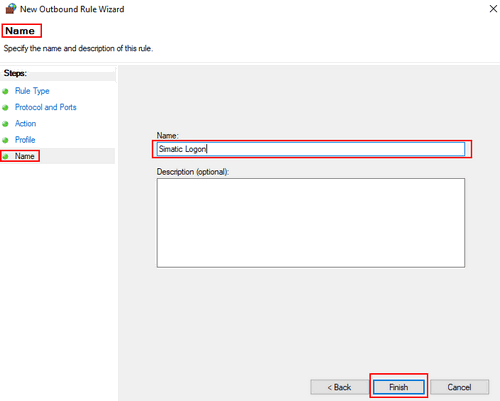
Fig. 17
14. This completes the settings in the firewall for the communication of the "SIMATIC Logon Remote Access Service" with the HMI panels or the WinCC Runtime Advanced.
Restart the PC.
Further information on the topic is available here
https://support.industry.siemens.com/cs/document/109738532/user-administration-in-wincc- (tia-portal) |
|
| Back to top |
|
 |
|
|
You cannot post new topics in this forum
You cannot reply to topics in this forum
You cannot edit your posts in this forum
You cannot delete your posts in this forum
You cannot vote in polls in this forum
|
Powered by phpBB © 2001, 2005 phpBB Group
Fa-ti si tu propriul forum GRATUIT, pe www.myforum.ro |
 FAQ
FAQ Search
 Memberlist
 Usergroups
 Register
 Profile
 Log in to check your private messages
 Log in


