 |
plc.myforum.ro
PLCs users www.plc.myforum.ro!
|
| View previous topic :: View next topic |
| Author |
Message |
maersk
Member 3


Joined: 17 Aug 2014
Posts: 891
|
 Posted: 21/12/2016 19:47 Post subject: SIMATIC HMI Control Panels - Remote Access Posted: 21/12/2016 19:47 Post subject: SIMATIC HMI Control Panels - Remote Access |
 |
|
Remote Access to SIMATIC HMI Control Panels
https://support.industry.siemens.com/cs/document/109476153/remote-access-to-simatic-hmi-control-panels
Whether for the purpose of servicing or evaluating the production data, working on site increases travel times and, most of all, travel expenses. To keep these as low as possible, the SIMATIC HMI panels offer the option of remote maintenance and remote operation. The “Sm@rtServiceMonitor” tool provides additional security.
Apart from the actual “remote” access, the described solutions are also suitable for large, spatially separated plants, or for efficient commissioning.

For each scenario, the SIMATIC HMI panels offer an ideal solution for realizing the remote access. This application contains a description of possible scenarios, as well as a detailed instruction for the quick configuration of the access in your own project.
https://support.industry.siemens.com/cs/attachments/109476153/109476153_Remote_Panels_General_DOKU_en.pdf
To realize the remote access, Siemens provides the SIMATIC Remote Service. Further information on this topic is available in
https://support.industry.siemens.com/cs/sc/2281/simatic-remote-services
Alternatively, you can use a VPN connection. This document tells you which component you can use for the respective scenario.
https://support.industry.siemens.com/cs/attachments/109476153/109476153_Remote_Panels_VPN_DOKU_en.pdf
Sm@rtServer
An operator panel configured as Sm@rtServer makes its user interface available to the Sm@rtClients. This document contains information on using the Sm@rtServerand the Sm@rtServiceMonitor tool. This tool reads the current Sm@rtClient connection and forwards it to HMI Runtime for further processing. This enables monitoring the remote access and the user can interrupt it on site if necessary.
https://support.industry.siemens.com/cs/attachments/109476153/109476153_Remote_Panels_SmartServer_DOKU_en.pdf
download the "Sm@rtServiceMonitor” tool free of charge.
https://support.industry.siemens.com/cs/attachments/109476153/109476153_Remote_Panels_ComfortPanel_Tool.zip
https://support.industry.siemens.com/cs/attachments/109476153/109476153_Remote_Panels_RTAdv_Tool.zip
https://support.industry.siemens.com/cs/attachments/109476153/109476153_Remote_Panels_ComfortPanel_Proj.zip
https://support.industry.siemens.com/cs/attachments/109476153/109476153_Remote_Panels_RTAdv_Proj.zip
https://support.industry.siemens.com/cs/attachments/109476153/109476153_Remote_Panels_SmartServer_LIB.zip
https://support.industry.siemens.com/cs/attachments/109476153/109476153_ProjekteV13.zip
HTML page
The integrated web server of the SIMATIC HMI panels enables you to exchange files between your PC and the Comfort Panel. A description of the web server and the standard web pages is available in this document.
https://support.industry.siemens.com/cs/attachments/109476153/109476153_Remote_Panels_Webserver_DOKU_en.pdf
To represent special information of the SIMATIC HMI panel only, you can create individually designed web pages.
https://support.industry.siemens.com/cs/attachments/109476153/109476153_Remote_Panels_HTML_DOKU_en.pdf
https://support.industry.siemens.com/cs/attachments/109476153/109476153_Remote_Panels_HTML_PROJ.zip
Pack & Go
This function enables project transfer without engineering system.
https://support.industry.siemens.com/cs/attachments/109476153/109476153_Remote_Panels_PackNGo_DOKU_en.pdf
How do you backup/restore with a Comfort Panel?
https://support.industry.siemens.com/cs/document/58876345/how-do-you-backup-restore-with-a-comfort-panel-?dti=0&lc=en-WW
How with the TIA Portal do you transfer your project to your operator panel via a storage medium (USB stick, for example)?
https://support.industry.siemens.com/cs/document/109740696/how-with-the-tia-portal-do-you-transfer-your-project-to-your-operator-panel-via-a-storage-medium- (usb-stick-for-example)-?dti=0&lc=en-WW |
|
| Back to top |
|
 |
maersk
Member 3
Joined: 17 Aug 2014
Posts: 891
|
| Posted: 05/03/2018 15:20 Post subject: How to remote acces Panels from Phone or Tablet |
|
|
How to remote acces Panels from Phone or Tablet:
1.Download Sm@rtClient app for Android and iOS enables you to access the Sm@rtServer from mobile devices such as smartphones or tablets
Android
https://play.google.com/store/apps/details?id=com.siemens.smartclient&hl=en
http://download.cnet.com/Sm-rtClient/3000-20418_4-77543185.html
SIEMENS TP700 remote access via mobile and android pohone
https://www.youtube.com/watch?v=BNat-eKrh6o
iOS
https://itunes.apple.com/nz/app/sm-rtclient/id874209707?mt=8
Install applications on your smart device. These are not free...
Sm@rtServer
The Sm@rtClient app for Android and iOS enables you to access the Sm@rtServer from mobile devices such as smartphones or tablets
Allows you to move around freely in the entire plant
No additional configuration overhead
The operator panel layout is completely represented by the Sm@rtClient app. This allows you to use key devices (such as the KP700 Comfort) almost without restrictions.
Scenarios for remote access (517,2 KB)
https://support.industry.siemens.com/cs/attachments/109476153/109476153_Remote_Panels_General_DOKU_en.pdf
How to use.......how to connect...please read
Sm@rtServer
An operator panel configured as Sm@rtServer makes its user interface available to the Sm@rtClients. This document contains information on using the Sm@rtServerand the Sm@rtServiceMonitor tool. This tool reads the current Sm@rtClient connection and forwards it to HMI Runtime for further processing. This enables monitoring the remote access and the user can interrupt it on site if necessary.
https://support.industry.siemens.com/cs/attachments/109476153/109476153_Remote_Panels_SmartServer_DOKU_en.pdf
download the "Sm@rtServiceMonitor” tool free of charge.
https://support.industry.siemens.com/cs/attachments/109476153/109476153_Remote_Panels_ComfortPanel_Tool.zip
https://support.industry.siemens.com/cs/attachments/109476153/109476153_Remote_Panels_RTAdv_Tool.zip
Example project for WinCC V14 for Comfort Panels (5,6 MB)
https://support.industry.siemens.com/cs/attachments/109476153/109476153_Remote_Panels_ComfortPanel_Proj.zip
Example project for WinCC V14 for WinCC Runtime Advanced (5,6 MB)
https://support.industry.siemens.com/cs/attachments/109476153/109476153_Remote_Panels_RTAdv_Proj.zip
Library for WinCC V14 (407,2 KB)
https://support.industry.siemens.com/cs/attachments/109476153/109476153_Remote_Panels_SmartServer_LIB.zip
Projects for WinCC V13 SP1 (22,7 MB)
https://support.industry.siemens.com/cs/attachments/109476153/109476153_ProjekteV13.zip
HTML page
The integrated web server of the SIMATIC HMI panels enables you to exchange files between your PC and the Comfort Panel. A description of the web server and the standard web pages is available in this document.
https://support.industry.siemens.com/cs/attachments/109476153/109476153_Remote_Panels_Webserver_DOKU_en.pdf
To represent special information of the SIMATIC HMI panel only, you can create individually designed web pages.
https://support.industry.siemens.com/cs/attachments/109476153/109476153_Remote_Panels_HTML_DOKU_en.pdf
Example project for WinCC V13 SP1 (11.5 MB)
https://support.industry.siemens.com/cs/attachments/109476153/109476153_Remote_Panels_HTML_PROJ.zip
How do you backup/restore with a Comfort Panel?
https://support.industry.siemens.com/cs/document/58876345/
Continuous automatic backup of all the process-relevant control panels
https://support.industry.siemens.com/cs/document/68373729/
You have to have the mobile devices and panel locally for putting into operation.
Accessing via WIFI need the same steps as any Internet Remote Connection. |
|
| Back to top |
|
|
Dannov Farry
Junior

Joined: 19 May 2019
Posts: 2
|
| Posted: 12/06/2019 20:19 Post subject: |
|
|
| thanks!!!! |
|
| Back to top |
|
|
ALooser
Junior 2

Joined: 26 Oct 2018
Posts: 37
|
| Posted: 13/06/2019 20:38 Post subject: How do you backup/restore with a Windows-based panel? |
|
|
How do you backup/restore with a Windows-based panel?
https://support.industry.siemens.com/cs/document/28928853/how-do-you-backup-restore-with-a-windows-based-panel
1. Backup/Restore with ProSave
With ProSave you have a convenient option of central archiving even without ProTool or WinCC flexible. This provides you with a quick way of starting up again after a system failure or replacement of devices. The backed-up data is transferred to the new target device and the original status thus restored.
https://support.industry.siemens.com/cs/attachments/21907703/21907703_Back_transfer_description_e.pdf
https://support.industry.siemens.com/cs/attachments/21907703/21907703_Back_transfer_devices_e.pdf
It is not possible to load and edit a backup file in ProTool or WinCC flexible. The file can only be reloaded to the original or another panel via a restore with ProSave.
Note
Operator panel TP070 does not support backup/restore with ProSave.
=====================================
1.Preparations for Backup/Restore
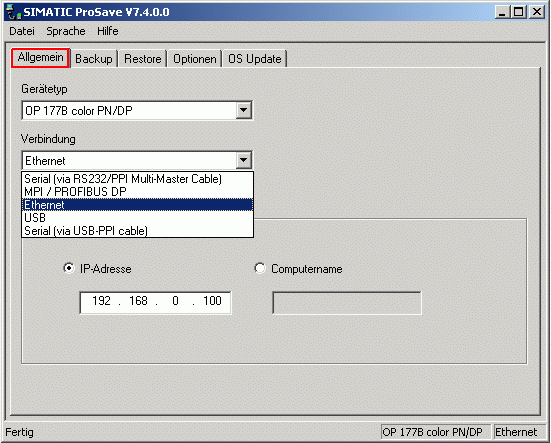
Depending on the operator panel, you can use one of the following connections for a backup/restore with ProSave:
- Serial (over RS232/PPI multimaster cable) 6ES7 901-3CB30-0AX0
- Serial (over USB-PPI cable) 6ES7 901-3DB30-0XA0
- Serial (over RS232 / zero modem cable) *) 6ES7 901-1BF00-0XA0
- MPI / PROFIBUS DP
- Ethernet
- USB (host-to-host cable) information in
https://support.industry.siemens.com/cs/attachments/19142034/USB_Transfer_V1_0_e.pdf
*)You can făurite the zero modem cable (6ES7 901-1BF00-0XA0) yourself. More information is available in
https://support.industry.siemens.com/cs/attachments/21401061/Panel_Kommunikation_Steckerbelegung_T1_01_e.pdf
01
If you do not have ProTool or WinCC flexible, you can also download ProSave independently - see
https://support.industry.siemens.com/cs/document/10347815/servicetool-simatic-prosave
ProSave allows a complete backup directly from the panel including the configuration. The backup created can then be loaded back into the original or an identical device.
Connect the PC with the panel and put it the panel in Transfer mode. If not configured, you can put the panel in this mode by switching the power off and on again. For this you must select and hold the Transfer button when you restart the panel.
Now the panel is in Transfer mode and ready for backup/restore.
If you want to make a restore, you can jump directly to Point 3 "Restore".
====================================
2.Backup
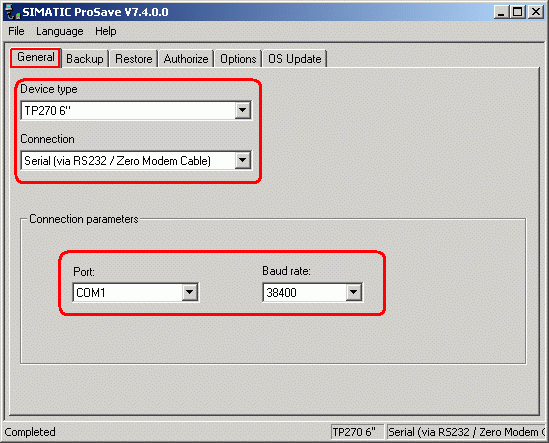
Open ProSave and select the correct panel in the "General" tab.
02
Select the connection between the PC and the panel, serial (over RS232 / zero modem cable), for example.
Define the connection parameters, for example COM1 with a baud rate of 38400 for the serial connection.
Note:
In USB connections (host-to-host cable) and serial connections over USB-PPI cable, you cannot define additional connection parameters.
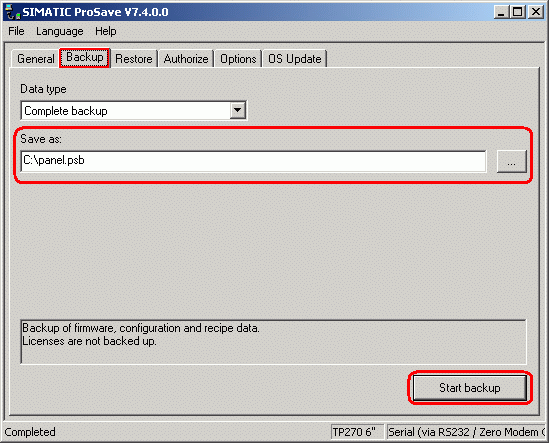
Switch to the "Backup" tab, select the path and specify a file name, "C:\panel.psb", for example. Under the "Data type" you define the type of backup to be created.
Note:
The file extension ".psb" is necessary, because only this file type can be loaded for a restore.
03
When everything is set, you trigger the backup procedure with "Start Backup".
Note:
If the connection is interrupted, it might be because another software, virus scanner or power management, for example, is accessing the COM interface. Therefore, make sure that any such software is terminated before restarting.
Once the backup has been completed, the file created can now be loaded back into a device of the same type or back into the original device, as required.
===============================================
3.Restore
First put your panel in Transfer mode as described in Point 1 and set up the connection to the PC.
Select the appropriate operator panel and connection type in the "General" tab - see Fig. 02.
If possible, define the connection parameters.
Switch to the "Restore" tab in ProSave.
Open your ".psb-file" and transfer the loading procedure by clicking "Start Restore".

04
After successful transfer of data to your panel, this is now ready to be integrated in your system after startup.
Note:
The panel has exactly the same connection parameters as the panel from which the backup originates. Make sure that both panels are not in the same system, in order to avoid connection problems.
===============================================
2. Backup/Restore with a memory card
During saving (backup), the operating system, applications and data are copied from the internal flash memory of the operator panel to the memory card.
When you restore, the flash memory of the operator panel is deleted after a prompt. Then the data backed up on the memory card is copied to the internal flash memory.
Requirements
The operator panel supports the Backup/Restore function.
A memory card is available in the operator panel with sufficient free space.
Which operator panels support backup/restore with a memory card are given in
https://support.industry.siemens.com/cs/document/21907703/how-do-you-back-transfer-the-projects-of-an-operator-panel-and-what-should-you-watch-out-for
Use of the backup/restore function depends on the operator panel. In the following we will be considering operator panels of the 177, 277 and 377 series. For other operator panels - in particular for older operator panels - please refer to the relevant manuals for the procedure.
No. Procedure
1 Preparation
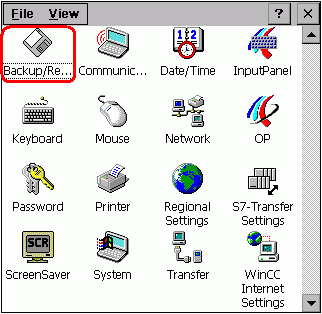
Start the operator panel and open the "Control Panel".
Slot the memory card into the operator panel.
Open the "Backup/Restore" menu in the "Control Panel".
05
If you only want to make a restore, you can jump directly to Point 3 "Restore".
=============================================
2 Backup
Click the "Backup" button in "Backup/Restore" dialog.
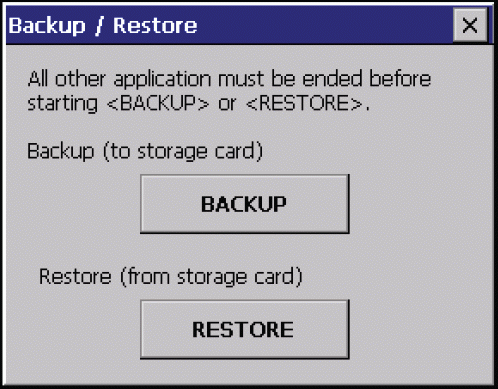
06
Note
Figure 06 shows the "Backup/Restore" dialog of an operator panel with Windows CE 5.0.
=============================================
2.1 Backup - operator panels with one interface for memory cards
With operator panels with only one interface for memory cards, the memory card is automatically searched for.
a) Memory card detected
If the backup is successful, the "Backup successfully completed." dialog opens.
Acknowledge the dialog with "OK".
If there is already an old backup on the memory card, a message is issued on the operator asking whether or not you want to delete the old backup.
Acknowledge the message with "Yes" if you want to delete the old backup and realizate a new one.
Acknowledge the message with "No" if you do not want to delete the old backup and want to interrupt the current backup procedure. Acknowledge the interrupt with "OK".
A warning is displayed if the available memory is insufficient.
Use an appropriate memory card or delete all the unnecessary data in the Windows CE Explorer.
b) Memory card not detected
If there is a defective memory card in the operator panel, or none at all, then the following message is displayed.
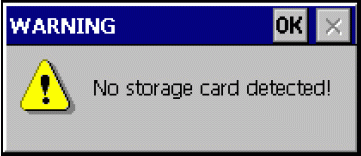
07
Click "OK" to close the warning.
Click "OK" to acknowledge the "Backup interrupted" message.
Repeat the procedure using an appropriate memory card.
2.2 Backup - operator panels with multiple interfaces for memory cards
In the case of operator panels with numeroase interfaces for memory cards, you can select the memory card explicitly on the operator panel - see Fig. 8.
In the list box - see Fig. 08 - you select the required memory card and then click the "Start Backup" button.
Warning - possible loss of data!
When you first use a memory card, the operator panel prompts you to format it.
Click the "ESC" button to abort the formatting procedure.
If no memory card is slotted or the memory card is defective, then no memory card is displayed.
In this case, slot a memory card that functions into the operator panel.
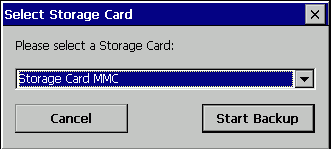
08
If the message is displayed indicating that a higher storage capacity is required, then proceed as follows:
Click "OK" to acknowledge the message and thus interrupt the backup.
Slot a memory card with the higher storage capacity into the operator panel.
Start the backup again.
If there is already an old backup on the memory card, you get a message asking you whether this backup should be overwritten.
Acknowledge the message with "Yes" if you want to delete the old backup and lucrate a new one.
Acknowledge the message with "No" if you do not want to delete the old backup and want to interrupt the current backup procedure. Acknowledge the interrupt with "OK".
The backup is completed when the "Backup successfully completed..." message is displayed.
Acknowledge the message with "OK".
Remove the memory card from the operator panel.
3 Restore
Click the "Restore" button in the "Backup/Restore" dialog - see Fig. 06.
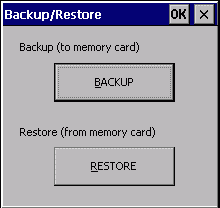
09
Note
Figure 09 shows the "Backup/Restore" dialog of an operator panel with Windows CE 3.0.
=============================================
3.1 Restore - operator panels with one interface for memory cards
In the case of operator panels with only one interface for memory cards, you can do a restore only via that interface.
a) Memory card detected
If the memory card is detected, a message is displayed asking whether the restore procedure should be continued. Here, all the data of the flash will be deleted on the operator panel.
Acknowledge the message with "Yes" if you want to start the restore.
Acknowledge the message with "No" and then the following message with "OK" if you want to abort the restore.
Once the flash has been deleted and the Windows CE image has been successfully restored, you must reboot the operator panel.
Acknowledge the message with "OK".
Note
Do not remove the memory card from the operator panel during the restart!
As soon as the restore has been successfully completed, a message is displayed prompting you to remove the memory card from the operator panel.
Remove the memory card from the operator panel.
Acknowledge removal of the memory and reboot with "OK".
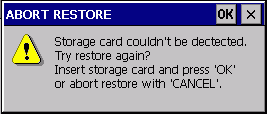
b) Memory card not detected
If there is a defective memory card in the operator panel, or none at all, then the following message is displayed.
10
Slot an appropriate memory card into the operator panel and acknowledge this with "OK" if you want to execute the restore.
Click the "X" if you want to abort the restore procedure.
3.2 Restore - operator panels with multiple interfaces for memory cards
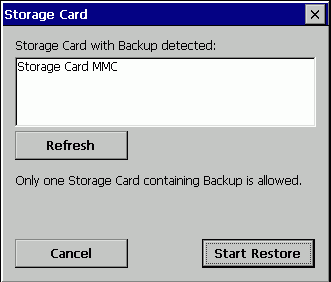
In the case of operator panels with multiple interfaces for memory cards, you can select the memory card explicitly on the operator panel - see Fig. 1.
In this case, you select the memory card that contains the backup.
If no memory card is slotted or the memory card is defective or the memory card contains no backup, then no memory card is displayed.
In this case, slot a memory card that functions and which contains a backup of the operator panel into the operator panel.
Only storage media containing a backup is detected.
Then click the "Start Restore" button.
If multiple external storage media with a backup are slotted on one operator panel, data restore is not possible.
Remove all the external storage media units that contain a backup and are not relevant and then click the "Refresh" button.
Alternatively you can abort the restore procedure by clicking the "Cancel" button.
11
Once the data to be restored has been checked, a prompt is displayed querying whether you want to start Restore and in doing so whether you want to delete all the data on the flash.
Acknowledge the message with "Yes" if you want to start the restore.
Acknowledge the message with "No" and then the following message with "OK" if you want to abort the restore.
The restore is completed when the "Restore successfully finished..." message is displayed.
Click "OK" to acknowledge the message and restart the operator panel.
Additional Keywords
OP73, TP070, TP170, TP177, Mobile Panel170, Mobile Panel177, Mobile Panel277, OP77A, OP77B, TP170A, TP170B, TP177A, TP177B, OP170B, OP177, TP270, TP277, OP270, OP277, MP270, MP270B, MP277, MP370, MP377, Linux-based operator panels
Which external storage media can you use with the current SIMATIC panels and which memory card interfaces do they have?
https://support.industry.siemens.com/cs/document/21847868/which-external-storage-media-can-you-use-with-the-current-simatic-panels-and-which-memory-card-interfaces-do-they-have
How do you backup/restore with a Comfort Panel?
https://support.industry.siemens.com/cs/document/58876345/how-do-you-backup-restore-with-a-comfort-panel
How do you back transfer the projects of an operator panel and what should you watch out for?
https://support.industry.siemens.com/cs/document/21907703/how-do-you-back-transfer-the-projects-of-an-operator-panel-and-what-should-you-watch-out-for
https://megaupload.nz/U6L0jfv1n8/SIMATIC_ProSave_V15_1_exe |
|
| Back to top |
|
|
gextor
Junior
Joined: 04 Jun 2019
Posts: 3
|
| Posted: 03/12/2019 10:54 Post subject: transfer data from a server to a Windows-based panel |
|
|
How do you transfer data from a server to a Windows-based panel via the FTP protocol?
https://support.industry.siemens.com/cs/document/15250466/how-do-you-transfer-data-from-a-server-to-a-windows-based-panel-via-the-ftp-protocol
Using the "File Transfer Protocol" you can move files between a WinCE panel (e.g. MP370) used as an FTP client and a PC used as an FTP server.
This entry explains how to configure the FTP server on the PC and how to connect the WinCE panel to this server using the Pocket Internet Explorer. A requirement for this is that you have a correctly functioning Ethernet connection between the two devices created using a cross-over cable or a hub.
The Microsoft Pocket Internet Explorer, which can be optionally transferred to a Windows CE panel using ProSave, only supports downloads from the server. Uploads are not supported.
The table below describes all the steps that are required in order to set up an FTP server in "Microsoft Windows 2000 Server".
No. Procedure
1 Adding Windows components
Go to the "Control Panel" and open the "Add or Remove Programs" menu.
Select "Add/Remove Windows Components".
Enable "Internet Information Services" and click "Details".
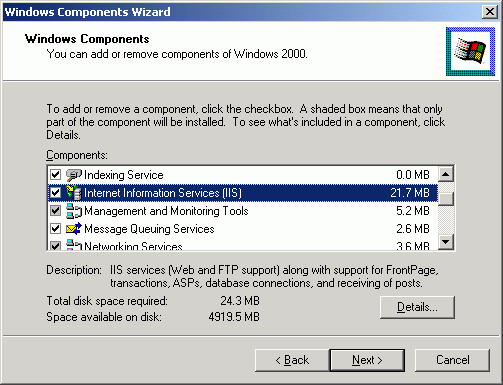
Fig. 01
2
Installing an FTP server
Select "FTP Server (File Transfer Protocol)", "Internet Services Manager" and click "OK". Click "Next" to start the installation of the selected components.
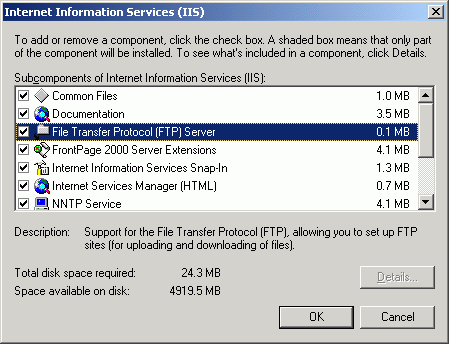
Fig. 02
3 Starting the Internet Services Manager
Place your "Windows 2000" CD in the CD drive because it is required for installation.
Click "Finish" to close the installation wizard.
Start the Internet Services Manager via "Control Panel > Administrative Tools > Internet Services Manager".
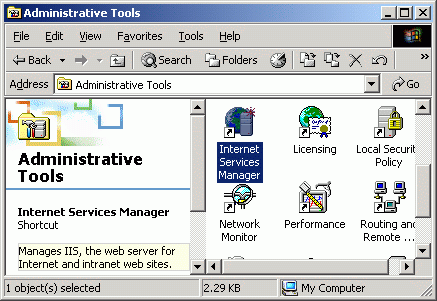
Fig. 03
4 Inserting a new FTP site
Insert a new FTP site.
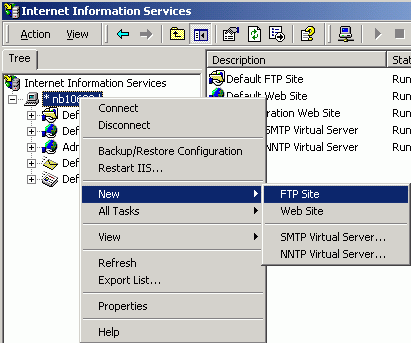
Fig. 04
5 Creating an FTP site
The installation wizard for the new FTP site is started.
Click "Next".
Enter a description for your site and click "Next".
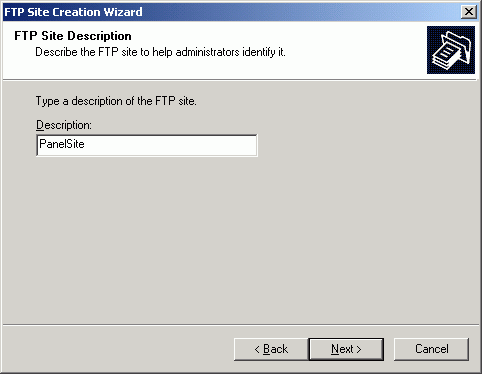
Fig. 05
6 Specifying the connection settings
Select your computer's IP address, e.g. (192.168.0.1). Enter 21 under TCP port.
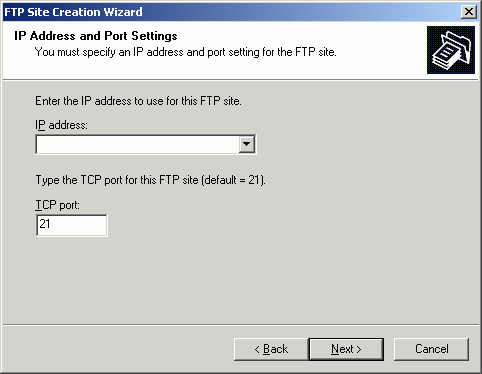
Fig. 06
7 Specifying the home directory for the FTP site
Enter a home directory for the FTP data.
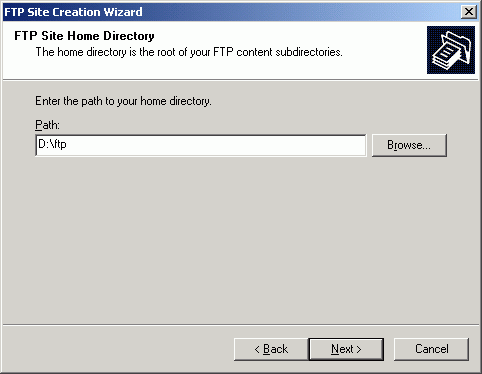
Fig. 07
8 Access permission to the FTP site
Specify the access authorizations for the FTP data.
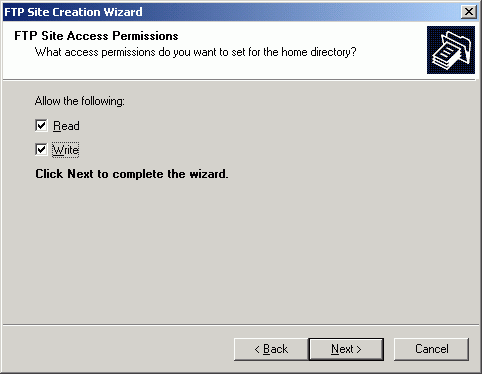
Fig. 08
9 Opening the properties for the "PanelSite"
Click "Finish" to close the installation wizard. A new FTP site is created with the specified settings.
Open the properties for the FTP site which you have created.
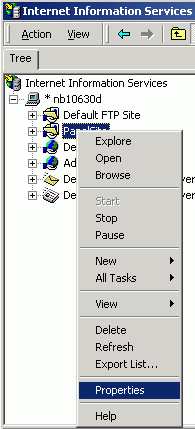
Fig. 09
10 Granting access
Go to the "Directory Security" tab and enter the panel's IP address (e.g. 192.168.0.10) under "Grant access".
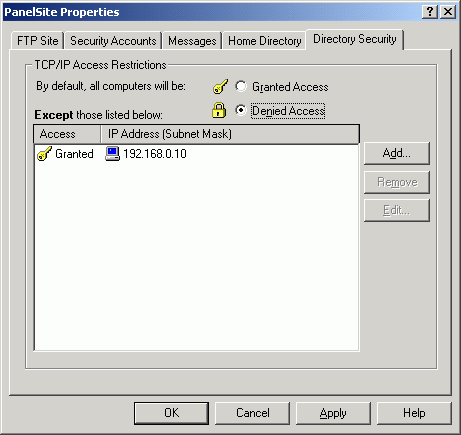
Fig. 10
11 Starting an FTP site
Close the "Standard FTP site" by right-clicking and "Close".
Start the FTP site which you created by right-clicking and "Start".
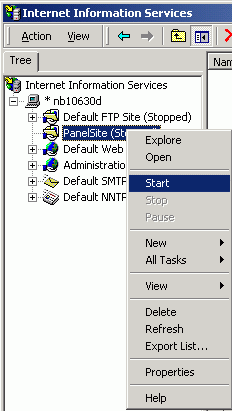
Fig. 11
Configuring an Ethernet connection between the PC and the MP370 operator panel
How do you incorporate an operator panel created with WinCC flexible 2008 into a local network?
https://support.industry.siemens.com/cs/document/13336639/how-do-you-incorporate-an-operator-panel-created-with-wincc-flexible-2008-into-a-local-network-in-order-to-save-archive-data-on-the-pc
https://support.industry.siemens.com/cs/attachments/13336639/13336639_WinCC_flexible_Netzwerkanbindung_V20_en.pdf
contains instructions on how to establish a network connection between a PC and a WinCE panel.
The configuration described here involved using the IP address 192.168.0.1 for the PC and the IP address 192.168.0.10 for the panel with the subnet mask 255.255.255.0.
Transferring the Pocket Internet Explorer to the MP370 with ProSave (from V6.0)
So that the Pocket Internet Explorer is available on the operator panel, this option must be transferred to the operator panel with ProSave.
No. Procedure
1 Transferring the Pocket Internet Explorer
Start ProSave via "Start > Simatic > ProSave > ProSave".
Open the "General" tab and select the device type (e.g. "MP370 Touch") and the connection type "Ethernet"; then enter the panel's IP address.
Change over to the "Options" tab and check the connection by clicking the "Device status" button.
Transfer the Pocket Internet Explorer onto the device by moving the Pocket Internet Explorer option to the pane on the right using the arrow buttons.
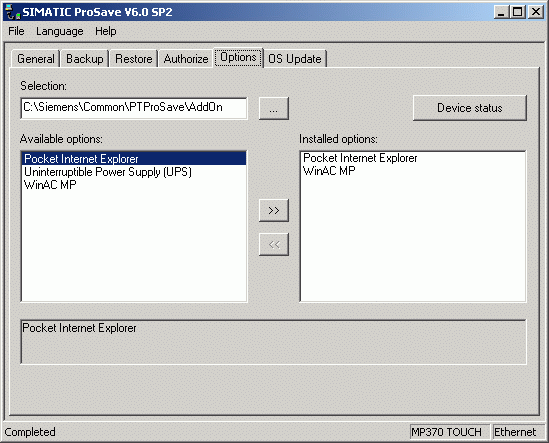
Fig. 12
Connecting the panel to the FTP server
In order to establish the connection to the FTP server, you require a folder or file in the FTP directory which is created in the FTP server - see Fig. 07.
No. Procedure
1 Starting the Pocket Internet Explorer
Start the Pocket Internet Explorer on the operator panel.
Enter the following syntax in the address line and click "ENTER" to confirm: ftp://192.168.0.1/ (ftp:// "IP address of the FTP server"/)
The Pocket Internet Explorer connects to the FTP server.
Note:
In order to connect to the FTP server, a folder or file must be created in the home directory for the FTP server.
Open any file ("Test.txt" in the example) by clicking the link in the Pocket Internet Explorer.
Note:
The content of the text file, see Fig. 14, is shown in the Pocket Internet Explorer. Files which cannot be shown in the Pocket Internet Explorer are downloaded directly from the FTP server.
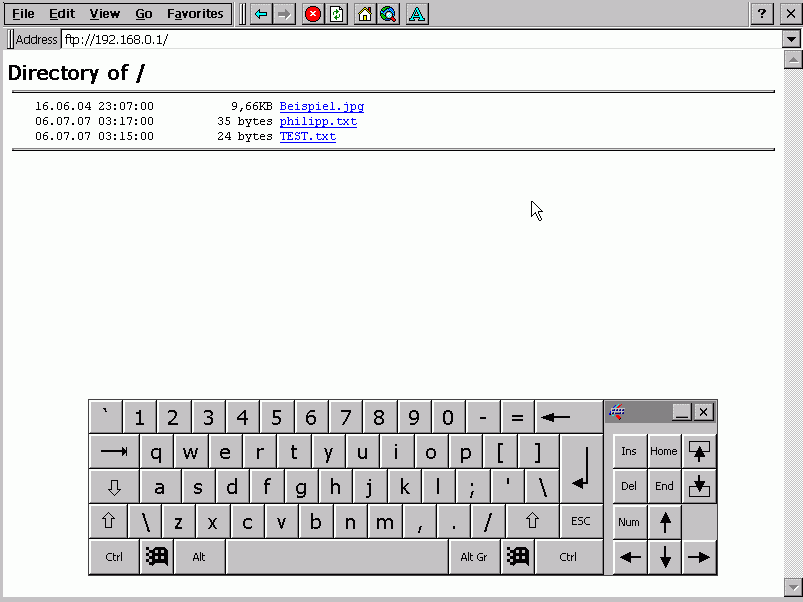
Fig. 13
2 "Opening the Save As dialog window
Click the "File" menu and select "Save As...".
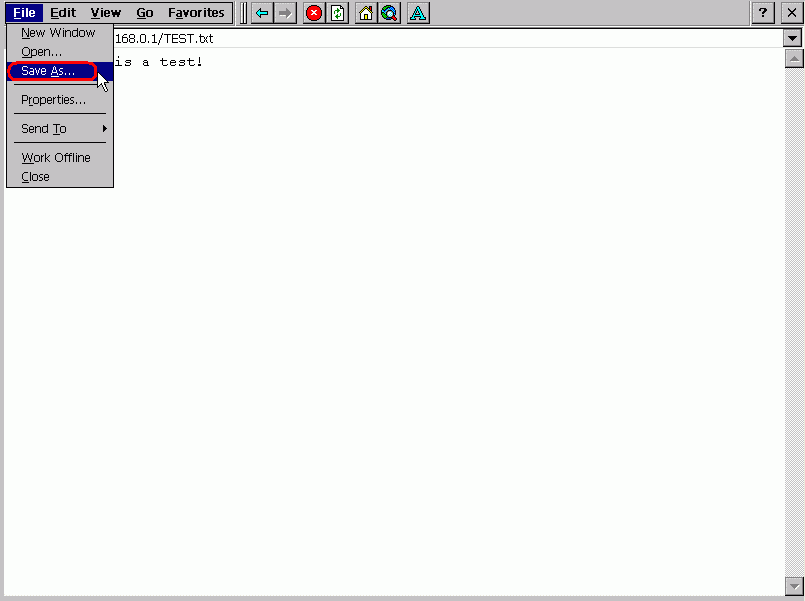
Fig. 14
3 Saving a file
Select the relevant directory (e.g. "Storage Card2") and assign the file, which is being saved, a file name and extension (e.g. "Test.txt").
Click "OK" to save the file.
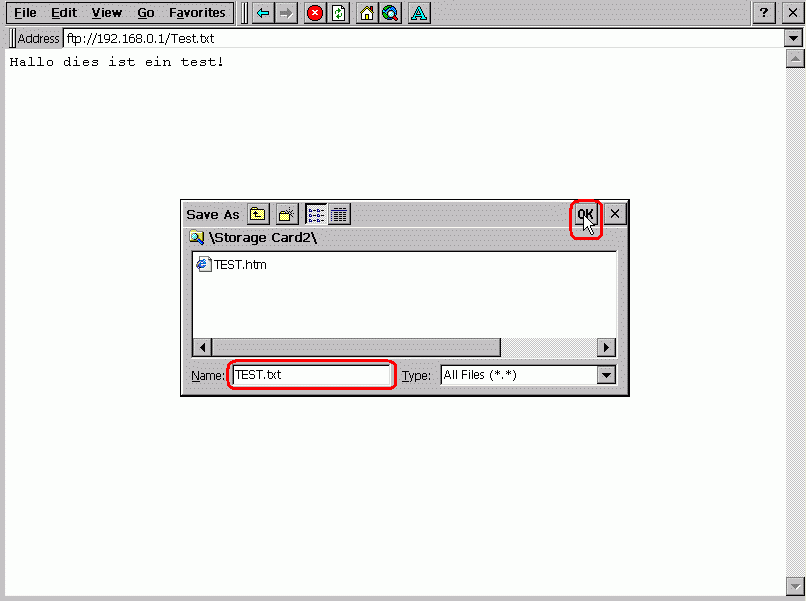
Fig. 15 |
|
| Back to top |
|
|
|
|
You cannot post new topics in this forum
You cannot reply to topics in this forum
You cannot edit your posts in this forum
You cannot delete your posts in this forum
You cannot vote in polls in this forum
|
Powered by phpBB © 2001, 2005 phpBB Group
Fa-ti si tu propriul forum GRATUIT, pe www.myforum.ro |
 FAQ
FAQ Search
 Memberlist
 Usergroups
 Register
 Profile
 Log in to check your private messages
 Log in


