 |
plc.myforum.ro
PLCs users www.plc.myforum.ro!
|
| View previous topic :: View next topic |
| Author |
Message |
gert
Member 3


Joined: 02 Jan 2015
Posts: 645
|
 Posted: 05/12/2019 15:16 Post subject: SIMATIC Automation Compare Tool of LAD/FBD blocks Posted: 05/12/2019 15:16 Post subject: SIMATIC Automation Compare Tool of LAD/FBD blocks |
 |
|
SIMATIC Automation Compare Tool - for the comparison of LAD/FBD blocks
https://support.industry.siemens.com/cs/document/109768730/
With this tool, you can compare LAD/FBD blocks, which have been provided for versioning with VCI, with the current blocks in the TIA Portal project.
Functionalities of the SIMATIC Automation Compare Tool
Integration of the Version Control Interface (VCI) for direct start from the TIA Portal
Explicit start in Windows for the comparison of LAD/FBD blocks which have been exported, for example, via Openness from a TIA project in XML format.
Using the Automation Compare Tool for creating user-defined scripts
The Automation Compare Tool allows you to compare or view STEP 7 program objects. You can compare or view the following:
| Code: | LAD program blocks
FBD program blocks
PLC tag tables |
You must have the objects in SimaticML format. SimaticML is a Siemens proprietary XML compus for STEP 7 program objects.
Launching the Automation Compare Tool
To launch the Automation Compare Tool, follow these steps:
Navigate to the location where you extracted the contents of the .zip file.
Double-click ACTool.exe in the "Automation Compare Tool" folder.
The Automation Compare Tool launches. You can compare or view STEP 7 program blocks or PLC tag tables.
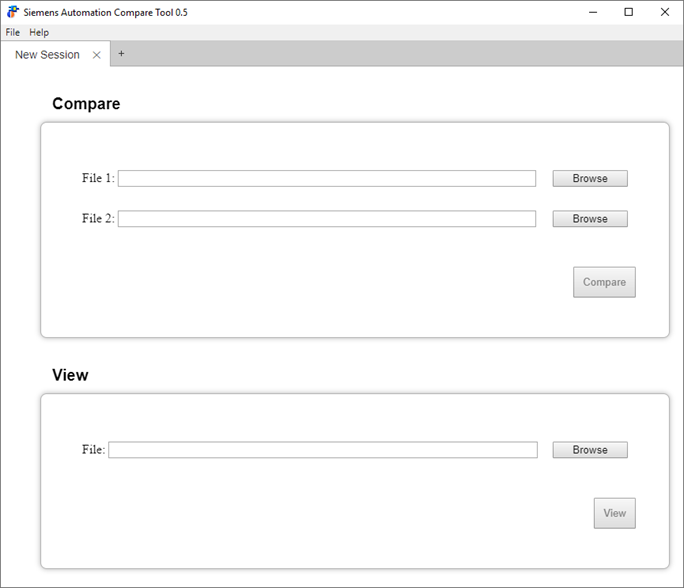
You can launch the Automation Compare Tool from a command prompt in either the English or German user interface language. From the command prompt line, you can also add a file name to view a file. You can provide two file names to compare two files.
From the command prompt window, navigate to the location where your extracted the contents of the .zip file and enter one of these commands:

Comparing two LAD program blocks
To compare two LAD program blocks, follow these steps:
Launch the Automation Compare Tool if it is not already running.
Open a new session if a New Session tab is not visible.
From the Compare section of the Automation Compare Tool, browse and select two LAD SimaticML files for comparison.
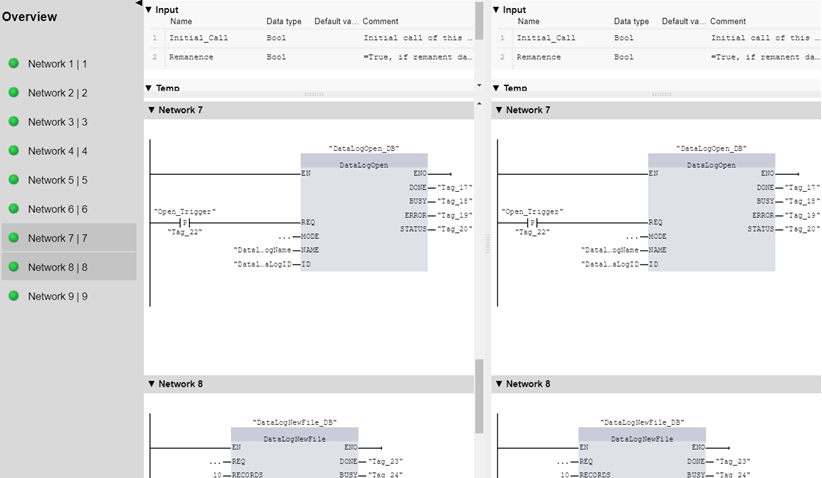
The Automation Compare Tool performs a network by network comparison of the two LAD program blocks. Within each network, it compares each instruction. For each instruction it compares all of the inputs and outputs. The tabbed session shows the names of the two LAD program blocks on the tab. The Overview section shows a list of the networks in the block. A green icon by a network indicates a complete match. You can click on any network to view the comparison. The session window shows differences in red.
Example: All networks match
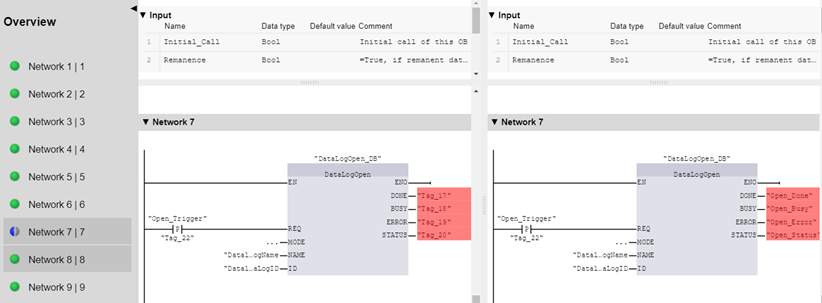
Example: Difference in a network
In this example, the LAD programmer has assigned the output variables to meaningful tag names. The Automation Compare Tool indicates that Network 7 differs between the two files. You can discern the specific differences by visual inspection. The scroll bars can be useful.
To compare two FBD program blocks, follow these steps:
Launch the Automation Compare Tool if it is not already running.
Open a new session if a New Session tab is not visible.
From the Compare section of the Automation Compare Tool, browse and select two FBD SimaticML files for comparison.
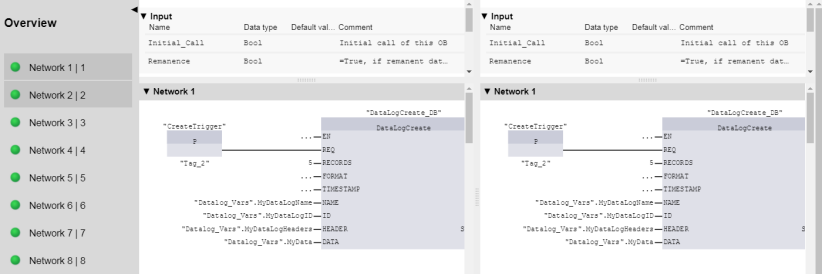
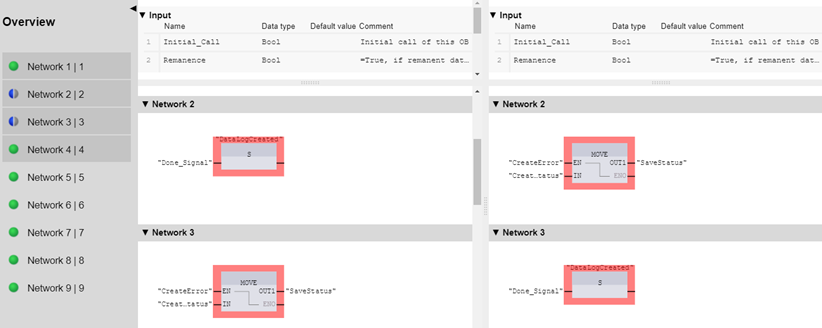
The Automation Compare Tool performs a network by network comparison of the two FBD program blocks. Within each network, it compares each instruction. For each instruction it compares all of the inputs and outputs. The tabbed session shows the names of the two FBD program blocks on the tab. The Overview section shows a list of the networks in the block. A green icon by a network indicates a complete match. You can click on any network to view the comparison. The session window shows differences in red.
Example: All networks match
Example: Difference in a network
In this example, the FBD programmer has swapped networks 2 and 3. The Automation Compare Tool indicates that networks 2 and 3 differ between the two files. The other networks are the same. You can discern the specific differences by visual inspection. The scroll bars can be useful.
Comparing two PLC tag tables
To compare two PLC tag tables, follow these steps:
Launch the Automation Compare Tool if it is not already running.
Open a new session if a New Session tab is not visible.
From the Compare section of the Automation Compare Tool, browse and select two SimaticML files that contain PLC tag tables for comparison.
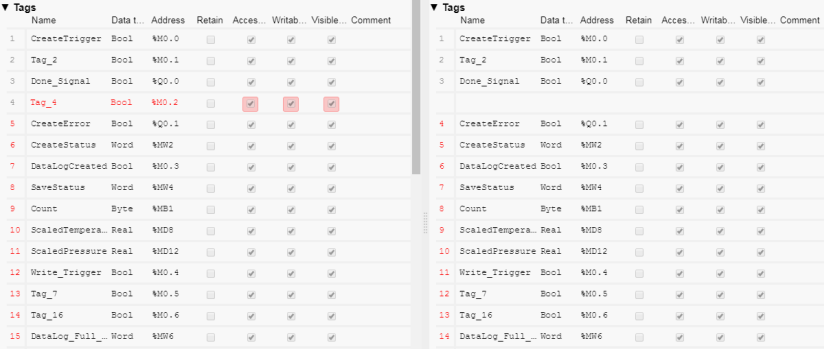
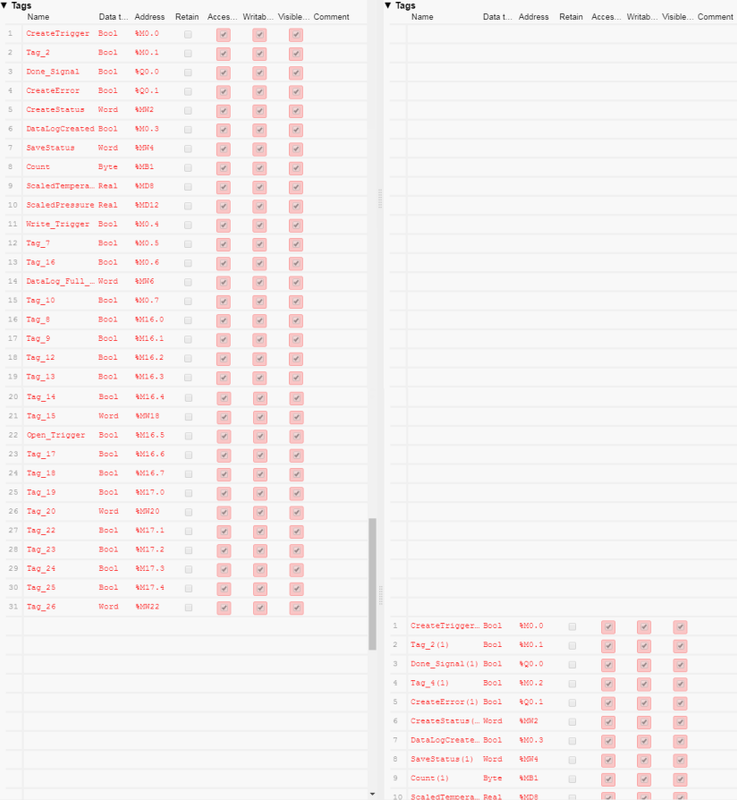
The Automation Compare Tool performs a line by line comparison of the two PLC tag tables. Within each line, it compares each attribute. The tabbed session shows the names of the two PLC tag tables on the tab. The session window shows differences in red and matches in black or gray. The session window has a section for the tags and a section for the user constants.
Example: All PLC tags and all attributes match
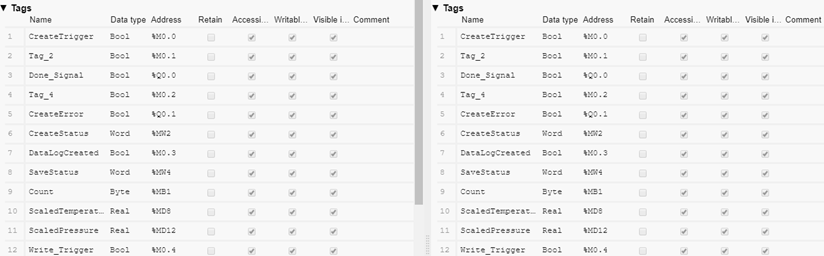
Example: All PLC tags the same, but with attribute changes
[img]https://i.postimg.cc/tJtmJD77/126091302027-DV-resource-Stream-PNG-en-US.png[/img]
Example: One PLC tag deleted
Example: All PLC tags differ
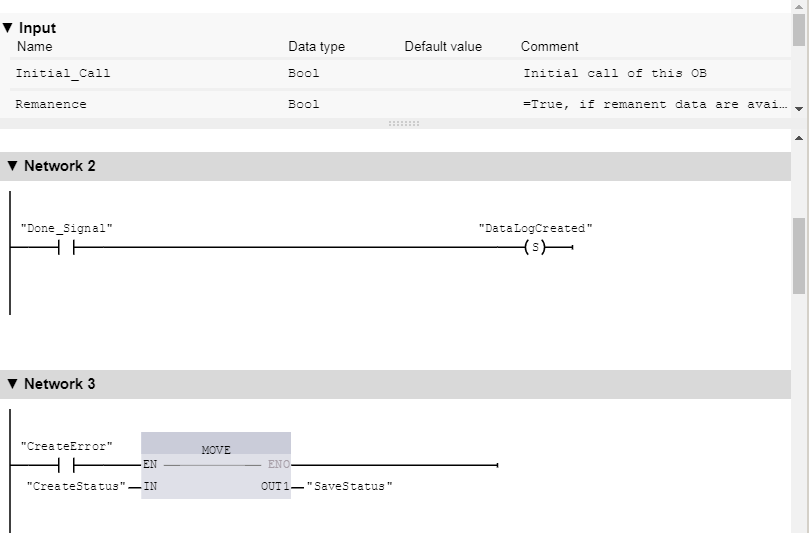
Viewing a STEP 7 LAD program block
To view a STEP 7 LAD program block, follow these steps:
Launch the Automation Compare Tool if it is not already running.
Open a new session if a New Session tab is not visible.
From the View section of the Automation Compare Tool, browse and select an LAD SimaticML file.
The LAD program view displays with the interface in the top section and the networks in the bottom section. Both sections have scroll bars for scrolling through the interface parameters and the networks:
Viewing a STEP 7 FBD program block
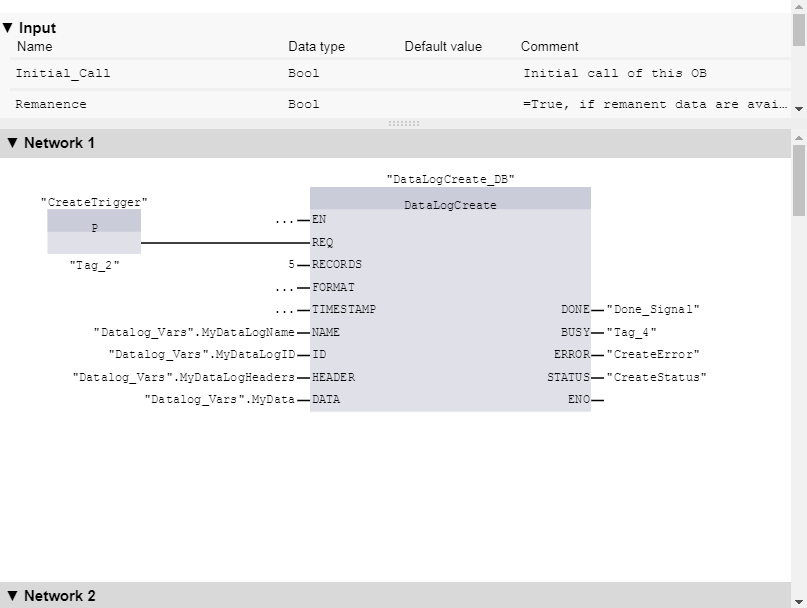
To view a STEP 7 FBD program block, follow these steps:
Launch the Automation Compare Tool if it is not already running.
Open a new session if a New Session tab is not visible.
From the View section of the Automation Compare Tool, browse and select an FBD SimaticML file.
The FBD program view displays with the interface in the top section and the networks in the bottom section. Both sections have scroll bars for scrolling through the interface parameters and the networks:
Viewing a PLC tag table
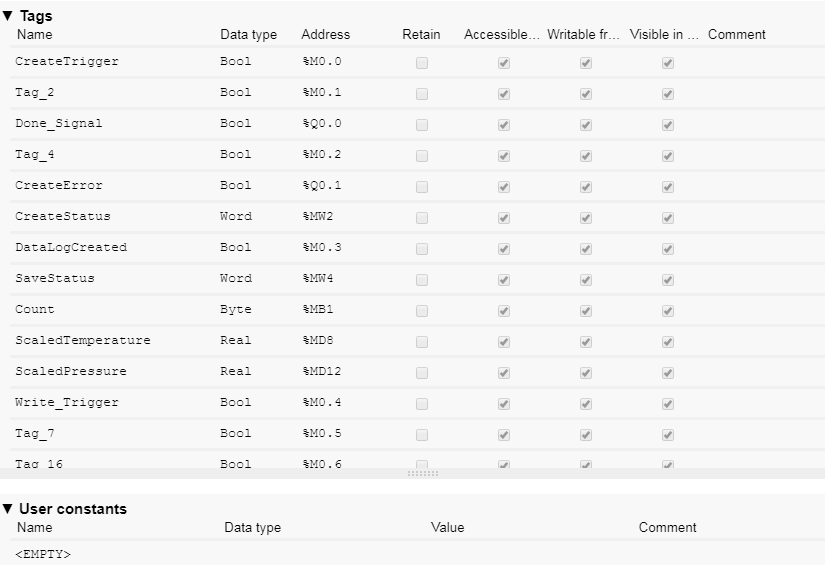
To view a PLC tag table, follow these steps:
Launch the Automation Compare Tool if it is not already running.
Open a new session if a New Session tab is not visible.
From the View section of the Automation Compare Tool, browse and select a SimaticML files that contains a PLC tag table.
The PLC tag table view displays with column headers corresponding to the columns in the STEP 7 tag table. A section exists for tags and for user constants:
Download:
https://ulozto.net/file/gxdW38znY59v/automation-compare-tool-zip
https://letsupload.cc/z5S544D2n8/Automation_Compare_Tool_zip |
|
| Back to top |
|
 |
gert
Member 3
Joined: 02 Jan 2015
Posts: 645
|
| Posted: 21/09/2020 15:19 Post subject: SIMATIC Automation Compare Tool |
|
|
SIMATIC Automation Compare Tool - for the comparison of LAD / FBD blocks
https://support.industry.siemens.com/cs/document/109768730/
Functionalities of the SIMATIC Automation Compare Tool
Integration of the Version Control Interface (VCI) for direct start from the TIA Portal
Explicit start in Windows for the comparison of LAD / FBD blocks which have been exported, for example, via Openness from a TIA project in XML format.
https://ulozto.net/file/stfGh2eymIfA/actoolv07-rar
https://anonfiles.com/92qa7dX4o6/ACToolV07_rar |
|
| Back to top |
|
|
|
|
You cannot post new topics in this forum
You cannot reply to topics in this forum
You cannot edit your posts in this forum
You cannot delete your posts in this forum
You cannot vote in polls in this forum
|
Powered by phpBB © 2001, 2005 phpBB Group
Fa-ti si tu propriul forum GRATUIT, pe www.myforum.ro |
 FAQ
FAQ Search
 Memberlist
 Usergroups
 Register
 Profile
 Log in to check your private messages
 Log in


