 |
plc.myforum.ro
PLCs users www.plc.myforum.ro!
|
| View previous topic :: View next topic |
| Author |
Message |
nacoolp
Junior

Joined: 02 Nov 2015
Posts: 1
|
 Posted: 11/01/2016 20:33 Post subject: Problem with Simatic PC Adapter USB A2 Posted: 11/01/2016 20:33 Post subject: Problem with Simatic PC Adapter USB A2 |
 |
|
Hello there,
I also bought PC Adapter USB A2 recently. I am using Windows XP SP3. I need to connect Simatic Manager with the same.
Now the problem arises is that I am not able to install Simatic Device drivers in my PC. Thereby I am able to see PC USB Adapter A2 in the Add/Remove interfaces section in PG/PC interface. But not able to install the same. Installing the setup of the drivers, processes up to a dialog box of "Microsoft Visual C++ 2005 redistributable" which stops at their and completion window appears which shows adapter is successfully installed. On restarting cannot find the drivers of the cable and the condition persists. Attached images for the reference.
The strange thing that is happening is that using the same CD, I am able to install the drivers and work with Simatic manager properly on another PC with same OS.
On studying the matter, found out that I should run the setup as an administrator. So tried to do the same and even disabled my computer's firewall protection and antivirus as well. But the situation remains as it is.
I am confused that what might be the problem. Require help.
Thanks in advance |
|
| Back to top |
|
 |
gert
Member 3


Joined: 02 Jan 2015
Posts: 645
|
| Posted: 11/01/2016 21:36 Post subject: Re: Problem with Simatic PC Adapter USB A2 |
|
|
| nacoolp wrote: | Hello there,
I also bought PC Adapter USB A2 recently. I am using Windows XP SP3. I need to connect Simatic Manager with the same.
Now the problem arises is that I am not able to install Simatic Device drivers in my PC. Thereby I am able to see PC USB Adapter A2 in the Add/Remove interfaces section in PG/PC interface. But not able to install the same. Installing the setup of the drivers, processes up to a dialog box of "Microsoft Visual C++ 2005 redistributable" which stops at their and completion window appears which shows adapter is successfully installed. On restarting cannot find the drivers of the cable and the condition persists. Attached images for the reference.
The strange thing that is happening is that using the same CD, I am able to install the drivers and work with Simatic manager properly on another PC with same OS.
On studying the matter, found out that I should run the setup as an administrator. So tried to do the same and even disabled my computer's firewall protection and antivirus as well. But the situation remains as it is.
I am confused that what might be the problem. Require help.
Thanks in advance |
What version of STEP 7 5.5 (2010) have you installed on your PC?
Or is a Laptop?
http://plc.myforum.ro/usb-to-serial-driver-for-windows-7-32bit-vt6759.html |
|
| Back to top |
|
|
tecnoplc
Junior 2

Joined: 03 Feb 2016
Posts: 40
Location: Spain
|
| Posted: 05/02/2016 10:28 Post subject: |
|
|
i had a similar problem with this.
And I also had a problem with the USB Prommer:
[url]http://www.tecnoplc.com/usb-prommer-no-lo-reconoce-windows/[/url]
maybe if you have a look to this information you can solve your problem making something similar at your PC.
_________________
_______________________________________
Programming PLC and HMI
www.tecnoplc.com |
|
| Back to top |
|
|
kontrol
Member junior

Joined: 23 Dec 2016
Posts: 64
|
| Posted: 15/03/2017 08:04 Post subject: check list for implementing a PC adapter |
|
|
check list for implementing a PC adapter
https://support.industry.siemens.com/cs/document/10420976/is-there-a-check-list-for-implementing-a-pc-adapter
You are using a PC Adapter for communication between your PC and an S7 CPU or a repeater. If the required connection is not established, please run through the check list below.
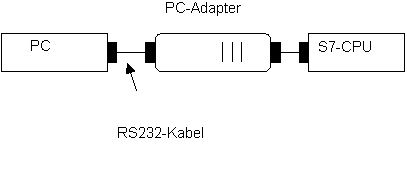
The PC Adapter connects a PC to the MPI/DP interface of an S7/M7/C7 system over a serial COM interface.
PC Adapter MLFB: 6ES7 972-0CA2x-0XA0
2. Setting the PG/PC interface
In the SIMATIC Manager under "Options > Set PG/PC interface..." you can make the settings for the PC Adapter.
MPI/PROFIBUS: between PC Adapter and S7-CPU/Repeater
Local connection: between PC and PC Adapter
3. Setting the baud rate
The transmission rate set with the switch must match the rate set in the "Set PG/PC interface" parameters for the PC.
A transmission rate of 38.4 kbit/s is possible on with STEP 7 V3.1 and higher.
4. Checking the cable from the PC to the PC Adapter
Check the plug-in connecting cable (zero modem cable) between the COM port of the PG/PC and the PC Adapter. The cable must comply with the defined standard RS232 cable (MLFB 6ES7 901-1BF00-0XA0). The pin assignment of the standard RS232 cable is given in the figure below.
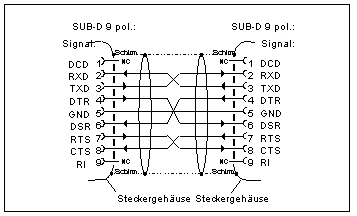
Fig. 2: Pin assignment of an RS232 cable
If you use the standard cable, you can implement all versions of STEP 7 as well as all versions of the PC adapter.
5. Checking the LEDs
Power LED
OFF: 24V not available or fatal hardware error
ON: ready for operation (lasts a few seconds)
Permanent flashing: hardware error detected by the PC Adapter
Active LED:
Indicates transmission activity of the adapter on the MPI/DP bus.
6. Power supply of the PC Adapter
Supply voltage:
DC 24V between Pins 2 and 7
DC 5V between Pins 5 and 6
The adapter gets its power supply through the MPI/DP interface of the CPU or of the repeater. This is why it is not permissible to increase the length of the MPI cable. Operation is possible only with such interfaces that provide DC 24V and DC 5V.
The "Power LED" lights as soon as the 24V supply is provided. You can check whether the 5V supply is provided by measuring between Pins 5 and 6.
7. Interrupt setting
If you use the PC-MPI Adapter, make sure that there are no interrupt conflicts with the serial interface.
The PC-MPI Adapter needs its own free interrupt. It uses the IRQ of the serial interface.
The COM 1 and COM 3 interfaces and the COM 2 and COM 4 interfaces use the same interrrupt.
Note
In the case of notebooks, you can usually configure the serial interfaces in the BIOS.
If, for example, the PC-MPI Adapter and a mouse are used simultaneously, the mouse should not be set to the same serial interface as the as PC Adapter.
8. Checking the settings of the COM interface
We recommend using the default setting of the COM interface.
Setting of the COM interface in Windows NT:
Under "Start > Settings > Control Panel" go to the "Connections" tab and check the COM interfaces.
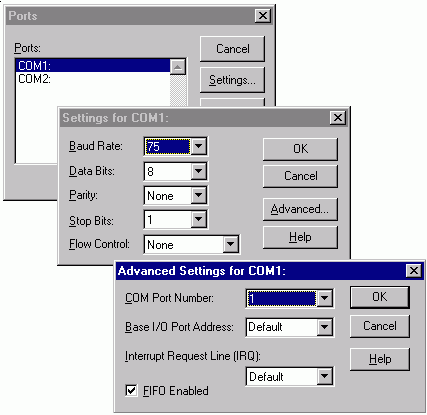
Fig. 3: Connection settings for the COM interface in Windows NT
Settings of the COM interface in Windows 95:
Under "Start > Settings > Control Panel" for "System" go to the "Device Manager" tab and under Connections > Communications Port (COM2) check the "Properties".
The settings are identical in Windows 95 , 98 and ME.
Setting of the COM interface in Windows 2000:
Under "Start > Settings > Control Panel" for "System" go to the "Hardware > Device Manager" tab and check the "Connection Settings".
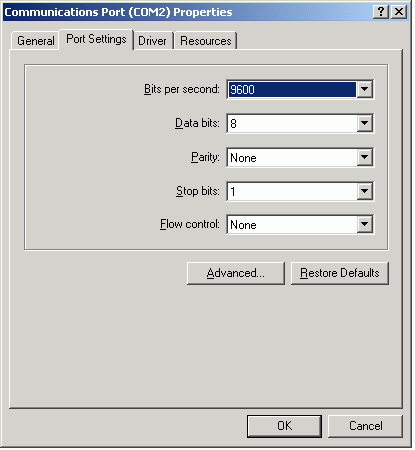
Fig. 4: Setting the COM interface in Windows 2000
What do you do if ...
33:17106: "Communication to the adapter has failed"
Communication with the plant is not possible.
Remedy
Check the cable: See point 4.
Availability of the COM port: The serial interface of the PC must not be used by an other software or device.
Interrupt setting: See point 7.
Check PC power supply
Install FIFO buffer and set transmission rate to "low". You open the dialog for installing the FIFO buffer with the "Advanced..." button (see Fig. 3).
Note
With Logitech mice you should also check the following.
Open the MS Windows registry ("Start > Run" and REGEDIT command).
Check the following code:
HKEY_LOKAL_MACHINE\Software\Logitech\MouseWare
\CurrentVersion\Global\SearchOrder
If necessary, change the entry from "PS2, Serial" to "PS2".
Restart Windows.
Now check the following code:
HKEY_LOKAL_MACHINE/SOFTWARE/Logitech/MouseWare
/CurrentVersion/Global/PortSearchOrder
Here you remove the COM interface to which the online cable is connected.
Additional information about this is available in the "Readme.wri" file of the Logitech mouse software.
33:16944: "Online: No other active partner can be found."
The adapter receives its power supply through the MPI/DP interface of the automation device. Operation is possible only with such interfaces that provide DC 24V and DC 5V. The "Power LED" lights as soon as the 24 V supply is provided. But if the 5 V supply is not provided, you cannot detect this lack of function externally. You can check whether the 5 V supply is provided by measuring between Pins 5 and 6. In the SIMATIC Manager, when you select "Accessible Nodes", you get the message indicated above.
Remedy
Check in the device manual whether the partner device should supply 5 V.
Check the baud rate on the MPI side in the PG/PC interface. Set the baud rate to 187.5 baud.
COM port cannot be selected
The serial interface of the PC must not be used by an other software, because the driver of the PC Adapter occupies the interface.
PC Adapter - COM Port cannot be set
QUESTION:
After installation of the PCS7 V4.02 I cannot select a COM port in the properties of the PC adapters (PG/PC interface). Why not?
ANSWER:
You must also install the software component "Softnet S7". This component is to be found on the PCS7 V4.02 Toolset CD in the "\Sn_pb_s7" folder. After installing "Softnet S7" you can again select the COM port.
No COM interface for PC adapter visible, therefore it cannot be selected (STEP7 V4.02)
QUESTION:
Why can I no longer set the COM interface of the PC adapter after installing a component from the SIMATIC Net CD 10/98?
ANSWER:
You have installed a component from the SIMATIC Net CD 10/98. The component retains the modules and drivers (CP5x11, MPI-ISA, PC Adapter etc.) from STEP7 . However, the new "Set PG/PC interface" tool (Control Panel) is updated. After installation you can no longer set the PC adapter COM interface used. An empty field is displayed.
Remedy:
Install "Softnet PROFIBUS" from the SIMATIC Net CD 10/98. Then you can set the COM port again.
Error display through Power LED
OFF: 24V not available or fatal hardware error
Permanent flashing: hardware error detected by the PC Adapter
Remedy
Replace the PC Adapter.
33:17109: "Online: COM interface is currently not available".
You have upgraded the PC Adapter to V5.1 with MLFB: 6ES7 972-0CA23-0XA0. Communication with the plant no longer works. The Power LED on the PC Adapter lights, the "Active" LED remains off.
Remedy
Make sure that the switch on the PC Adapter matches the rate you set in "Start > Settings > Control Panel > Setting the PG/PC Interface".
Check the connecting cable (see point 4).
If no other software which accesses the interface (modem software, mouse driver) is installed, then check the COM interface settings.
Remedy
Settings of the COM interface in Windows NT:
Under "Start > Settings > Control Panel" go to the "Connections" tab and check the COM interfaces. If the settings are not as shown on the attached screen, then delete both COM interfaces. Then restart the computer. Now the COM interfaces are set with the "Standard" default setting of Windows NT (see Fig. 3).
The settings of the COM interface are identical in Windows 95 , 98 and ME.
Under "Start > Settings > Control Panel" for "System" go to the " Device Manager" tab and under Connections > Communications Port (COM2) check the "Properties" (see Fig. 4).
Settings of the COM interface in Windows 2000:
Under "Start > Settings > Control Panel" for "System" go to the "Hardware > Device Manager" tab and check the "Connection Settings".
If you cannot use the interfaces, please note that it might happen that incorrect values were written in the registry when the COM port was set. Therefore you should check the following entries in the registry.
Go to "Start > Run" and enter "regedit".
Search for the code:
HKEY_LOCAL_MACHINE\SOFTWARE\SIEMENS\SINEC
\LogDevices\PC Adapter(xxx)
Note
(xxx) stands for MPI, PROFIBUS or Auto.
Make sure that the "Device" and "ComDriverName" codes have the correct values.
Device: number of the selected COM port
ComDriverName "\Device\Serial<Com>"
Example for COM Port 1
Device: "1"
ComDriverName "\Device\Serial0"
Important
In general, no warranty can be given for direct changes in the Registry because this is entirely the responsibility of the user. In any event, you are advised to make a backup of the registry before undertaking the actions described here. Furthermore, these settings are computer-specific. This means that when you copy the project to another computer, you must make the settings again there.
Note on compatibility with Microsoft Windows 7 64-bit
The PC Adapter RS232 (6ES7 972-0CA2x-0XA0) is not released for Microsoft Windows 7 64-bit operating systems. |
|
| Back to top |
|
|
kontrol
Member junior
Joined: 23 Dec 2016
Posts: 64
|
| Posted: 31/07/2018 13:51 Post subject: PC adapter USB A2 |
|
|
PC adapter USB A2 USB adapter (USB V2.0) for connection of a PG/PC or notebook to SIMATIC S7 via PROFIBUS or MPI contain USB cable 5 m, MPI cable 0.3 m can be used under Windows XP/Vista/ Windows 7 32/64-bit and higher
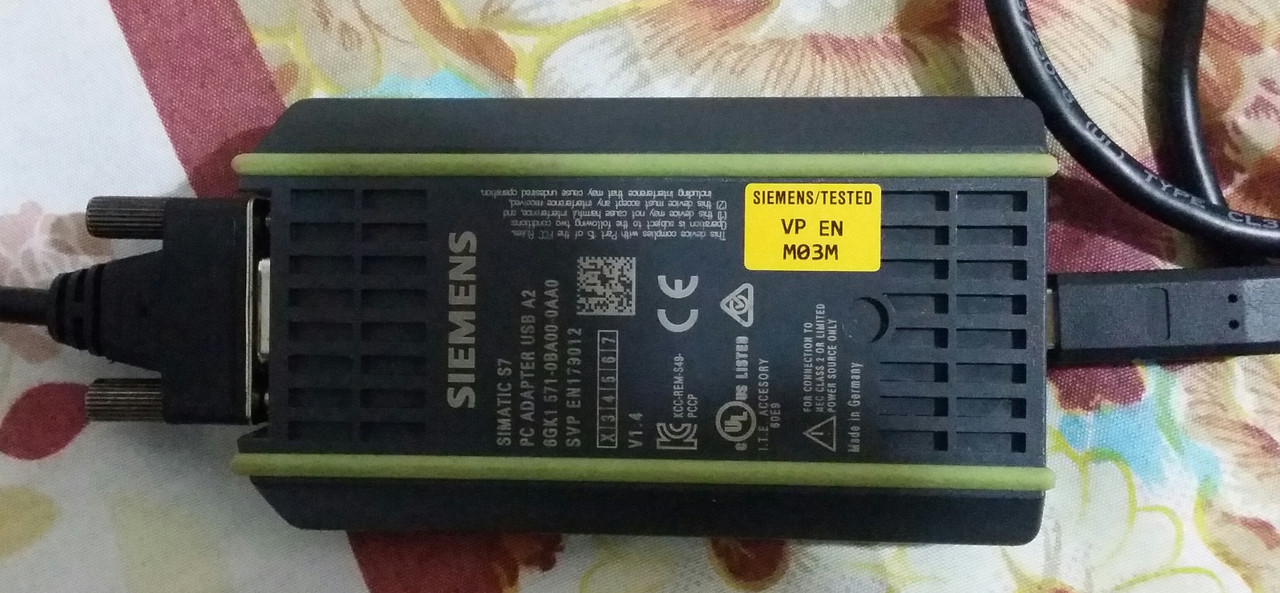
6GK1571-0BA00-0AA0
PC ADAPTER USB A2
Drivers
Download of the PC Adapter USB A2 Driverdisk V1.0
The Driverdisk V1.0 is applicable to the following operating systems:
Windows XP SP2/3, Vista, 7
Windows Server 2003, 2008 R2.
Download
https://support.industry.siemens.com/cs/attachments/78453460/ReadMe_OSS.html
https://support.industry.siemens.com/cs/attachments/78453460/PC_Adapter_USB_A2_Driverdisk_V1_0.zip
PC Adapter USB 1.1 Driver and Firmware (Updated)
https://support.industry.siemens.com/cs/document/19136131/pc-adapter-usb-1-1-driver-and-firmware
Gownload
https://support.industry.siemens.com/cs/attachments/19136131/PC_AD_USB_V11.zip
SIMATIC PC Adapter USB Software V2.0
https://support.industry.siemens.com/cs/document/27062840/simatic-pc-adapter-usb-software-v2-0
Download
https://support.industry.siemens.com/cs/attachments/27062840/pc_adapter_usb_102007.zip
Windows 7
SIMATIC STEP 7 V5.5 and other SIMATIC software products released for Windows 7 already conține the required driver for the SIMATIC USB Prommer and the PC Adapter USB (part of SIMATIC Device Drivers).
How do you generally parameterize the PG/PC interface and how do you ensure that the device driver can be selected and is visible?
https://support.industry.siemens.com/cs/document/11870489/how-do-you-generally-parameterize-the-pg-pc-interface-and-how-do-you-ensure-that-the-device-driver-can-be-selected-and-is-visible
How to
http://www.mediafire.com/file/gq63nh4sjv49pgo/S7_Downloading__Uploading.pdf/file
SIMATIC PG/PC - PROFIBUS PC Adapter USB A2 Operating Instructions
https://support.industry.siemens.com/cs/attachments/68849363/BA_PC-Adapter-USB-A2_76.pdf |
|
| Back to top |
|
|
selftester
Member 2


Joined: 10 Aug 2013
Posts: 430
|
| Posted: 11/10/2020 19:47 Post subject: Download of the PC Adapter USB A2 Driverdisk V1.0 |
|
|
Download of the PC Adapter USB A2 Driverdisk V1.0
https://support.industry.siemens.com/cs/document/78453460/
https://support.industry.siemens.com/cs/attachments/78453460/PC_Adapter_USB_A2_Driverdisk_V1_0.zip
[url=http://www.girlshare.ro/3769974069.4]pc_adapter_usb_a2_driverdisk_v1_0.zip[/url]
https://bayfiles.com/9fEa4cedp5/pc_adapter_usb_a2_driverdisk_v1_0_zip |
|
| Back to top |
|
|
|
|
You cannot post new topics in this forum
You cannot reply to topics in this forum
You cannot edit your posts in this forum
You cannot delete your posts in this forum
You cannot vote in polls in this forum
|
Powered by phpBB © 2001, 2005 phpBB Group
Fa-ti si tu propriul forum GRATUIT, pe www.myforum.ro |
 FAQ
FAQ Search
 Memberlist
 Usergroups
 Register
 Profile
 Log in to check your private messages
 Log in


