 |
plc.myforum.ro
PLCs users www.plc.myforum.ro!
|
| View previous topic :: View next topic |
| Author |
Message |
valz
Member 3


Joined: 26 Jul 2015
Posts: 771
|
 Posted: 08/08/2023 19:08 Post subject: No connection to PLC after WinCC Panel Images V17 upd6 Posted: 08/08/2023 19:08 Post subject: No connection to PLC after WinCC Panel Images V17 upd6 |
 |
|
No connection to PLC after WinCC Panel Images V17 Update 6
https://support.industry.siemens.com/cs/document/109820712/
Why can the panel (Basic or Comfort) or Runtime Advanced not establish a connection to the controller after the WinCC Panel Images V17 Update 6 image has been installed on the panel?
1. Description
1.1 Possible cause
2. Procedures
2.1 Comfort Panel
2.2 Basic Panel
2.3 Runtime PC
2.4 Certificate validity check
2.5 Certificate Renewal
3. Automatic date-time synchronization via the CPU as an NTP server
3.1 Configuring the CPU as an NTP server
3.2 Setting up the NTP server on the Basic/Comfort Panel
1. Description
You have installed WinCC Panel Images V17 Update 6 on your Engineering PC and are using a Basic, Comfort or Mobile Panel or a Runtime Advanced (in the following designated as HMI) and you have upgraded the firmware to version 17.0.0.6.
Since then, no connection can be established between the HMI and a controller S7-1500 (FW2.9), S7-1200 (FW4.5) or software controller (V21.9), designated in the following as "controller".
The following system messages are displayed on the HMI:
220014 - PLC 192.168.1.42 is untrusted, manual trust is impossible, detailed error code 9
140001 - Connection disconnected: HMI_Verbindung_1, Station 192.168.1.42, Rack 0, Slot 1

Fig. 01
With the firmware of the controllers S7-1500 (FW2.9), S7-1200 (FW4.5) and software controller (V21.9) the SSL/TLS encryption for establishing a secure connection has been implemented. HMIs V17.0. and higher use SSL/TLS encryption for establishing a connection.
1.1 Possible cause
WithHMIs with firmware versions V17.0.0.0 up to and including V17.0.0.5 it is checked whether a certificate is present when establishing a connection, but not the validity of the certificate.
See Fig. 02: The certificate is invalid, nevertheless a connection to a controller is established.

Fig. 02
This behavior has been fixed with V17 Update 6 and the validity of the certificates is checked when establishing a connection.
Note
For WinCC Unified and WinCC Runtime Professional products, the validity of the certificates is also checked with version 17.0.0. and higher.
2. Procedures
For an HMI with firmware V17.0.0.6 to connect to a controller with SSL/TLS encryption, the date and time of the HMI must be within the validity period of the controller's SSL/TLS certificate.
If the date and time on the HMI are current, a connection to the controller should be established. The time of the controller is not taken into account in this case.
Note on time synchronization
Time synchronization between the HMI and the controller only works if a connection is successfully established. For this reason, it is absolutely necessary to set the time before the first connection is established. An alternative is to configure the time automatically using an NTP server. You can find further information under point 3 and at the following link:Time synchronization between WinCC and a SIMATIC PLC.
2.1 Comfort Panel
Proceed as follows to check the date and time on the Comfort Panel:
1. Stop the runtime on the Comfort Panel and open the Control Panel.
2. Under "Date/Time" you can set the date and time of the panel.
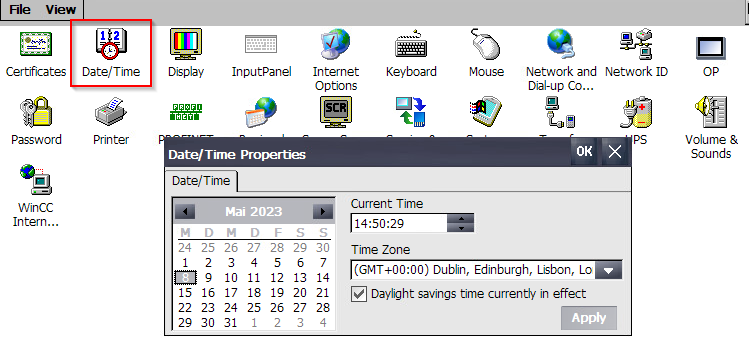
Fig. 03
2.2 Basic Panel
Proceed as follows to check the date and time on the Basic Panel:
1. Stop the runtime on the Basic Panel and open the the settings.
2. Select the item "Date & Time".
3. Select "Date & Time" on the left side. You can set the date and time here.
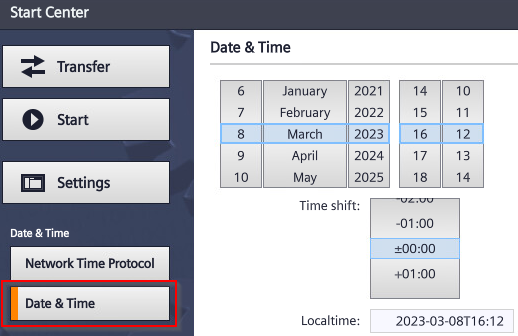
Fig. 04
2.3 Runtime PC
Proceed as follows to check the date and time on your Runtime PC:
1. Open the Windows settings.
2. Open "Time & Language".
3. Check the date and time under "Current date and time" and change them if necessary.
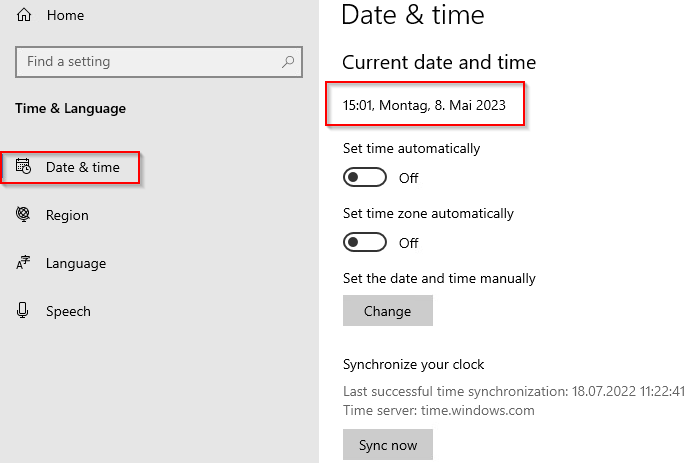
Fig. 05
If the connection cannot be established even after configuring the current time, the current time is outside the validity period of the SSL/TLS certificate. In this case, follow step 2.4.
2.4 Certificate validity check
1. Open the TIA Portal project on which the controller is running.
2. The SSL/TLS certificate of the controller can be found under "Protection & Security > Certificate manager".
3. Export the certificate via the corresponding pop-up menu.
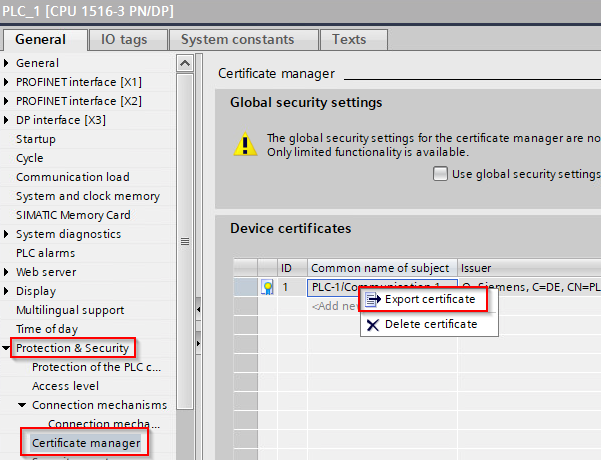
Fig. 06
4. Open the exported certificate to see the validity period of the certificate.
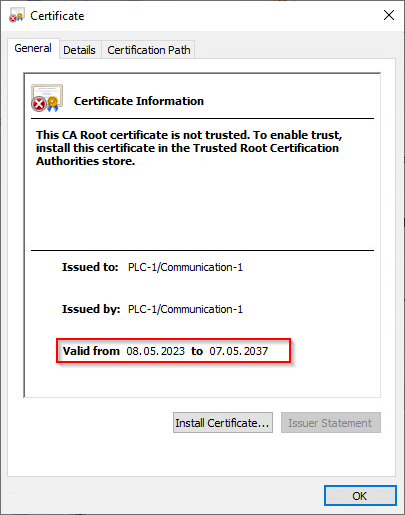
Fig. 07
2.5 Certificate Renewal
If the validity period of the certificate is not correct, you can delete the certificate in TIA Portal via the pop-up menu in TIA Portal. You then need to produse a new certificate with a suitable validity period:
1. Open the Certificate manager.
2. Click "<Add>" and select the button with the 3 dots for "Common name of subject".
3. In the pop-up dialog click "Add new".
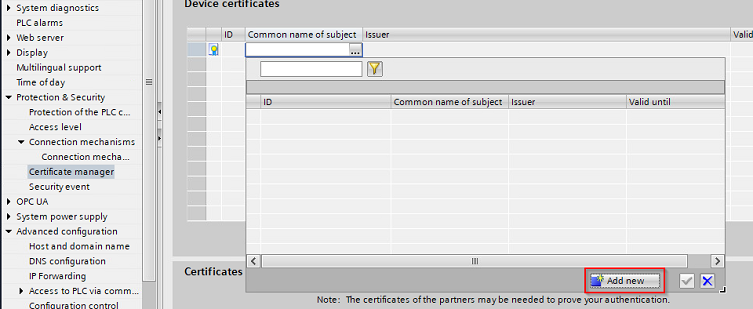
Fig. 08
4. Lucrate a new certificate with appropriate validity period and certificate parameters.
You can keep all default parameters for establishing a connection. The validity period is set to 14 years by default and can be increased or decreased as required.
Note
You can specify numeroase control IP addresses in the certificate. This has the advantage, for example, when replacing different plant parts or spare parts, of not having to recreate a certificate.
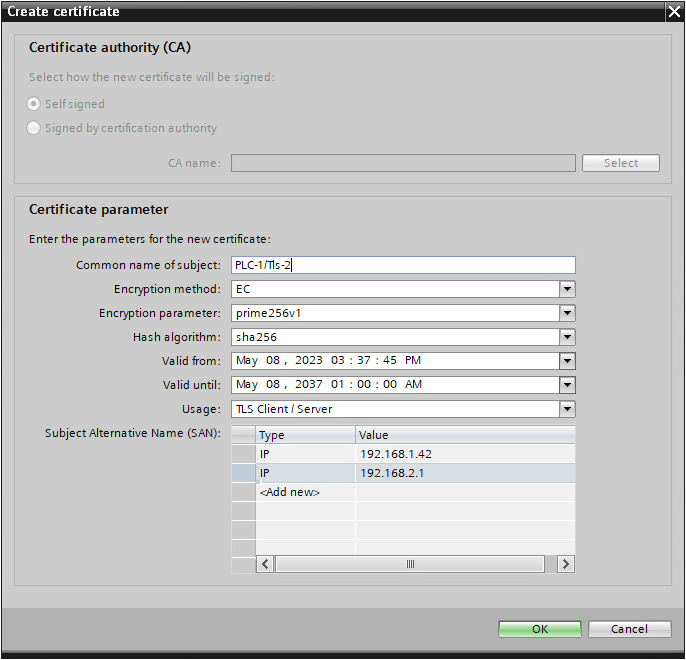
Fig. 09
5. After the certificate has been created, you must select it as the PLC communication certificate under "Protection & Security > Connection mechanisms".
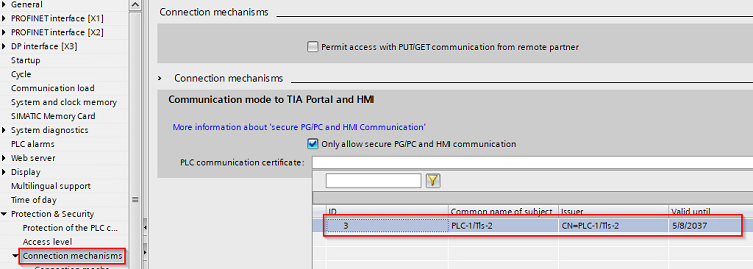
Fig. 10
When all the devices (controller and HMI) have been reloaded and the date/time is within the validity period of the certificate, the connection is re-established.
3. Automatic date-time synchronization via the CPU as an NTP server
With an NTP server, the date and time of the Basic/Comfort Panel are automatically synchronized.
In contrast to the HMI connection, time synchronization with the NTP server works independently of SSL encryption. Therefore, the synchronization takes place even if the Basic/Comfort Panel is outside the validity period of the SSL certificate.
3.1 Configuring the CPU as an NTP server
To configure the CPU as an NTP server, use the "SNTP" block, which is stored in the libraries for communication (SIMATIC Controller).The corresponding libraries as well as the documentation can be found in the following article in the "Downloads" section:
Libraries for communication for SIMATIC controllers
3.2 Setting up the NTP server on the Basic/Comfort Panel
If the "SNTP" block is correctly connected and the CPU is configured and active as an NTP server, proceed as follows to configure the corresponding panel:
Comfort Panel:
1. Open the Control Panel
2. Select "PROFINET"
3. Switch to the "NTP" tab and configure an NTP server there
4. You can use the "Test" button to test whether the NTP server is reachable
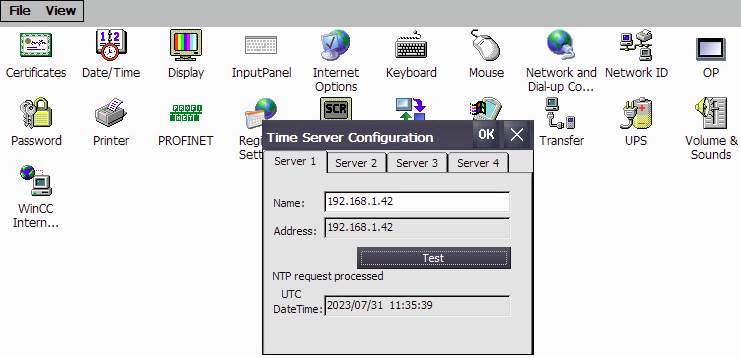
Fig. 11
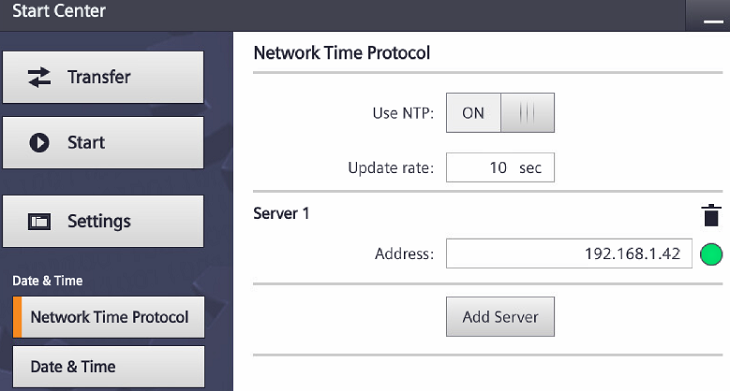
Basic Panel:
1. Open Settings
2. Select "Date & Time"
3. Select "Network Time Protocol" on the left-hand side
4. Set the switch at "Use NTP" to "ON" and click on "Add Server"
5. Enter the IP address of the controller. Once a connection has been successfully established, the circle to the right of the IP address turns green
 |
|
| Back to top |
|
 |
|
|
You cannot post new topics in this forum
You cannot reply to topics in this forum
You cannot edit your posts in this forum
You cannot delete your posts in this forum
You cannot vote in polls in this forum
|
Powered by phpBB © 2001, 2005 phpBB Group
Fa-ti si tu propriul forum GRATUIT, pe www.myforum.ro |
 FAQ
FAQ Search
 Memberlist
 Usergroups
 Register
 Profile
 Log in to check your private messages
 Log in


