 |
plc.myforum.ro
PLCs users www.plc.myforum.ro!
|
| View previous topic :: View next topic |
| Author |
Message |
gamax
Member

Joined: 15 Jul 2016
Posts: 131
|
 Posted: 07/12/2021 14:54 Post subject: Migration WinCC flexible to WinCC TIA Portal Posted: 07/12/2021 14:54 Post subject: Migration WinCC flexible to WinCC TIA Portal |
 |
|
What do you do if, when migrating a WinCC flexible project to WinCC TIA Portal, the procedure aborts and you get an error message?
https://support.industry.siemens.com/cs/document/109486003/
When attempting to migrate WinCC flexible to WinCC TIA Portal, under certain circumstances you might get the following error message:
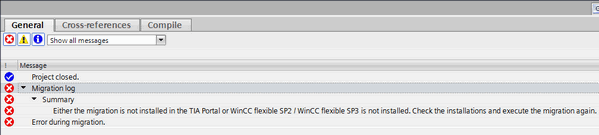
Fig. 01
Requirements for migration
The version "WinCC flexible 2008 SP2" or higher is installed (only required for integrated projects).
The option "Migration" is installed in the WinCC TIA Portal.
Installation of the "Migration" option
1. TIA Portal V17
Start the installation on the Installation DVD 4 "Legacy Panel Images".
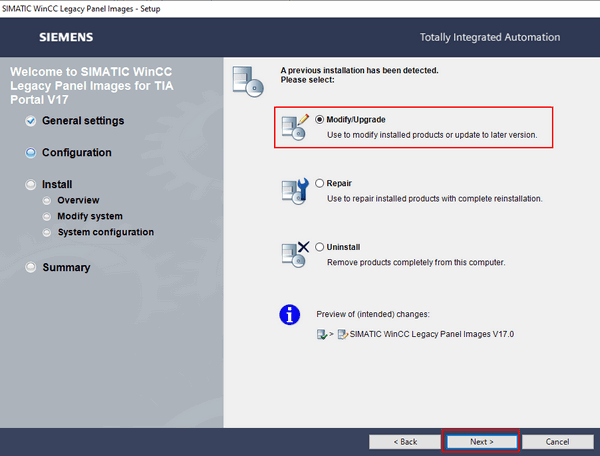
Fig. 02
Under "Migration" you enable the "Project migration for WinCC flexible 2008…" option and start the installation.
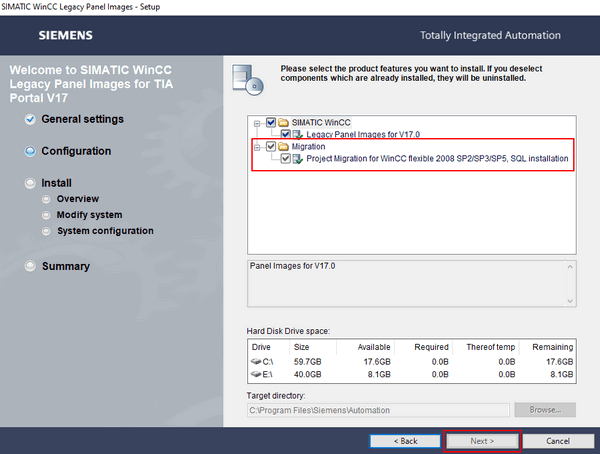
Fig. 03
2. TIA Portal V16
Start the installation on the Installation DVD 3 "Panel Images".
Proceed as described in Point 1.
3. TIA Portal V15.0 / V15.1
Start the installation on the Installation DVD 1.
Proceed as described in Point 1.
4. TIA Portal V13 / V14
Start the WinCC Basic/Comfort/Advanced installation and select "Modify".
Proceed as described in Point 1.
Further information on the
https://support.industry.siemens.com/cs/document/58638200/migration-tool-tia-portal
Checking the "SQL Server (WINCCPLUSMIGxxxx)" service
Under certain circumstances this error might continue to appear even though WinCC flexible and the "Migration" option are installed. In this case you proceed as follows:
Switch to the Windows Services by entering "Services" in the Windows search and confirming with the "Enter" key.
Check whether the "SQL Server (WINCCPLUSMIGxxxx)" service is available.
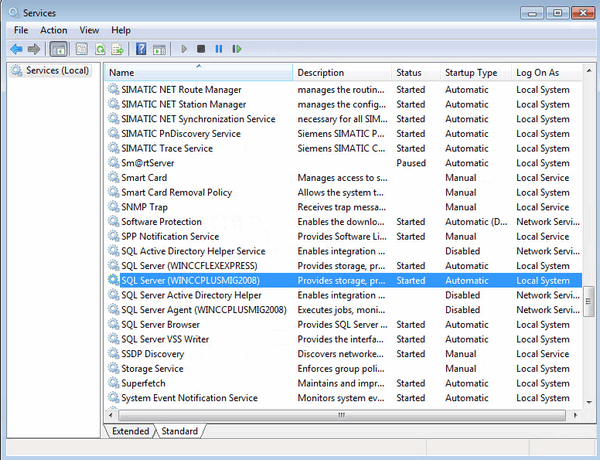
Fig. 04
If the service is not available, you must apply one of the following two methods:
Enable the migration service (Method 1 - without Registry entry)
If the project migration is already installed, remove the instance "WINCCPLUSMIGxxxx" from the SQL server installation.
For this, under "Programs and Features" you select the "SQL Server 2008 R2" and click "Uninstall/Change".
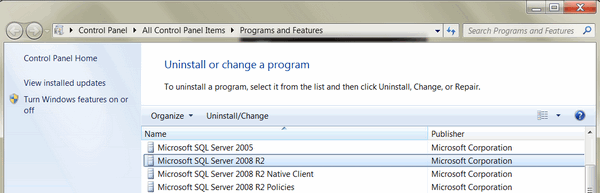
Fig. 05
Select "Remove" for the uninstallation.
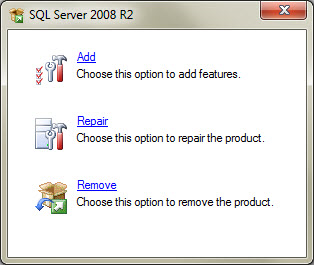
Fig. 06
Select "WINCCPLUSMIGxxxx" from the drop down menu and follow the next steps to remove the instance.
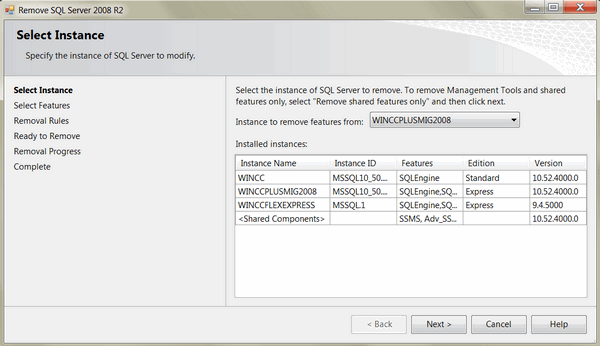
Fig. 07
Execute Installation of the "Migration" option again.
Enable the migration service (Method 2 - with Registry entry)
Important
This section contains information about editing the Registry.
Before editing the Registry it is recommended to use System Recovery beforehand to create a recovery point. The recovery point contains Registry information and use it to undo changes made to the system. Further information is available in Windows in Help and Support under the keyword "System Recovery” or at Microsoft. Incorrect use of the Registry editor can cause serious problems that affect the complete system and make it necessary to reinstall the operating system. You use the Registry editor at your own risk.
Start the Registration editor "regedit.exe" with the option "Execute as administrator" under Windows > Start > Search > regedit.
Export the following Registry Keys to confecționate a backup copy:

Then delete the two entries 1. and 2. from the Registry.
Uninstall the "Migration" option.
To uninstall, run the installation again on the respective installation DVD and deselect the "Migration for WinCC flexible 2008...." option. The "Migration" option is uninstalled.
Install the "Migration" option again as described in Point . |
|
| Back to top |
|
 |
|
|
You cannot post new topics in this forum
You cannot reply to topics in this forum
You cannot edit your posts in this forum
You cannot delete your posts in this forum
You cannot vote in polls in this forum
|
Powered by phpBB © 2001, 2005 phpBB Group
Fa-ti si tu propriul forum GRATUIT, pe www.myforum.ro |
 FAQ
FAQ Search
 Memberlist
 Usergroups
 Register
 Profile
 Log in to check your private messages
 Log in


