 |
plc.myforum.ro
PLCs users www.plc.myforum.ro!
|
| View previous topic :: View next topic |
| Author |
Message |
valz
Member 3


Joined: 26 Jul 2015
Posts: 771
|
 Posted: 12/09/2022 19:26 Post subject: memory dump for diagnostics purposes in WinCC and PCS 7 Posted: 12/09/2022 19:26 Post subject: memory dump for diagnostics purposes in WinCC and PCS 7 |
 |
|
How do you realizate a memory dump for diagnostics purposes in WinCC and PCS 7?
https://support.industry.siemens.com/cs/document/45020870/
Memory dumps can be useful for detailed diagnostics of processes. You will find instructions and hints to help you confecționate memory dumps using both the "adplus" and "ProcDump" tools, as well as without any extra tools at all.
Procedure for Windows 7 and higher (Windows 7, Windows 8.1, Windows Server 2008, Windows Server 2008 R2 and Windows Server 2012 R2, Windows 10)
Contents
The following topics are described in detail in the document (see "Download"):
Installationof the Microsoft Windows Software Development Kit (SDK)
Parameterization and use of "adplus.exe"
Activation and use of the "gflags" tool
Use of the "ProcDump" tool
Creation of dumps using Windows on-board tools without additional tools
Download
https://support.industry.siemens.com/cs/attachments/45020870/45020870_Userdump_create_W7_V2_en.pdf
https://support.industry.siemens.com/cs/attachments/45020870/adplusconfig.xml
Notes
If the generated user dump or the file created by adplus has the size 0 KB, you have to change the page file of Windows. Detailed information is available from Microsoft under the article number 2860880. Another reason for this might also be a resource load problem.
You can also lucrate a memory dump later. However, this memory dump is a snapshot and does not include the sequence of events leading to the fault.
In Windows 7 and higher you făcute other user dumps later with the Windows Task Manager.
Windows 7 / Windows 8.1 / Windows Server 2008 (32-bit versions)
Open the Task Manager:
- via Start > Run > Taskmgr.exe or
- by right-clicking the taskbar > Start Task Manager.
Open the "Processes" tab. Select the required process with a right-click.
In the pop-up menu that opens you select the "Create Dump File" function.
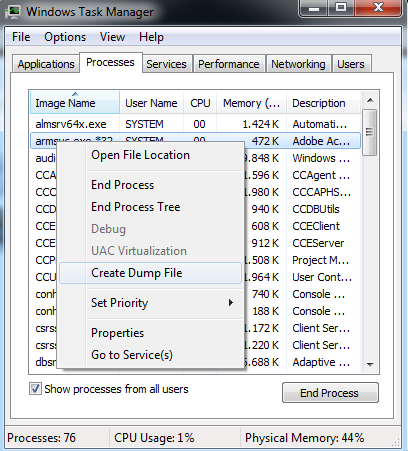
Windows 7 / Windows 8.1 / Windows Server 2008 / Windows Server 2012 (64-bit versions) / Windows 10
Seeing as the WinCC processes are 32-bit processes you produse a memory dump in the 32-bit format.
The 64-bit version of the Task Manager starts by default in the 64-bit versions of the operating system and therefore a memory dump is also created in the 64-bit format.
Proceed as follows to create a memory dump in the 32-bit format in the 64-bit versions of the operating system.
Start the 32-bit version of the Task Manager via C:\Windows\SysWOW64\taskmgr.exe.
Open the "Processes" tab. Select the required process with a right-click.
In the pop-up menu that opens you select the "Create Dump File" function.
The dump file is created.
https://support.industry.siemens.com/cs/document/48698507/what-diagnostics-options-are-available-for-wincc-and-pcs-7-os
Procedure for Windows 2000/2003 Server/XP
The following instructions are for installing and using the User Mode Process Dumper in WinCC and PCS 7. You can use this tool to create a memory dump of a process in the event of a fault. This memory dump can be useful for detailed diagnostics.
Contents
1 Installing and Using the "User Mode Process Dumper"
1.1 Manual Starting of the "User Mode Process Dumper"
1.2 Installing the "User Mode Process Dumper" for Automatic Monitoring
of a Process
1.3 Installing the "User Mode Process Dumper" with Hotkey
1.4 Uninstalling the "User Mode Process Dumper"
2 Enabling and Using the "gflags" Tool
2.1 Enabling the "gflags" Tool
Download
https://support.industry.siemens.com/cs/attachments/45020870/45020870_userdump_einrichten_en.pdf |
|
| Back to top |
|
 |
|
|
You cannot post new topics in this forum
You cannot reply to topics in this forum
You cannot edit your posts in this forum
You cannot delete your posts in this forum
You cannot vote in polls in this forum
|
Powered by phpBB © 2001, 2005 phpBB Group
Fa-ti si tu propriul forum GRATUIT, pe www.myforum.ro |
 FAQ
FAQ Search
 Memberlist
 Usergroups
 Register
 Profile
 Log in to check your private messages
 Log in


