 |
plc.myforum.ro
PLCs users www.plc.myforum.ro!
|
| View previous topic :: View next topic |
| Author |
Message |
grig100
Member 3


Joined: 01 Jan 2015
Posts: 752
|
 Posted: 22/05/2019 18:35 Post subject: Industrial Security Appliance to access internet via PG/PC Posted: 22/05/2019 18:35 Post subject: Industrial Security Appliance to access internet via PG/PC |
 |
|
What do you have to configure in the Industrial Security Appliance to access the internet from the internal network with a PG/PC?
https://support.industry.siemens.com/cs/document/26517928/what-do-you-have-to-configure-in-the-industrial-security-appliance-to-access-the-internet-from-the-internal-network-with-a-pg-pc
If you protect a network cell with an Industrial Security Appliance, initially all data traffic is blocked in both directions (internal > external and external > internal). Even if you have configured a VPN tunnel, this only permits communication through the tunnel into the protected cell at the other end of the tunnel. It is not possible to access the unprotected network with corresponding configuration.
Therefore it is also necessary to configure and allow access to the internet from the protected network.
The following figure shows a possible configuration.
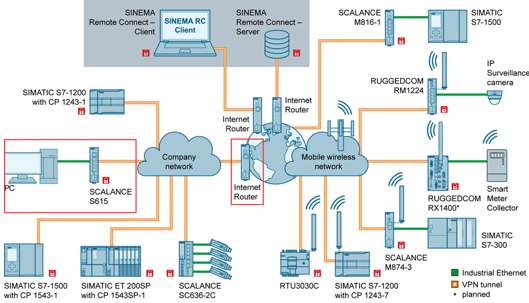
Fig. 01
If, for example, you want to use the Panel PC as depicted in Fig. 01 to access the internet through the SCALANCE S615 and through the internet router, then you must make various settings in the SCALANCE S.
Validity
The settings are valid SCALANCE S615 and SCALANCE SC-600.
Configuration overview
The following IP addresses are used for our sample configuration:
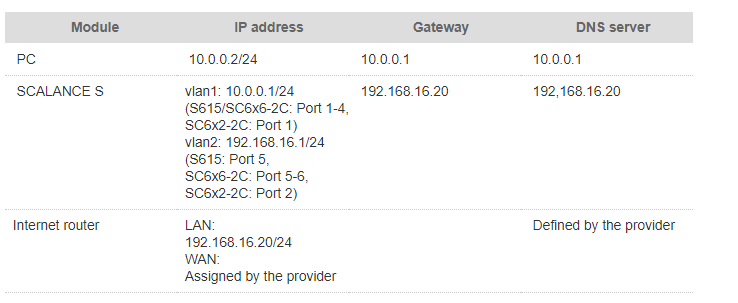
To access the internet with a PC through the SCALANCE S and through the internet router, then you must make the following settings:
Define the DNS server
Set the DNS proxy
Set up a standard gateway
Define the IP service
Create a firewall rule
Configuration via the Web Based Management and TIA Portal
The menu structures of TIA Portal and Web Based Management are identical. The following figures are taken from the configuration with TIA Portal.
Proceed as follows to configure the Industrial Security Appliance:
Open the Web Based Management or hardware configuration in the TIA Portal of the SCALANCE S module.
In the menu "Layer 3 > Subnets > Overview") you check the IP addresses and correct them if necessary.

Fig. 02
In the menu "Layer 3 > Static Routes" you check whether the standard gateway is entered and add the standard gateway if necessary (here: 192.168.16.20)
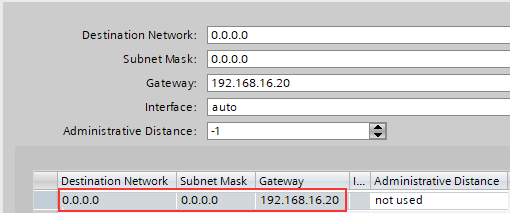
Fig. 03
Navigate to "System > DNS > DNS Client".
Enable the "DNS Client" function.
In the input field "DNS Server Address" you enter the internal IP address of your internet router (here: 192.168.16.20).
To accept the settings in the TIA Portal you right-click in the table and then "New Entry".
To accept the settings in the Web Based Management you click the "Create" button.
The IP address of the DNS server is displayed in the table.
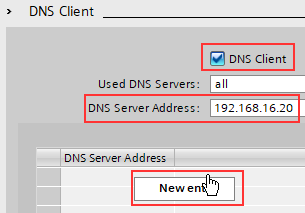
Fig. 04
Navigate to "System > DNS > DNS Proxy".
Enable the function "Enable DNS Proxy".
To accept the settings in the Web Based Management you click the "Set values" button.
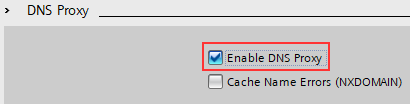
Fig. 05
Switch to the menu "Security > Firewall > General".
Check whether the firewall is activated and if necessary, you activate the firewall.
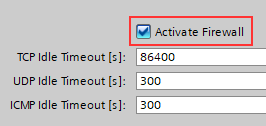
To accept the settings in the Web Based Management you click the "Set values" button.
Navigate to "Security > Firewall > Predefined IPv4 Rules".
If the SCALANCE S is functioning as DNS proxy, the DNS services must be allowed in the vlan1.
Allow the DNS services for the vlan1.
To accept the settings in the Web Based Management you click the "Set values" button.
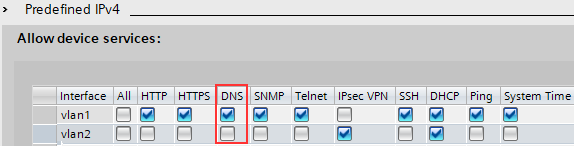
Fig. 07
Navigate to "Security > Firewall > IP Services".
You can use the IP service definitions to define the firewall rules that are applied to specific services. Here you specify a name and assign the service parameters to it. In this example the IP service is set up for HTTPS.
In the input field you enter a name for the IP service.
To generate a new table row in the TIA Portal you right-click in the table and then "New Entry".
To generate a new table row in the Web Based Management you click the "Create" button.
Change the row. Refer here to the screenshot.
To accept the settings in the Web Based Management you click the "Set values" button.
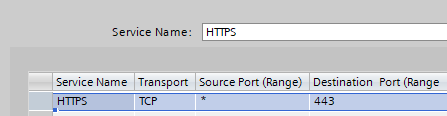
Fig. 08
Navigate to "Security > Firewall > IP Rules".
For the PC with the IP address "10.0.0.2" to be able to communicate without any problems from internal to external you have to define an IP rule. In this example the communication is limited to HTTPS services.
To generate a new table row in the TIA Portal you right-click in the table and then "New Entry".
To generate a new table row in the Web Based Management you click the "Create" button.
Change the row. Refer here to the screenshot.
To accept the settings in the Web Based Management you click the "Set values" button.
Note: To allow more services for the PC (http, for example) you define more services (see step 8) and create another IP rule with the new IP service.

Fig. 09
To transfer all the settings in the TIA Portal to the SCALANCE S you download the module.
In your internet router you check whether there is a route into the internal network of the SCALANCE S (learnt dynamically or created statically). If there is no route you must create a static route manually. For the example above you need a static route into the destination network "10.0.0.0/24" with the gateway "192.168.16.1".
Then you can access the internet from the protected cell. |
|
| Back to top |
|
 |
|
|
You cannot post new topics in this forum
You cannot reply to topics in this forum
You cannot edit your posts in this forum
You cannot delete your posts in this forum
You cannot vote in polls in this forum
|
Powered by phpBB © 2001, 2005 phpBB Group
Fa-ti si tu propriul forum GRATUIT, pe www.myforum.ro |
 FAQ
FAQ Search
 Memberlist
 Usergroups
 Register
 Profile
 Log in to check your private messages
 Log in


