 |
plc.myforum.ro
PLCs users www.plc.myforum.ro!
|
| View previous topic :: View next topic |
| Author |
Message |
valz
Member 3


Joined: 26 Jul 2015
Posts: 771
|
 Posted: 12/04/2023 19:35 Post subject: Import and export the Symbol Table for editing in Excel Posted: 12/04/2023 19:35 Post subject: Import and export the Symbol Table for editing in Excel |
 |
|
How do you import and export the Symbol Table for editing in Excel?
https://support.industry.siemens.com/cs/document/22781586/
The table below describes how to export the symbol table, how to then edit it in Excel and how to import the table back into the STEP 7 project.
1
Open the symbol table in the SIMATIC Manager and export it via "Table > Export...".
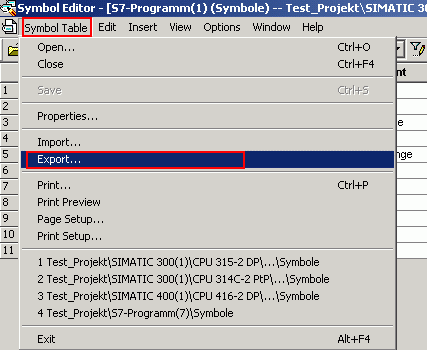
Fig. 01
2
The "Export" dialog then opens. Select the folder in which you wish to save the symbol table. In order to edit the symbol table further in Excel, "Data Interchange Format (DIF)" must be selected as the file type. DIF files can be opened, edited and then saved again in Microsoft Excel.
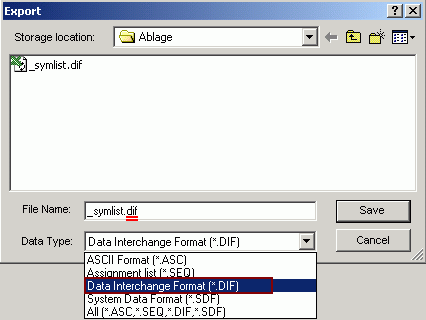
Fig. 02
After you click OK to confirm, the symbol table is exported.
3 You can now use Excel to open the saved DIF file (exported symbol table) in its present folder. This is done by double-clicking the file (such as the "_symlist" file in Fig. 03).
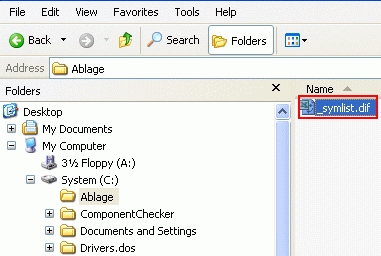
Fig. 03
4 In the Excel list that then opens you can enter the symbols along with the corresponding addresses, data type and comments.
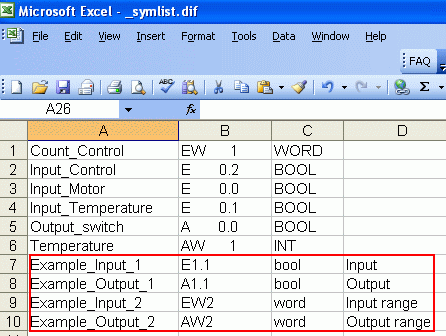
Fig. 04
5 While you save the Excel list with "File > Save", a message appears to indicate that the file may contain features which are incompatible with DIF (Data Interchange Format). If you click the "Yes" button, the symbol table is now saved in the folder selected by you.

Fig. 05
Then close the Excel table. The message which appears in Fig. 05 appears once again as you close the Excel table. Click the "Yes" button here as well.
6 Now import the symbol table which has been edited in Excel in the STEP 7 Symbol Editor via "Table > Import...". The "Import" dialog then opens. Then check the folder and file name there (symbol table being imported) and click the "Open" button.
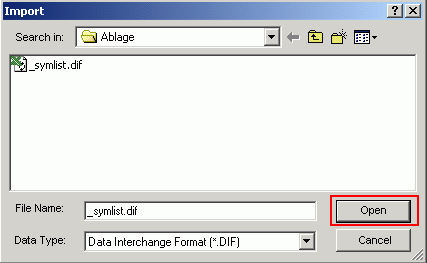
Fig. 06
The autentic symbol table is now overwritten with the symbol table which has been overwritten in Excel.
7 Once the symbol table has been imported, the import result appears. Also please note the information under "Help" (help on message 291:1392).
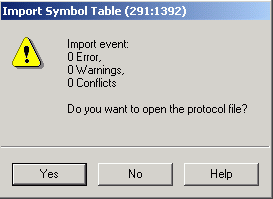
Fig. 07
Click "Yes" to open the log file.
8 The symbol table in STEP 7 now contains the data entered in Excel. Save the symbol table via "Table > Save".
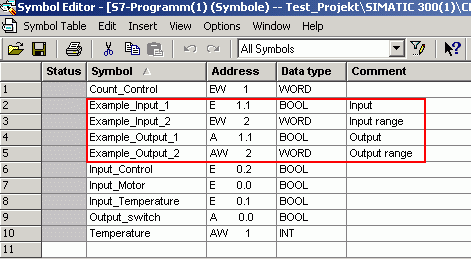
Fig. 08
Note from the Online Help:
The properties of symbols which you can edit with the menu command "Edit > Special properties..." are not taken into consideration during exporting and importing.
You can find further information about importing and exporting the symbol table in the STEP 7 Online Help under
File Formats for Importing/Exporting a Symbol Table,
Importing a Symbol Table,
Importing a Symbol Table,
Importing an Excel File into the Symbol Table. |
|
| Back to top |
|
 |
|
|
You cannot post new topics in this forum
You cannot reply to topics in this forum
You cannot edit your posts in this forum
You cannot delete your posts in this forum
You cannot vote in polls in this forum
|
Powered by phpBB © 2001, 2005 phpBB Group
Fa-ti si tu propriul forum GRATUIT, pe www.myforum.ro |
 FAQ
FAQ Search
 Memberlist
 Usergroups
 Register
 Profile
 Log in to check your private messages
 Log in


