| View previous topic :: View next topic |
| Author |
Message |
milkros
Junior 2

Joined: 23 Jan 2021
Posts: 33
|
 Posted: 30/03/2021 10:42 Post subject: how to download HMI Posted: 30/03/2021 10:42 Post subject: how to download HMI |
 |
|
| Hello, I used ProSave and I have file .brf but I cant to work with it. Does exist something to edit HMI of panel in Tia Portal? |
|
| Back to top |
|
 |
AllienTT
Junior

Joined: 09 Nov 2018
Posts: 1
|
| Posted: 30/03/2021 13:55 Post subject: |
|
|
| what panel do you use and Tia/ |
|
| Back to top |
|
|
milkros
Junior 2
Joined: 23 Jan 2021
Posts: 33
|
| Posted: 30/03/2021 14:11 Post subject: how to download HMI |
|
|
| TP1200_Comfort Tia Portal V15 |
|
| Back to top |
|
|
nd5qnx4x
Junior
Joined: 19 Jan 2018
Posts: 4
|
| Posted: 30/03/2021 16:27 Post subject: How do you backup/restore with a Comfort Panel? |
|
|
How do you backup/restore with a Comfort Panel?
https://support.industry.siemens.com/cs/document/58876345/
Description There are three ways of backing up the configuration on a Comfort Panel: Automatic backup Backup/Restore with a memory card / USB memory stick Backup/Restore with ProSave ...
There are three ways of backing up the configuration on a Comfort Panel:
Automatic backup
Backup/Restore with a memory card / USB memory stick
Backup/Restore with ProSave
Each of the three backup options provides you with a quick way of starting up again after a system failure or replacement of devices. The backed-up data is transferred to the new Comfort Panel and the original status is restored.
Note
It is not possible to open and process the backup file with WinCC (TIA Portal). The file can only be downloaded to the original or another panel of the same type with a restore procedure.
Automatic backup
If you enable automatic backup, the Comfort Panel saves all the data necessary for operation on a SIMATIC HMI memory card (SD card). You can slot the SIMATIC HMI memory card (SD card) into any operator panel of the same type. When you switch on the power on the identical operator panel the "Use system card?" message prompts you to enable the Service concept. The contents of the SIMATIC HMI memory card (SD card) are copied automatically into the internal memory of the operator panel. Then the operator panel is rebooted.
In the Comfort Panel manual, the section given below informs you how to parameterize automatic backup on the SIMATIC HMI memory card (SD card): "Comfort Panels > Commissioning the device > Using the service concept > Enabling the service concept".
Notes
The decisive advantage of the automatic backup is that the data is continuously updated automatically on the system memory card.
The only medium permissible as system memory card (SMC) is the SIMATIC HMI memory card (SD card) 2 Gbytes or more (6AV2181-8XP00-0AX0). The operator panel does not recognize any other memory card as system memory card. The system memory card is a component of the service concept of the operation panels. When you enable the service concept, all the data is transferred from the internal memory of the operator panel to the system memory card. The system memory card is not visible in the user interface of the operator panel nor can it be used as a data memory.
Backup/Restore with a memory card / USB memory stick
When a backup is made, the operating system, applications and data are copied from the internal flash memory of the operator panel to a memory card or a SIMATIC IPC USB flash drive (USB stick).
When you restore, the flash memory of the operator panel is deleted after a prompt. Then the data backed up on the memory card or USB stick is copied to the internal flash memory.
Requirements
An external SIMATIC storage medium (memory card or USB stick) with sufficient free space is slotted in the operator panel.
The external storage medium is formatted.
Notes
The "SIMATIC IPC USB flash drive" is a storage medium for IPCs, Comfort Panels and Basic Panels of the 2nd generation.
Use the "SIMATIC HMI USB memory stick" for Touch Panels, Operator Panels and Multipanels.
SIMATIC are preformatted ex works. You should not compus them because this would render them useless for specific functions. If the internal structure is overwritten, the storage medium is no longer recognized in SIMATIC devices and therefore can no longer be used in those devices. More information about formatting and restoring from SIMATIC storage media is available in Entry IDs: 95853895 and 69063974.
Do not confuse Multi Media Cards with Micro Memory Cards. The abbreviations "MMC" or "MM" might be used for both products.
"SIMATIC HMI Multi Media Cards" are used in panels.
"SIMATIC S7 Micro Memory Cards" may only be used in SIMATIC S7 CPUs, modules of the ET200 series with CPU functionality, SIMATIC Field PGs, SIMATIC Power PGs and USB Prommers.
Preparation
Slot the memory card into the operator panel. Start the operator panel and open the "Control Panel".
Double-click
- "Service and Commissioning" if you are using WinCC V12 to V13.
- "Backup/Restore" if your are using WinCC V11.
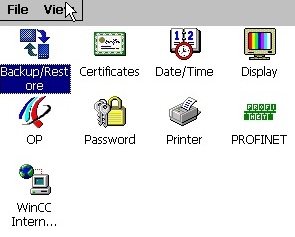
Fig. 01
Backup
Preparation
First of all you run through the "Preparation" as described above.
Select storage medium
- WinCC V12 to V13:
Click the "Next" button. In the list box you select the memory card that you want to use for the backup and then click "Next".
- WinCC V11:
In the list box you select the storage medium that you want to use for the backup/restore. Click "Next" to continue.
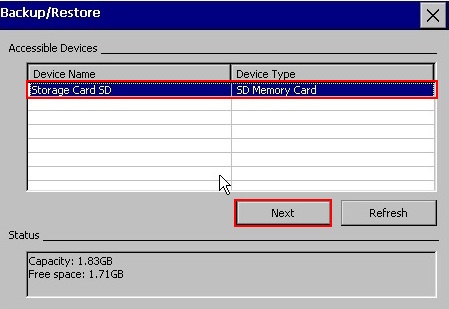
Fig. 02
Overview of the backup files
This overview shows you all the backup files created on the storage medium. Click the "Backup" button to continue the backup procedure.
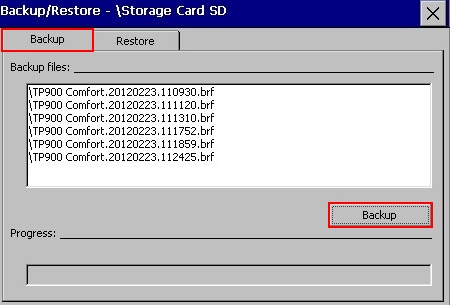
Fig. 03
Backup settings
Under the "Choose your settings for Backup" item select the option for how you want the backup to be made from your operator panel. In this case we have chosen "Complete backup with license". Under the "File name" item you specify a name for the backup file. The program automatically attaches the current date and time to the file name. Click "Create" to start the backup procedure.
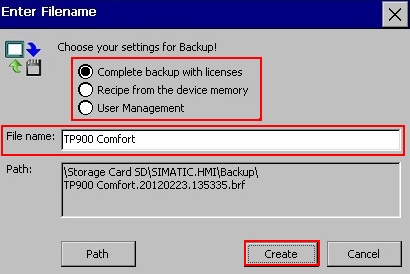
Fig. 04
If the message is displayed indicating that a higher storage capacity is required, then proceed as follows.
Click "OK" to acknowledge the message and interrupt the backup procedure. Slot a storage medium with a higher storage capacity into the operator panel. Restart the backup procedure.
Terminate backup
The backup is completed when the "Backup operation successfully completed." message is displayed.
Acknowledge the message with "OK". Remove the memory card from the operator panel.
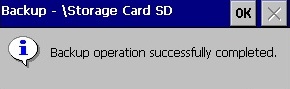
Fig. 05
Restore
Preparation
First of all you run through the "Preparation" as described above.
If not already available, you can download ProSave in
https://support.industry.siemens.com/cs/document/10347815/servicetool-simatic-prosave
Select memory card
- WinCC V12 to V13: Go to the "Restore" menu and click "Next". In the list box you select the storage medium that you want to use for the restore and then click "Next".
- For WinCC V11: In the list box you select the storage medium that you want to use for the restore and then click "Next".
Select file
In the list box you select the backup file that you wish to have transferred to the operator panel. Click the "Restore" button to continue the restore procedure.
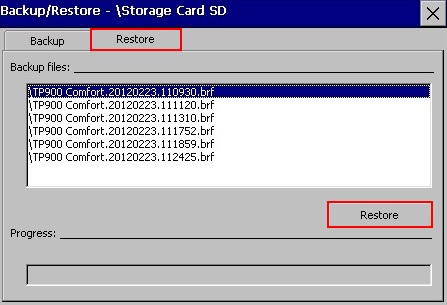
Fig. 06
Run the restore procedure
A message is displayed asking whether the restore procedure is to be continued. Here, all the data of the flash will be deleted on the operator panel.
Acknowledge the message with "Yes" if you want to start the restore procedure.
Acknowledge the message with "No" and then the following message with "OK" if you want to abort the restore.
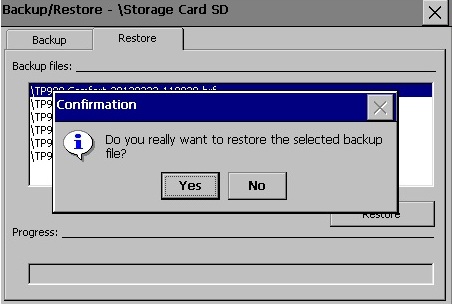
Fig. 07
Once the restore procedure has been completed, the "Restore operation successfully completed" message is displayed and the operator panel restarts.
Note
Do not remove the storage medium from the operator panel during the restart!
Backup/Restore with ProSave
Preparation
Establish a connection
Use a cable corresponding to the selected transfer to connect the panel to the PC. Switch on your Comfort Panel. Set the Comfort Panel to "Transfer Mode".
General settings
Open ProSave and select the the "General" tab. Under "Device type" you select the Comfort Panel used. Under "Connection" you select the connection used to connect the panel to the PC, Ethernet, for example. Under "Connection parameters" you enter the IP address of the panel.
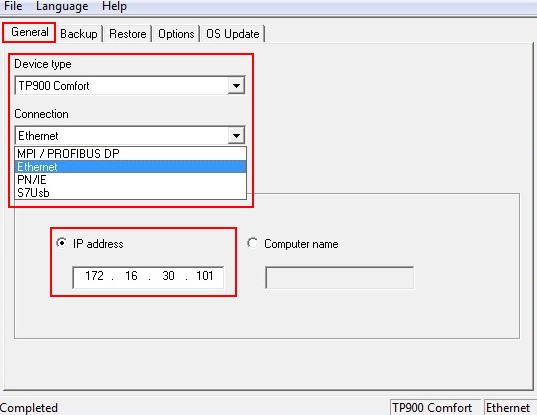
Fig. 08
Backup
Go to the "Backup" menu and in the "Data type" menu you select the data that you want to have backed up. In this case "Complete backup with licenses". Under "Save as" you specify the path in which the complete configuration is to be saved. Start the backup procedure by clicking the "Start backup" button.
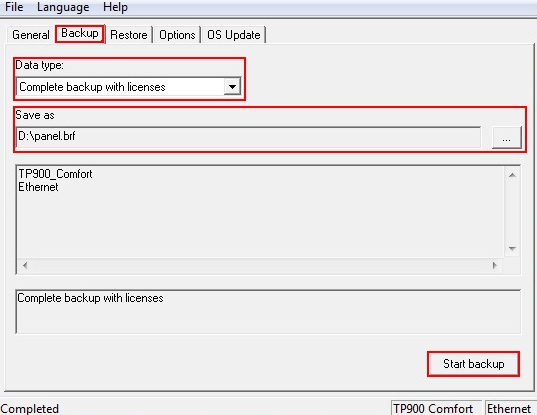
Fig. 09
When the backup has been completed successfully, the message "The backup was created successfully" is displayed in the output window of ProSave.
Restore
Open the "Restore" menu. Under "Opening..." you open your backup file (*.brf file). Start the restore procedure by clicking the "Start restore" button.
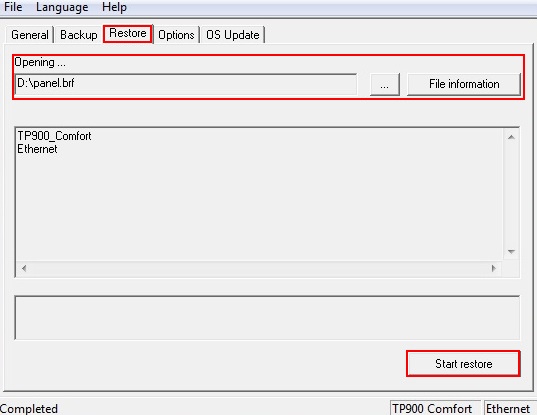
Fig. 10
When the restore procedure has been completed successfully, the message "The restore was successful" is displayed in the output window of ProSave.
After a restore, the panel has exactly the same connection parameters as the panel from which the backup originates. Make sure that no other panel has the same network parameters.
This FAQ response was created with the software/hardware below.
1 SIMATIC ProSave Version V9.0.3.0
2 SIMATIC HMI TP900 Comfort
Comfort Panels Service Concept: Continuous automatic backup of all the process-relevant control panels
https://support.industry.siemens.com/cs/document/68373729/
https://support.industry.siemens.com/cs/attachments/68373729/68373729_CPanels_Service_Concept_v10_e.pdf
https://support.industry.siemens.com/cs/attachments/49313233/hmi_comfort_panels_operating_instructions_enUS_en-US.pdf
How do you backup/restore with a Windows-based panel?
https://support.industry.siemens.com/cs/document/28928853/
http://plc.myforum.ro/ktp600-factory-reset-step-by-step-vt10664.html
Which external storage media can you use with the current SIMATIC panels and which memory card interfaces do they have?
https://support.industry.siemens.com/cs/document/21847868/
https://support.industry.siemens.com/cs/attachments/21847868/21847868_hmi_panels_slots_en.pdf
Logging Process Values and Alarms with WinCC (TIA Portal)
https://support.industry.siemens.com/cs/document/109746939/
https://ulozto.net/file/IdScpZ03v9lu/guide-to-reinstall-the-corrupted-window-ce-in-mp277-pdf |
|
| Back to top |
|
|
milkros
Junior 2
Joined: 23 Jan 2021
Posts: 33
|
| Posted: 31/03/2021 06:58 Post subject: how to download HMI |
|
|
| I know how to restore and backup. I just want to work with brf file in Tia Portal. I want to see screens in Tia Portal. |
|
| Back to top |
|
|
tdd5
Junior
Joined: 15 Sep 2018
Posts: 2
|
| Posted: 31/03/2021 23:02 Post subject: |
|
|
| you cant do it if is not saved for restore... |
|
| Back to top |
|
|
milkros
Junior 2
Joined: 23 Jan 2021
Posts: 33
|
| Posted: 05/04/2021 07:40 Post subject: How to download hmi from panel |
|
|
| I dont understand, maybe im stupid but I didnt understand how to use .brf file in tia portal when I want to work with screens from panel in tia portal environment |
|
| Back to top |
|
|
Commiteckh
Junior
Joined: 27 Oct 2018
Posts: 3
|
| Posted: 05/04/2021 17:37 Post subject: |
|
|
The .brf file is a file saved on the mmc card of the panel.
I do not thing you can restore on tia for further editing.
you can use the mmc to install on a new panel.
it's clear? |
|
| Back to top |
|
|
milkros
Junior 2
Joined: 23 Jan 2021
Posts: 33
|
| Posted: 06/04/2021 08:32 Post subject: How to download hmi from panel |
|
|
| yeah it is clear so I cant edit...thank you |
|
| Back to top |
|
|
|

 FAQ
FAQ Search
 Memberlist
 Usergroups
 Register
 Profile
 Log in to check your private messages
 Log in


