 |
plc.myforum.ro
PLCs users www.plc.myforum.ro!
|
| View previous topic :: View next topic |
| Author |
Message |
heo_con_net
Junior

Joined: 15 Jun 2012
Posts: 1
|
 Posted: 27/10/2015 11:57 Post subject: How to do SQL report on WinCC Posted: 27/10/2015 11:57 Post subject: How to do SQL report on WinCC |
 |
|
Hi guys, check out the new way to create SQL report on WinCCL
<iframe></iframe> |
|
| Back to top |
|
 |
kaka
Member

Joined: 16 Mar 2014
Posts: 154
|
| Posted: 29/10/2015 18:26 Post subject: Re: How to do SQL report on WinCC |
|
|
| heo_con_net wrote: | Hi guys, check out the new way to create SQL report on WinCCL
<iframe></iframe> |
How do you log tags in an SQL database and read them out again with WinCC flexible?
https://support.industry.siemens.com/cs/document/24677043/how-do-you-log-tags-in-an-sql-database-and-read-them-out-again-with-wincc-flexible
The documents contains the essential configuration steps for
Creating a Microsoft SQL database.
Logging tags in a Microsoft SQL database.
Reading out tags from a Microsoft SQL database.
Creating and processing a user-defined Microsoft SQL database from
WinCC flexible Runtime
The attached download contains the archived WinCC flexible project with the functions described in the document.
https://support.industry.siemens.com/cs/attachments/24677043/24677043_WinCC_flexible_SQL_Datenbank_en.pdf
https://support.industry.siemens.com/cs/attachments/24677043/24677043_WinCC_flexible_SQL_Datenbank_Project.zip |
|
| Back to top |
|
|
zalo
Member
Joined: 24 Nov 2013
Posts: 130
|
| Posted: 29/10/2015 18:38 Post subject: |
|
|
For querying data-array from WinCC SQL-Server for "on time" archived values:
1. Get to know the WinCC-DNS externally from registered ODBC.INI.
2. use WMI to check the offset from UTC & Locale.
Because the archived data is always stored in with UTC timestamp, so you'll need to query in UTC time, and then modify the returned timestamp back to your locale for display.
3. check the "TagID" by ADODB connection & query firstly.
4. query tag-archived value with WinCC OLEDB syntax and get a returned value array based on time segament.
5. fill in the return value to the target cells/range.
6. make the workbook saved in a naming rule.
All the above-written can be done by Excel-VBA. (Excel-Addin in backgroud mode)
& you may schedule your Windows tasks once a day for report generation.
(You may have a 24-hour-report just by querying once .
You may also have a monthly report containing 30/31 days including 24-hour-separated value at once.)
Firstly ~ Try the followings firstly!! to get a start.
(There's another ODK way for checking the DSN, too!)
| Code: | '========================================================================
Function DSN_viaWMI_V6() 'WinCC V6.x registers CS/RT DSN in "UserDSN"
Dim strComputer, strKeyPath, objRegistry
Dim arrValueNames, arrvalueTypes, strValueName, strValue, i
Const HKEY_CURRENT_USER = &H80000001 'For WinCC V6.x
strComputer = ThisWorkbook.Sheets(1).[WinCC_RT_PC] ' "." for Local
strKeyPath = "Software\ODBC\ODBC.INI\ODBC Data Sources"
Set objRegistry = GetObject("winmgmts:\\" & strComputer & "\root\default:StdRegProv")
objRegistry.EnumValues HKEY_CURRENT_USER, strKeyPath, arrValueNames, arrvalueTypes
For i = 0 To UBound(arrValueNames)
strValueName = arrValueNames(i)
objRegistry.GetStringValue HKEY_CURRENT_USER, strKeyPath, strValueName, strValue
If UCase(Left(strValueName, 3)) = "CC_" And Right(strValueName, 1) = "R" Then
MsgBox "WinCC--DSN is: " & strValueName & " -- " & strValue
DSN_viaWMI_V6 = strValueName
End If
Next
End Function
'========================================================================
Function DSN_viaWMI_V7() 'WinCC V7.x registers CS/RT DSN in "SystemDSN"
Dim strComputer, strKeyPath, objRegistry
Dim arrValueNames, arrvalueTypes, strValueName, strValue, i
Const HKEY_LOCAL_MACHINE = &H80000002 'For WinCC V7.x
strComputer = ThisWorkbook.Sheets(1).[WinCC_RT_PC] ' "." for Local
strKeyPath = "Software\ODBC\ODBC.INI\ODBC Data Sources"
Set objRegistry = GetObject("winmgmts:\\" & strComputer & "\root\default:StdRegProv")
objRegistry.EnumValues HKEY_LOCAL_MACHINE, strKeyPath, arrValueNames, arrvalueTypes
For i = 0 To UBound(arrValueNames)
strValueName = arrValueNames(i)
objRegistry.GetStringValue HKEY_LOCAL_MACHINE, strKeyPath, strValueName, strValue
If UCase(Left(strValueName, 3)) = "CC_" And Right(strValueName, 1) = "R" Then
MsgBox "WinCC--DSN is: " & strValueName & " -- " & strValue
DSN_viaWMI_V7 = strValueName
End If
Next
End Function
'========================================================================
|
|
|
| Back to top |
|
|
zalo
Member
Joined: 24 Nov 2013
Posts: 130
|
| Posted: 29/10/2015 18:42 Post subject: |
|
|
https://support.industry.siemens.com/tf/ww/en/postattachments/download/?attachmentId=46046
| Code: | Dim a
Dim objExcelApp,objExcelApp2
Dim DT
Dim DY,MNTH,YR,MNTHNM
Dim HR,MNT,SCND
Dim i,j
Dim fso, msg,fldr,ReportFolderStatus
Dim fso1, f,fName
DY=Day(Date())
MNTH=Month(Date())
YR=Year(Date())
HR=Hour(Time())
MNT=Minute(Time())
SCND=Second(Time())
MNTHNM=Month(Now)
MNTHNM=MonthName (MNTHNM,True)
DT=DY & "_" & MNTH & "_" & YR & "_" & HR & "_" & MNT & "_" & SCND
If (HMIRuntime.Tags("SHIFT_TRIGGER").Read >0) Then
Set fso = CreateObject("Scripting.FileSystemObject")
Set objExcelApp = CreateObject("Excel.Application")
objExcelApp.Visible = False
objExcelApp.Workbooks.Open "D:\BATCH_REPORT.xls"
objExcelApp.ActiveWorkbook.Save
If (fso.FolderExists("E:\REPORTS_EVEREST")) Then
If (fso.FolderExists("E:\REPORTS_EVEREST\" & MNTHNM)) Then
objExcelApp.ActiveWorkbook.Saveas "E:\REPORTS_EVEREST\" & MNTHNM & "\BATCH_REPORT_" & DT & ".XLS"
Else
Set fso1 = CreateObject("Scripting.FileSystemObject")
Set f = fso1.CreateFolder("E:\REPORTS_EVEREST\"& MNTHNM ) ' creates new folder
objExcelApp.ActiveWorkbook.Saveas "E:\REPORTS_EVEREST\" & MNTHNM & "\BATCH_REPORT_" & DT & ".XLS"
End If
Else
Set fso1 = CreateObject("Scripting.FileSystemObject")
Set f = fso1.CreateFolder("E:\REPORTS_EVEREST") ' creates new folder
Set f = fso1.CreateFolder("E:\REPORTS_EVEREST\"& MNTHNM ) ' creates new folder
objExcelApp.ActiveWorkbook.Saveas "E:\REPORTS_EVEREST\" & MNTHNM & "\BATCH_REPORT_" & DT & ".XLS"
End If
objExcelApp.Workbooks.Close
objExcelApp.Quit
Set objExcelApp = Nothing
Set objExcelApp2 = CreateObject("Excel.Application")
objExcelApp2.Visible = False
objExcelApp2.Workbooks.Open "D:\BATCH_REPORT.xls"
objExcelApp2.Cells(110,8).Value =""
For i=7 To 107
For j=1 To 30
objExcelApp2.Cells(i,j).Value =""
Next
Next
objExcelApp2.ActiveWorkbook.Save
objExcelApp2.Workbooks.Close
objExcelApp2.Quit
Set objExcelApp2 =Nothing
HMIRuntime.Tags("SHIFT_TRIGGER").Write 0
'MsgBox "File saved successfully."
End If
|
|
|
| Back to top |
|
|
zalo
Member
Joined: 24 Nov 2013
Posts: 130
|
| Posted: 29/10/2015 18:47 Post subject: |
|
|
Export of WinCC / CAS Archive Data using the WinCC OLE DB Provider
https://support.industry.siemens.com/cs/document/35840700/export-of-wincc-cas-archive-data-using-the-wincc-ole-db-provider
Export of WinCC / CAS Archive Data to Excel using the WinCC OLE DB
https://support.industry.siemens.com/cs/attachments/35840700/35840700_Archivexport_en.pdf
Excel Application "OLE-DB Tag and Alarm Export.xls
https://support.industry.siemens.com/cs/attachments/35840700/OLE-DB_Tag_and_Alarm_Export.zip
Documentation to the C# application
https://support.industry.siemens.com/cs/attachments/35840700/35840700_WinCC_CopackCsharp_en.pdf
C# Application "WinCCcopack.exe" (including the C#-Projekt)
https://support.industry.siemens.com/cs/attachments/35840700/WinCCcopack.zip |
|
| Back to top |
|
|
zalo
Member
Joined: 24 Nov 2013
Posts: 130
|
| Posted: 29/10/2015 19:07 Post subject: |
|
|
https://support.industry.siemens.com/cs/document/25533776/how-do-you-export-as-a-csv-file-process-values-displayed-in-wincc-online-trend-control
How do you export and reimport WinCC Runtime data?
https://support.industry.siemens.com/cs/document/850338/how-do-you-export-and-reimport-wincc-runtime-data
This entry shows how to proceed using C and VB scripts. In the example we only show the processing of "64-bit floating point numbers" (integer "Int" in the TIA portal). Simply change the programming for the data types, number of tags and tag names for your own project.
The following tags were configured in WinCC for the example:
TagA, TagB, TagC, TagD, TagE - floating-point number 64-bit IEEE 754 (integer "Int" in the TIA Portal)
Filename - text tag 8-bit font ("String" in the TIA Portal)
Please always assign the complete path to the WinCC tag "Filename", for example: "C:/Temp/FileA.csv"
You can download the sample scripts here to make things easier.
https://support.industry.siemens.com/cs/attachments/850338/scripte_readwritefile.zip

Note the following when composing the string to be written to the file:
Separate the values with a semicolon ';'.
Use the function "WriteLine" (automatically inserts the endline character).
When reading ".csv" files, "Microsoft Excel" uses the semicolon for "New Column" and endline for "New Line".

With this script you must remember to convert the character stream into the correct data compus after splitting. Here, in the example: CStr() and CDbl()

Note the following when composing the string to be written to the file:
Separate the values with a semicolon ';'.
Insert the endline character '\n'.
Change the decimal sign from point '.' to comma ',' (German standard C works with the point as decimal symbol). If you are working with the English default settings, you do not need to do this.

Pay attention here too to the correct type conversion. sscanf(strValue, "%lf", &dVal);

Opened with "Excel":

WinCC Runtime:

Download for TIA portal users (V13 SP1)
You can download a library here with a sample picture for easy testing.
https://support.industry.siemens.com/cs/attachments/850338/Import_Export_V13_SP1.zip
 |
|
| Back to top |
|
|
grig100
Member 3


Joined: 01 Jan 2015
Posts: 752
|
| Posted: 02/02/2016 18:22 Post subject: How do you access an SQL database via a script? |
|
|
In WinCC (TIA Portal) and WinCC flexible how do you access an SQL database via a script?
SQL databases are always accessed in WinCC (TIA Portal)/WinCC flexible via scripts, except when logging tags or messages. In order to access an SQL database, there must be a database created in the SQL server. WinCC (TIA Portal)/WinCC flexible PC Runtime acts as an SQL client.
WARNING
For the sake of corporate security, the Siemens Operational Guidelines for Industrial Securitystrongly recommend not to connect production networks and office networks directly with each other, but to set up a "demilitarized zone" ("DMZ") between the network levels.
Refer also to the other Siemens white papers on the topic of Industrial Security, which are available for downloading free of charge on the Siemens websites.
Notes
This FAQ response describes the procedure when using WinCC (TIA Portal) V13. The procedure with WinCC flexible is identical.
An SQL database cannot be accessed by a Windows CE-based panel.
Requirements
SQL server1
SQL data source must be created in Windows
WinCC (TIA Portal) or WinCC flexible Advanced ES
WinCC (TIA Portal) or WinCC flexible PC Runtime
1 The SQL server used must also be released for the operating systems for which WinCC (TIA Portal) is released.
Remark
These examples are only intended as suggestions; needless to say, other solutions are possible as well.
Note on further reading
You can find further information about SQL commands and about accessing SQL databases in various literature and in the internet.
Website in English: http://www.sqlcommands.net/
Website in German: http://ffm.junetz.en/members/reeg/DSP/node10.html
Creating a data source
Access to the SQL server is via an ODBC data source that has to be created beforehand. This is done in the Windows Control Panel under "Administrative Tools > Data Sources (ODBC)". The data source "Database_1" is used in the following example; it is connected to the SQL server "WINCCFLEXIBLE".
How to create a data source and database is described in
https://support.industry.siemens.com/cs/document/24677043/how-do-you-log-tags-in-an-sql-database-and-read-them-out-again-with-wincc-flexible
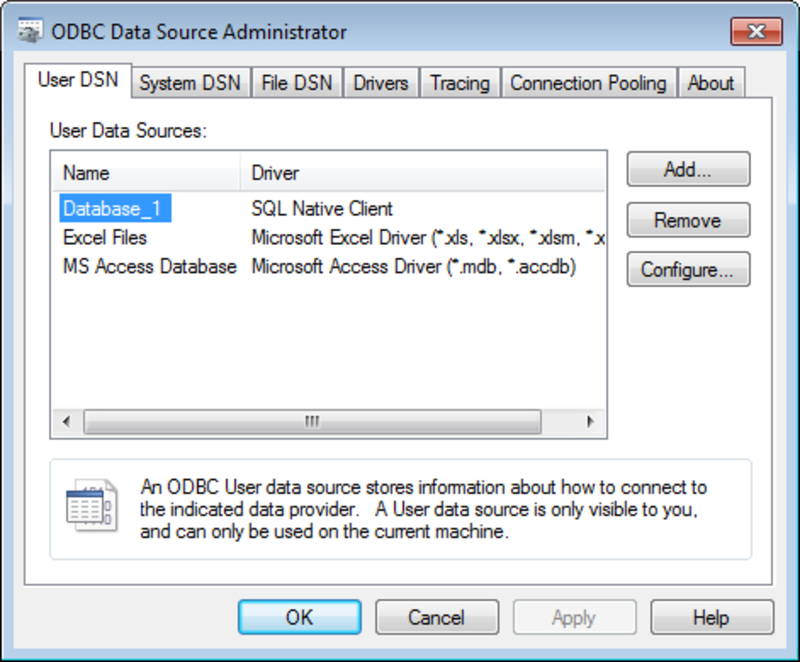
Administration and utilization of the SQL database
The following sections explain how to utilize the SQL database using VB Script excerpts. These scripts are also in the project download of this entry.
1.Administration
You can fabricate one or multiple identical or different tables in an SQL database.
1.1 Creating an SQL database: Script "Create_database"
The "On Error Resume Next" instruction is required in case runtime errors occur in the script. As soon as such an error occurs the next line containing the error routine is executed automatically.
The object "ADODB.Connection" is required in order to establish a connection to an SQL data source. "ADODB.Recordset" can be used to create, edit or delete databases or tables, for example.
A data source can only be opened if the provider and name of the data source are known. The connection to the data source is established using the "Open" method of the object tag "conn".
If a timeout occurs during connection, the following error routine is run; a system message is output, and the script is ended immediately.
A new database is created via the SQL command "CREATE DATABASE" and the name of the database; this is done with the "Execute( SQL table )" method of the "conn" object tag.
If the database already exists, the established error routine is executed. The "Close" method is used to break off the connection to the data source.

SQL-Syntax
CREATE DATABASE <Name>
1.2 Delete SQL database: "Delete_database" script
The structure of the script is basically the same as that for the "Create_database" script. The database can be deleted using the SQL command "DROP DATABASE" and the name of the database.

SQL syntax
DROP DATABASE <Name>
2. Tables
Tables with individual data structures can be created in any SQL database. The data structure for Table 01 is created in the following sample code:
Column Data type
1 SMALLINT
2 Char(30)
3 SMALLINT
4 SMALLINT
Table 01 - Data structure of the table
The data structure of a table can be composed in any way. The sample project in the attachment also uses this data structure.
2.1 Create table: "Create_new_table" script
The following two objects are required in the script in order to open a data source and to access a database in this data source: "ADODB.Connection" to establish the connection and "ADODB.Recordset" to edit the data source.
The "Initial Catalog" parameter in the "Open" method enables a connection to be established with a special database in the data source. "Database_1", the data source created in Windows, is indicated by the parameter "DSN".
An SQL table is created with the SQL instruction "CREATE TABLE" as well as the name and structure (data structure) of the table.

SQL syntax
CREATE TABLE <Name> (column name type, ...)
Note
There are other extensions available for the SQL command "CREATE TABLE".
2.2 Copy table: "Copy_table" script
The objects "ADODB.Connection" and "ADODB.Recordset" are required for access.
Using the SQL command "SELECT * INTO" and the extension "FROM", all the data records from a particular table are copied into a new table. The instruction "SELECT *" is synonymous with the command "SELECT ALL" and marks all the data records in the table previously indicated by the command "FROM". The destination table is defined by "INTO".
Note
The SQL instruction "SELECT" can be combined optionally with other command parameters. For further information, refer to the relevant technical literature or to the internet.

SQL syntax
SELECT <Expression> INTO <Name> FROM <Name>
Note
There are other command combinations available for the SQL command "SELECT".
2.3 Delete table: "Delete_table" script
In order to delete a table, you must establish the connection to the relevant data source. The table is deleted from the database using the command "DROP TABLE" and the name of the table.

SQL syntax
DROP TABLE <Name>
Note
There is no request for confirmation that you really wish to delete this table. When the table is deleted, all the data contained in it is deleted irretrievably.
3. Data records
Each SQL table contains a certain number of data records. The structure of the data records depends on the data structure of the table.
3.1 Read data records: "Read_data_record_from_a_table" script
As mentioned above, data records are read via the two ADODB objects.
All the data records from the table in the database are initially selected using the SQL instruction "SELECT * FROM" and the name of the table.
Data 10 Data 20 Data 31
Data 11 Data 21 Data 32
Data 12 Data 22 Data 33
Table 02 -- Effect of the SQL command "SELECT * FROM". The data fields displayed in bold are the selected data fields.
By using the command extension "WHERE" and specifying the combination of column name and data record number, only the specified data record in the table is selected:
Data 10 Data 20 Data 31
Data 11 Data 21 Data 32
Data 12 Data 22 Data 33
Table 03 -- Effect of the SQL command extension "WHERE Column 1 = 11"

SQL syntax
SELECT <Expression> FROM <Name> WHERE <Condition>
Note
There are other command combinations available for the SQL command "SELECT".
You can check whether the selected data record exists using the "If" instruction, as well as "rst.EOF" and "rst.BOF". In this case you use "rst.MoveFirst" to reset the first data record.
You transfer the column designations with the following syntax (see Fig. 8):
szColumnName_1 = rst.Fields(1).Name
Use the following syntax to access the individual fields of the data record:
nDataRecord_2 = rst.Fields(2).Value

3.2 Write data record: "Write_data_record_into_a_table" script
Access is via the same objects as those used to read a data record from an SQL table.
The SQL command "SELECT * FROM" is used in conjunction with the name of the table and the extension "WHERE" to select the appropriate data record, provided it already exists.

SQL syntax
SELECT <Expression> FROM <Name> WHERE <Condition>
Note
There are other command combination options available for the SQL command "SELECT".
If the data record does not exist, the pointer is reset to the first entry in the table.
The check whether the data record already exists is made as in 3.1 by checking "rst.EOF" and "rst.BOF".
The SQL command "INSERT INTO" and the name of the SQL table are required in order to add a data record. In addition, all the parameters which are to be entered in the table are to be specified via the extension "VALUES", separated by a comma.
The SQL instruction is executed with the "Execute" method of the object tag "conn".

SQL syntax
INSERT INTO <Name> VALUES <Values>
3.3 Edit data record: "Edit_data_record" script
The two ADODB objects are required to access the data source. Once the database has been opened using the "Open" method, the specified data record is selected, provided it exists.

SQL syntax
SELECT <Expression> FROM <Name> WHERE <Condition>
Note
There are other command combination options available for the SQL command "SELECT".
If the existence of the data record is assured by the queries "EOF" and "BOF", the table column designations are assigned first of all in the script.
The elements of the data record are then assigned using the SQL instruction "UPDATE", as well as the name of the SQL table with the extension "Set". The SQL instruction is executed by means of "conn.Execute(SQL_Table)".

SQL syntax
UPDATE <Name> SET <Column>
Note
The command extension "WHERE < >" is also a possibility for this SQL command.
3.4 Delete data record: "Delete_data_record" script
You require the two ADODB objects for linking to the SQL database.
In order to delete a data record from a database, that SQL database has to be opened. Deleting a data record involves the command "DELETE FROM" coupled with details of the SQL table and the extension "WHERE", with a comparison of the data record number and the corresponding column. The specified data record is deleted in conjunction with the instruction "conn.Execute(SQL Table)".

SQL syntax
DELETE FROM <Name> WHERE <Condition>
Note
The selected data record is deleted irretrievably without a query.
4. Data record tables
SQL commands can also be used to display the complete contents of an SQL table or numeroase data records from it. The objects "ADODB.Connection" and "ADODB.Recordset" are required to access an SQL database.
4.1 Read all the data from the table: "Show_all_entries_of_a_table" script
The data records in an SQL database have not necessarily been saved in chronological order. Therefore, the table must be sorted in order to display them in the correct order. If you wish to sort a table by column, the name of the column is required. Since the column names are variable in this example, the column name must also be explicitly read out.
In order to read out a complete SQL table, the entire table is transferred with the SQL command "SELECT * FROM" and the name of the SQL table when the "Execute" method is performed.
The table contents are assigned to the object tag "rst". The name of the column by which the table is to be sorted is specified via this object tag. The table is sorted in ascending order using the same SQL command along with the extension "ORDER BY" and the column name.

SQL syntax
SELECT <Expression> FROM <Name> ORDER BY <Column> ASC
Note
The instruction "ASC" means that sorting is in ascending order and "DESC" means in descending order. Sorting in ascending order is the default unless otherwise additionally specified. The SQL instruction "SELECT" can be combined with other instructions.
The number of entries in the table is entered with the "Do...Loop Until" loop and the "MoveNext" instruction. The pointer is then reset to the first entry in the table with the instruction "MoveFirst" of the object tag "rst".
Since only a maximum of six entries are shown in the table in this example simultaneously, the table extract can be moved within the project using the arrow buttons. The value of the "Tab" tag may vary only between zero and the number of entries minus the number of data records being displayed. When the table extract is moved, the pointer for the SQL table must also be moved. This is done with the "MoveNext" instruction.

Use the following syntax to access the individual fields of the data record:
Value_1_0 = rst.Fields(0).Value
Value_1_1 = rst.Fields(1).Value
Value_1_2 = rst.Fields(2).Value

4.2 Write all the data to a table: "Write_all_entries_in_a_table" script
Once the data source has been opened, the individual data records can be read using the SQL command "SELECT * FROM" with the name of the table, as well as the command extension "WHERE", and the content of the specified column is compared with the details from the data record.

SQL syntax
SELECT <Expression> FROM <Name> WHERE <Condition>
Note
The SQL command "SELECT" can be combined with other instructions.
If the data record is contained in the table, the SQL command "UPDATE" is used to overwrite the data record with the new parameters. If the data record is not in the table, it is inserted with the SQL command "INSERT INTO".

https://support.industry.siemens.com/cs/attachments/26283062/TIA_Portal_SQL_Database.zip
https://support.industry.siemens.com/cs/attachments/26283062/WinCC_flexible_SQL_Database.zip |
|
| Back to top |
|
|
volverine
Member junior

Joined: 23 Oct 2015
Posts: 69
Location: Michigan
|
| Posted: 03/02/2016 17:48 Post subject: |
|
|
| thanks grig100 you are great... |
|
| Back to top |
|
|
zalo
Member
Joined: 24 Nov 2013
Posts: 130
|
| Posted: 05/03/2016 12:34 Post subject: How do you log tags in an SQL database and read them out |
|
|
How do you log tags in an SQL database and read them out again with WinCC flexible?
https://support.industry.siemens.com/cs/document/24677043/how-do-you-log-tags-in-an-sql-database-and-read-them-out-again-with-wincc-flexible

The documents contains the essential configuration steps for
Creating a Microsoft SQL database.
Logging tags in a Microsoft SQL database.
Reading out tags from a Microsoft SQL database.
Creating and processing a user-defined Microsoft SQL database from
WinCC flexible Runtime
The attached download contains the archived WinCC flexible project with the functions described in the document.
https://support.industry.siemens.com/cs/attachments/24677043/24677043_WinCC_flexible_SQL_Datenbank_en.pdf
https://support.industry.siemens.com/cs/attachments/24677043/24677043_WinCC_flexible_SQL_Datenbank_Project.zip |
|
| Back to top |
|
|
209loc
Junior
Joined: 20 Jun 2018
Posts: 4
|
| Posted: 26/11/2018 19:47 Post subject: |
|
|
| Thanks for this..... |
|
| Back to top |
|
|
|
|
You cannot post new topics in this forum
You cannot reply to topics in this forum
You cannot edit your posts in this forum
You cannot delete your posts in this forum
You cannot vote in polls in this forum
|
Powered by phpBB © 2001, 2005 phpBB Group
Fa-ti si tu propriul forum GRATUIT, pe www.myforum.ro |
 FAQ
FAQ Search
 Memberlist
 Usergroups
 Register
 Profile
 Log in to check your private messages
 Log in


