 |
plc.myforum.ro
PLCs users www.plc.myforum.ro!
|
| View previous topic :: View next topic |
| Author |
Message |
valz
Member 3


Joined: 26 Jul 2015
Posts: 771
|
 Posted: 16/05/2018 21:20 Post subject: How do you upgrade a SIMATIC WinCC (TIA Portal) project? Posted: 16/05/2018 21:20 Post subject: How do you upgrade a SIMATIC WinCC (TIA Portal) project? |
 |
|
How do you upgrade a SIMATIC WinCC (TIA Portal) project?
https://support.industry.siemens.com/cs/document/82645764/
Automatic upgrading of the project
Automatic upgrading of projects and archiving projects are performed in the same way.
Open the TIA Portal.
Open (or dearchive) your project. A message window opens (as soon as dearchiving has been completed).
Depending on the version of the project you open you have different options.
Case 1 (Fig. 01)
You project is available in a previous version (including the last Service Pack of this previous version of the TIA Portal).
Example: A WinCC V11 project (there are no Service Packs for V11) is opened in the TIA Portal V13 SP1.
Available options:
"OK" > The project is upgraded to the version of the TIA Portal in which it was opened (V13 SP1 in the example). The original project is retained. The upgraded project is stored separately.
The name of the newly stored project is now in this example "UpgradingExample_V13_SP1.ap13". The original project "UpgradingExample.ap11" is kept.
"Cancel" > The project is not upgraded. The autentic project is retained and no other project is created.
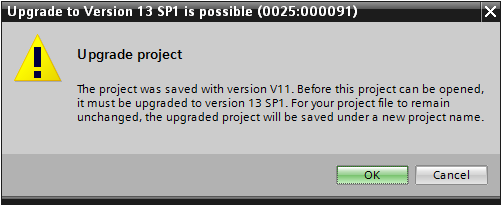
Fig. 01
Case 2 (Fig. 02):
Your project is available in a previous version of the TIA Portal in which not all the Service Packs of this previous were available.
Example: A WinCC V12 project is opened in the TIA Portal V13 SP1.
Available options:
"Yes" > The project is upgraded to the version of the TIA Portal in which it was opened (V13 SP1 in the example). The original project is retained. The upgraded project is stored separately.
The name of the newly stored project is now in this example "UpgradingExample_V13_SP1.ap13". The original project "UpgradingExample.ap12" is kept.
"No" > The project is upgraded to the version in which it is available including all the available Service Packs (V12 SP1 in the example). The original project is retained. The upgraded project is stored separately.
"Cancel" > The project is not upgraded. The original project is retained and no other project is created.

Fig. 02
Click "OK".
A window opens showing the progress of the upgrade procedure.
Wait until the window closes of its own accord.
If you cancel the procedure, the newly created project is deleted.
You project is now open in the new version of WinCC.
You have the choice of leaving the Image version of the operator panel in the previous state in the Hardware Configuration or likewise upgrading it.
If you upgrade the Image version, you can use all the functions offered by the higher version of WinCC.
For example, in WinCC V13 SP1 and higher you can configure sliders and pop-up windows among other things.
Continue with the section "Updating the Image version of the project" to upgrade the Image version.
If you leave the lower Image version, you cannot configure any functions on this operator panel/Runtime which have been added in the higher versions of WinCC.
To leave the Image version at the lower status, you skip the section "Updating the Image version of the project" and continue with the section "Compiling and transferring the project".
Note
Once you have upgraded the project to a more recent version, you can no longer open the project in a lower version of WinCC.
However, the original project is retained as described in Step 2.
If you do not upgrade the project, it is executed in Compatibility mode. It retains its scope of functions. Functions of the more recent version of the TIA Portal cannot be used.
More information about the Compatibility mode is available in the WinCC V13 SP1 manual under "Processing projects > Creating and managing projects > Compatibility of Projects".
Manual upgrading of the project
A project must already be open in Compatibility mode for this procedure.
Proceed as follows to upgrade a project manually in Compatibility mode.
In the "Project" menu you select the "Upgrade" command.
A safety query is displayed.
Confirm the safety query with "Yes".
The project is closed and the upgraded project is opened.
Compile the hardware and software of all the devices in the project.
Updating the Image version
In the project tree you click "Devices and Networks".
Right-click your operator panel or your Runtime.
Click "Change device / version.
In the window that opens you see which Image version is assigned to your current device.

Fig. 03
Note
It might happen that the graphic of the operator panel is not shown in the Network View directly after the upgrade (see Fig. 03). This does not affect the function and is correctly displayed (see Fig. 04) after changing the Image version of the operator panel.

Fig. 04
Click the Product tree.
Navigate to the article number of your operator panel/Runtime.
The latest available Image version is entered automatically. You can also manually select a different Image version (Fig. 05).
If you select a lower Image version, the functions of the more recent version of WinCC (TIA Portal) are not available.
Click "Ok".
If required, repeat the relevant steps for all the operator panels/Runtimes in the project.

Fig. 05
Compiling and transferring the project
Right-click your project.
Click "Compile".
Do a complete compilation of your project (rebuild all).

Fig. 06
Download the project to the operator panel.
When the newly generated project file is transferred, the Image is also transferred to the operator panel.
How to upgrade devices is also described in the manual:
"WinCC Advanced V13.0 SP1 > Visualizing processes > Communicating with controllers > Replace device > Example: Replace device
https://support.industry.siemens.com/cs/attachments/109091876/WCC_Advanced_V13_SP1_enUS_en-US.pdf
How do you prevent transparent graphics from being displayed black when upgrading the device to WinCC (TIA Portal) V13?"
https://support.industry.siemens.com/cs/document/101167295/how-do-you-prevent-transparent-graphics-from-being-displayed-black-when-upgrading-the-device-in-wincc- (tia-portal)-v13-and-higher
Links to the topic of "Migration to WinCC (TIA Portal)"
https://support.industry.siemens.com/cs/document/76878921/migration-of-plants-with-simatic- (tia-portal)-visualization |
|
| Back to top |
|
 |
|
|
You cannot post new topics in this forum
You cannot reply to topics in this forum
You cannot edit your posts in this forum
You cannot delete your posts in this forum
You cannot vote in polls in this forum
|
Powered by phpBB © 2001, 2005 phpBB Group
Fa-ti si tu propriul forum GRATUIT, pe www.myforum.ro |
 FAQ
FAQ Search
 Memberlist
 Usergroups
 Register
 Profile
 Log in to check your private messages
 Log in


