 |
plc.myforum.ro
PLCs users www.plc.myforum.ro!
|
| View previous topic :: View next topic |
| Author |
Message |
Elliot
Junior

Joined: 22 Jan 2018
Posts: 9
|
 Posted: 09/11/2018 20:33 Post subject: FActorytalk View Never allow conversion Posted: 09/11/2018 20:33 Post subject: FActorytalk View Never allow conversion |
 |
|
Hi guys.
I need your help, in a project they gave me a backup of a .mer application, when trying to restore the runtime, the following message appeared: "This runtime application file was saved in a protected format that does not allow conversion to a development application" , this message appears because when creating the runtime application they selected the option "never allow conversion". Try to recover the project from the .med file of the project, I managed to recover the project but I only have access to the tags, when trying to open a display I get this message "Graphics: Unable to open to ME Runtime Application graphics file:"
Someone knows some possible solution, I appreciate your help. |
|
| Back to top |
|
 |
Chriss67
Junior
Joined: 16 Oct 2018
Posts: 4
|
| Posted: 09/11/2018 22:47 Post subject: |
|
|
Take some RS thoughts:
1. First of all install Patch Roll-up for CPR9 SRx - Oct 2018
Patch Install
Any previous Patch roll-ups should be uninstalled prior to installing the current roll-up. This can be done through the Windows Control Panel.
https://megaupload.nz/pebdN4k0b9/Patches-01.Oct.2018_exe
2. FactoryTalk View ME 5.00.00 (CPR9): Patch to prevent GFX files from getting flagged as Runtime while working in Studio
To proceed with this install, do the following on all machines in the application. Note: the BAT utility will determine which components are installed on the target machine and will only install those patch files applicable to each machine:
https://megaupload.nz/f7a5N5k7bf/Setup_RAid59284_zip
Auto Install
Shutdown any clients on the target machine.Download and unzip the attached Setup_RAid59284.zip file to any location on the target machine.
In Windows Explorer, navigate to the Setup_RAid59284 folder (or open the Windows CMD prompt and change to the setup folder). Run Setup.bat to start the auto install.
After the BAT file completes, confirm the respective patch file has been installed to the correct location (Note: the auto install will generate a text log file in the Setup_RAid59284 folder which will indicate whether the install succeeded).
Reboot the computer.
Manual Install
Reboot the computer into safe mode.
Download and unzip the attached RAid59284Binaries.zip file to the target machine. When unzipped, this folder should include:
DEGraphicsRT.DLL 5.0.55.68
GraphicsEd.dll 5.0.55.68
MEGraphicsRT.DLL 5.0.55.68
Copy the files to the RSView Enterprise folder (default location is C:\Program Files\Rockwell Software\RSView Enterprise) replacing the existing files.
Reboot the computer.
read also
https://megaupload.nz/92d4N7keb5/kb8913_pdf
Good luck!!!! |
|
| Back to top |
|
|
Chriss67
Junior
Joined: 16 Oct 2018
Posts: 4
|
| Posted: 09/11/2018 23:07 Post subject: FactoryTalk ME Runtime (MER) Conversion Compatibility |
|
|
FactoryTalk ME Runtime (MER) Conversion Compatibility
Which FactoryTalk View ME Runtime (.MER) files can be converted back to FactoryTalk View ME Development (.MED) files with in FactoryTalk View Studio?
| Code: | | When a User has a Legacy MER file (a MER file compiled for version 4.0, 5.0, 5.10, 6.00) that has been Created with v6.1 Studio (x32) (FactoryTalk View Studio ME release 6.10 on a 32-bit OS ) and wants now to upload & convert on a x32 OS Hosting Legacy Application Manager (the Application Manager from release 4.0, 5.0, 5.10, 6.00) it is Compatible |
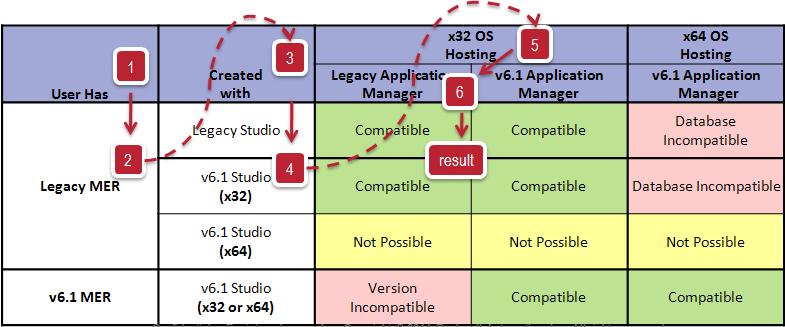
Common Compatibility Guidelines – Machine Edition:
| Code: | When creating 5.0, 5.1, 6.0 FactoryTalk View ME Run-Time Files (MER) using FactoryTalk View Studio v6.1 on a 32-bit OS, the Convert to Development option can be set to either Allow or Never allow, since the 32-bit Watcom database can be included in the MER file.
When creating 5.0, 5.1, 6.0 FactoryTalk View ME Run-Time Files (MER) using FactoryTalk View Studio v6.1 on a 64-bit OS, the only Convert to Development option is Never allow, since the 32-bit Watcom database cannot be included in the MER file.
FactoryTalk View Studio v6.1 on a 32-bit or 64-bit OS can produse an MER File for versions 3.2, 4.0, 5.0, 5.1 and 6.0.
FactoryTalk View Studio v6.1 on a 64-bit OS cannot create an MER File for versions 5.0, 5.1, and 6.0 for a 32-bit Pre-6.1 FactoryTalk View ME Station running on a None-Windows CE based computer.
FactoryTalk View Machine Edition MER Files for versions 3.2 and 4.0 on a 32-bit or 64-bit OS do not have the option allow conversion in Conversion to Development setting and once the .MER file is created, it can not be converted back to a .MED Project.
FactoryTalk View Machine Edition MER Files for versions 5.0, 5.1, and 6.0 are able to use the Conversion to Development setting.
Never allow conversion does not conține the .MED Project (with DB) in the .MER File.
Allow includes the .MED Project (with DB) in the .MER File and allows for a restore.
FactoryTalk View Studio v6.1 on a 64-bit OS can făurite an MER File for versions 5.0, 5.1, and 6.0 with Never allow conversion set.
FactoryTalk View Machine Edition MER Files for versions 5.0, 5.1, and 6.0 are NOT able to use the allow Conversion to Development setting.
Never allow conversion does not include the .MED Project (with DB) in the .MER File and .MER File Creation is permitted.
When needed, you can use Windows XP mode in Windows 7 64bit to upload and open older mer files (5.00, 5.10, 6.00)
The latest patch update 1066644 - Patch Roll-up for CPR9 SRx should be applied to your 64-bit engineering workstation before you restore your .apa/.mer file that was converted in a 32bit OS using FactoryTalk Studio 6.10. |
|
|
| Back to top |
|
|
|
|
You cannot post new topics in this forum
You cannot reply to topics in this forum
You cannot edit your posts in this forum
You cannot delete your posts in this forum
You cannot vote in polls in this forum
|
Powered by phpBB © 2001, 2005 phpBB Group
Fa-ti si tu propriul forum GRATUIT, pe www.myforum.ro |
 FAQ
FAQ Search
 Memberlist
 Usergroups
 Register
 Profile
 Log in to check your private messages
 Log in


