 |
plc.myforum.ro
PLCs users www.plc.myforum.ro!
|
| View previous topic :: View next topic |
| Author |
Message |
AnteSavilt
Member 2


Joined: 13 Feb 2018
Posts: 264
Location: Croatia
|
 Posted: 24/01/2022 19:12 Post subject: Enable automatic logon with Microsoft Windows? Posted: 24/01/2022 19:12 Post subject: Enable automatic logon with Microsoft Windows? |
 |
|
How do you enable automatic logon with Microsoft Windows?
https://support.industry.siemens.com/cs/document/23598260/
When a computer starts up (SIMATIC IPC, for example), you are asked which user name you want to use to log on to the system. This interrupts the automatic startup, which is undesirable, for example, after a power failure.
Validity
Microsoft Windows 2000
Microsoft Windows XP
Microsoft Windows Vista
Microsoft Windows 7
Microsoft Windows 8
Microsoft Windows XP Embedded
Microsoft Windows Embedded Standard 2009
Microsoft Windows Embedded Standard 7
Microsoft Windows 10
Microsoft Windows Server 2003
Microsoft Windows Server 2008
Microsoft Windows Server 2012
Microsoft Windows Server 2016
Microsoft Windows Server 2019
Procedure
1 Open the "Run" dialog field with "Start > Run" or the key combination "Windows Logo + R".
2 Make sure that you have an administrator account. Depending on your operating system you enter one of the following commands:
Operating system Command
Microsoft Windows 2000 "control userpasswords2"
Microsoft Windows XP pass "control userpasswords"
Microsoft Windows Vista
Microsoft Windows XP Embedded
Microsoft Windows Embedded Standard 2009
Microsoft Windows Embedded Standard 7
Microsoft Windows Server 2003
Microsoft Windows 7 "netplwiz.exe"
Microsoft Windows 8
Microsoft Windows 10
Microsoft Windows Server 2008
Microsoft Windows Server 2012
Microsoft Windows Server 2016
Microsoft Windows Server 2019
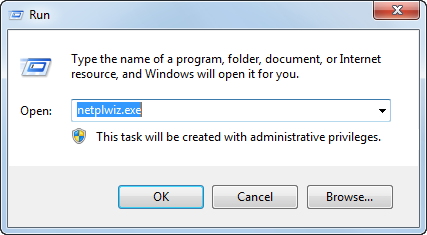
Fig. 01
Confirm your input by clicking the "OK" button. The "User Accounts" dialog then opens.
3 In the "User Accounts" dialog you open the "Users" tab.
Disable the "Users must enter a user name and password to use this computer" check box.
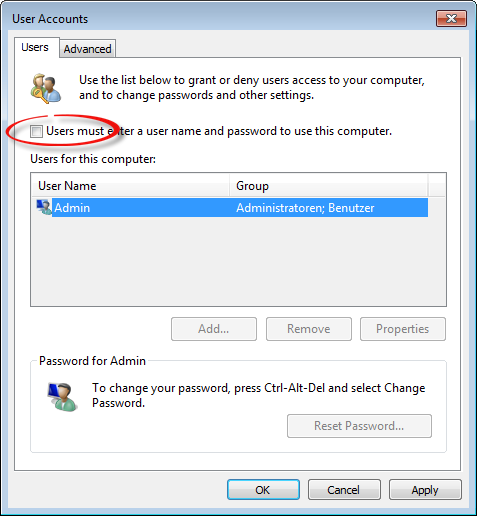
Fig. 02
Then click on the "Apply" button. The "Automatically Log On" dialog window opens.
4 Note
If you cannot select "Users must enter a user name and password to use this computer" in a domain, note the following:
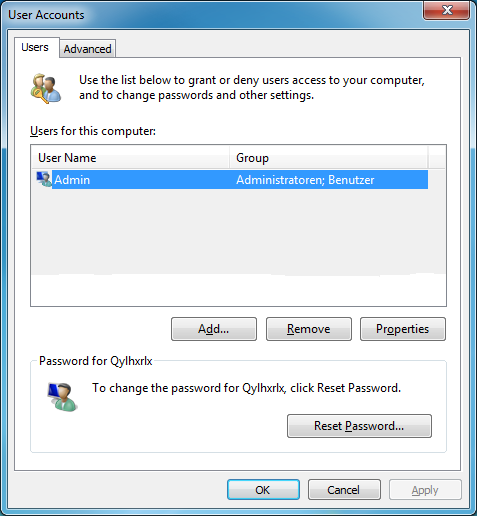
Fig. 03
Close the "User Accounts" window.
5 Repeat steps 1 and 2 displayed in the table, then enter the "regedit.exe" command instead of "netplwiz.exe".
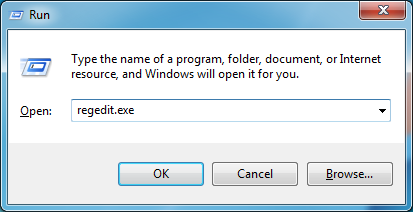
Fig. 04
In the "Registry Editor" window you open the following Registry folder: "HKEY_LOCAL_MACHINE\SOFTWARE\Microsoft\Windows NT\CurrentVersion\Winlogon\".
6 Right-click the Registry item "AutoAdminLogon" and then click "Modify...".
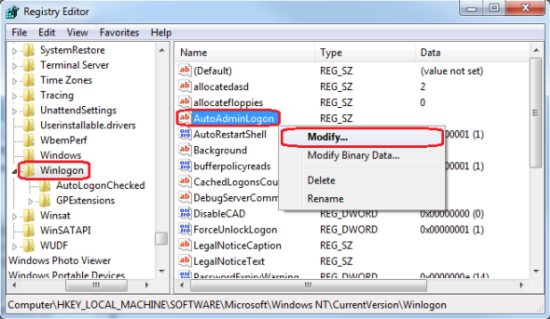
Fig. 05
7 Enter 1 in the "Value data:" field and then click "OK"
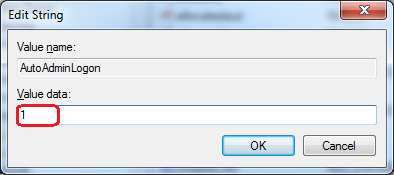
Fig. 06
Note
Restart the computer after this modification.
8 Note
If the Registry item "AutoAdminLogon" is not available, proceed as follows:
Right-click the Registry folder "Winlogon", then click "New" and then "String Value".
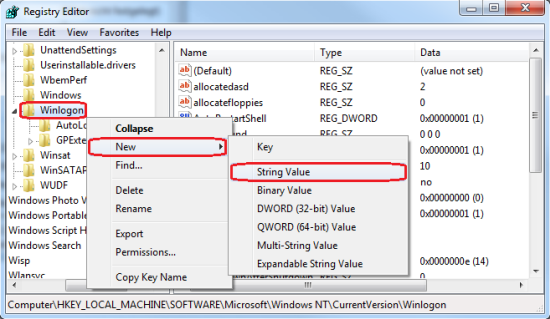
Fig. 07
9 Change the name "String Value" to "AutoAdminLogon".
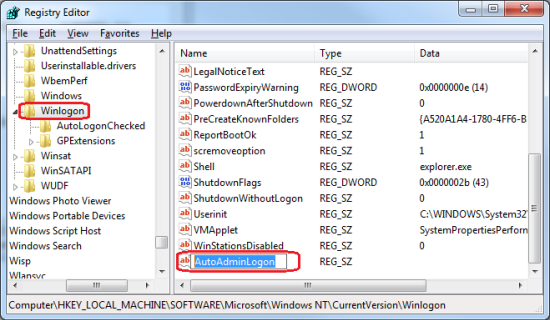
Fig. 08
Repeat steps 6 and 7 displayed in the table.
10 In the "Automatically Log On" dialog you specify the name and ID that is to be logged on automatically when the computer starts up.
Note
In a domain the following is to be entered as user name: "<Domain>\user".
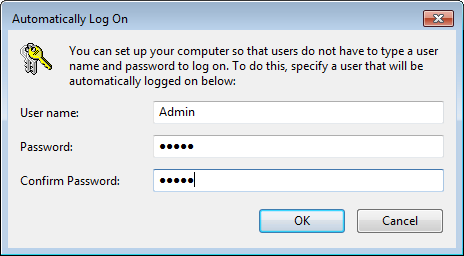
Fig. 09
Confirm your input by clicking the "OK" button.
11 Automatic Logon is now set up. After a restart or reboot of the computer (SIMATIC IPC, for example), the Windows logon is executed automatically and you can start using your application immediately.
Notes
The two passwords entered in the "Automatically Log On" window are checked for parity. However, the passwords are not checked for correctness. If two identical but incorrect passwords are preset, automatic logon does not work when you start the computer (SIMATIC IPC, for example).
You must disable the Enhanced Write Filter (EWF) before making changes in Microsoft Windows Embedded operating systems. See also
https://support.industry.siemens.com/cs/document/40108744/what-should-you-watch-out-for-when-using-the-enhanced-write-filters- (ewf)-on-simatic-ipcs-with-windows-xp-embedded-standard
If automatic logon is already configured, but you still want to make changes, then check the option check box "Users must enter a user name and password to use this computer" and then clear it again afterwards. Now you can click on the "Accept" or "OK" button and the "Automatic Logon" window opens. |
|
| Back to top |
|
 |
|
|
You cannot post new topics in this forum
You cannot reply to topics in this forum
You cannot edit your posts in this forum
You cannot delete your posts in this forum
You cannot vote in polls in this forum
|
Powered by phpBB © 2001, 2005 phpBB Group
Fa-ti si tu propriul forum GRATUIT, pe www.myforum.ro |
 FAQ
FAQ Search
 Memberlist
 Usergroups
 Register
 Profile
 Log in to check your private messages
 Log in


