 |
plc.myforum.ro
PLCs users www.plc.myforum.ro!
|
| View previous topic :: View next topic |
| Author |
Message |
mamiko
Member 2


Joined: 25 Dec 2017
Posts: 420
|
 Posted: 24/02/2023 22:06 Post subject: display of the PCU 50.5 show 20 with flashing H1 LED Posted: 24/02/2023 22:06 Post subject: display of the PCU 50.5 show 20 with flashing H1 LED |
 |
|
Why does my 7-segment display of the PCU 50.5 show 20 with flashing H1 LED after fan replacement?
https://support.industry.siemens.com/cs/document/109816041/
The device fan A5E03308272 mandatorily requires a BIOS version ≥ 15.02.16 as of date code 14.07.2022. The fan control works properly with the BIOS update to version 15.02.16. This FAQ response describes the procedure for replacing the fan of the PCU 50.5 and upgrading the BIOS.
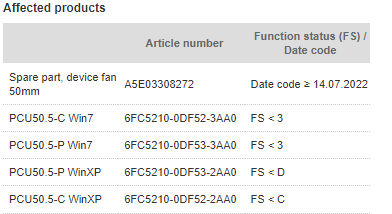
Replacing the fan of a PCU 50.5 requires replacing the hardware as well as upgrading the Intel Management Engine (ME) to version 6.2.1.61.3535 and the BIOS to version 15.02.16.
Intel Management Engine (ME) Update
The download for the Intel Management Engine (ME) update of the PCU 50.5 is available in this entry
https://support.industry.siemens.com/cs/document/109763408/
Note
You must update the Intel Management Engine (ME) before updating the BIOS.
BIOS Update
The download for the BIOS update of the PCU 50.5
https://support.industry.siemens.com/cs/attachments/109763408/SIMATIC_IPC627C_HMIIPC677C_IPC827C_SINUMERIK_PCU50.5__V150216.zip
Hardware replacement procedure
Unscrew the screws on the cover.
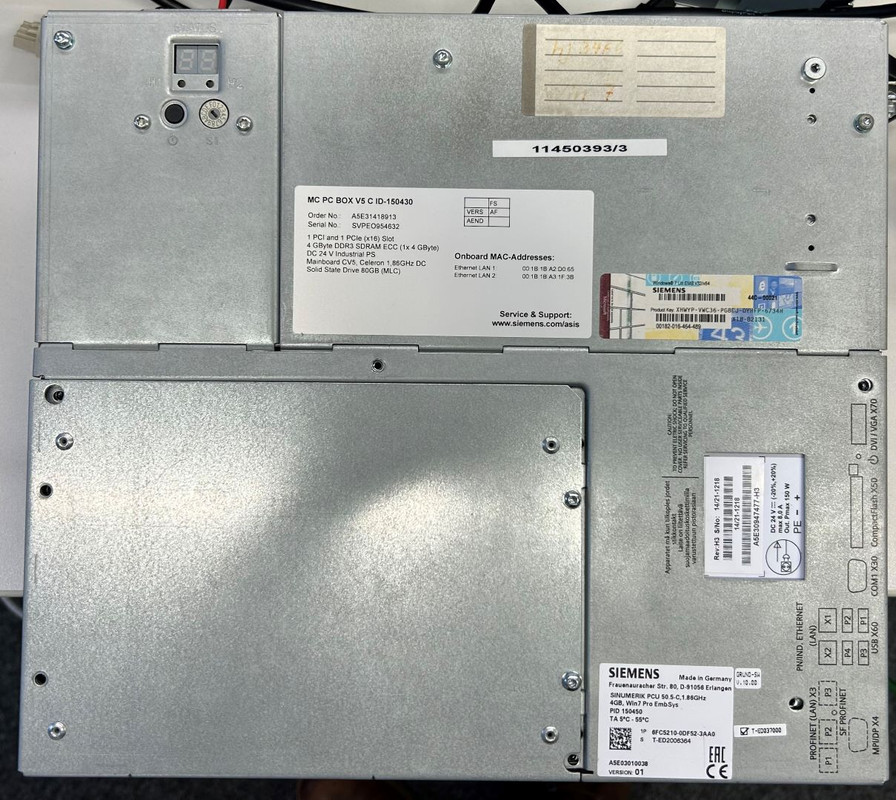
Fig. 01: PCU 50 side view
Open the cover upwards.
Disconnect the broadband connector of the built-in power supply from the circuit board.
Unscrew the screws of the built-in power supply fastening (on the side).
Remove the built-in power supply.
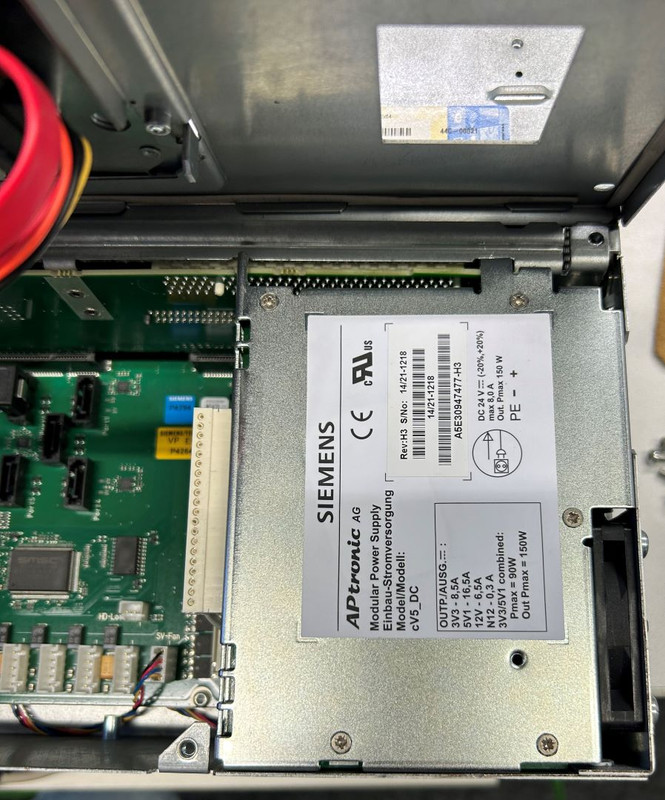
Fig. 02: PCU 50 with built-in power supply
Disconnect the connector for the fan power supply.
Unscrew the fan screws.
Remove the fan
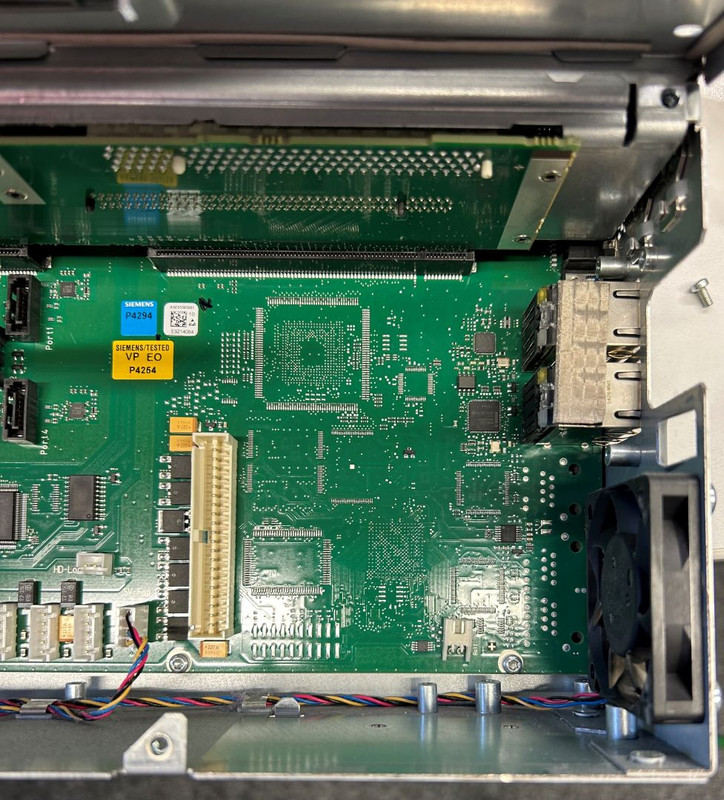
Fig. 03: PCU 50 without built-in power supply
Insert the new fan and tighten the screws.
Plug in the connector for the fan power supply.
Reinsert the built-in power supply.
Tighten the screws of the built-in power supply (on the side).
Plug the broadband connector of the built-in power supply into the board interface.
Replace the cover.
Tighten the screws of the cover.
Note
After replacing the fan and restarting the PCU 50.5, a 20 is displayed on the 7-segment display. In addition, the H1 LED flashes red.
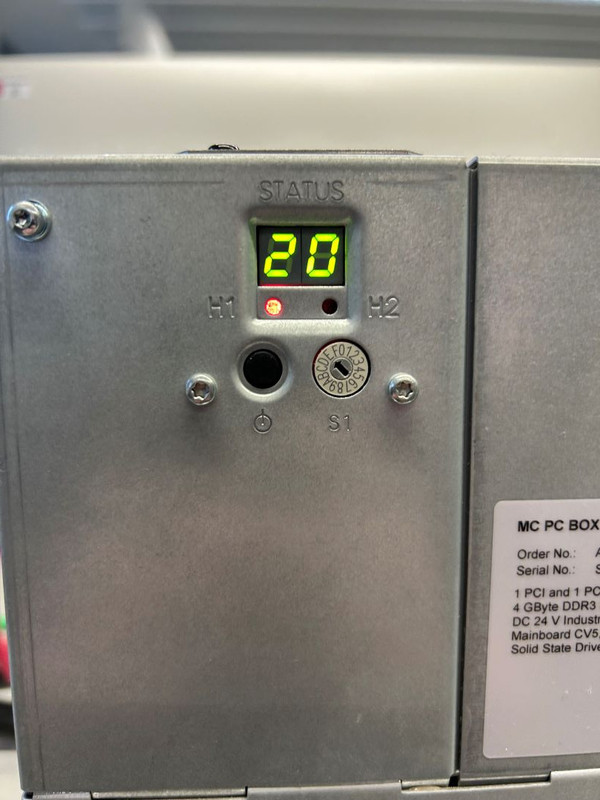
Fig. 04: PCU 50 segment display
Procedure for updating the Intel Management Engine (ME)
Create a BIOS boot stick: If you need instructions for this, click here.
https://support.industry.siemens.com/cs/document/109758232/how-can-you-create-a-bootable-freedos-usb-stick
Insert the boot stick into the USB slot of the PCU.
Start the PCU.
Press F2 to open the BIOS.
Check that USB Boot is set to enabled.
Restart the PCU in Service mode => Start from the hard disk (normal startup), leave the BIOS boot stick slotted.
Download the new ME version: Intel® Management Engine.zip.
https://support.industry.siemens.com/cs/attachments/109763408/SIMATIC_IPC627C_HMIIPC677C_IPC827C_SINUMERIK_PCU50.5__IPC627C_827C_677C_ME-Update_6.2.61.3535.zip
Store the unzipped ZIP file on the PCU.
Start ME_Update.exe => the BIOS boot stick is prepared for updating the version.
After the script has been executed, restart the PCU.
Press F12 during startup to start the boot manager.
Select the BIOS boot stick in the boot manager to boot from it.
Run the ME update.
After the script has been executed, restart the PCU.
Procedure for updating the BIOS
Create a BIOS boot stick: If you need instructions for this, click here.
https://support.industry.siemens.com/cs/document/109758232/how-can-you-create-a-bootable-freedos-usb-stick
Insert the boot stick into the USB slot of the PCU.
Start the PCU.
Press F2 to open the BIOS.
Check that USB Boot is set to enabled.
Restart the PCU in Service mode => Start from the hard disk (normal startup), leave the BIOS boot stick slotted.
Download the new BIOS version: PCU50.5__V150216.zip.
https://support.industry.siemens.com/cs/attachments/109763408/SIMATIC_IPC627C_HMIIPC677C_IPC827C_SINUMERIK_PCU50.5__V150216.zip
Store the unzipped ZIP file on the PCU.
Start MakeUSB.exe => the BIOS boot stick is prepared for updating the version.
After the script has been executed, restart the PCU.
Press F12 during startup to start the boot manager.
Select the BIOS boot stick in the boot manager to boot from it.
Perform BIOS Update from USB stick
After the script has been executed, "done" is displayed.
Restart the PCU.
Press F2 during startup to enter the BIOS.
Check the BIOS version => V15.02.16 should be here now.
This completes the BIOS update.
[URL=https://www.file-upload.net/download-15101466/SIMATIC_IPC627C_HMIIPC677C_IPC827C_SINUMERIK_PCU50.5__IPC627C_827C_677C_ME-Update_6.2.61.3535.zip.html]SIMATIC_IPC627C_HMIIPC677C_IPC827C_SINUMERIK_PCU50.5__IPC627C_827C_677C_ME-Update_6.2.61.3535.zip[/URL]
[URL=https://www.file-upload.net/download-15101468/SIMATIC_IPC627C_HMIIPC677C_IPC827C_SINUMERIK_PCU50.5__V150215.zip.html]SIMATIC_IPC627C_HMIIPC677C_IPC827C_SINUMERIK_PCU50.5__V150215.zip[/URL]
[URL=https://www.file-upload.net/download-15101467/SIMATIC_IPC627C_HMIIPC677C_IPC827C_SINUMERIK_PCU50.5__V150216.zip.html]SIMATIC_IPC627C_HMIIPC677C_IPC827C_SINUMERIK_PCU50.5__V150216.zip[/URL]
https://ulozto.net/tamhle/g8fg0kj8zJci/ |
|
| Back to top |
|
 |
|
|
You cannot post new topics in this forum
You cannot reply to topics in this forum
You cannot edit your posts in this forum
You cannot delete your posts in this forum
You cannot vote in polls in this forum
|
Powered by phpBB © 2001, 2005 phpBB Group
Fa-ti si tu propriul forum GRATUIT, pe www.myforum.ro |
 FAQ
FAQ Search
 Memberlist
 Usergroups
 Register
 Profile
 Log in to check your private messages
 Log in


