valz
Member 3


Joined: 26 Jul 2015
Posts: 771
|
 Posted: 14/03/2023 18:41 Post subject: Display an integer value in an IO field with decimal places Posted: 14/03/2023 18:41 Post subject: Display an integer value in an IO field with decimal places |
 |
|
How do you display an integer value in an IO field with decimal places in WinCC Unified?
https://support.industry.siemens.com/cs/document/109816808/
You can use JavaScript in WinCC Unified PC Runtime to output an integer value in the IO field with decimal places.
Application case
A specific value is only handled in the PLC as an integer (a setpoint value, for example). However, this actually stands for a value with decimal places. The following shows how the integer value in an IO field can be output with decimal places corresponding to the actual value.
The following figure shows the integer value 124, which using a script is displayed with decimal places corresponding to the actual value of 12.4.
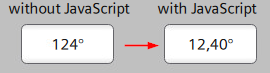
Fig. 01
Procedure
To display an integer value with decimal places in an IO field using a script, you have to create an IO field. Select the IO field, click "Properties" and follow steps 1-8 as shown in the following figure:
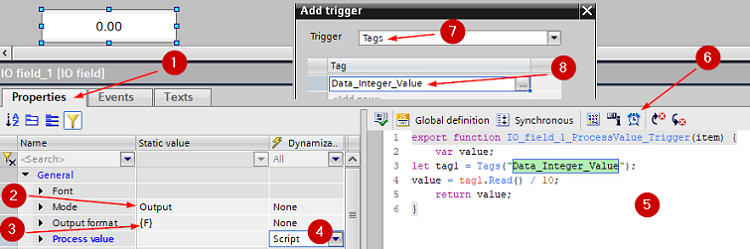
Fig. 02
In the "Mode" row, in the "Static value" column, click "Input/Output" and select "Output".
In the "Output format" row, in the "Static value" column, you select an output format for a floating-point value -> "{F}" (for the data type "Float"), for example. Details are available in the WinCC Unified Engineering manual (Defining the output format).
In the "Process value" row, in the "Dynamization" column, you select "Script".
Enter the following script:
| Code: | 01 export function EA_Feld_1_ProcessValue_Trigger(item) {
02 var value;
03 let tagl = Tags("Data_Integer_Value");
04 value = tagl.Read() / 10;
05 return value;
06 } |
This script implicitly converts the integer value into a floating-point value by dividing it by the value "10". This causes the value in the IO field to be output as the data type "Float".
Click the "Alarm" icon and add a trigger.
In the "Trigger" field you select "Tags" as trigger.
Select the process variable "Data_Integer_Value".
In this way the IO field displays the corresponding integer values in Runtime with one decimal place.
Return of an input value via the IO field to the integer variable
If the operator changes the value using the same IO field, the input value should be written back to the integer variable.
To convert the input value from the "Float" data type back to an integer value, follow steps 9-12 as shown in the following figure:
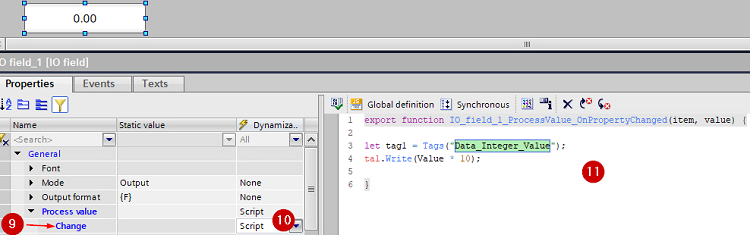
Fig. 03
9. In the "Mode" row, in the "Static value" column, you select the "Input/Output" mode. In the left column, click the small arrow next to "Process value".
10. In the "Change" row, in the "Dynamization" column, you select "Script".
11. Enter the following script:
| Code: | 01 export function EA_Feld_1_ProcessValue_OnPropertyChanged(item, value) {
02
03 let tagl = Tags("Data_Integer_Value");
04 tagl.Write(value * 10);
05
06 } |
This script implicitly converts the entered floating-point value into an integer by multiplying it by the value "10". The "Write" command writes the input value back as an integer value.
Snippets
http://plc.myforum.ro/viewtopic.php?p=62469#62469 |
|

 FAQ
FAQ Search
 Memberlist
 Usergroups
 Register
 Profile
 Log in to check your private messages
 Log in


