| View previous topic :: View next topic |
| Author |
Message |
baidu
Junior 2

Joined: 15 Jun 2017
Posts: 20
|
 Posted: 04/09/2017 19:19 Post subject: disable the message "Please reboot before installing an Posted: 04/09/2017 19:19 Post subject: disable the message "Please reboot before installing an |
 |
|
Procedure for Windows XP/Vista/7 /10 to disable the message "Please reboot before installing any more programs"
If by accident you encounter this problem please follow.
To me happen with Win10 and TIA V14SP1
https://support.industry.siemens.com/cs/document/8861819/how-in-windows-xp-vista-7-can-you-disable-the-message-please-reboot-before-installing-any-more-programs-?dti=0&lc=en-CN
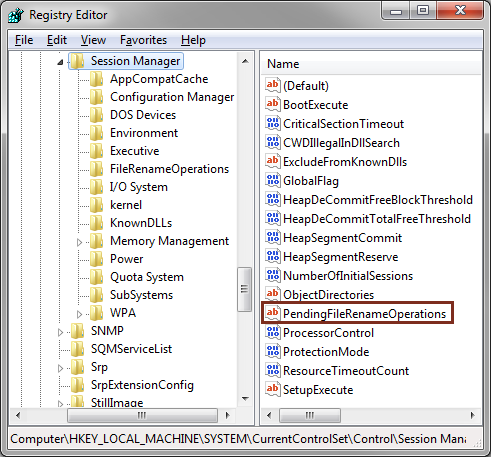
Open the Registry editor by starting the "regedit.exe" file in this path: "C:\Windows". Check whether the value "PendingFileRenameOperations" is in the path "HKEY_LOCAL_MACHINE\System\CurrentControlSet\Control\Session Manager".

delete the value "PendingFileRenameOperations" in the Registry code "HKEY_LOCAL_MACHINE\System\CurrentControlSet\Control\Session Manager\ " via pop-menu (right-click). |
|
| Back to top |
|
 |
baidu
Junior 2
Joined: 15 Jun 2017
Posts: 20
|
| Posted: 12/12/2018 16:50 Post subject: disable the message "Please reboot before installing an |
|
|
How do you disable the message "Please reboot before installing any more programs"?
https://support.industry.siemens.com/cs/document/8861819/how-do-you-disable-the-message-please-reboot-before-installing-any-more-programs
You can solve the problems by making changes in the Registry.
Instructions
The Microsoft Windows operating system has registered one or more write-protected files for deleting or renaming. This is the cause of the behavior described above and cannot be influenced by the relevant software.
If you get the error message described above after installing the software, although you have rebooted your PC, as a remedy we recommend the procedure below.
Note
In general, no warranty can be given for direct changes made in the Registry because this is entirely the responsibility of the user. In any event, you are advised to make a backup of the Registry before undertaking the actions described here. Furthermore, these settings are computer-specific. This means that when you copy the project to another computer, you must make the settings again.
No. Procedure
1 Open the Registry editor by starting the "regedit.exe" file in this path: "C:\Windows". Check whether the value "PendingFileRenameOperations" is in the path "HKEY_LOCAL_MACHINE\System\CurrentControlSet\Control\Session Manager".
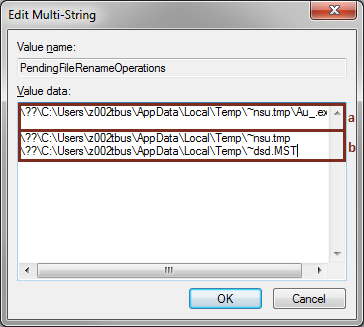
| Code: | The entries in this editor (Fig. 02) are to be interpreted as follows: Windows generates two lines for each file concerned.
Case a
If the second of the two lines is empty, it means that the file has been registered to be deleted. In this example, the Au_.exe file in the directory
"C:\Users\z002tbus\AppData\Local\Temp\~nsu.tmp" would be deleted via the Windows Explorer.
Case b
If there is an entry in the second of the two lines, that is the new name for the file in line 1. In this example the file nsu.tmp in the directory
"C:\Users\z002tbus\AppData\Local\Temp" would be renamed via the Windows Explorer.
Note
The abovementioned files and paths to be deleted are just an example. Here you delete the paths and files that are displayed in the editor on your computer.
3 After completing the steps described above you delete the value "PendingFileRenameOperations" in the Registry code "HKEY_LOCAL_MACHINE\System\CurrentControlSet\Control\Session Manager\ " via pop-menu (right-click).
Now you can install more programs without having to restart the computer again.
Notes on installing S7 Technology
If, when you are installing S7 Technology, the same thing happens as described above, check the entry in the following code in the Windows registry: "HKEY_LOCAL_MACHINE\SOFTWARE\Microsoft\Windows\CurrentVersion\RunOnce"
If a value is entered here, delete it. Restart your computer and then try the installation again.
Note for HP Notebooks
If the recommendations above (Points 1 to 4) do not help with HP Notebooks (NC6120, for example), we recommend updating the WLAN driver or removing the HP Wireless Wizard from the Registry.
|
|
|
| Back to top |
|
|
punxy
Junior

Joined: 13 Apr 2019
Posts: 1
|
| Posted: 14/04/2019 06:12 Post subject: |
|
|
| thanks... |
|
| Back to top |
|
|
pjus3
Junior
Joined: 27 Jan 2018
Posts: 1
|
| Posted: 08/06/2019 19:08 Post subject: |
|
|
| Thanks man..you get me out from a dilemma..!!! |
|
| Back to top |
|
|
Dominiqq
Junior
Joined: 07 Jul 2019
Posts: 2
|
| Posted: 23/07/2019 14:54 Post subject: |
|
|
Thanks!!!!  |
|
| Back to top |
|
|
papas
Junior
Joined: 14 Jan 2018
Posts: 1
|
| Posted: 21/11/2019 09:10 Post subject: |
|
|
| thanks..solved my problem with this |
|
| Back to top |
|
|
wims
Junior
Joined: 01 Sep 2020
Posts: 2
|
| Posted: 01/09/2020 14:37 Post subject: |
|
|
me too...
thanks  |
|
| Back to top |
|
|
Aliyha Kenidi
Junior
Joined: 19 Sep 2018
Posts: 1
|
| Posted: 26/09/2020 17:37 Post subject: Re: disable the message "Please reboot before installin |
|
|
| baidu wrote: | How do you disable the message "Please reboot before installing any more programs"?
https://support.industry.siemens.com/cs/document/8861819/how-do-you-disable-the-message-please-reboot-before-installing-any-more-programs
You can solve the problems by making changes in the Registry.
Instructions
The Microsoft Windows operating system has registered one or more write-protected files for deleting or renaming. This is the cause of the behavior described above and cannot be influenced by the relevant software.
If you get the error message described above after installing the software, although you have rebooted your PC, as a remedy we recommend the procedure below.
Note
In general, no warranty can be given for direct changes made in the Registry because this is entirely the responsibility of the user. In any event, you are advised to make a backup of the Registry before undertaking the actions described here. Furthermore, these settings are computer-specific. This means that when you copy the project to another computer, you must make the settings again.
No. Procedure
1 Open the Registry editor by starting the "regedit.exe" file in this path: "C:\Windows". Check whether the value "PendingFileRenameOperations" is in the path "HKEY_LOCAL_MACHINE\System\CurrentControlSet\Control\Session Manager".
| Code: | The entries in this editor (Fig. 02) are to be interpreted as follows: Windows generates two lines for each file concerned.
Case a
If the second of the two lines is empty, it means that the file has been registered to be deleted. In this example, the Au_.exe file in the directory
"C:\Users\z002tbus\AppData\Local\Temp\~nsu.tmp" would be deleted via the Windows Explorer.
Case b
If there is an entry in the second of the two lines, that is the new name for the file in line 1. In this example the file nsu.tmp in the directory
"C:\Users\z002tbus\AppData\Local\Temp" would be renamed via the Windows Explorer.
Note
The abovementioned files and paths to be deleted are just an example. Here you delete the paths and files that are displayed in the editor on your computer.
3 After completing the steps described above you delete the value "PendingFileRenameOperations" in the Registry code "HKEY_LOCAL_MACHINE\System\CurrentControlSet\Control\Session Manager\ " via pop-menu (right-click).
Now you can install more programs without having to restart the computer again.
Notes on installing S7 Technology
If, when you are installing S7 Technology, the same thing happens as described above, check the entry in the following code in the Windows registry: "HKEY_LOCAL_MACHINE\SOFTWARE\Microsoft\Windows\CurrentVersion\RunOnce"
If a value is entered here, delete it. Restart your computer and then try the installation again.
Note for HP Notebooks
If the recommendations above (Points 1 to 4) do not help with HP Notebooks (NC6120, for example), we recommend updating the WLAN driver or removing the HP Wireless Wizard from the Registry.
|
|
|
|
| Back to top |
|
|
Aschiitow
Junior
Joined: 16 Jun 2022
Posts: 15
|
| Posted: 29/06/2022 18:24 Post subject: |
|
|
| Good help. Thank you!!!!! |
|
| Back to top |
|
|
|

 FAQ
FAQ Search
 Memberlist
 Usergroups
 Register
 Profile
 Log in to check your private messages
 Log in


