 |
plc.myforum.ro
PLCs users www.plc.myforum.ro!
|
| View previous topic :: View next topic |
| Author |
Message |
selftester
Member 2


Joined: 10 Aug 2013
Posts: 430
|
 Posted: 11/12/2013 22:03 Post subject: Control your PLCs, DCSs, PACs with your smartphone or tablet Posted: 11/12/2013 22:03 Post subject: Control your PLCs, DCSs, PACs with your smartphone or tablet |
 |
|
Securely monitor and control your PLCs, DCSs, PACs, and more with your smartphone or tablet.
http://groov.com/what-is-groov/
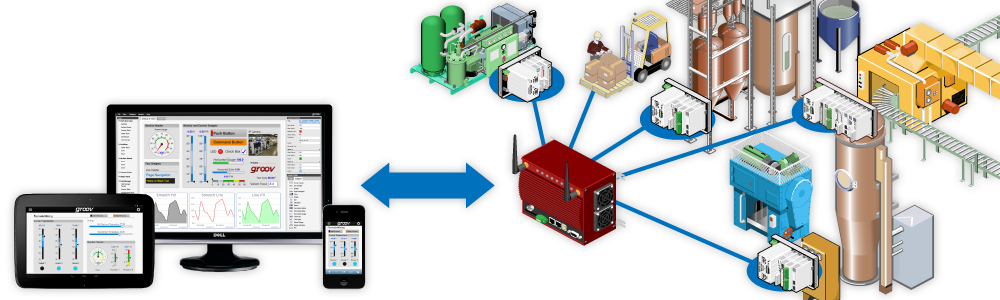
With groov, it's simple.
• Connect to Allen-Bradley, Siemens, Schneider Electric, GE, Honeywell—industrial automation systems, building automation systems, energy systems, and more.
• Build your operator interface in your web browser. No plugins; no coding; no programming. Not a single line of code.
• Monitor and control your systems from virtually any smartphone or tablet. Any size. Any brand. No kidding.
Demo:
Install groov
Download groov using the link in your email. Save the file to your computer.
Double-click the filename to install groov Server for Windows. When asked if port 443 should be opened, check the box to open it.
Once the software is installed, open a web browser and for the address type: https://localhost
Don’t forget the s in https. That means it’s a secure link.
In the dialog box, click Start Trial Mode.
Realizate a login and password. Write them down and remember them.
Connect to automation systems
groov usually opens in groov View, but you don’t have an interface yet. If you see a blank groov screen, click the gear icon in the upper right and choose Switch to groov Build.
From the Configure menu, choose Devices and Tags.
- For all automation systems except Opto 22, click Add OPC UA Server. Enter the server’s name and URL (see the sample), then click Add Server. Highlight the name of the server and click the Import Tags button.
- For an Opto 22 system, click Add Opto 22 controller, enter the controller’s IP address, and browse to the strategy .idb file.
Build your interface
Click Add page and produse a new page for your operator interface.
In the Gadget Palette, click the Gadgets tab and drag the gadget you want to the center workspace. In the upper right, click None selected and choose a tag from your tag database. Make any other changes you want to the gadget properties.
Click the Handheld tab (center top) and notice that the gadget is also there. For the handheld view–like you’d see on a smartphone–you can move gadgets around or resize them in this tab to best fit in the space. Click back to the Desktop tab and you’ll see they remain where you originally placed them.
Now try your interface: Choose File > Save All Changes and Switch to groov View. It’s ready to use!
download:
[URL=http://en.file-upload.net/download-8390096/setup-groov-server-windows-2013-12-09-R2.0b-r17483.exe.html]setup-groov-server-windows-2013-12-09-R2.0b-r17483.exe[/URL]
[URL=http://en.file-upload.net/download-8390099/2027_groov_Users_Guide.pdf.html]2027_groov_Users_Guide.pdf[/URL] |
|
| Back to top |
|
 |
|
|
You cannot post new topics in this forum
You cannot reply to topics in this forum
You cannot edit your posts in this forum
You cannot delete your posts in this forum
You cannot vote in polls in this forum
|
Powered by phpBB © 2001, 2005 phpBB Group
Fa-ti si tu propriul forum GRATUIT, pe www.myforum.ro |
 FAQ
FAQ Search
 Memberlist
 Usergroups
 Register
 Profile
 Log in to check your private messages
 Log in


