 |
plc.myforum.ro
PLCs users www.plc.myforum.ro!
|
| View previous topic :: View next topic |
| Author |
Message |
gamax
Member

Joined: 15 Jul 2016
Posts: 131
|
 Posted: 02/03/2022 18:24 Post subject: connection WinCC RT Advanced over Industrial Ethernet (PROFI Posted: 02/03/2022 18:24 Post subject: connection WinCC RT Advanced over Industrial Ethernet (PROFI |
 |
|
In WinCC (TIA Portal), how do you configure a connection between WinCC Runtime Advanced or HMI Panel and an S7 controller over Industrial Ethernet (PROFINET)?
https://support.industry.siemens.com/cs/document/89852595/
Description
This post will give you a guide to the topics of connection between:
WinCC Runtime Advanced and S7 controller via Industrial Ethernet (PROFINET)
SIMATIC HMI Panel and S7 controller via Industrial Ethernet (PROFINET)
Connection between WinCC Runtime Advanced and S7 controller
Requirements
WinCC (TIA Portal) Advanced
STEP 7 (TIA Portal) Basic/Professional (depending on the controller used)
PC with PROFINET/Ethernet interface
S7 controller with PROFINET/Ethernet interface
Instructions
Create a new project in the TIA Portal.
In the Project View you double-click "Add new device" and select the S7 controller. Click the "OK" button to add the controller.
Note
Depending on the selected CPU, the dialog "PLC Security settings" is automatically displayed. Parameterize the security settings according to the requirements of your plant. You may cancel the dialog and configure the settings in the CPU at later time via Properties > General > Protection & Security.
Through the Hardware Catalog you can add more components to the Device View (like power supply, IO modules).
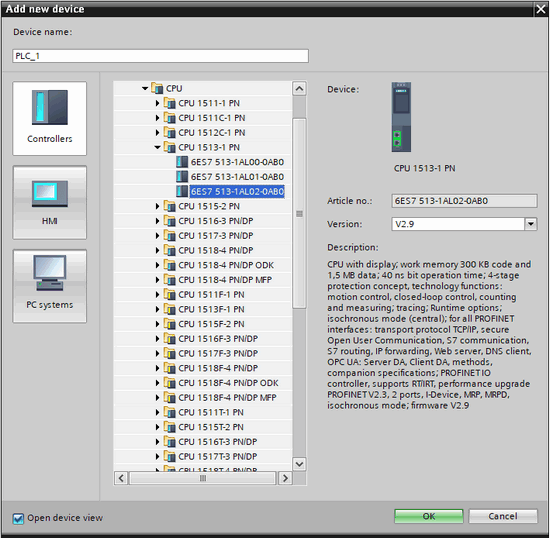
Fig. 01
Click the PROFINET interface of the S7 controller and assign a unique IP address and the associated subnet mask under "Properties > General > Ethernet Addresses".
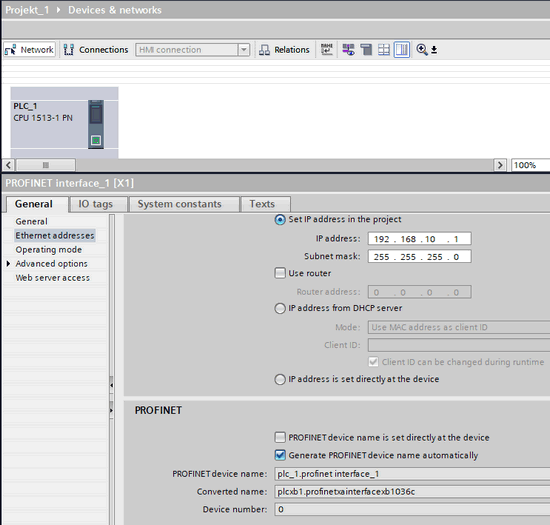
Fig. 02
Double-click "Add new device" and select WinCC Runtime Advanced.
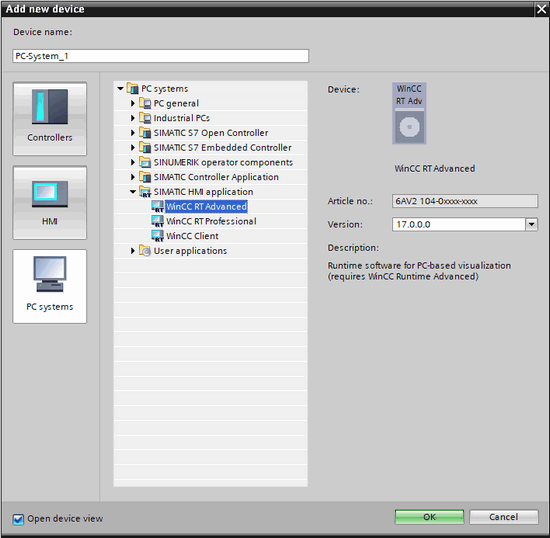
Fig. 03
In the Device View in the Hardware Catalog you select the "IE General" communication module and double-click to add this to the PC station
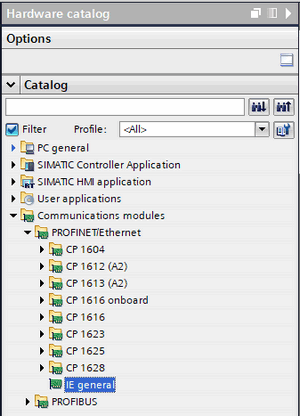
Fig. 04
Click the "IE General" interface just added. Under "Properties > General > PROFINET interface [X1] > Ethernet Addresses" you enter the IP address and subnet mask of the Runtime Station.
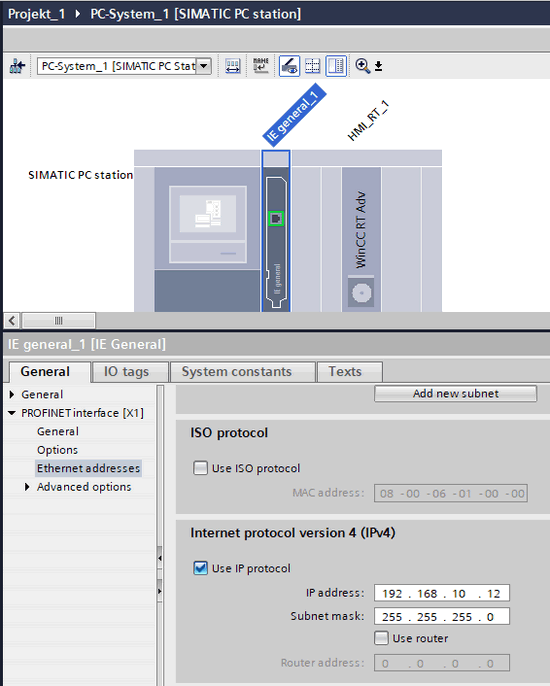
Fig. 05
Switch to the Devices & Network view and enable "Connections" to create an HMI connection.
Connect the interfaces of the S7 controller and the Runtime station by drag-and-drop.
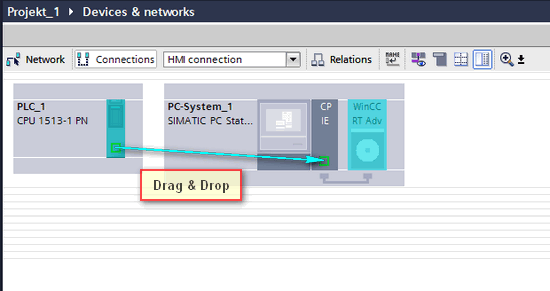
Fig. 06
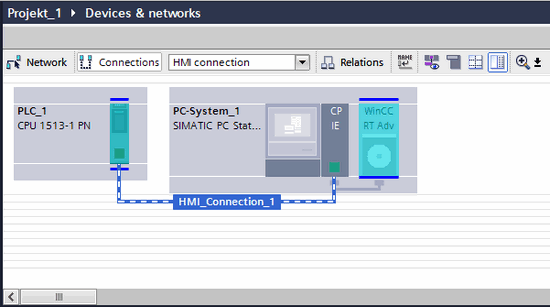
Fig. 07
Click the HMI connection. Under "Properties > General >" you enter the name you are using in the PG/PC interface of the Runtime station. In this example we use the preset name "S7ONLINE".
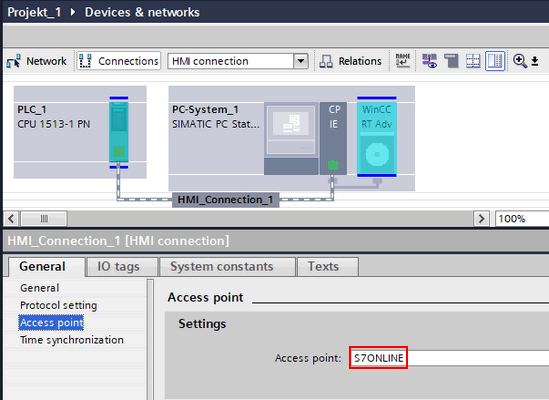
Fig. 08
Open the PG/PC interface on the Runtime station via "Start > Control Panel > Set PG/PC interface.
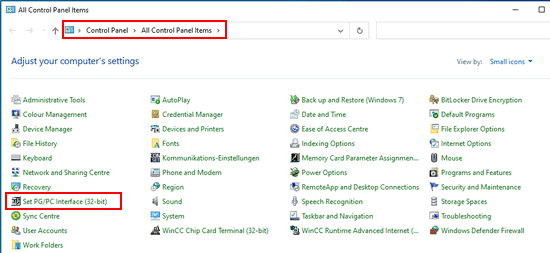
Fig. 09
Under Access Point of the Application, select the access point that was also set under point 8. In this example we use the preset name "S7ONLINE".
Under "Interface Parameter Assignment Used:" you select the "TCP/IP Ethernet Adapter" you are using.
Select the entry of your interface with the extension ".TCPIP.1". If set correctly, the entire entry in the example is "Intel(R) 82574L Gigabit Network Connection.TCPIP.1".
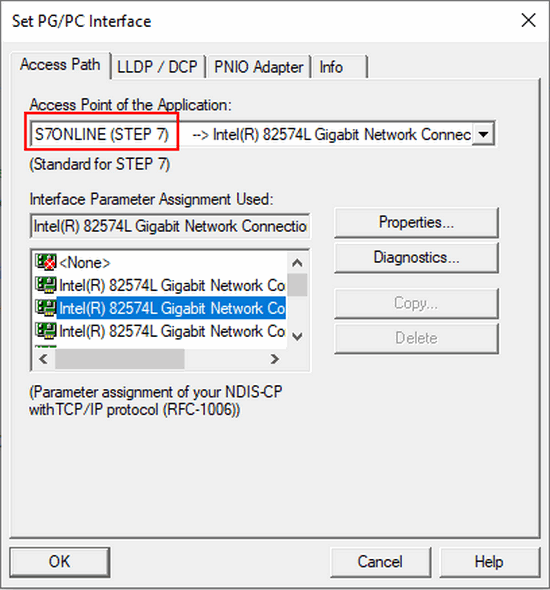
Fig. 10
Complete the configuration and download the project to the S7 controller and the Runtime station.
Connection between SIMATIC HMI Panel and S7 controller
Requirements
WinCC (TIA Portal) Basic/Comfort (depending on the panel used)
STEP 7 (TIA Portal) Basic/Professional (depending on the controller used)
SIMATIC HMI Panel with PROFINET/Ethernet interface
Make sure that the operator panel you select can communicate with the desired controller. This information is in the technical data of the device.
S7 controller with PROFINET/Ethernet interface
Instructions
Create a new project in the TIA Portal.
In the Project View you double-click "Add new device" and select the S7 controller. Click the "OK" button to add the controller.
Note
Depending on the selected CPU, the dialog "PLC Security settings" is automatically displayed. Parameterize the security settings according to the requirements of your plant. You may cancel the dialog and configure the settings in the CPU at later time via Properties > General > Protection & Security.
Through the Hardware Catalog you can add more components to the Device View (like power supply, IO modules).
Fig. 11
Click the PROFINET interface of the controller and assign a unique IP address and the associated subnet mask under "Properties > General > Ethernet Addresses".
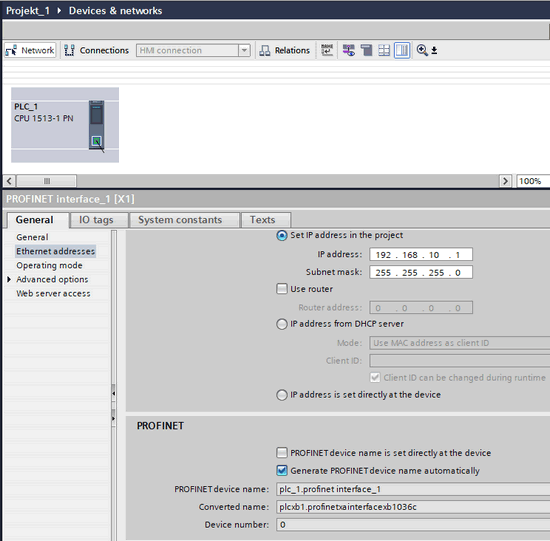
Fig. 12
Double-click "Add new device" and select the HMI panel. Place a check mark for "Start device wizard" and click the OK button
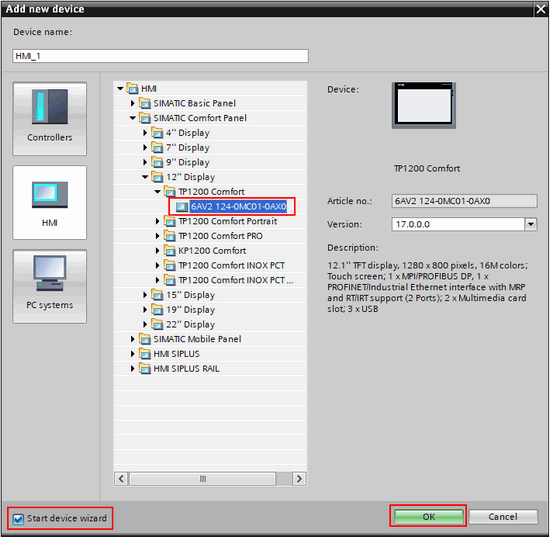
Fig. 13
In the "HMI Device Wizard" dialog that opens, click "Browse" and select the CPU with which you want to establish a PLC connection.
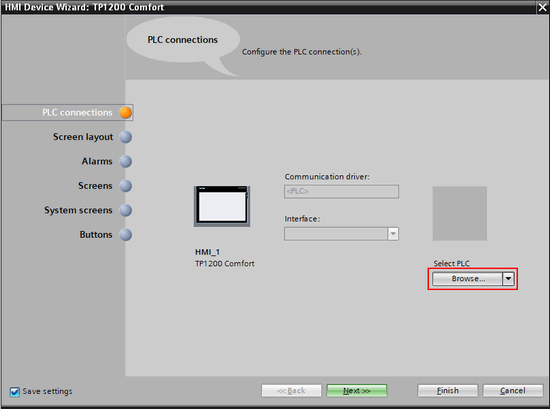
Fig. 14
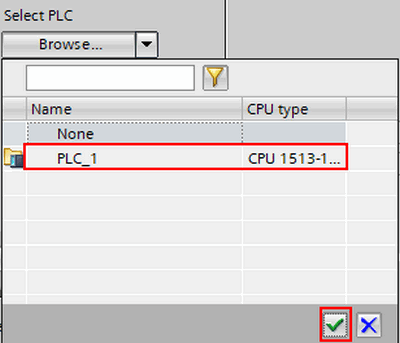
Fig. 15
The connection parameters are entered and the next free IP address is automatically reserved for the HMI panel. Close the HMI wizard by clicking the "Finish" button.
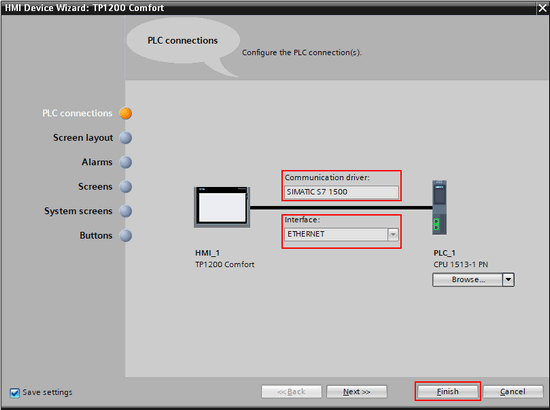
Fig. 16
Complete the configuration and download the project to the S7 controller and the HMI panel.
Further Information
https://support.industry.siemens.com/cs/ww/en/view/58522603
https://support.industry.siemens.com/cs/ww/en/view/42637263 |
|
| Back to top |
|
 |
|
|
You cannot post new topics in this forum
You cannot reply to topics in this forum
You cannot edit your posts in this forum
You cannot delete your posts in this forum
You cannot vote in polls in this forum
|
Powered by phpBB © 2001, 2005 phpBB Group
Fa-ti si tu propriul forum GRATUIT, pe www.myforum.ro |
 FAQ
FAQ Search
 Memberlist
 Usergroups
 Register
 Profile
 Log in to check your private messages
 Log in


