 |
plc.myforum.ro
PLCs users www.plc.myforum.ro!
|
| View previous topic :: View next topic |
| Author |
Message |
AnteSavilt
Member 2


Joined: 13 Feb 2018
Posts: 264
Location: Croatia
|
 Posted: 25/03/2021 18:09 Post subject: connection between a CPU S7-1500 S7-PLCSIM Advanced Posted: 25/03/2021 18:09 Post subject: connection between a CPU S7-1500 S7-PLCSIM Advanced |
 |
|
How do you establish a connection between a CPU S7-1500 simulated with S7-PLCSIM Advanced and a WinCC Unified Runtime?
https://support.industry.siemens.com/cs/document/109793854/
Minimum requirements
The following minimum requirements have to be met:
TIA Portal WinCC Unified SCADA Engineering System V16
S7-PLCSIM Advanced V3.0
IIS is enabled
Internet-enabled browser, Google Chrome, for example
Establishing a connection
Proceed as follows to configure a connection between a CPU S7-1500 simulated with S7-PLCSIM Advanced and a WinCC Unified Runtime:
Open the Control Panel via "Start > Control Panel" and click "Set PG/PC interface". Under " Access Point of the Application" select the entry "S7ONLINE (STEP 7) -> Siemens PLCSIM Virtual Ethernet Adapter TCPIP.1" and confirm the changes with "OK".
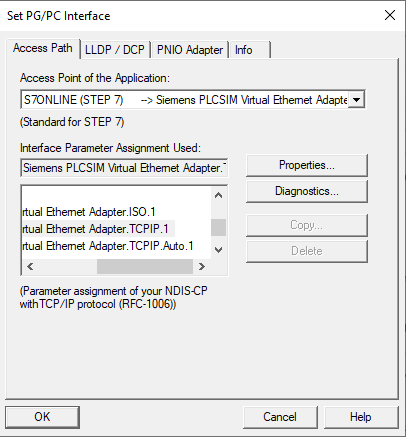
Fig. 1
Open S7-PLCSIM Advanced 3.0 and set the parameters as follows.
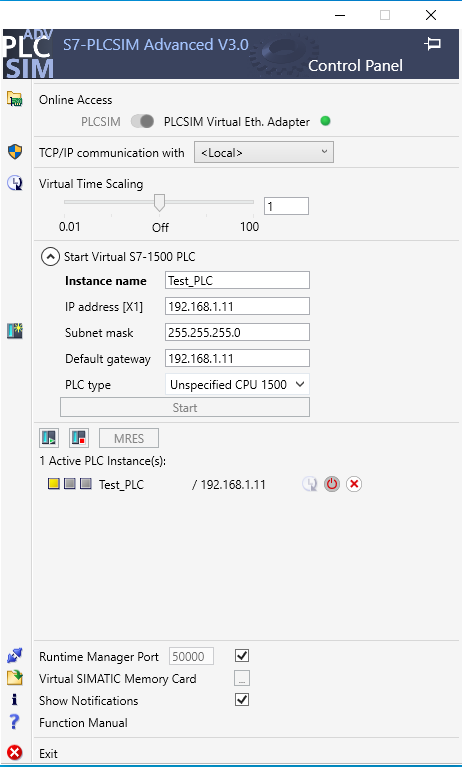
Fig. 2
The PLC is automatically enabled and goes into STOP (yellow LED)
Create a project in the TIA Portal with an S7-1500 CPU as well as a PC with WinCC Unified and an Ethernet adapter.
Set the connection parameters in the PLC and in the PC as follows:
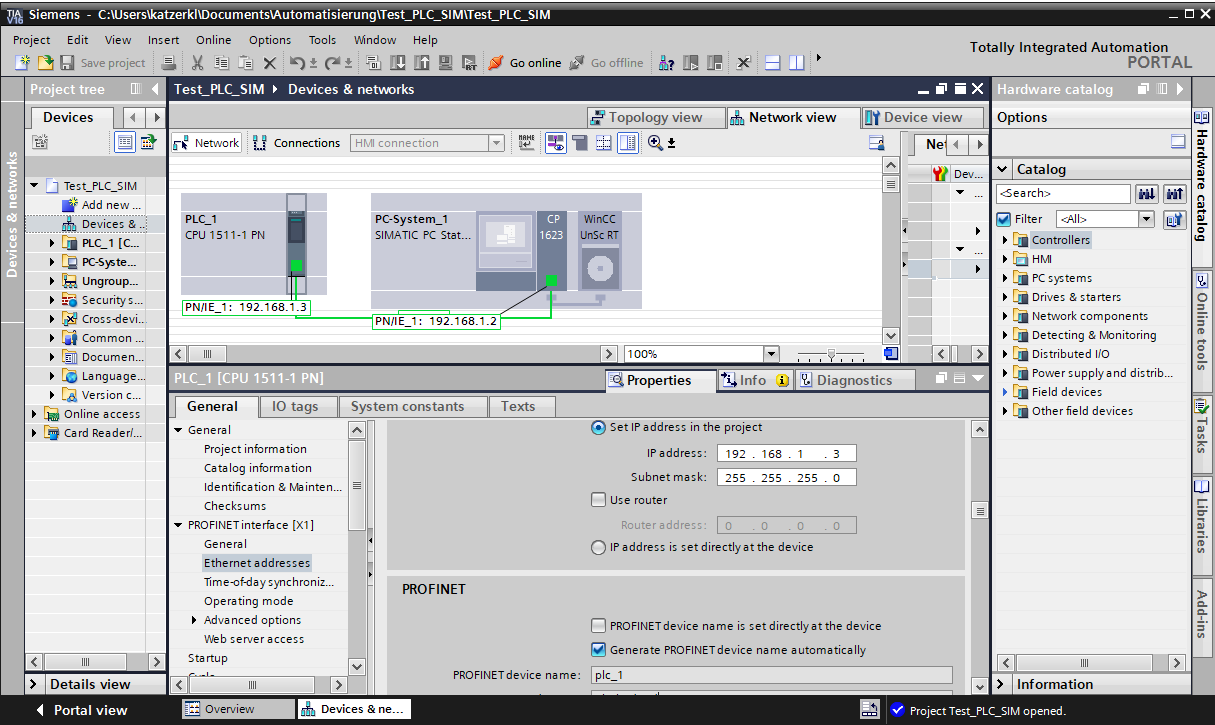
Fig. 3
Create an HMI connection between PLC and PC.
Create some variables in the controller and generate a screen in WinCC Unified in which these variables are to be displayed in IO fields.
Compile the project without errors.
Switch on the "Support simulation during block compilation" function in the project properties
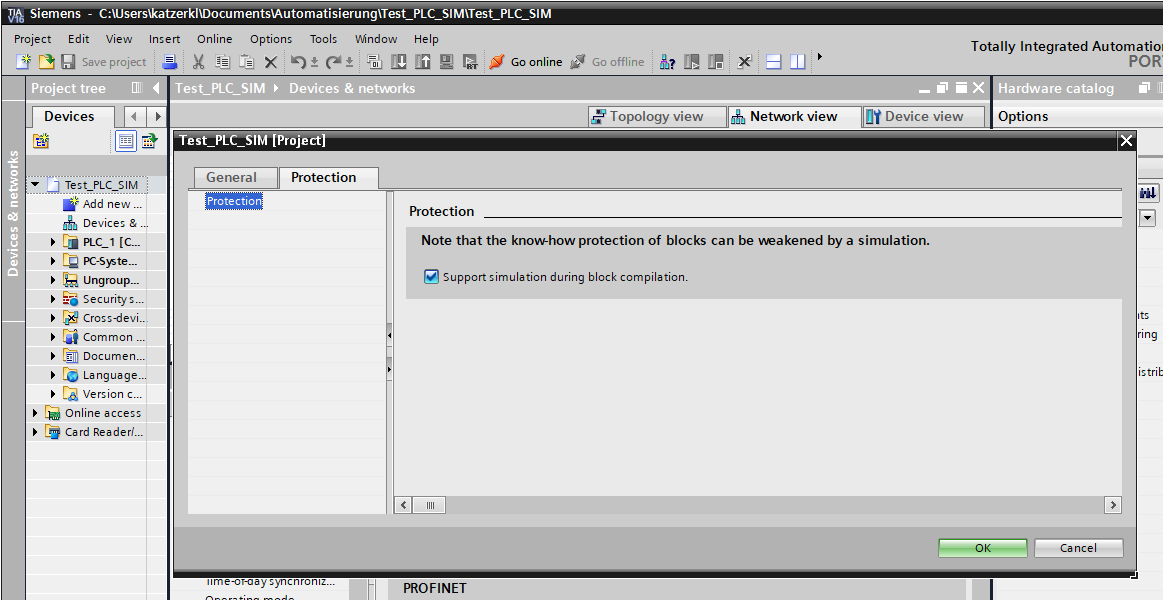
Fig. 4
Load the software into the simulated PLC. Please note the connection settings
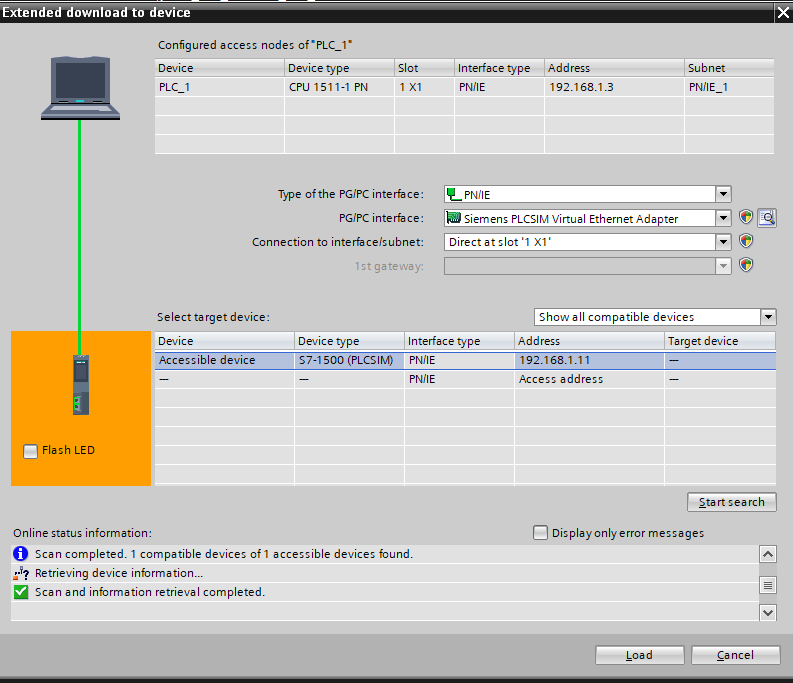
Fig. 5
In the "Load preview" dialog, click the "Load" button.
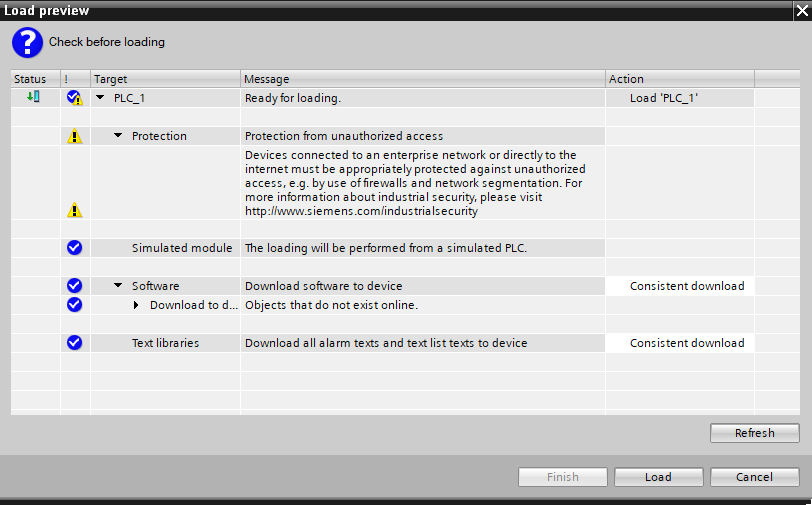
Fig. 6
In the next dialog you select "Start module" and "Finish".
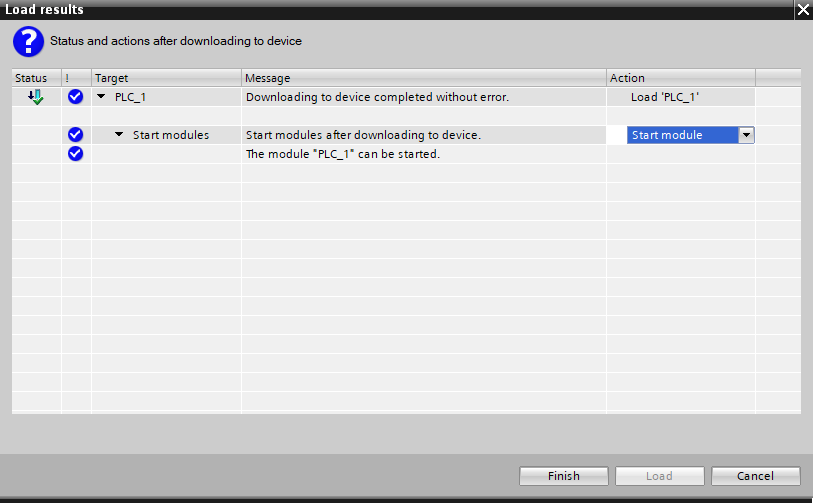
Fig. 7
The simulated PLC goes into RUN (LED green).
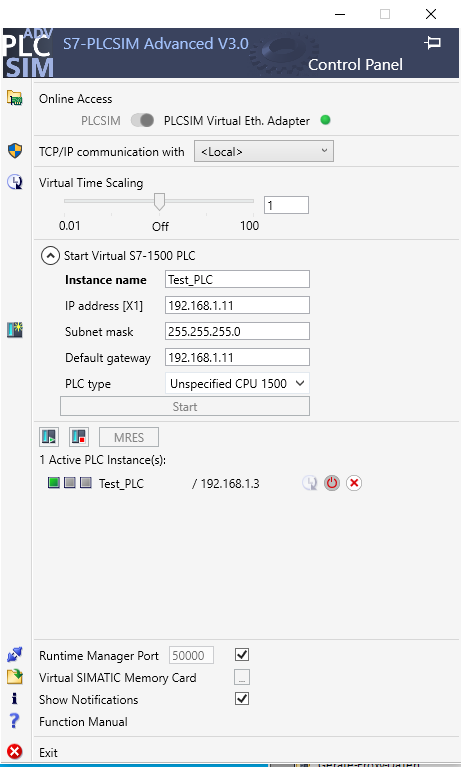
Fig. 8
Enable the SIMATIC Runtime Manager, mark the project (displayed in red ) and start it by pressing the button.
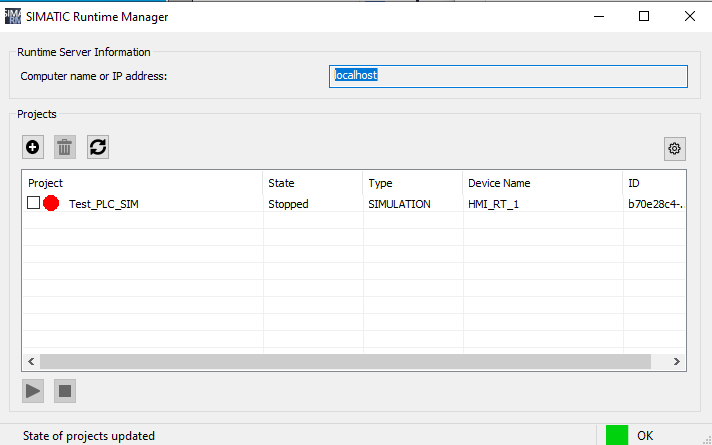
Fig. 9
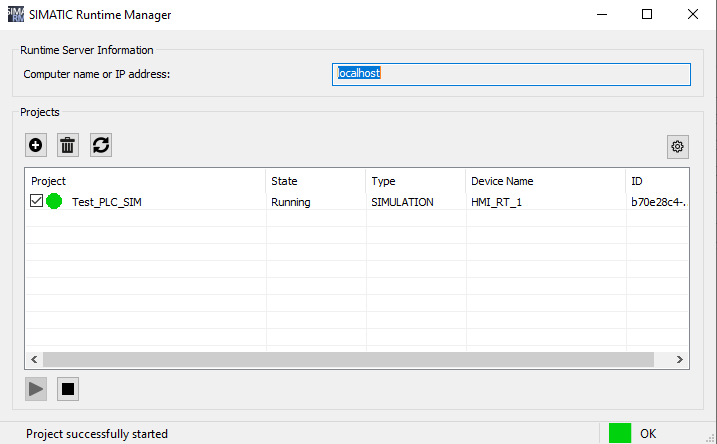
Fig. 10
For visualization with WinCC Unified, call up the browser and enter "https://<computer>" or "https://<localhost>" in the address line.
Note
The runtime can also be running on a virtual machine.
https://support.industry.siemens.com/cs/document/88781327/how-do-you-simulate-s7-communication-between-two-s7-1500-cpus-using-s7-plcsim
https://support.industry.siemens.com/cs/document/88193789/which-settings-are-necessary-to-establish-a-connection-between-a-simulated-s7-1500-and-a-simulated-wincc-runtime-advanced-or-a-simulated-hmi-operator-panel
https://support.industry.siemens.com/cs/document/78788417/what-should-you-watch-out-for-when-installing-step-7- (tia-portal)-on-a-virtual-machine
https://support.industry.siemens.com/cs/document/61931797/how-do-you-start-s7-plcsim-in-step-7- (tia-portal) |
|
| Back to top |
|
 |
vmam99
Junior 2

Joined: 06 Mar 2012
Posts: 44
|
| Posted: 06/04/2021 07:12 Post subject: |
|
|
Thank alot for good idea  |
|
| Back to top |
|
|
|
|
You cannot post new topics in this forum
You cannot reply to topics in this forum
You cannot edit your posts in this forum
You cannot delete your posts in this forum
You cannot vote in polls in this forum
|
Powered by phpBB © 2001, 2005 phpBB Group
Fa-ti si tu propriul forum GRATUIT, pe www.myforum.ro |
 FAQ
FAQ Search
 Memberlist
 Usergroups
 Register
 Profile
 Log in to check your private messages
 Log in


