| View previous topic :: View next topic |
| Author |
Message |
hq27676996
Junior

Joined: 13 Feb 2018
Posts: 11
|
 Posted: 20/12/2018 08:45 Post subject: CompactLogix 1769-L30ER VS. YASKAWA MP3300 Communication Posted: 20/12/2018 08:45 Post subject: CompactLogix 1769-L30ER VS. YASKAWA MP3300 Communication |
 |
|
Hi guys. I have some problem.I want to use AB PLC Control YASKAWA servo motor through MP3300 EtherNet/IP Communication Module.
Now I download yaskawa EtherNet/IP EDS File
can not add new module in rslogix5000
"at least one connection must be configured for this device"
Images:
https://drive.google.com/open?id=1TrliwlvfQbHyuVYLpyksTsGDXr9PncEH
EDS 1 file:(Yaskawa america 5k)--------- NG
https://drive.google.com/open?id=1qlCCrTpJyAJVOYhGqT6z0IxBrrmfe3XC
EDS 2 file:(Yaskawa Japan 10k)--------- NG
https://drive.google.com/open?id=1gZ5oUo03Ut5mrAMtHcQKLrr-u04b7V3f
How should I do it?
Does anyone have an example?
PLC(Master):
CompactLogix 1769-L30ER
MP3300:
Power Supply & Base Unit Rack:JEPMC-BU3304-E MBU-304
Controller CPU Module:JAPMC-CP3301-1-E CPU-301 (16 axes)
EtherNet/IP Communication Module:JAPMC-CM2304-E 263IF-01 |
|
| Back to top |
|
 |
lamkyfff
Junior
Joined: 12 Dec 2018
Posts: 3
|
| Posted: 20/12/2018 09:48 Post subject: |
|
|
This is an example on installing EDS file for the 1747-AENTR in RSLogix 5000 v.20
In order to install the latest EDS file, follow the steps below:
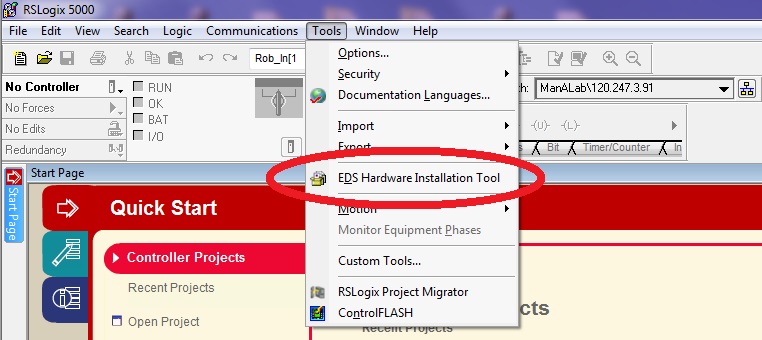
Go to Start menu-->Rockwell Software-->RSLinx-->Tools-->EDS Hardware Installation Tool

Alternatively, go to Start menu-->Rockwell Automation-->RsLogix 5000 and open it.
On the toolbar go to Tools-->EDS Hardware Installation Tool.
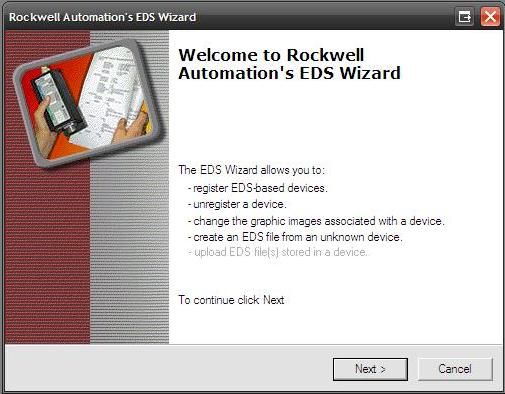
To continue click Next.
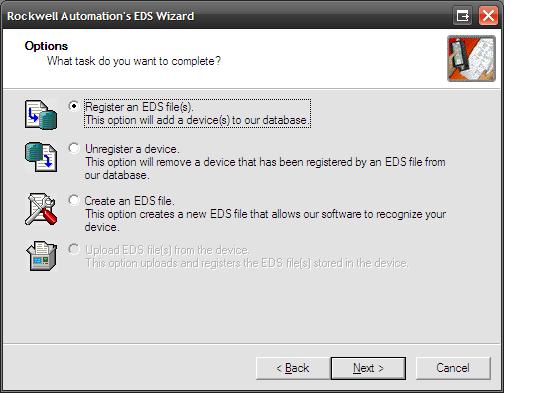
On the Rockwell Automation EDS Wizard screen choose Register an EDS file(s) and click Next.
Click Browse to navigate to the location of the downloaded EDS file. Then, click Next.
https://i.postimg.cc/c1nGVXDv/471187-7.jpg
The EDS Wizard briefly evaluates the EDS File for any errors. Then, the EDS File Installation Test Results screen appears. Click Next.
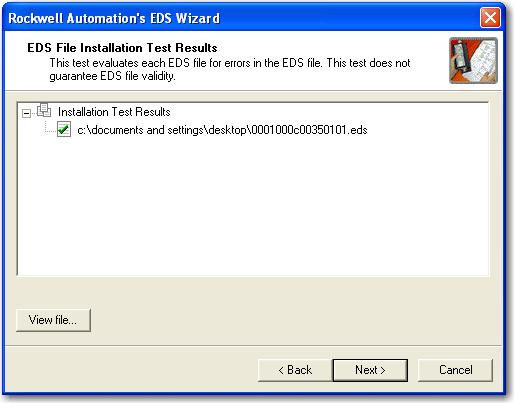
To continue click Next.
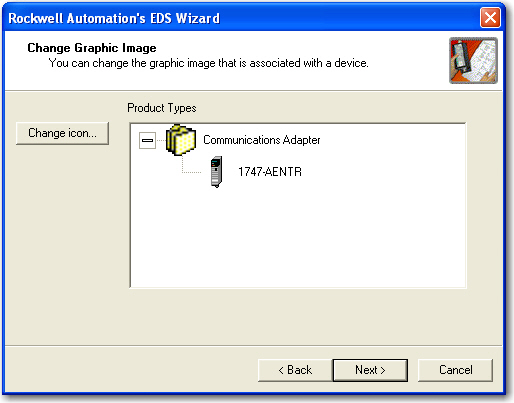
The Final Task Summary screen appears indicating that the device was registered successfully. Click Next to complete the EDS file installation.
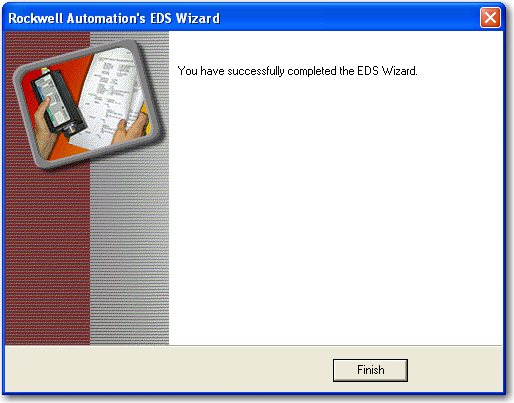
So you have to install RSLogix V20 or upper...
or Rockwell said
How do I install Electronic Data Sheet (EDS) files using the EDS Hardware Installation tool?
Have to install RSLinx Classic
During EDS file installation, it is recommended that you shut down the running applications using RSLinx service such as:
RSNetWorx For DeviceNet
RSNetWorx For ControlNet
RSLinx, including RSLinx Communications Server running in the Windows system tray
The following steps provide instruction on how to install EDS files. Please read the instructions completely and carefully.
Obtain the required EDS files. You may get the files from either the Rockwell Automation Product Compatibility & Download Center (PCDC) or from a technical support specialist. Request the files be emailed to you in zip format.
Detach the zip file to a temporary folder. For this example, you may name the folder "EDS files".
Once you have detached the zip file to the EDS files folder, extract the contents of the zip file. The zip file contains the individual EDS files (*.eds) you requested for the application.
To extract the EDS files, go into the EDS files folder and double-click on the zip file. WinZip will execute.
Extract the files to the same folder.
Once the extraction is complete, the EDS files folder should contain both the autentic zip file and all the individual EDS files (*.eds).
From the computer's desktop, click Start-->Programs-->Rockwell Software-->RSLinx-->Tools-->EDS Hardware Installation Tool. This will execute the EDS Hardware Installation Tool software.
From the Hardware Installation Tool dialog box, click Add.
From the Rockwell Software EDS Wizard, click Register a directory of EDS files or Register a single EDS file.
The folder path should appear on the In folder: bar.
Click Next.
The software will run the files through a test that evaluates the EDS files for errors.
The test results should display a green check mark to the left of each EDS file if it passed.
Click Next.
The installation tool will ask if you want to Change Graphic Image. You may, but you should not have to.
Click Next.
This will bring up the Final Task Summary.
Click Next.
Once the Please wait as the EDS wizard installs the new files... message goes away, you have successfully completed the registration of the EDS files.
Click Finish.
Close the Rockwell Software - Hardware Installation Tool dialog box by clicking Exit.
un-registering and re-registering the EDS files may work. |
|
| Back to top |
|
|
hq27676996
Junior
Joined: 13 Feb 2018
Posts: 11
|
| Posted: 21/12/2018 02:39 Post subject: |
|
|
lamkyfff:
PLC Software installing EDS file is OK
but in PLC Software add module is NG
is EDS file with PLC Software not match?(how to do it?)
First encountered this problem@@ |
|
| Back to top |
|
|
lamkyfff
Junior
Joined: 12 Dec 2018
Posts: 3
|
| Posted: 21/12/2018 15:23 Post subject: |
|
|
| What version of RSLogix and RSLinx have you installed.. |
|
| Back to top |
|
|
hq27676996
Junior
Joined: 13 Feb 2018
Posts: 11
|
| Posted: 24/12/2018 02:21 Post subject: |
|
|
| lamkyfff wrote: | | What version of RSLogix and RSLinx have you installed.. |

 |
|
| Back to top |
|
|
lamkyfff
Junior
Joined: 12 Dec 2018
Posts: 3
|
| Posted: 31/12/2018 15:22 Post subject: |
|
|
It seems that you have win10 installed
RSLinx Classic Lite 4.10.00 works correctly only on
Windows 10 Professional, 32-bit, Version 1511
Windows 10 Enterprise, 32-bit, Version 1511
Otherwise try Registering the EDS File following
1. Shutdown and exit the RSLinx Classic software.
2. Select Start-->Programs-->Rockwell Software-->RSLinx-->Tools.
3. Select the EDS Hardware Installation Tool.
4. Install the EDS file(s) per the Installation Tool.
But pay attention during the process for any warnings and do not proceed with EDS registration if assemblies will be left out.
Check ODVA conformance. You can verify the status of the EDS file yourself before attempting to register with the ODVA EZ-EDS.
https://www.odva.org/software/EZ-EDS-Download
When completed, restart the RSLinx Classic
What to do when RSLinx stop communication or showing yellow question marks even EDS files are present?
You can delete Harmony files if they are corrupt or on a regularly scheduled basis. They are cache files of RSLinx and will be automatically recreated when RSLinx Classic is reopened.
You can delete the Harmony files with 2 methods: Automatic and Manual.
Automatic method
RSLinx Classic version 3.90 or higher with valid activation
In RSLinx Classic go to File-->Compact Harmony.
RSLinx Classic version 3.81 or lower
Run the Rslinxcachedelete.bat file. It will stop the RSLinx Classic service, delete the Harmony files and then restart the RSLinx Classic service.
Manual method
Close all software including RSLinx Classic. If RSLinx is running as a service, switch to run as an application by following 31054 - How to Change RSLinx Classic to Run as an Application Instead of a Service, or Vice Versa
Open Windows Explorer and go to
For 32 bit Systems, C:\Program Files\Rockwell Software\RSCommon
For 64 bit Systems, C:\Program Files (x86)\Rockwell Software\RSCommon
Delete Harmony.hrc and Harmony.rsh (you may have Harmony instead of Harmony.rsh). Do not delete HRMYUI.DLL
If you cannot delete the Harmony files, stop the Harmony service at Start-->Control Panel -->Administrative tools --> Services or reboot your computer
If you have a Windows 64 bit system you may only have 1 harmony file.
Change it back to run as a service, and restart the computer if necessary.
https://megaupload.nz/gfKep7pdb7/EZ-EDS_V3.25.1.20181218_zip
https://megaupload.nz/V1K9p4p4b7/48241_mp4
https://megaupload.nz/0eL5p8p0b9/Rslinxcachedelete_bat
Taking into consideration the software installed maybe you have to install one of the following FTSP for both compatibility Logix with Linx
FTSP 2.73.00 RSLE 5.73.00 (CPR9 SR7.3)
FTSP 2.74.00 RSLE 5.74.00 (CPR9 SR7.4)
FTSP 2.80.00 RSLE 5.80.00 (CPR9 SR 8)
FTSP 2.81.00 RSLE 5.81.00 (CPR9 SR 8.1)
FTSP 2.90.00 RSLE 5.90.00 (CPR9 SR9) |
|
| Back to top |
|
|
|

 FAQ
FAQ Search
 Memberlist
 Usergroups
 Register
 Profile
 Log in to check your private messages
 Log in


