 |
plc.myforum.ro
PLCs users www.plc.myforum.ro!
|
| View previous topic :: View next topic |
| Author |
Message |
valz
Member 3


Joined: 26 Jul 2015
Posts: 771
|
 Posted: 22/11/2021 16:06 Post subject: Autostart WinCC Runtime Advanced (TIA Portal) Posted: 22/11/2021 16:06 Post subject: Autostart WinCC Runtime Advanced (TIA Portal) |
 |
|
How is the Autostart in Windows configured and delayed for WinCC Runtime Advanced?
https://support.industry.siemens.com/cs/document/58565180/
The Autostart and the delay of the WinCC Runtime Advanced in Windows can be realized using the Windows Task Scheduler. This entry describes the procedure for PC stations and panels.
Depending on the configuration of your operator station, synchronization conflicts with other applications might arise with the Autostart of WinCC Runtime. You can avoid such conflicts by delaying the start of the Runtime by a specific time.
Section 1: PC station
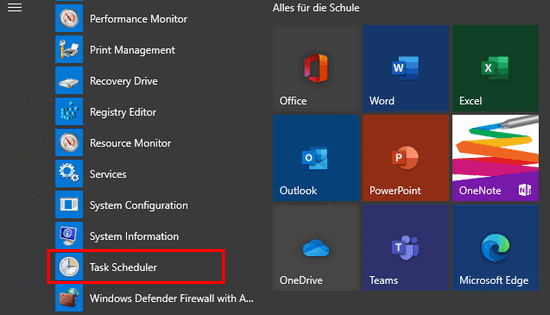
1. Via "Start -> Windows -> Administrative Tools -> Task Scheduler"
you open the Task Scheduler.
2. Create a new task in the Windows Task Scheduler by selecting "Create Task...".
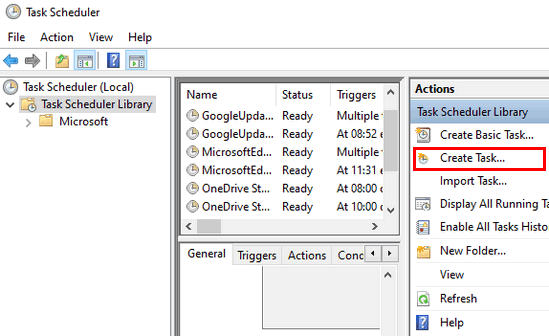
Fig. 02
3. Enter a program name and description.
Set the user and operating system. Then click "OK".
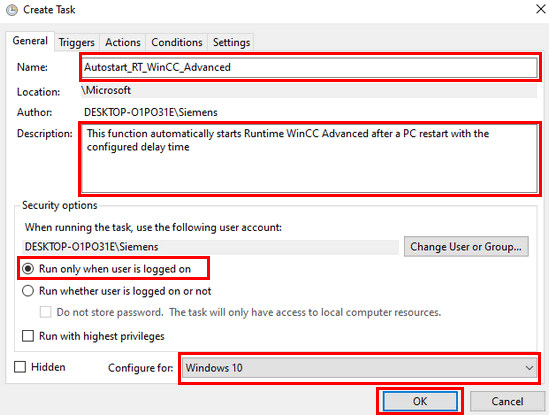
Fig. 03
4. Switch to the "Trigger" tab and click "New...".
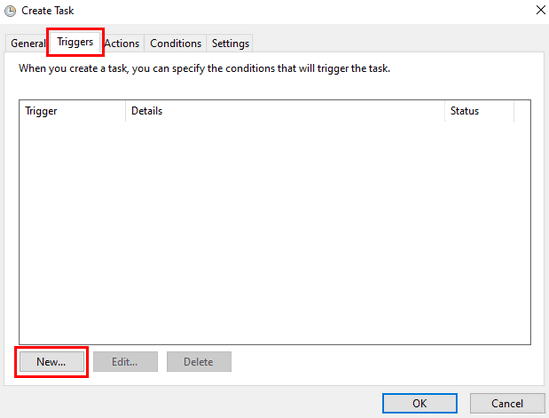
Fig. 04
5. Apply the settings as shown in Fig. 05.
If necessary, change the delay time to suit your requirements.
Then click "OK".
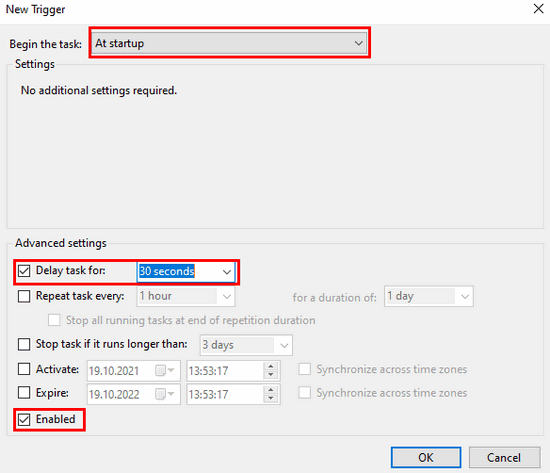
Fig. 05
6. Check the marked settings and click "OK".
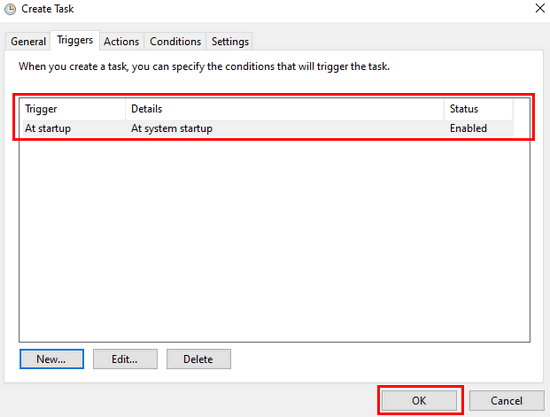
Fig. 06
7. Switch to the "Actions" tab and click "New...".
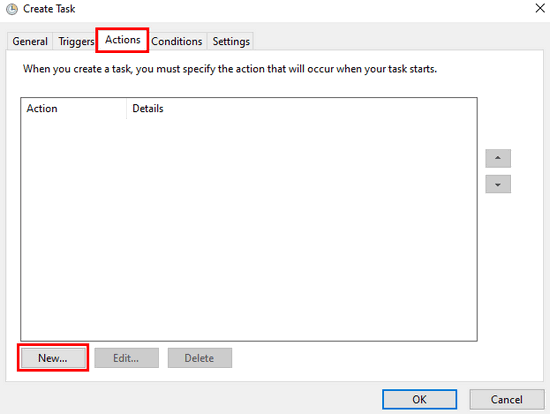
Fig. 07
8. Select the action "Start a program" and search for the program/script to be started.
An example of a program path is shown in Fig. 09.
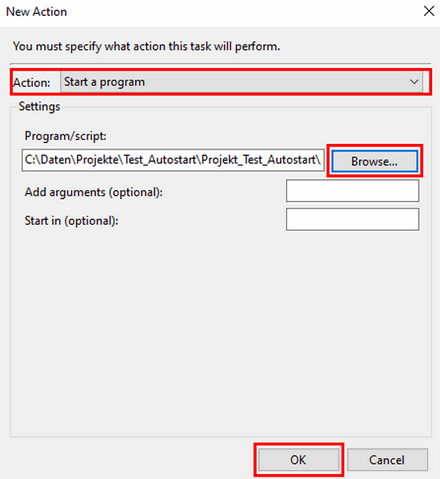
Fig. 08
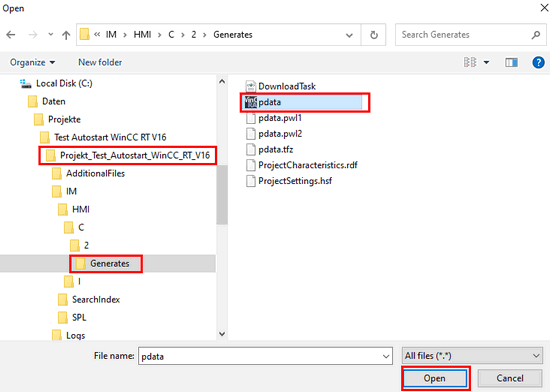
Fig. 09
9. Switch to the "Conditions" tab and set the conditions as shown in Fig. 10.
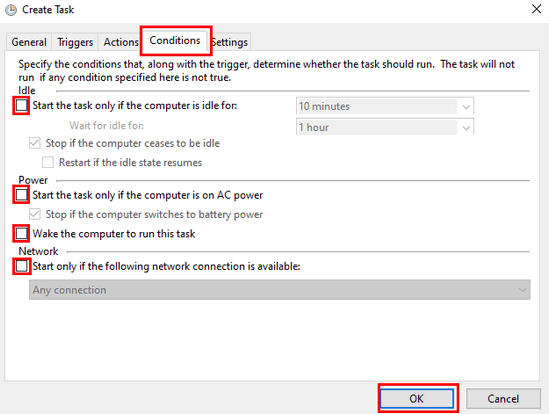
Fig. 10
10. Switch to the "Settings” tab and set them as shown in Fig. 11.
If necessary, change the settings to meet your requirements.
Then click "OK".
This completes the task scheduling.
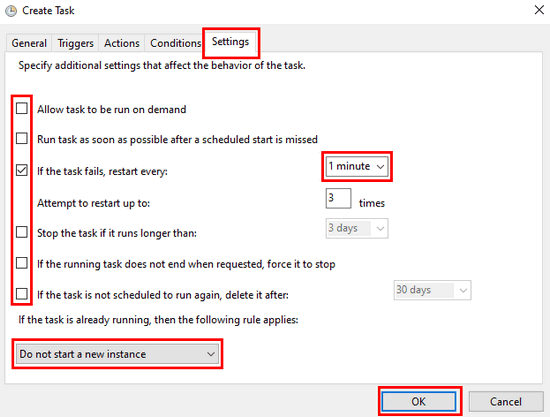
Fig. 11
11. Restart the PC station and test the Autostart.
Section 2: Panel
1. Call the Start Center via "Start -> Siemens Automation -> WinCC Runtime Loader".
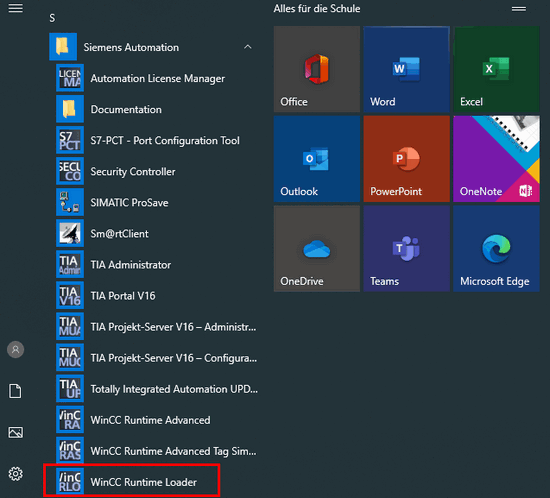
Fig. 12
2. Click "Settings".
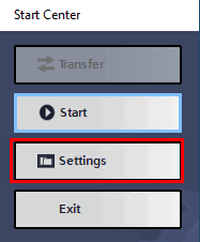
Fig. 13
3. If the WinCC project is already on the panel, set the parameters as follows:
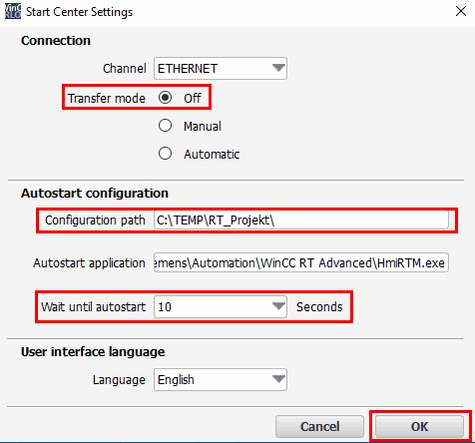
Fig. 14
Note: The executable project is located in the "Configuration path".
4. If the project still needs to be loaded, set the parameters as follows:
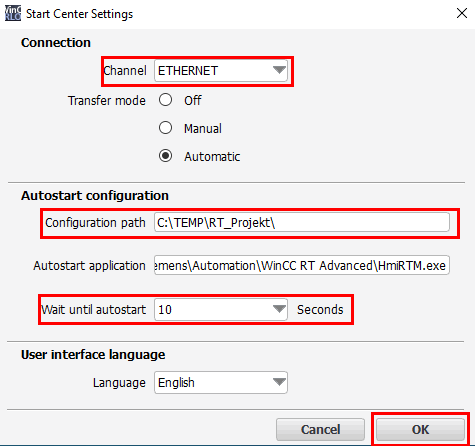
Fig. 15
5. Click "Start" to start the Runtime.
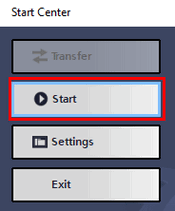
Fig. 16 |
|
| Back to top |
|
 |
|
|
You cannot post new topics in this forum
You cannot reply to topics in this forum
You cannot edit your posts in this forum
You cannot delete your posts in this forum
You cannot vote in polls in this forum
|
Powered by phpBB © 2001, 2005 phpBB Group
Fa-ti si tu propriul forum GRATUIT, pe www.myforum.ro |
 FAQ
FAQ Search
 Memberlist
 Usergroups
 Register
 Profile
 Log in to check your private messages
 Log in


