 |
plc.myforum.ro
PLCs users www.plc.myforum.ro!
|
| View previous topic :: View next topic |
| Author |
Message |
valz
Member 3


Joined: 26 Jul 2015
Posts: 771
|
 Posted: 22/11/2021 15:42 Post subject: Autostart WinCC RT Professional (TIA Portal) Posted: 22/11/2021 15:42 Post subject: Autostart WinCC RT Professional (TIA Portal) |
 |
|
How do you avoid Autostart problems with WinCC RT Professional (TIA Portal)?
https://support.industry.siemens.com/cs/document/109485615/
Depending on the configuration of your computer, synchronization conflicts might arise with the Autostart of WinCC Runtime. You can avoid such conflicts by automatically delaying the start of the Runtime by a specific time.
WinCC Runtime V7
Information about avoiding synchronization problems with Autostart of the WinCC V7 Runtime is available in
https://support.industry.siemens.com/cs/document/19249315/how-do-you-avoid-synchronization-problems-with-wincc-autostart
WinCC Runtime Advanced (TIA Portal)
Information about the Autostart of WinCC Runtime Advanced and its delay is available in
https://support.industry.siemens.com/cs/document/58565180/how-is-the-autostart-in-windows-configured-and-delayed-for-wincc-runtime-advanced
WinCC Runtime Professional (TIA Portal)
Using the "WinCC RT Start" application permits you to start WinCC Runtime Professional automatically after system startup. Here, there might be conflicts with other system components whose startup has not yet been completed. You can avoid this by using the Windows Task Scheduler to delay the start of the Runtime in a defined way.
Procedure
1
Configure the Autostart of your WinCC RT Professional configuration as usual with the "WinCC RT Start" tool.
As required, select the "Allow "Cancel" during activation" option.
Close the configuration with "Apply" to save the settings in the Windows Registry.
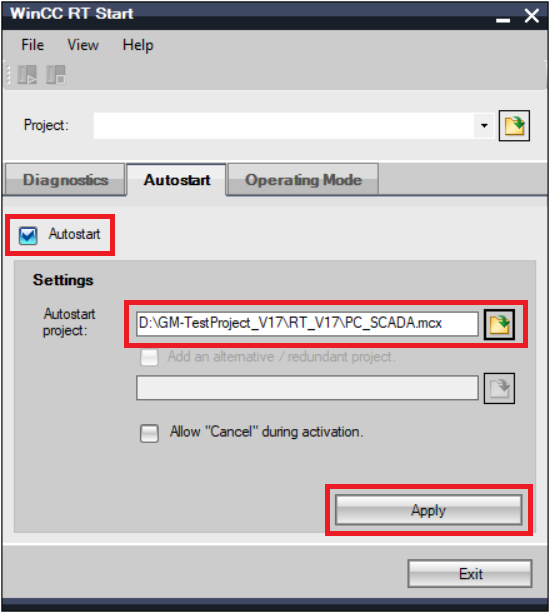
Fig. 01
Note
Information on using the "WinCC RT Start" tool can be found, for example, in the "SIMATIC WinCC Engineering V17 - Options" manual under "WinCC Server / WinCC Client" WinCC RT Start.
https://support.industry.siemens.com/cs/mdm/109794201
2
Open the Run dialog of the operating system via the key combination <Win> + <R>.
Enter the "regedit" command.
Click the "OK" button to close the dialog window.
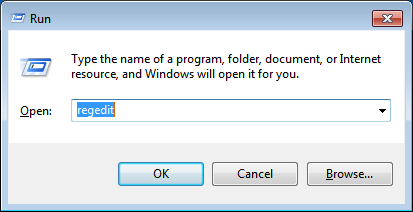
Fig. 02
Note
Additional information on how to use the Windows Registry can be found at the end of the entry.
3
Confirm any dialog displayed about user account control with "Yes".
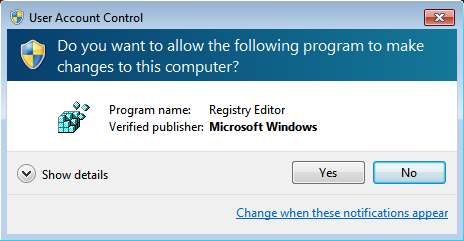
Fig. 03
4
In the opened "Registry Editor" you navigate to the path "Computer > HKEY_LOCAL_MACHINE > SOFTWARE > Wow6432Node > Microsoft > Windows > CurrentVersion > Run".
Via the item "AutoStartWinCCRT" you open the pop-up menu and select "Modify...".
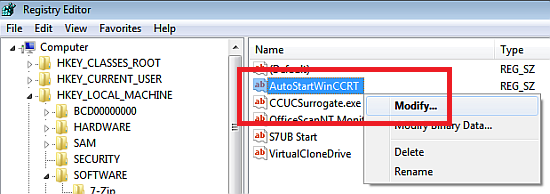
Fig. 04
5
Use the key combination <Ctrl> + <C> to copy the value of the code to the clipboard.
Click the "Cancel" button to close the dialog window.
Close the Registry editor.
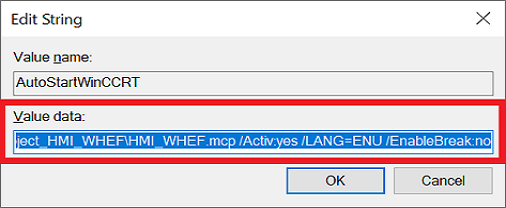
Fig. 05
6
Create a new text document and copy the value of the code from the clipboard into the opened text document via the key combination <Ctrl> + <V>.
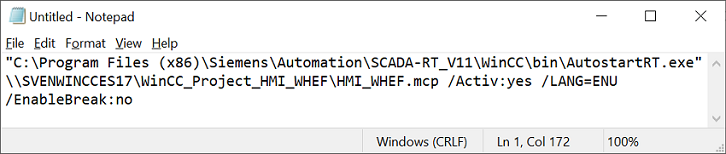
Fig. 06
Note
Additional information about the parameters of the batch file can be found after this table.
7
Change the name of the text document to AutoStart.bat.
Confirm the change of the file name extension by clicking the "Yes" button.
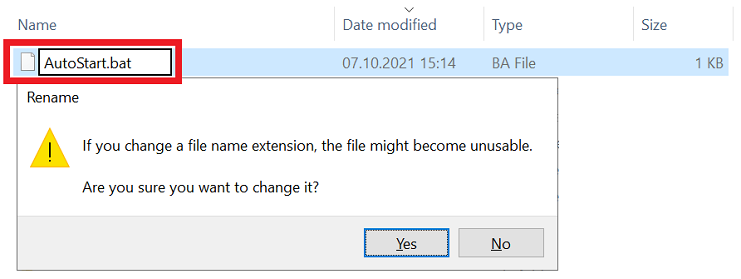
Fig. 07
8
In the Start menu, go to "Windows Administrative Tools" and open the "Task Scheduler".
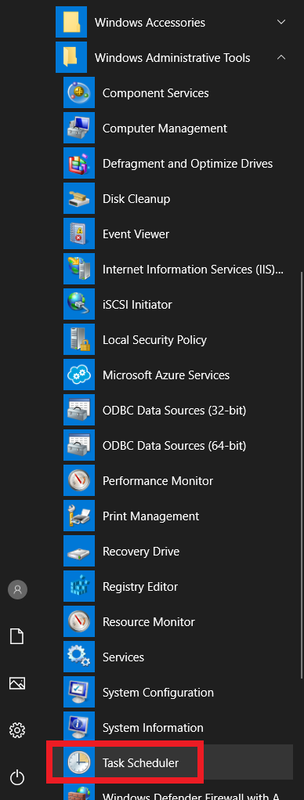
Fig. 08
9
In the "Actions" menu you select "Create Task...".
In the "General" tab you assign a name for the task.
Select the "Run with highest privileges" option.
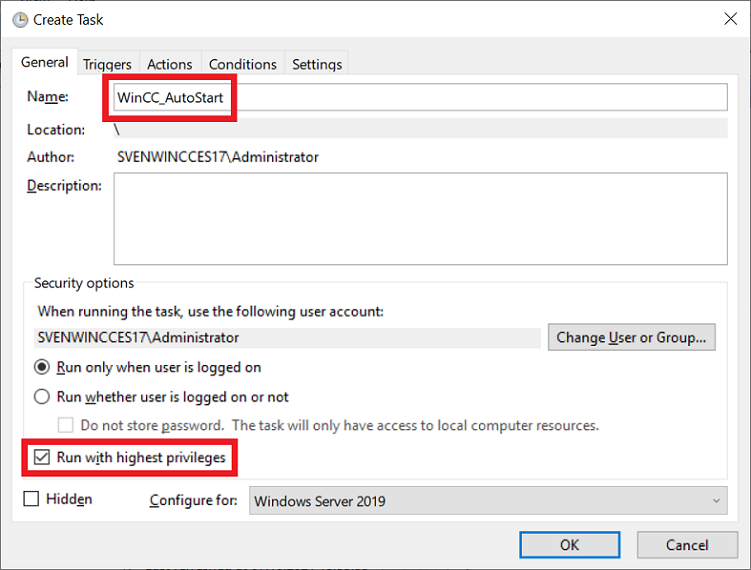
Fig. 09
10
In the "Triggers" tab you create a new trigger with the "New..." button.
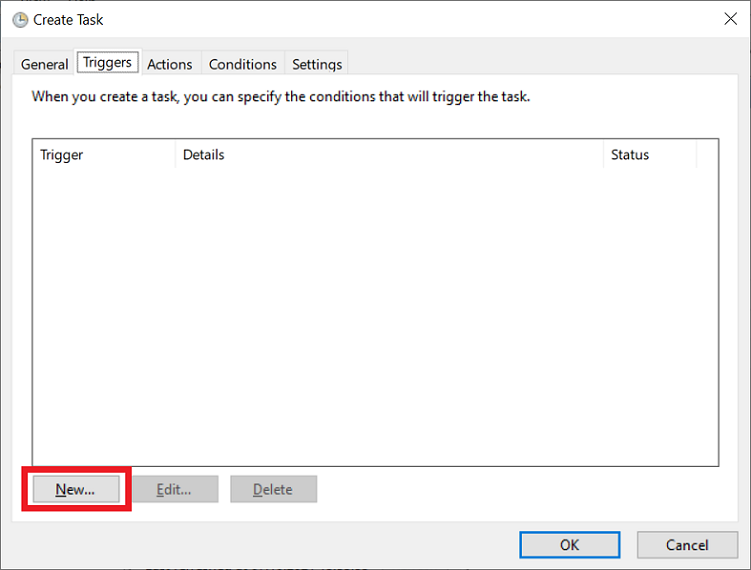
Fig. 10
11
In the trigger properties for "Begin the tasks" you select "At startup".
Under "Advanced settings" you select the option "Delay task for:".
In the drop-down list box you select "15 minutes".
Overwrite the value "15" with the value with which you want to delay the autostart, "5", for example.
Close the "New Trigger" window by clicking the "OK" button.
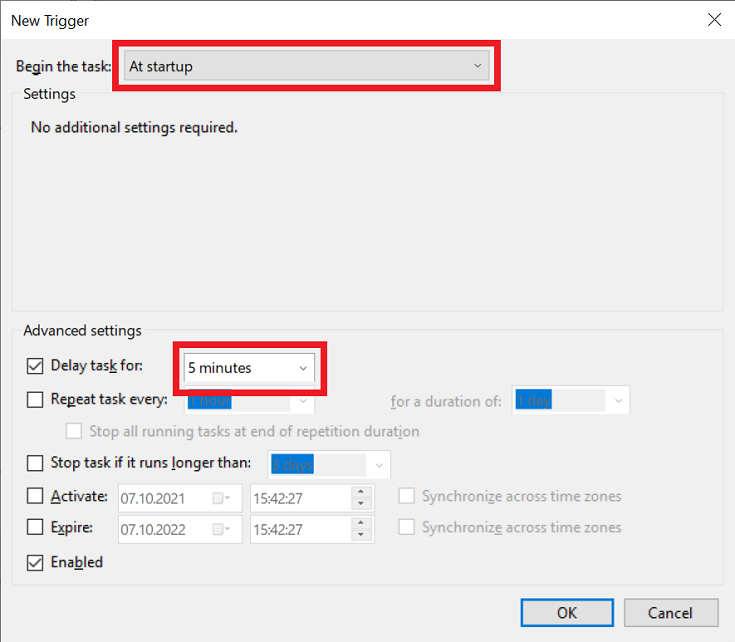
Fig. 11
12
In the "Actions" tab you create a new action with the "New..." button.
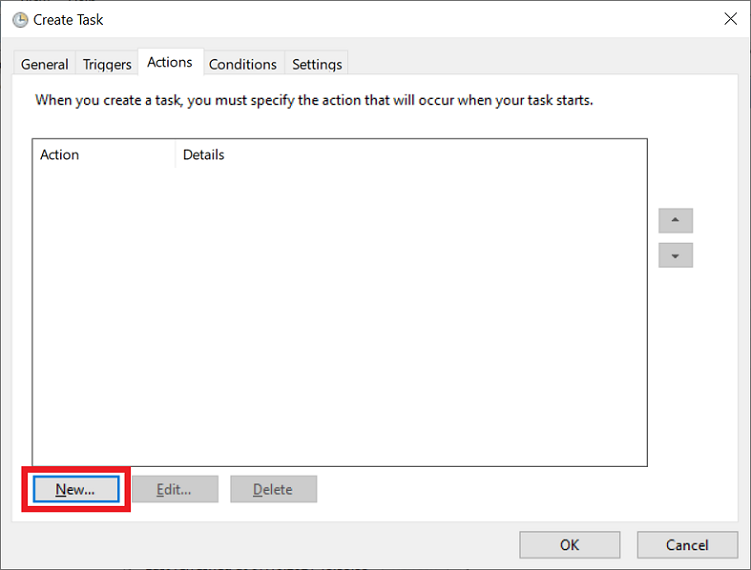
Fig. 12
13
In the "New Action" window, for "Action" you select "Start a program".
With the "Browse..." button you open the "File Selection" dialog.
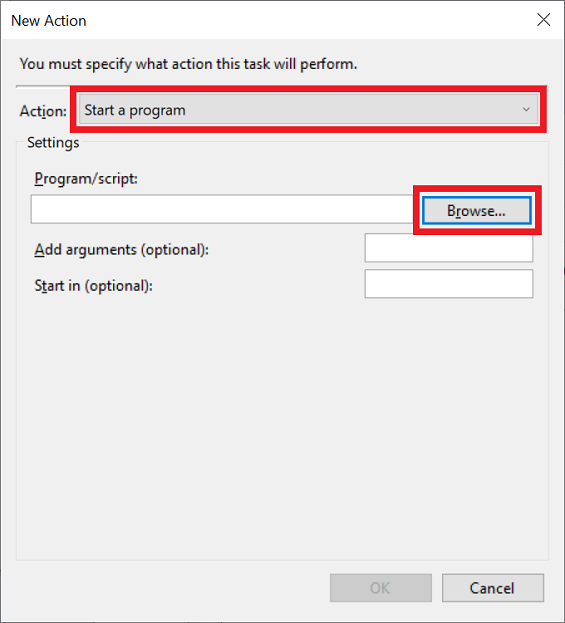
Fig. 13
14
Select the batch file "AutoStart.bat".
Close the "New Action" dialog with the "OK" button.
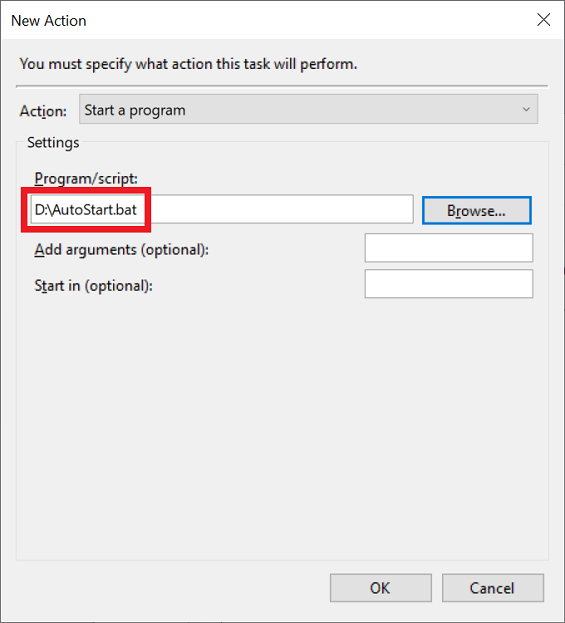
Fig. 14
15
Close the "Create Task" dialog with the "OK" button.
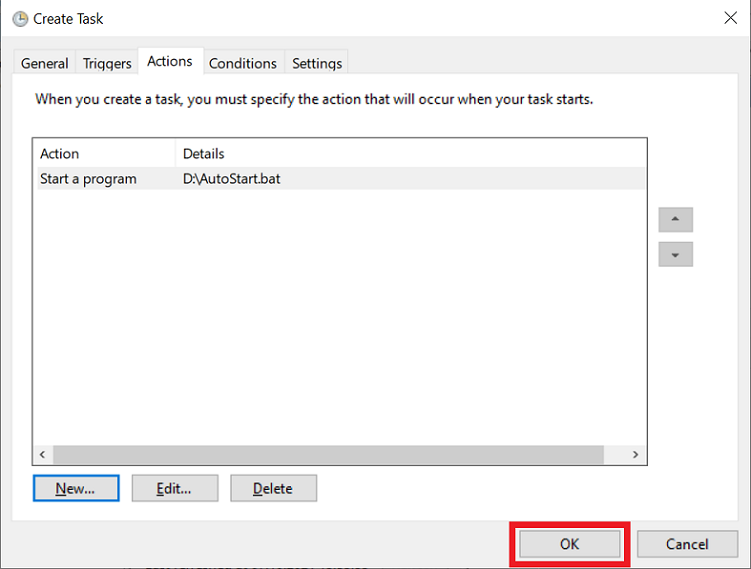
Fig. 15
16
The "WinCC_AutoStart" task is now ready in the Task Scheduler Library.
Close the Task Scheduler.
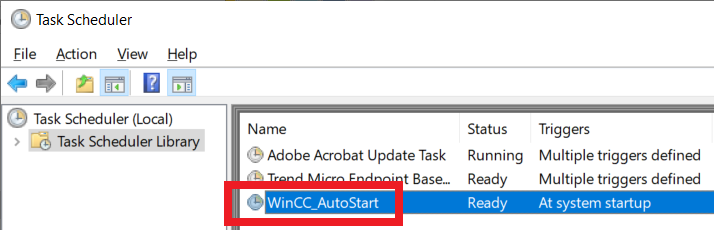
Fig. 16
17
In the Start menu, call the "WinCC RT Start" tool again.
Disable the option "Autostart" and confirm with "Apply".
Warning
This is absolutely necessary to ensure that in future the WinCC Autostart can only be enabled via the Task Scheduler. The autentic value code in the Registry editor is also deleted.
Close the dialog with the "OK" button.
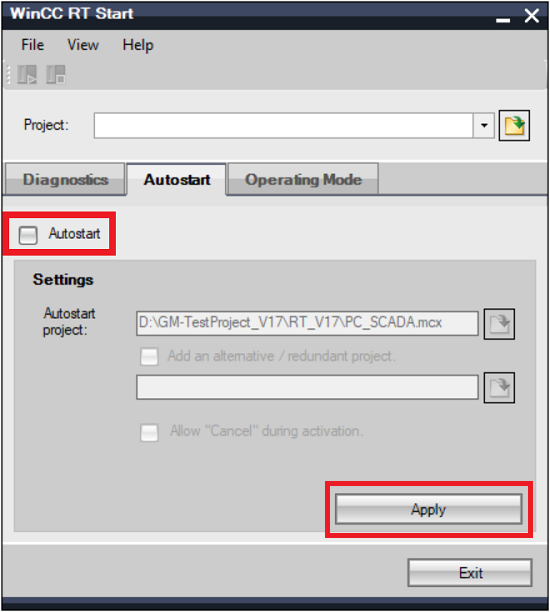
Fig. 17
18
Restart your operating system.
Five minutes after the operating system has started the Task Scheduler starts the "AutoStart.bat" batch file.

Fig. 18
The "AutoStart.bat" batch file now calls the "AutoStartRT" with the corresponding parameters and activates the WinCC Runtime with the selected project.
Further information about the parameters of the batch file "AutoStart.bat"
With the /Active parameter you decide whether the project is to be opened only in WinCC Runtime or whether the WinCC project is to be opened briefly and then closed again immediately.
/Active:yes
The WinCC project is opened only in WinCC Runtime. The WinCC Explorer is not started.
/Active:no
The WinCC project is opened briefly in the WinCC Explorer and then closed again immediately.
Note
The corresponding "Activate project at startup" option in the "Autostart Configuration" must match the "/Active" parameter.
With the /LANG parameter you preselect the language for display of the "AutoStartRT" tool.
/LANG=DEU
Runtime language is German
/LANG=ENU
Runtime language is English
With the /EnableBreak parameter you enable/disable the "Cancel" button.
/EnableBreak:no
It is not possible to operate the "Cancel" button while "AutoStartRT" is being executed.
/EnableBreak:yes
It is possible to operate the "Cancel" button while "AutoStartRT" is being executed.
Note
It is possible to operate the "Cancel" button while "AutoStartRT" is being executed. |
|
| Back to top |
|
 |
|
|
You cannot post new topics in this forum
You cannot reply to topics in this forum
You cannot edit your posts in this forum
You cannot delete your posts in this forum
You cannot vote in polls in this forum
|
Powered by phpBB © 2001, 2005 phpBB Group
Fa-ti si tu propriul forum GRATUIT, pe www.myforum.ro |
 FAQ
FAQ Search
 Memberlist
 Usergroups
 Register
 Profile
 Log in to check your private messages
 Log in


